How to Log Food
Bevel makes it easy to log your meals in the way that works best for you. Choose from the options below to quickly add food and keep your Nutrition data accurate and up to date.
Import Food: Import food data from your camera roll to quickly add existing entries into Bevel. This is especially useful if you use a third-party app to track nutrition. You can add a description after importing the picture.
Capture Food: Use your camera to capture your meal. Bevel will analyze the image and generate a food log based on what it detects. You can add a description after taking the picture. You can also turn on the flash using the lightning bolt in the top-right corner. This feature is for taking a photo of your food, not a nutrition label. If you’re logging information from a nutrition label, please use the Custom Food flow instead.
Scan Food: Scan a barcode to instantly log packaged foods with accurate nutritional information. From here, you can scan multiple barcodes or manually enter barcode numbers. You can also enable the flash using the lightning bolt in the top-right corner. If no barcode is found, scan the nutrition label and take a photo of the packaging, then click Save to add it to your nutrition log.
Describe Food: Type a natural description of your meal (for example, “grilled chicken salad with avocado and olive oil”). The more specific you are with portion sizes, ingredients, and preparation methods, the more accurate the estimate will be. Bevel will automatically estimate portion sizes and calculate nutrition details for you. You can also import or capture a photo from this screen to further improve accuracy.
Search Foods: Search the food database to manually select foods and adjust serving sizes as needed.
Log My Foods: Quickly log foods you’ve previously added to save time and stay consistent with your regular meals. This includes Favorites, Recipes, Custom Foods (scan nutrition facts), and Historical entries
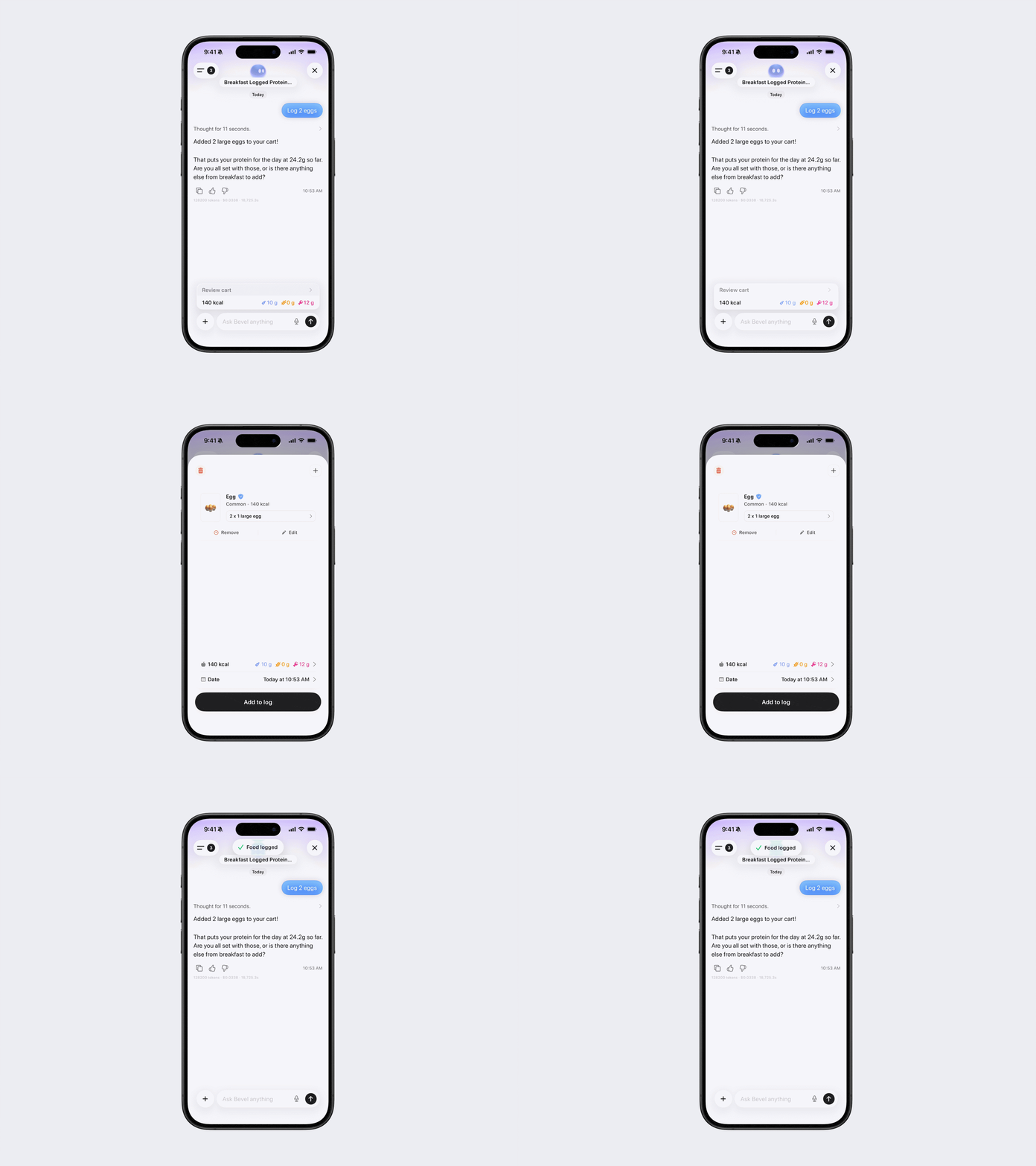
Bevel Intelligence: Simply tell Bevel what you ate or send a picture, and Bevel Intelligence will prepare a log entry for you. You can provide a natural description of your meal, and Bevel will estimate portions and nutrition details. Review the entry, then confirm to add it to your food log. It won’t be added automatically without your approval. Note: If you’re on Bevel Pro, using Bevel Intelligence is the best and most accurate way to log your meals.
Camera Control: Use your iPhone’s Camera Control button to quickly access the Capture Food feature for food logging. This makes it much faster to log your meals on the fly.
Widgets: Add Bevel widgets for quick access to key metrics and food logging.
Note: If you log food in another app, Bevel can pull calories and macronutrients from Apple Health to display in the app. However, since Bevel doesn’t have full context for meals logged outside the app, it cannot calculate a Nutrition Score for foods imported from Apple Health
Steps to Log Food: Import, Capture, Scan Describe, Search, Log My Foods
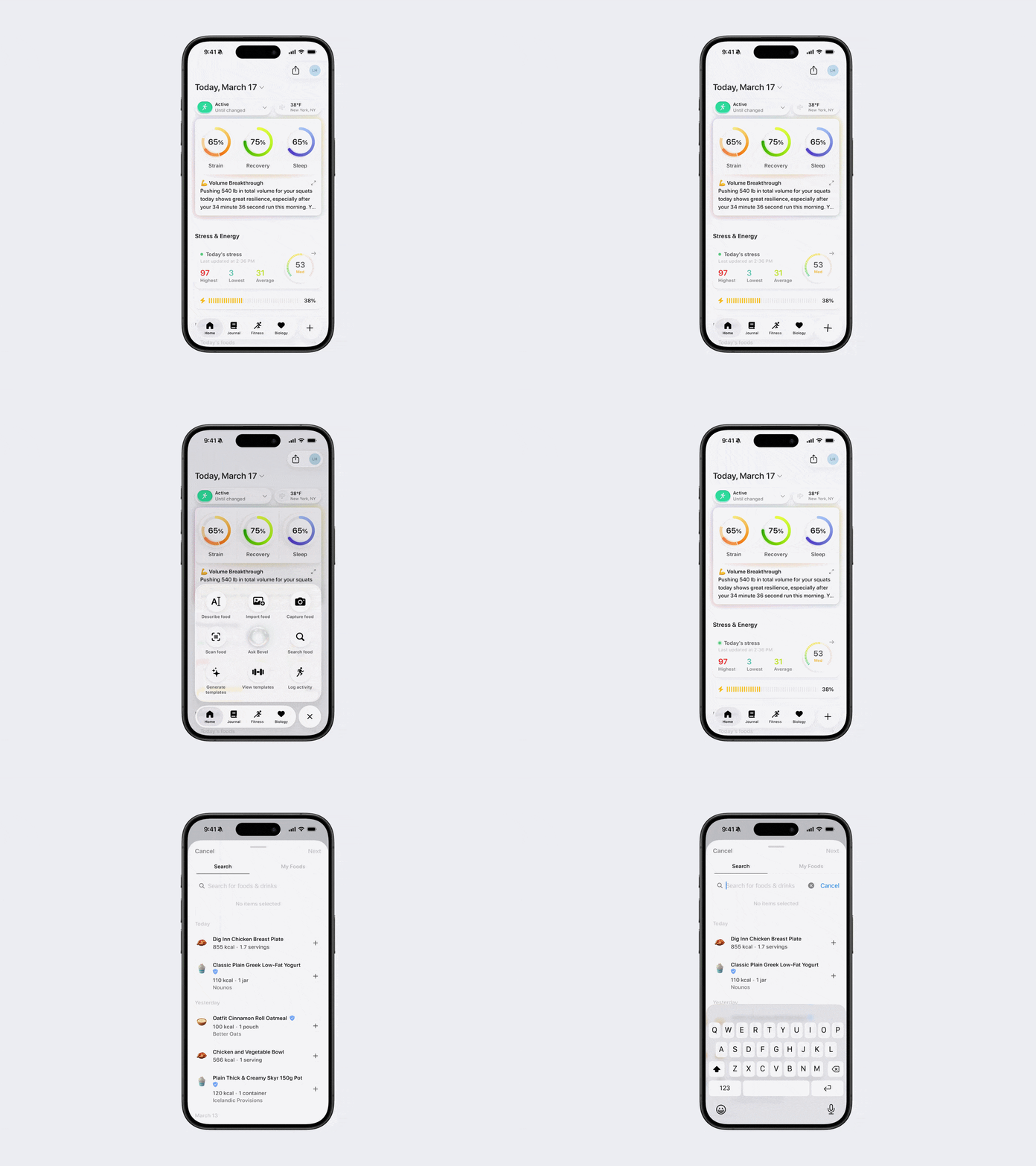
Option 1 (via Action Button): Fastest & Recommended Method
Open Bevel.
Tap the Action Button: the + button in the bottom-right corner.
Tap your desired way to log food
Import food
Capture food
Scan food
Describe food
Search food
Note: Don’t see this option? You can edit your action button to add it. See the Edit Action Button article for steps.
Option 2 (via Timeline)
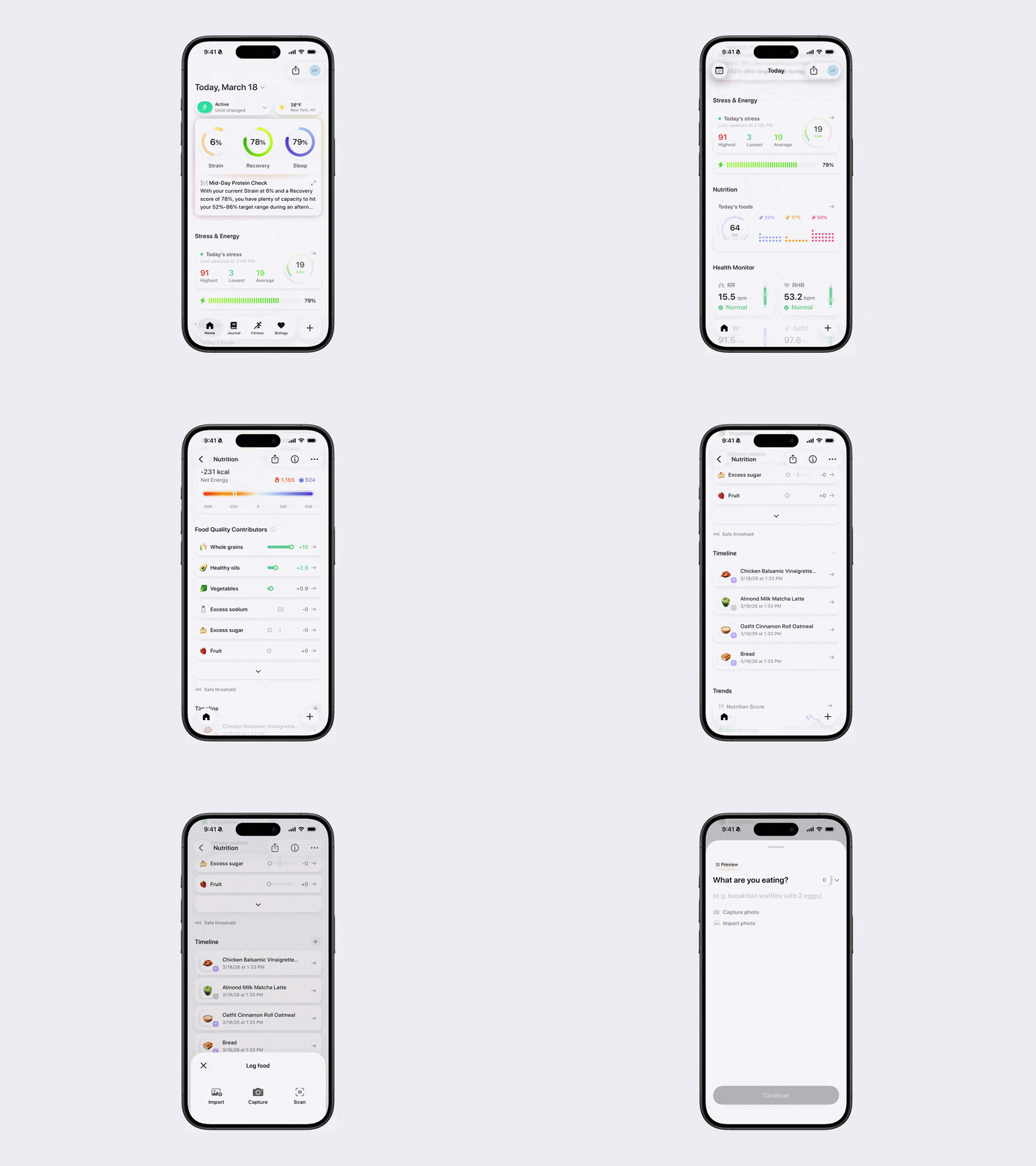
Open Bevel.
Scroll down to the Nutrition section and tap to open it.
Scroll down to Timeline.
Tap the + button.
Select your desired way to log food:
Import (from camera roll)
Capture (photo)
Scan (barcode)
Describe food
Search food
Log my foods: Add foods saved in My Foods, including Favorites, Recipes, Custom, or Historical entries.
Option 3 (via Widget)
Simply click the Nutrition widget to log food quickly. Read this article for instructions on downloading and using widgets.
Option 4 (via Bevel Intelligence)
Open Bevel Intelligence.
Describe what you ate or upload a photo of your meal.
Bevel Intelligence will analyze the information and add suggested foods to your Food Cart. The Food Cart appears within the chat at the bottom of the screen, above the message bar.
Review the suggested foods and make any adjustments as needed.
Tap Review Cart to open the Food Cart.
Tap Add to Log to add the foods to your Nutrition log.
Note:
Foods are not logged automatically. You must review and confirm them before they are added to your Nutrition log.
Each Bevel Intelligence chat has its own Food Cart.
Food Carts persist between app sessions.
Once foods are confirmed, they are removed from the Food Cart and added to your Nutrition log.