
How to Add My Foods
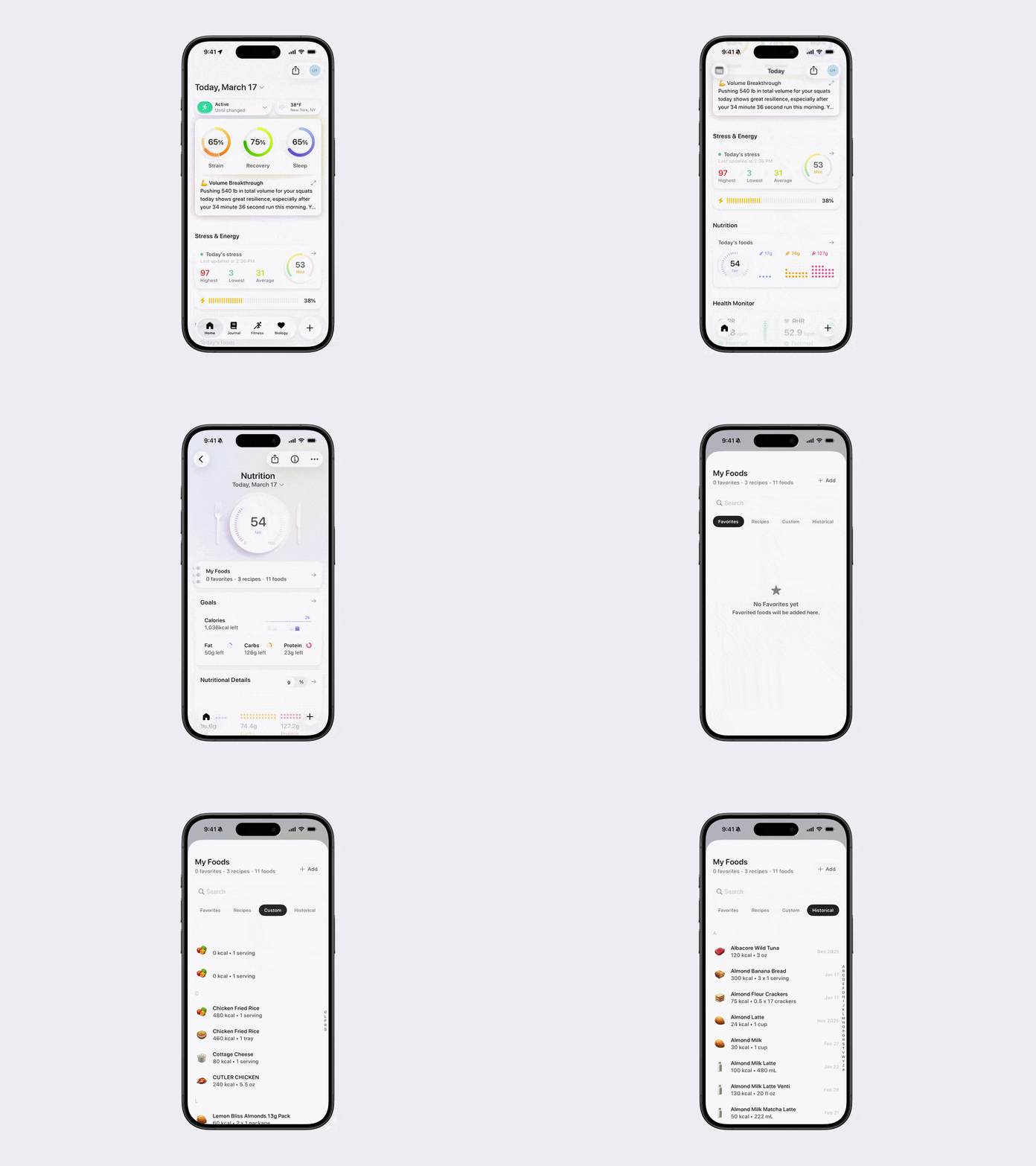
Adding foods to My Foods is helpful when you consistently eat the same foods, whether individually or as part of a meal. My Foods is organized into four categories: Favorites, Recipes, Custom, and Historical.
Historical: All foods you’ve ever logged.
Recipes: Multiple foods combined into a single recipe. You can create recipes by:
Importing a recipe
Scanning barcodes
Searching foods
Custom Foods: Foods that don’t exist in the Bevel database. You can manually enter nutrition information or scan a barcode to extract it.
Favorites: Foods you eat often and want to add quickly in the future. When entering a food, tap the star icon in the top-right corner of the food entry to save it as a Favorite.
Option 1 (via My Foods)
Open Bevel.
Scroll down to the Nutrition section and tap to open it.
Tap My Foods.
Add foods saved in My Foods, including Favorites, Recipes, Custom, or Historical entries.
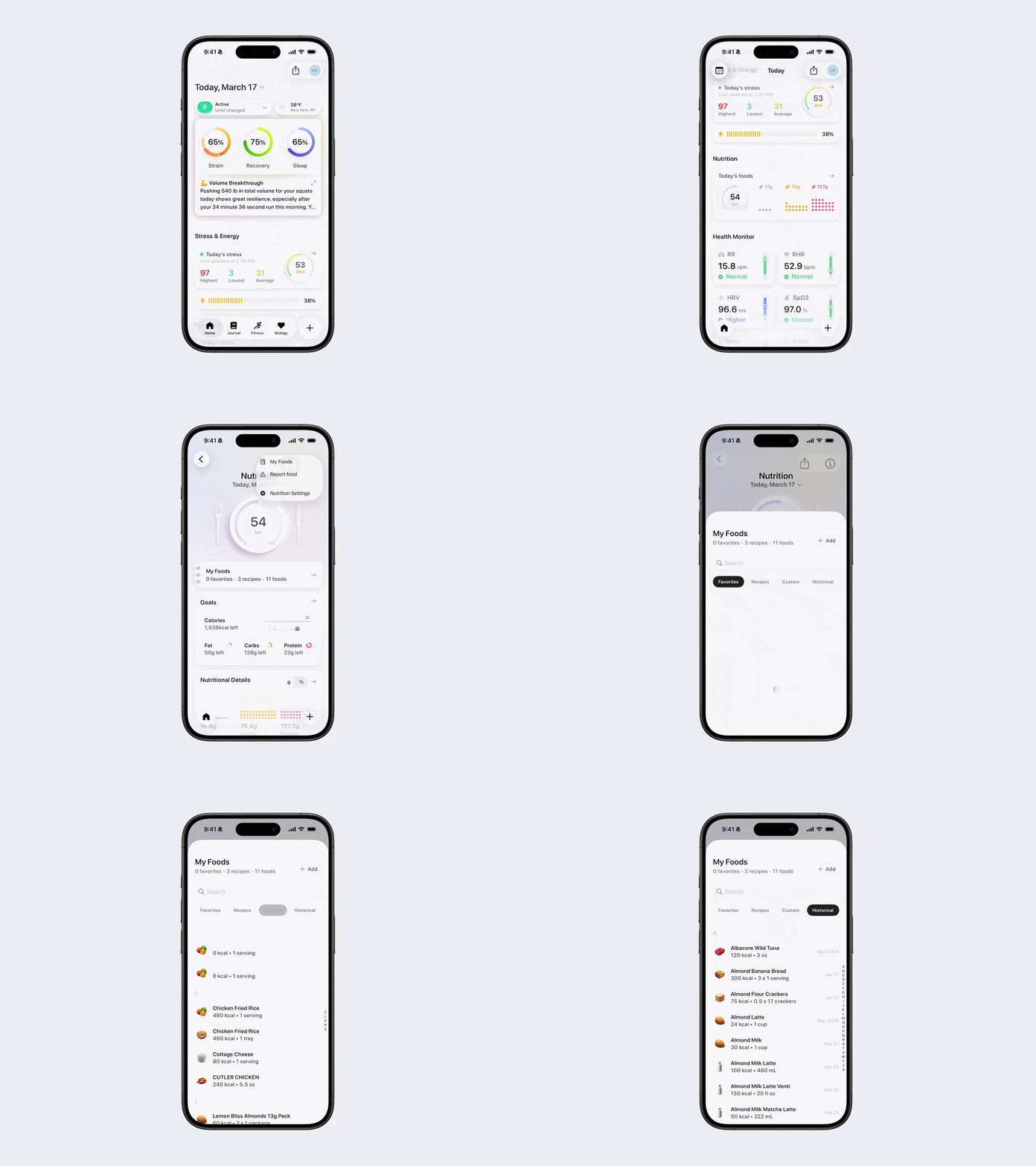
Option 2 (via Information icon)
Open Bevel.
Scroll down to the Nutrition section and tap to open it.
Tap the three dots (…) in the top-right corner.
Tap My Foods.
Add foods saved in My Foods, including Favorites, Recipes, Custom, or Historical entries.
Deleting Food Items from Favorites, Recipes, or Custom Foods
Follow either Option 1 or Option 2 above.
Navigate to the Favorites, Recipes, or Custom tab.
Tap the food item you want to delete.
Tap Edit Food at the bottom left.
Select the trash bin icon in the top-left to delete the item.