
How to Manage Bevel Widgets on iOS
This article explains how to find and customize Bevel Widgets on your iOS device. Bevel widgets let you quickly access key metrics and Insights, including Sleep, Strain, Nutrition, and Hydration, directly from your iPhone. You can add widgets to your Home Screen, Lock Screen, or Today View, and customize their appearance and behavior.
Home Screen Widgets
Navigate to your phone’s Home Screen.
Long-press an empty space until the apps start jiggling.
Tap Edit in the top-left corner.
Tap Add Widget.
Tap the search bar and search for Bevel.
Swipe through the available widget options and select the one you want.
Tap Add Widget.
Hold and drag the widget to your desired location on the Home Screen.
Tap Done to save your layout.
How to Customize a Bevel Home Screen Widget
Navigate to your phone’s Home screen.
Long-tap a Bevel widget.
Tap Edit Widget.
Tap any of the customization options to choose the configuration you prefer.
Today View Widgets
Swipe right from your Home Screen or Lock Screen to access Today View.
Long-press an empty space until the apps start jiggling.
Tap Edit in the top-left corner.
Tap Add Widget.
Tap the search bar and search for Bevel.
Swipe through the available widget options and select the one you want.
Tap Add Widget.
Hold and drag the widget to your desired location on the Home Screen.
Tap Done to save your layout.
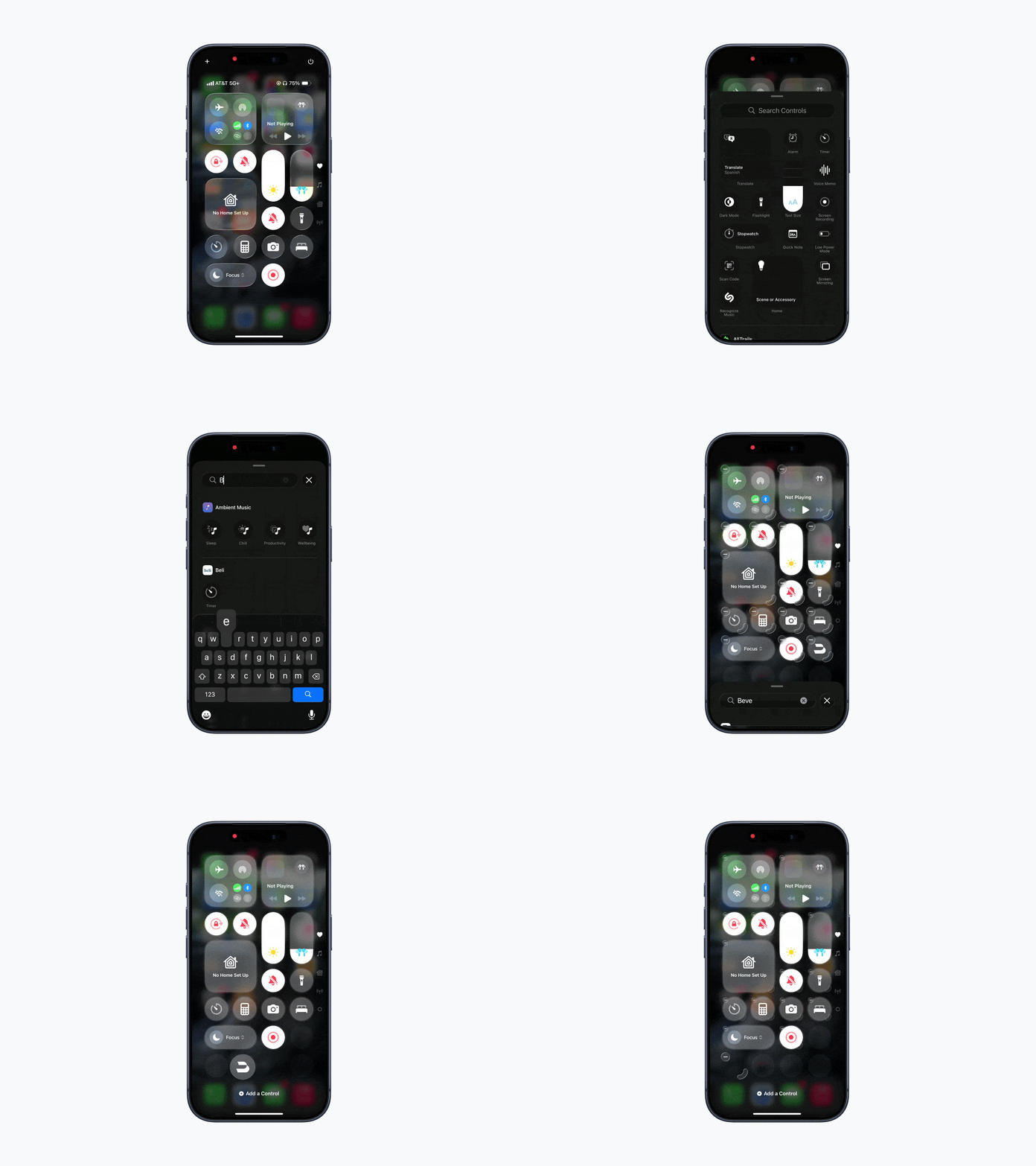
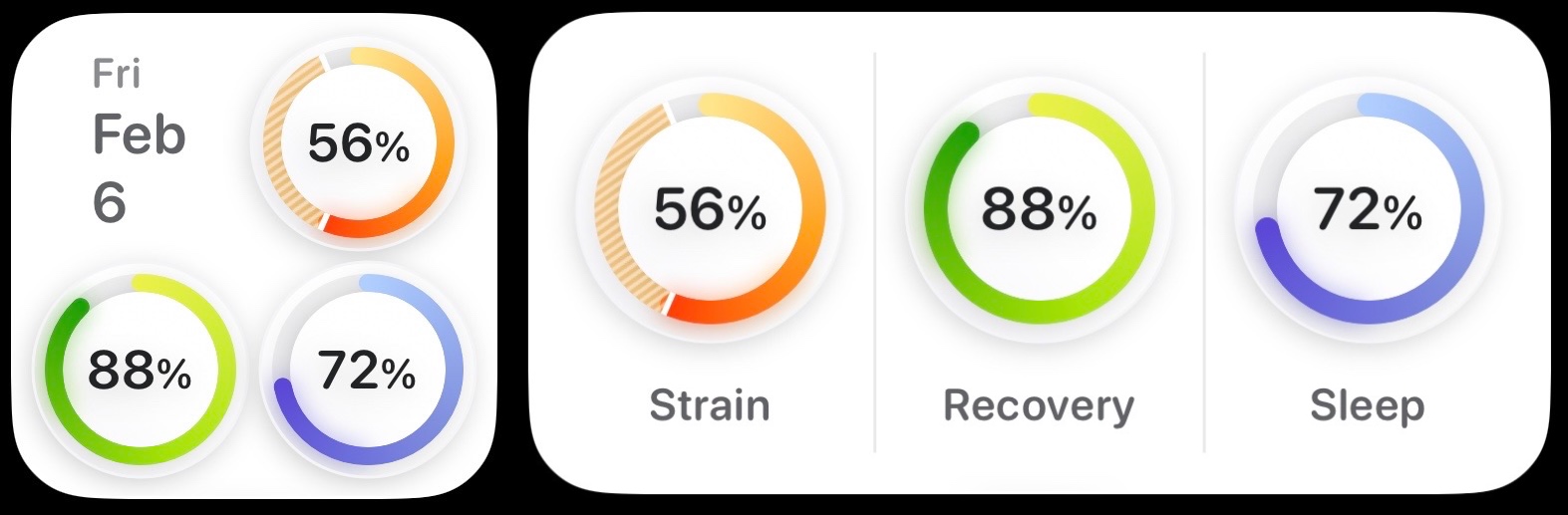
Home Screen and Today View Widget Options
Daily Overview: Monitor your Strain, Recovery, and Sleep scores throughout the day.
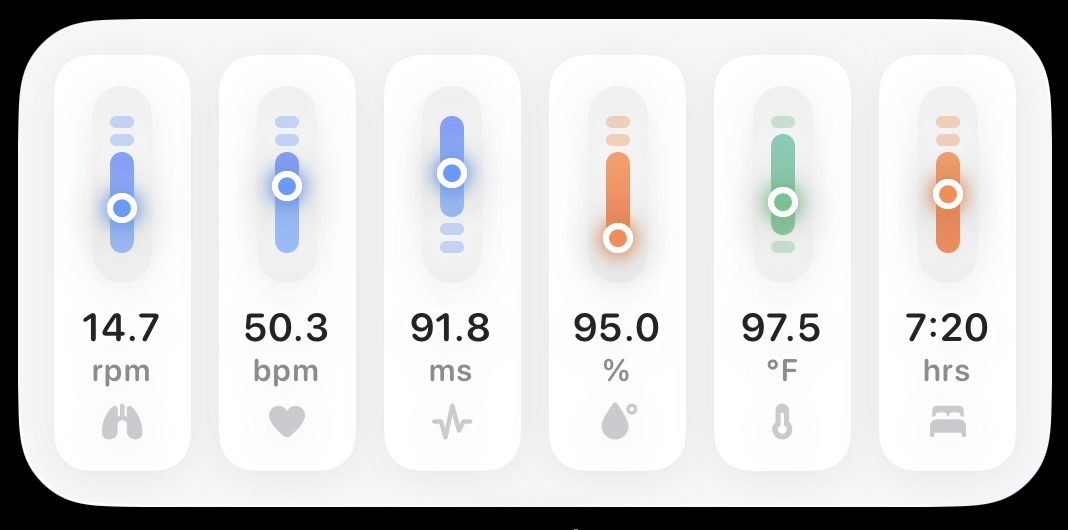
Health Monitor: Monitor your daily health metrics.
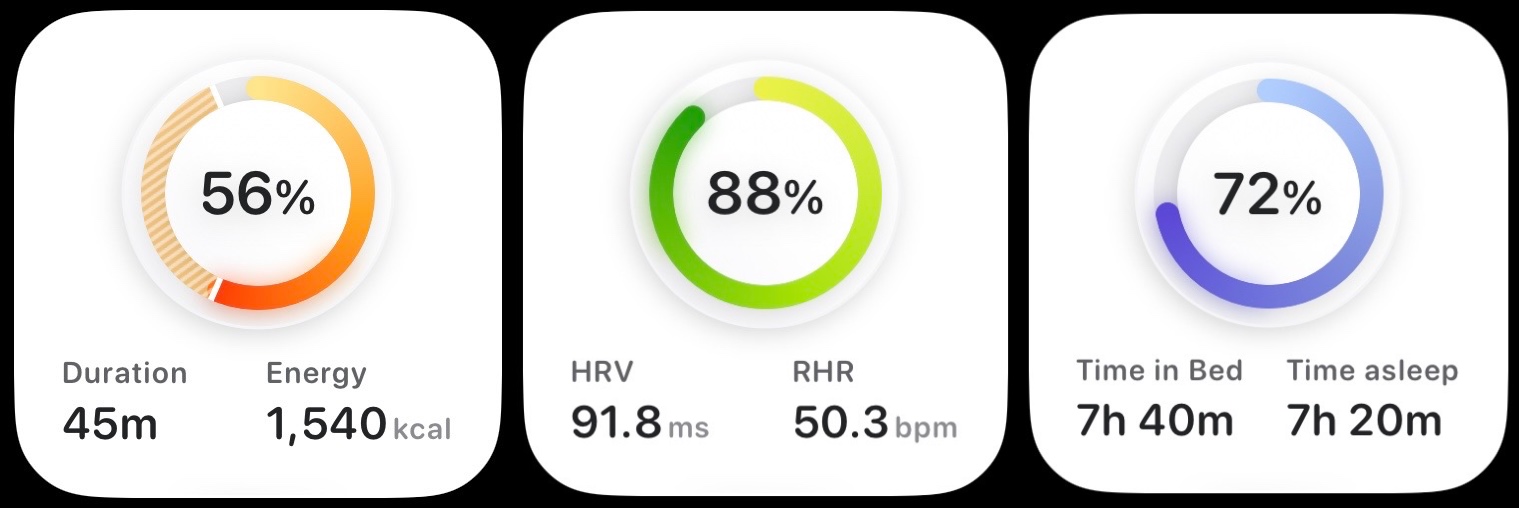
Single Metric: Monitor your Strain, Recovery, or Sleep scores throughout the day.
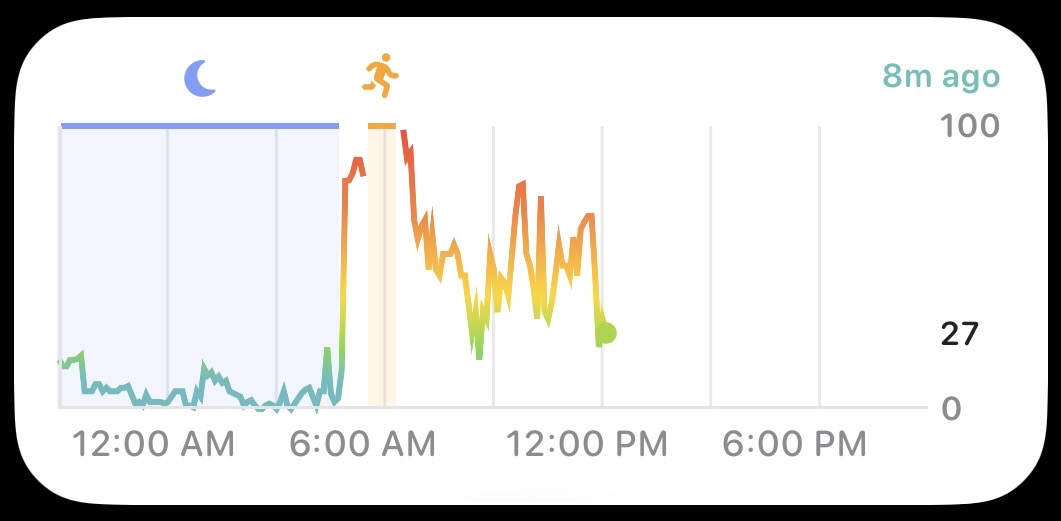
Stress: Monitor your stress throughout the day.
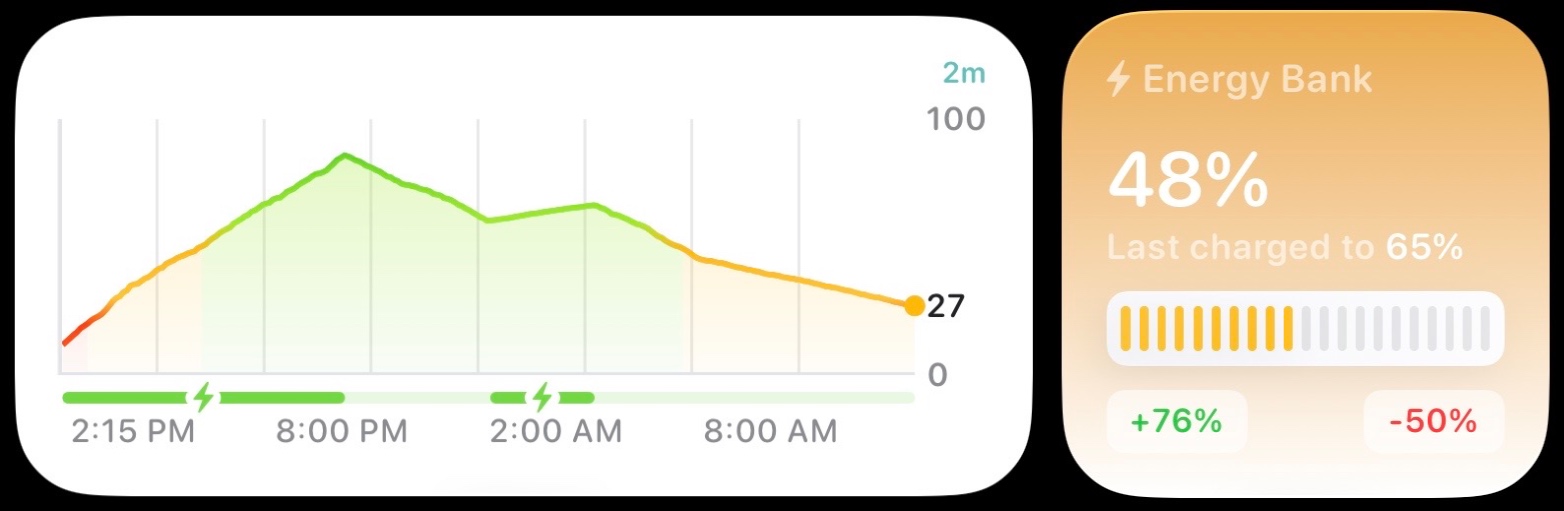
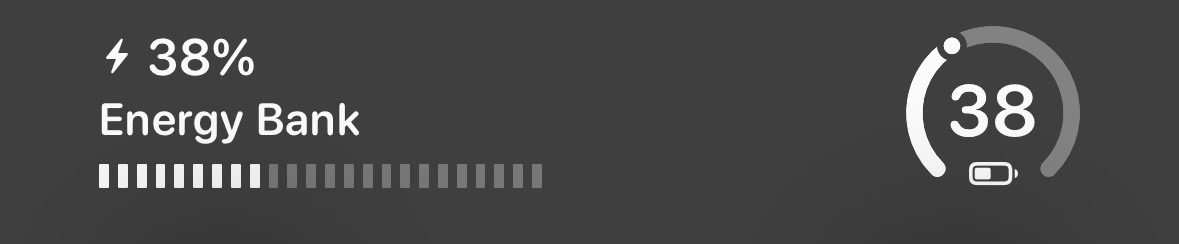
Energy Bank: Monitor your Energy Bank throughout the day.
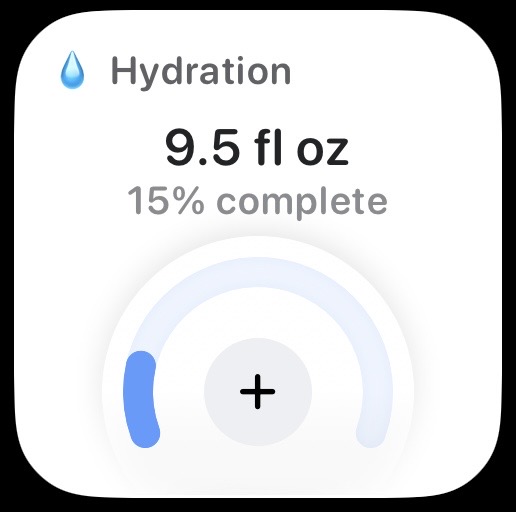
Hydration: Log water consumption throughout the day.
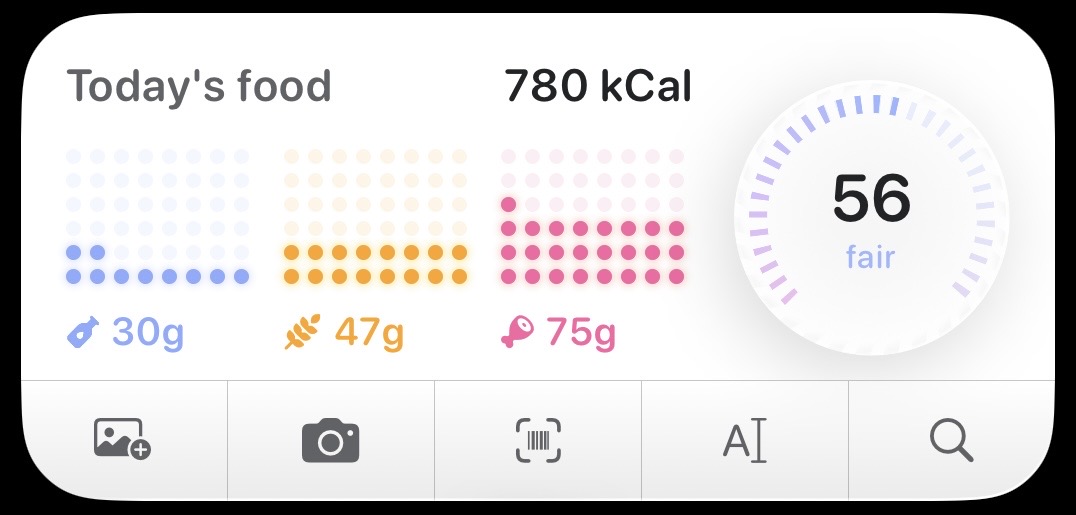
Nutrition: See an overview of your day's nutrition and quickly log food.
Calories & Macros: See your calorie and macro goal progress throughout the day.
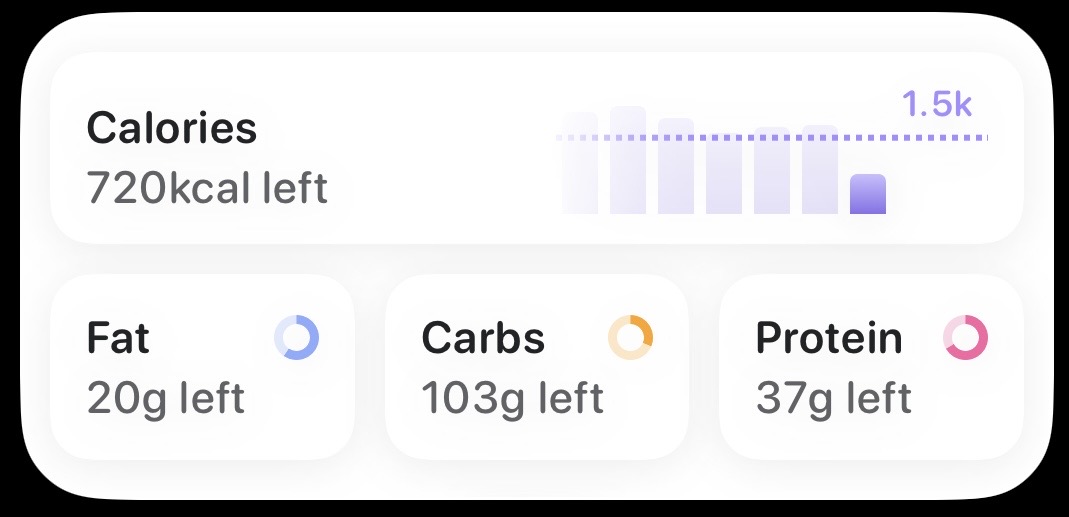
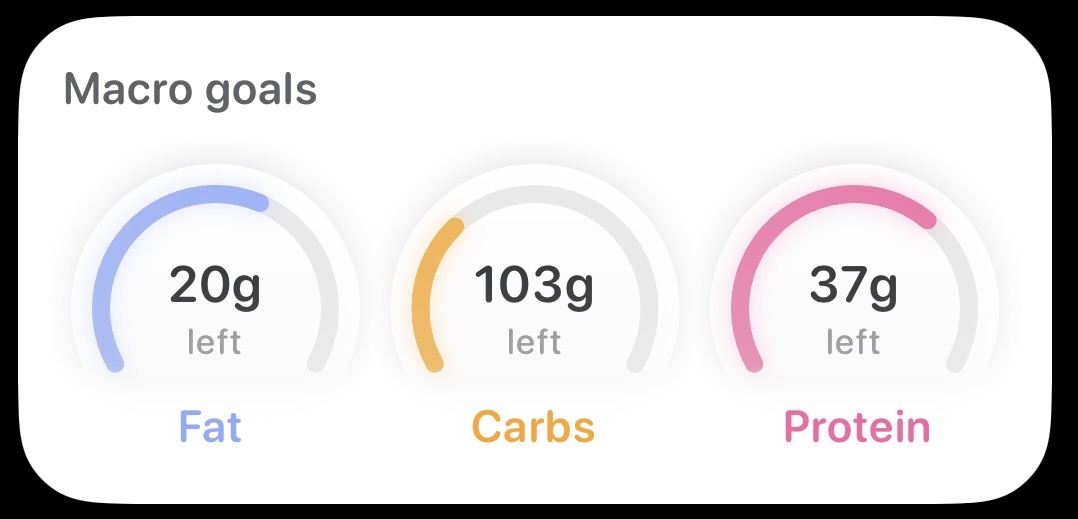
Macro Goals: See your daily macro goal progress throughout the day.
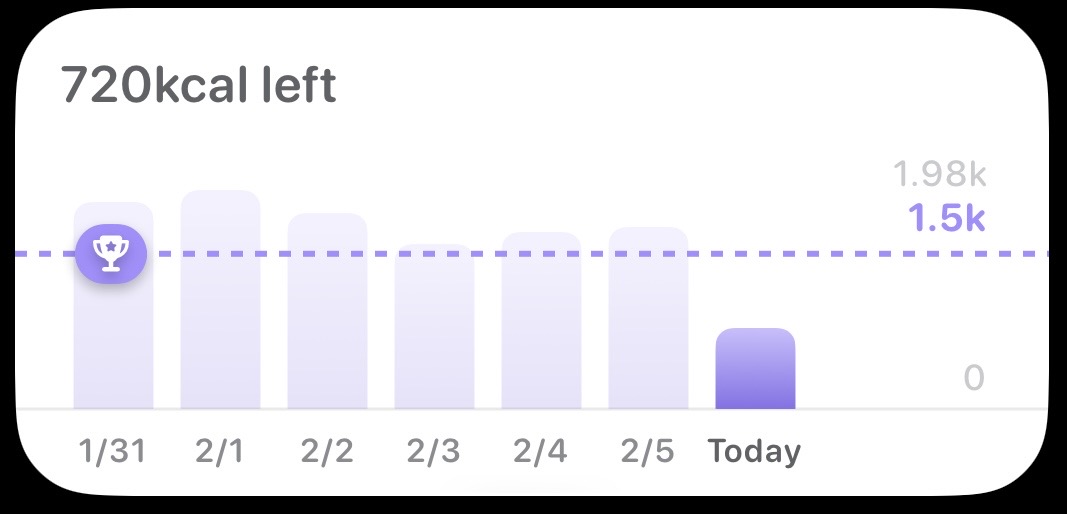
Calories: See your weekly calorie intake relative to your goal.
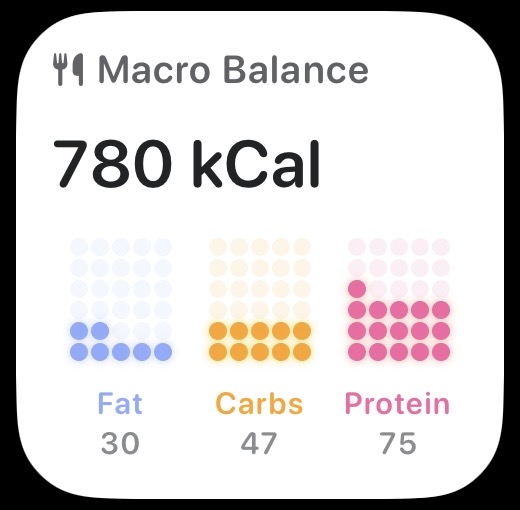
Macro Balance: Monitor your macro balance and caloric intake throughout the day.
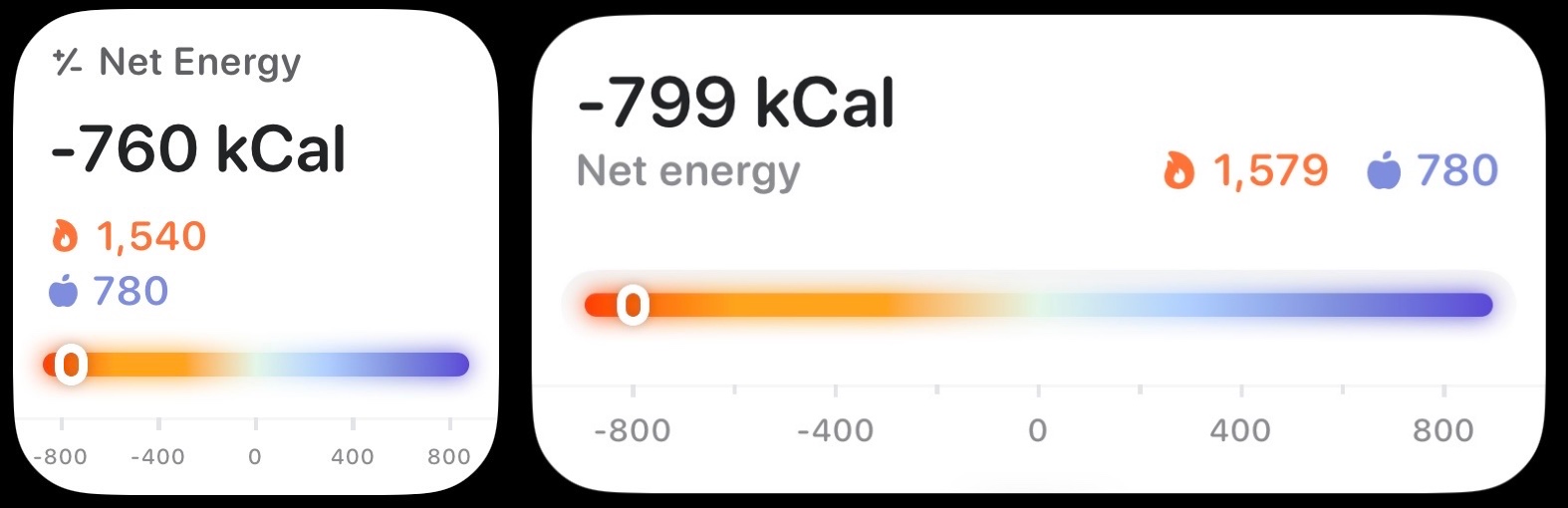
Net Energy: Monitor your Net Energy throughout the day.
Lock Screen Widgets
Navigate to your phone’s Lock screen.
Long-tap an empty space.
Tap Customize.
Tap Add Widgets
Scroll down and select Bevel.
Swipe through the available widget options and select the one you want.
Tap or drag to add the widget.
Lock Screen Widget Options
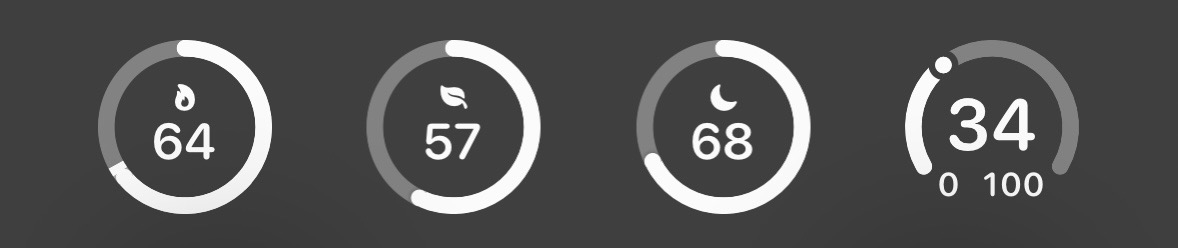
Each widget is available in a large (left) or small (right) size.
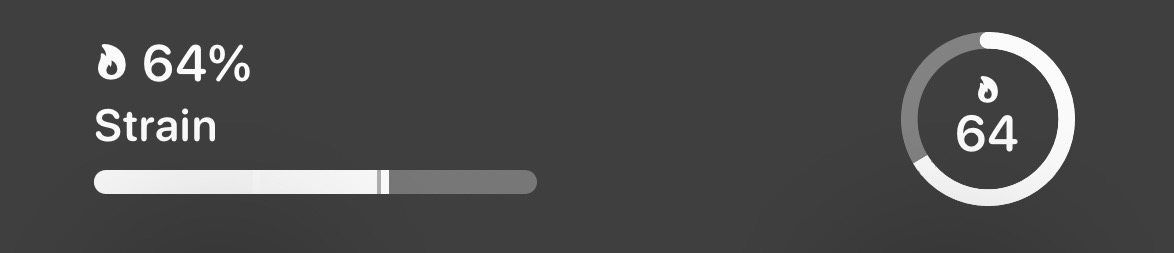
Strain: Monitor your Strain score throughout the day.
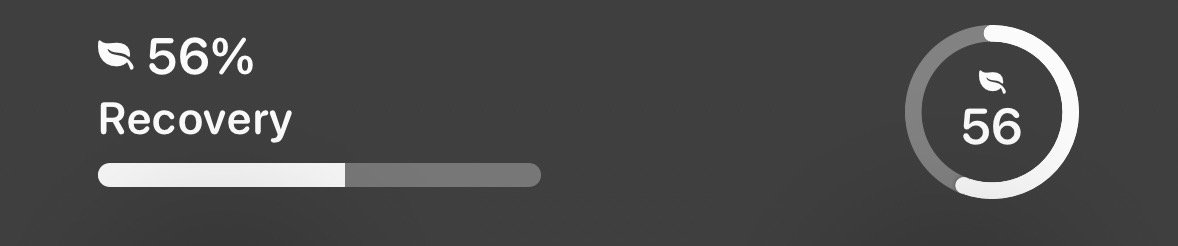
Recovery: View your daily Recovery score.
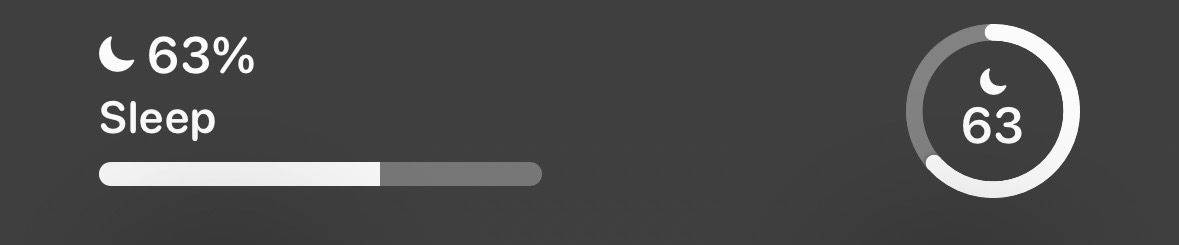
Sleep: View your daily Sleep Score.
Stress: Monitor your Stress throughout the day.
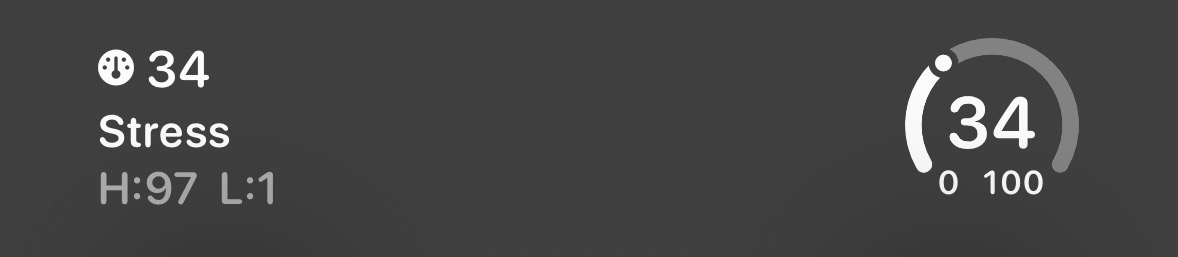
Energy Bank: Monitor your Energy Bank throughout the day.
Customize your Lock Screen: Choose the widgets that matter most to you.
Widget Personalization
Stack Widgets: Drag one widget on top of another to create a stack.
Smart Stack: Automatically rotate widgets based on usage.
Widget Suggestions: Enable suggestions for useful widgets based on your app usage.
Adding a Bevel Widget
For more detailed instructions on managing widgets and adding Bevel widgets, refer to Apple’s official guide on using widgets on iPhone.
If you’re experiencing issues with widgets, please refer to this article.