How to Customize Nutrition Settings
Bevel lets you personalize your Nutrition settings to match your goals, preferences, and tracking style. Adjusting your Nutrition settings helps ensure your insights, targets, and recommendations stay accurate and aligned with what matters most to you.
Customization Settings
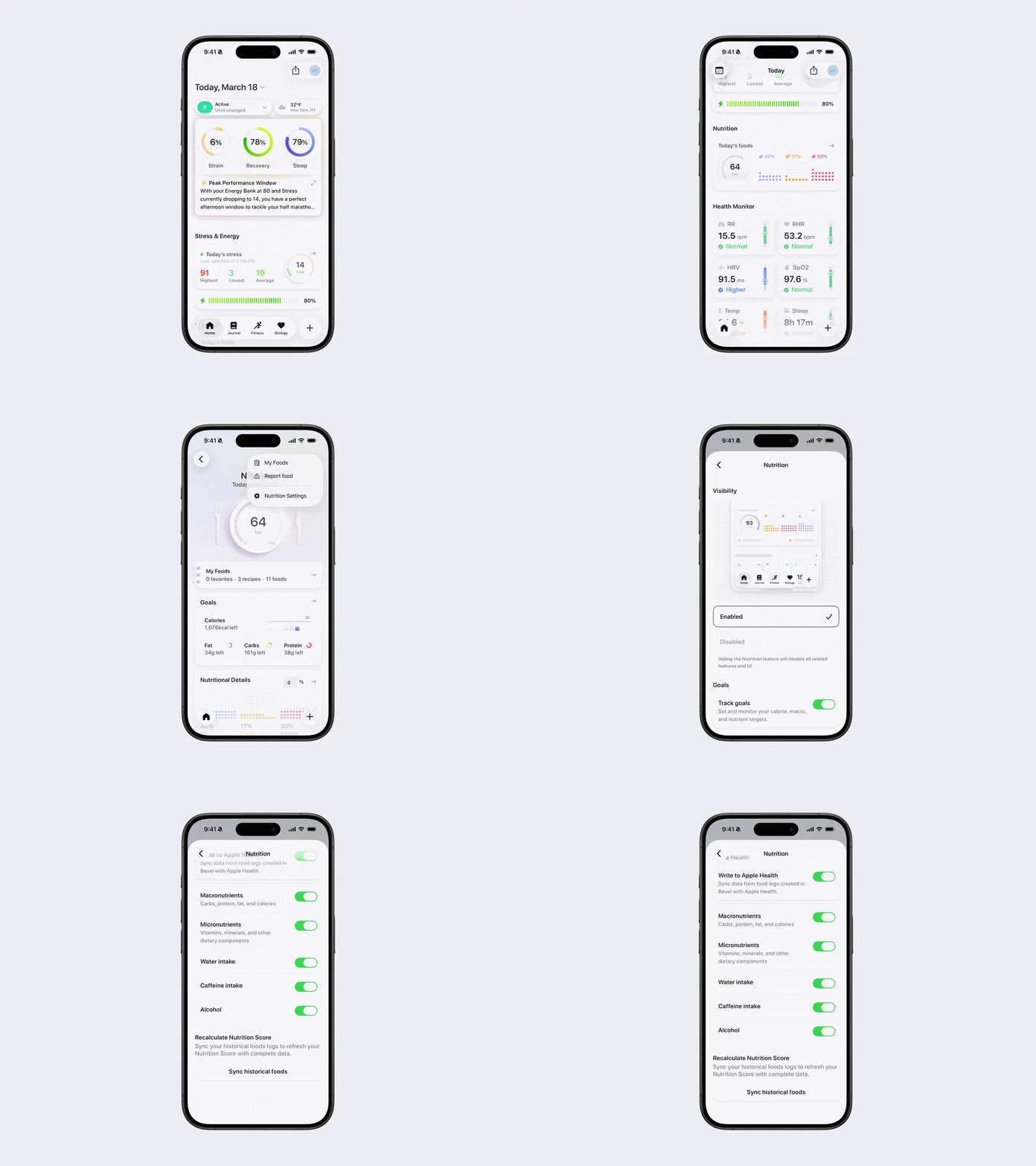
Visibility: Enable or disable the Nutrition feature. Turning this off hides Nutrition and disables all related features and UI.
When enabled in Settings, the Nutrition card can also be added to the Home Tab: scroll down on the Home Tab, tap Edit Home, and add the Nutrition card from the available options.
Track Goals: Set and monitor your calorie, macronutrient, and nutrient targets to align with your personal goals. Your tracked nutrients, including vitamins and more, also appear in Journal.
Food Quality Contributors: Choose which Food Quality Contributors impact your Nutrition Score. You can disable up to four contributors at a time.
Track Glucose: Incorporate glucose tracking into your overall Nutrition Score. Your score will adjust based on whether glucose tracking is enabled.
Write to Apple Health: Sync food logs created in Bevel with Apple Health. Toggle this off to prevent any data from being written. You can also individually disable syncing for macronutrients, micronutrients, water intake, caffeine intake, and alcohol. We recommend keeping Apple Health syncing enabled.
Recalculate Nutrition Score: Refresh your Nutrition Score by syncing historical food logs to ensure your data is complete and up to date. Use this only if you’ve switched phones, performed an iCloud reset that may have caused missing logs, or previously disabled food contributor updates and need to refresh past scores.
How to Edit Customization Settings
You can customize your Nutrition settings at any time using one of the two methods below.
Option 1: Profile
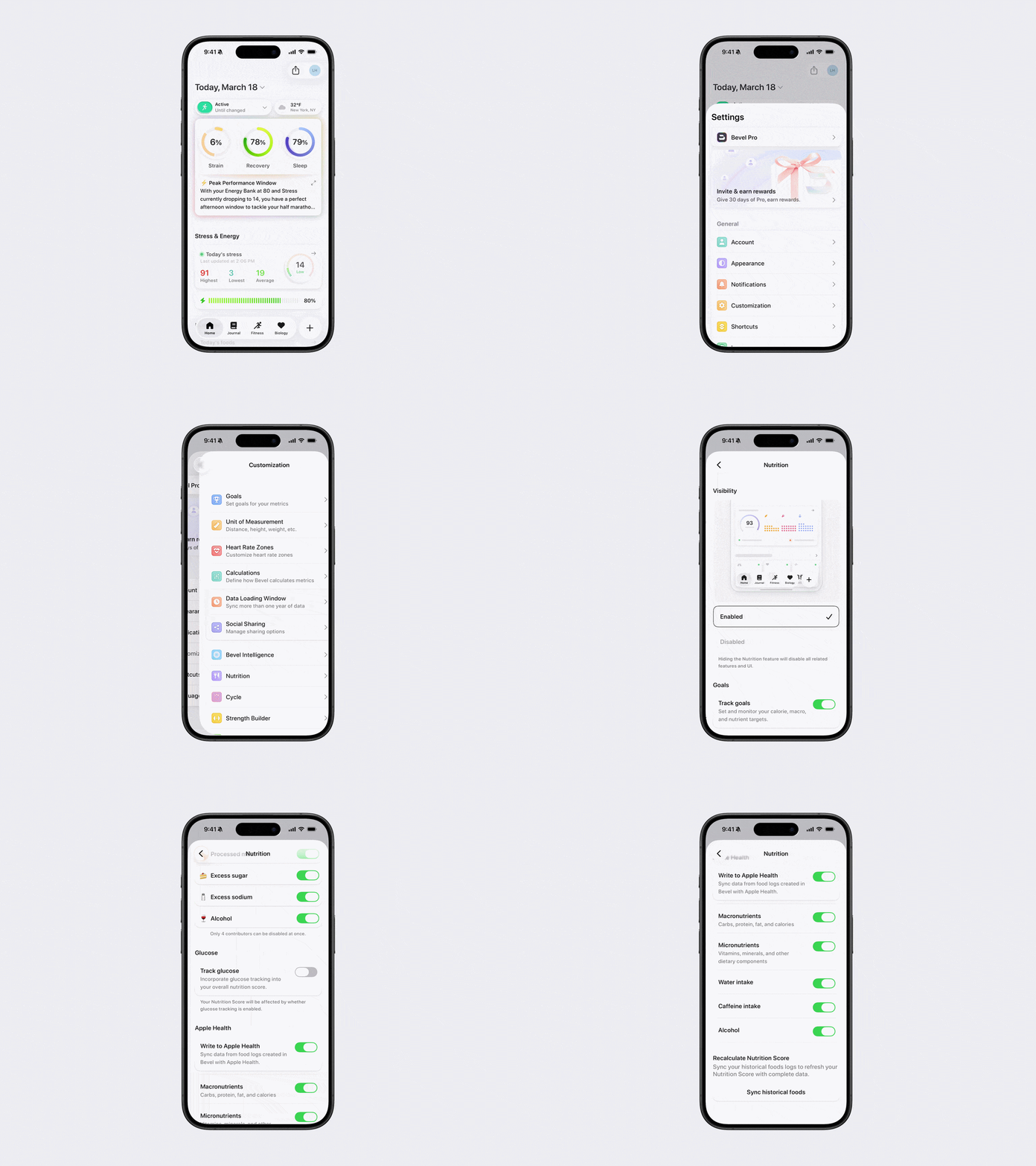
Open Bevel.
Tap your initials or profile picture in the top-right corner.
Tap Customization.
Select Nutrition.
Make your desired changes using the options listed in the Customization Settings section above.
Option 2: Nutrition Section via Home Page
Note: To follow the steps below, make sure the Nutrition section is visible on your Home page.
Open Bevel.
Scroll down to the Nutrition section on the Home Page and tap to open it.
Tap the three dots (…) in the top-right corner.
Tap Nutrition Settings.
Make your desired changes using the options listed in the Customization Settings section above.