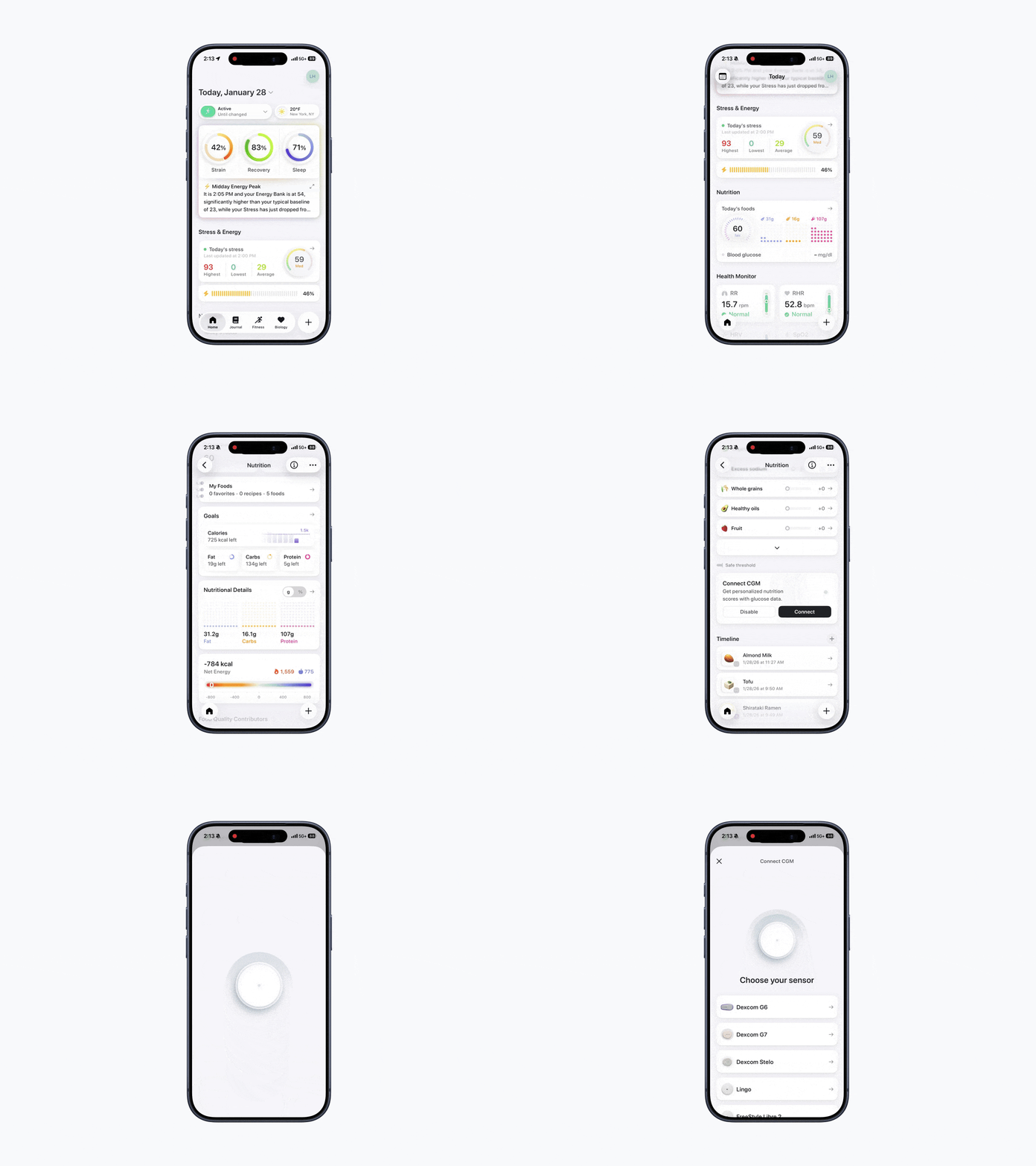
How to Connect a CGM
Bevel allows you to connect a Glucose Continuous Monitor (CGM) to automatically sync your glucose data. This helps you track Trends, uncover Insights, and view your glucose readings alongside your other health metrics.
Bevel currently supports the following CGM brands: Dexcom G6, Dexcom G7, Dexcom Stelo, Lingo, FreeStyle Libre 2, and FreeStyle Libre 3.
These integrations work by first syncing CGM data to Apple Health. Bevel then reads your glucose data from Apple Health to power Insights and visualizations. Any other CGM that syncs glucose data to Apple Health can also be set up and used in Bevel.
Steps to Connect a CGM
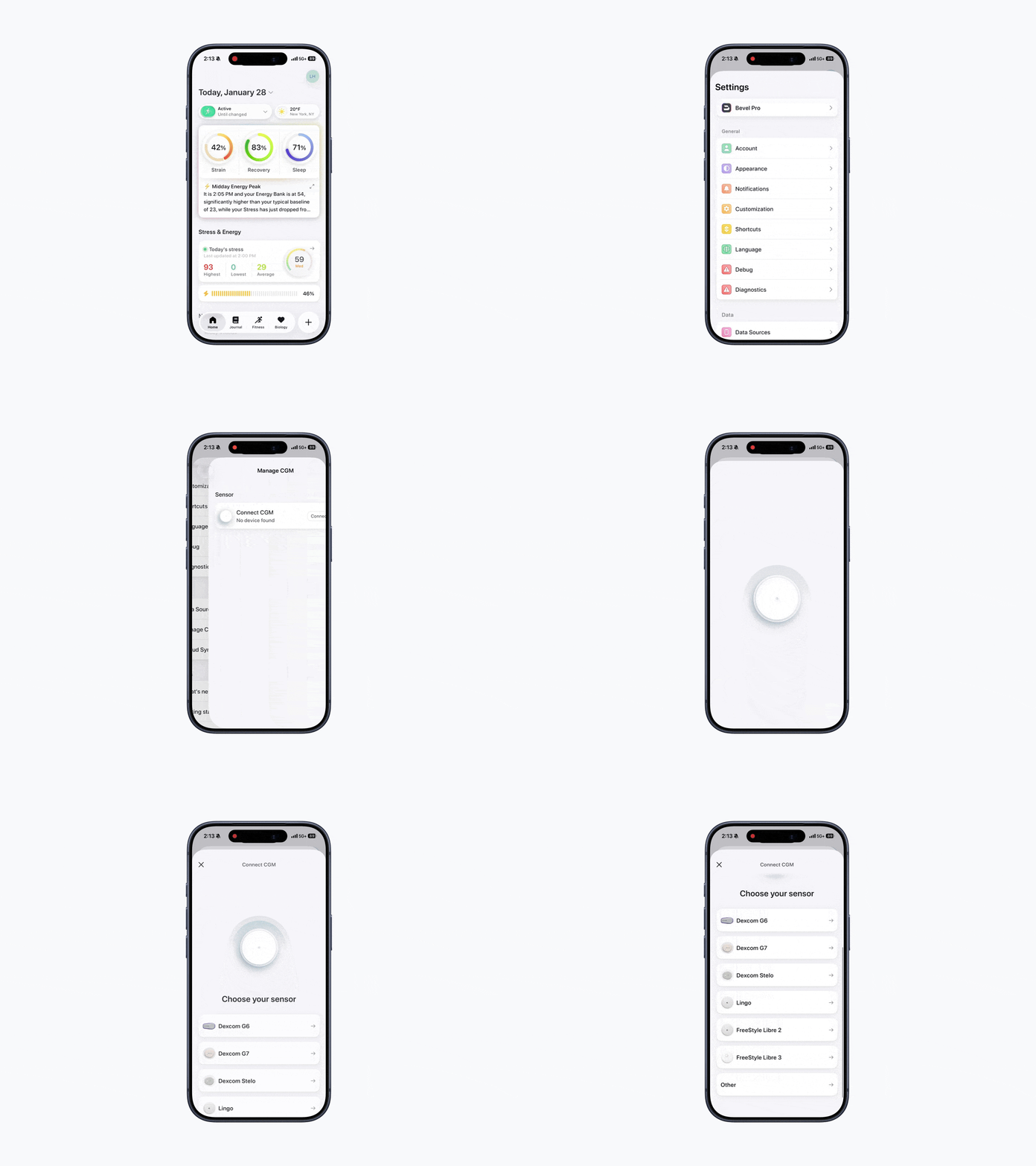
Option 1: Connect via Profile Settings
Open Bevel.
Tap your initials or profile picture in the top-right corner.
Tap Manage CGM.
Select Connect.
Follow the on-screen prompts to pair your device.
Once connected, your glucose readings will automatically sync to Bevel.
Option 2: Connect via Nutrition Settings
Open Bevel.
Tap into Nutrition.
Scroll down to Connect CGM.
Tap Connect.
Follow the on-screen prompts to pair your device.
Your glucose data will then sync automatically with Bevel.