
How to Use a Template During a Workout
Bevel lets you make changes to your workout even after you’ve started, so you can adjust exercises, sets, reps, timers, or supersets as needed.
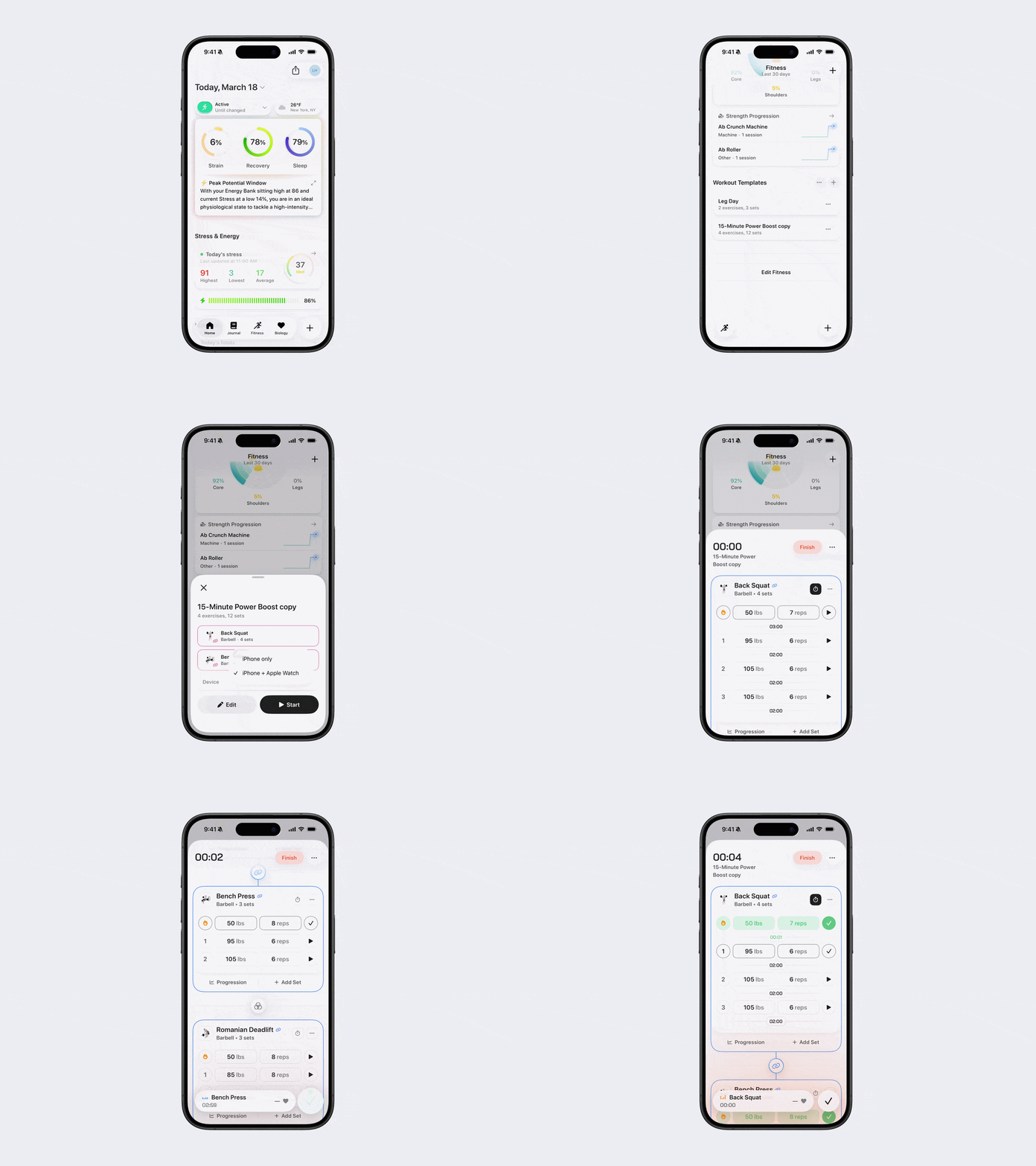
From Your Phone
Start your workout:
Open Bevel.
Go to the Fitness tab.
Scroll down to Workout Templates.
Select your workout Template.
Tap Start.
Begin a set:
Press the Play button to start tracking the first set.
Complete a set:
Press the Checkmark to complete a set.
Edit exercises or settings at any time:
Tap the three dots (...) next to the workout or an exercise to:
Replace an exercise
Delete an exercise
Edit a superset or circuit
Tap the clock icon to add or adjust a timer.
Tap the time between sets to adjust rest periods.
Tap the numbers in the columns to adjust weight, reps, or sets.
Additional options during a workout:
Add new exercises at the bottom of the workout.
Reorder exercises by tapping the three dots (...) at the top and selecting Reorder Exercises.
Pause the workout by tapping the three dots (...) at the top and selecting Pause Workout.
Swap between Reps and Duration by tapping the reps or duration value for an exercise, then tapping the toggle above the keyboard to switch between the two.
From Your Apple Watch
Start your workout:
Open Bevel on your watch.
Tap the dumbbell icon in the top-right corner.
Select your workout Template.
Tap Start.
Begin a set:
Press the Play button to start tracking the first set.
Complete a set:
Press the Checkmark. Then press Save. Bevel will automatically move you to the next exercise.
Note: You can skip the set-by-set confirmation in advanced settings.
You can start and stop a set on the watch in multiple ways:
Tap the play and checkmark buttons in the app.
Use the double-tap gesture on the hand wearing your watch.
Press the Action button.
Note: How do I set up the Action button to start/stop a set on the watch?
On your watch, go to Settings → Action Button, then set it to Workouts and select the Bevel app. This only works for Apple Watch Ultra 2 and above.
Note: How do I set up Gestures to start/stop a set on the watch?
On your watch, go to Settings → Gestures and toggle it on. This only works for Apple Watch Series 9, Ultra 2, and above.
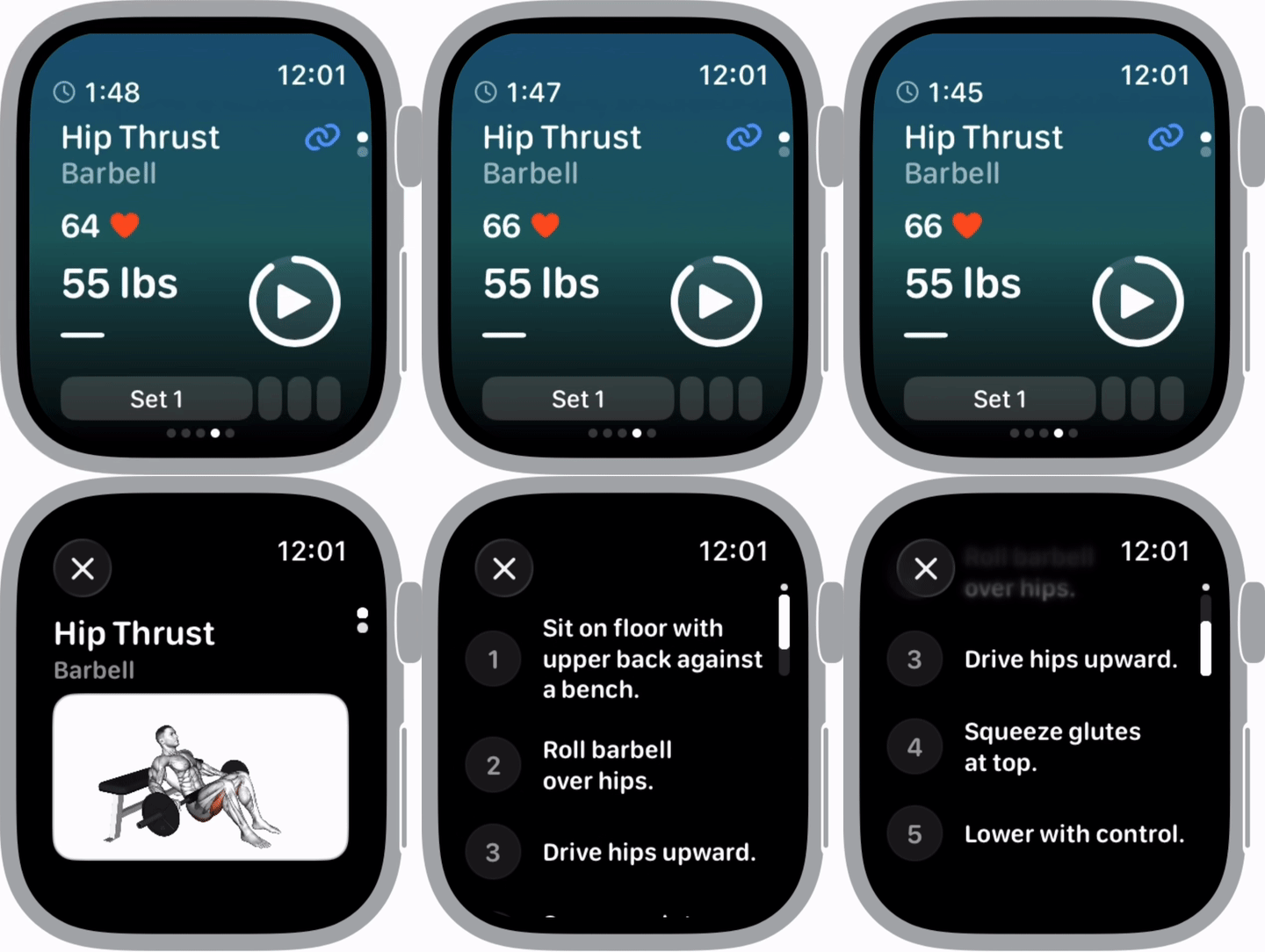
Preview an Exercise
While viewing a workout on your Apple Watch, tap an exercise title to view an exercise preview with instructions and a demonstration video.
Edit Exercises
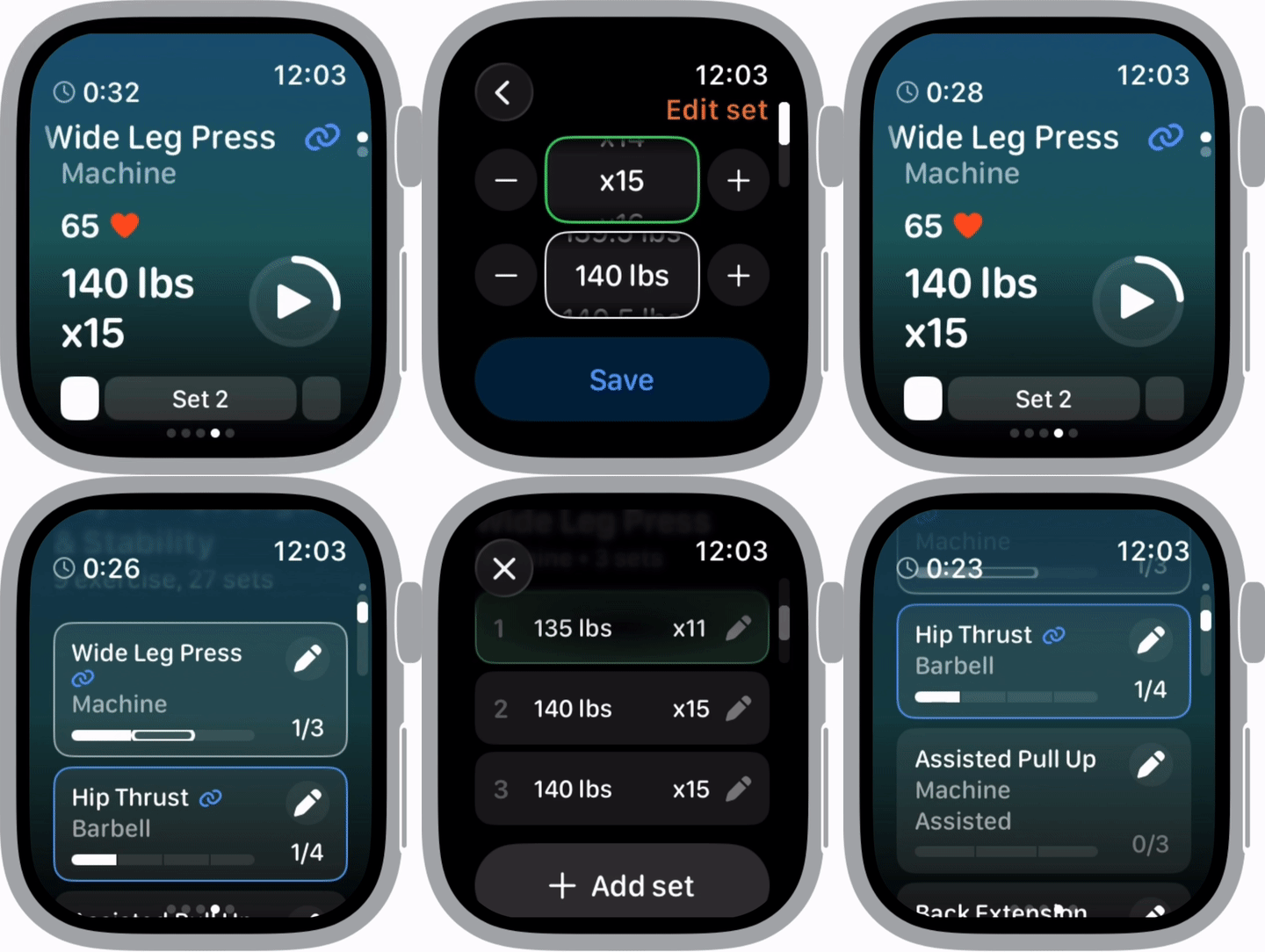
While viewing a workout on your Apple Watch, you can edit the exercises or settings at any time.
Tap the current exercise set to quickly edit its weight and reps.
Scroll down and tap the pencil icon next to an exercise to edit its weight, reps, or sets, delete the exercise, or scroll to the bottom to add another exercise.
Pause or End a Workout on Apple Watch
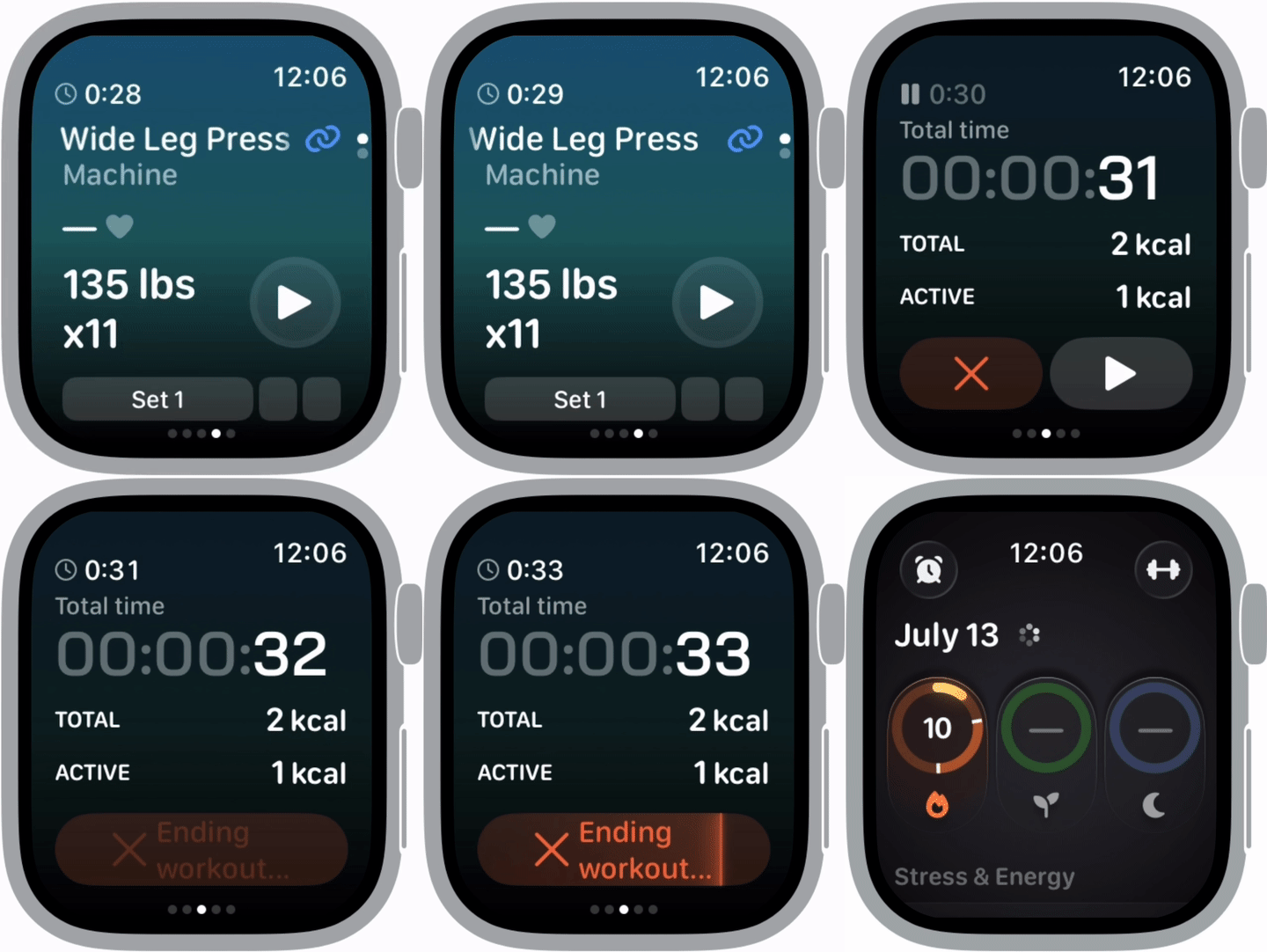
While a workout is in progress:
Swipe left on the workout screen.
Tap Pause icon to pause your workout.
To resume, tap Start icon.
To end your workout, touch and hold the X button.
Tip: After finishing a workout, you can save your updated weights to the Template for future sessions. For step-by-step guidance, please refer to this article.