How to Log Activity
Bevel makes it easy to log workouts and activities so your training data stays accurate and complete.
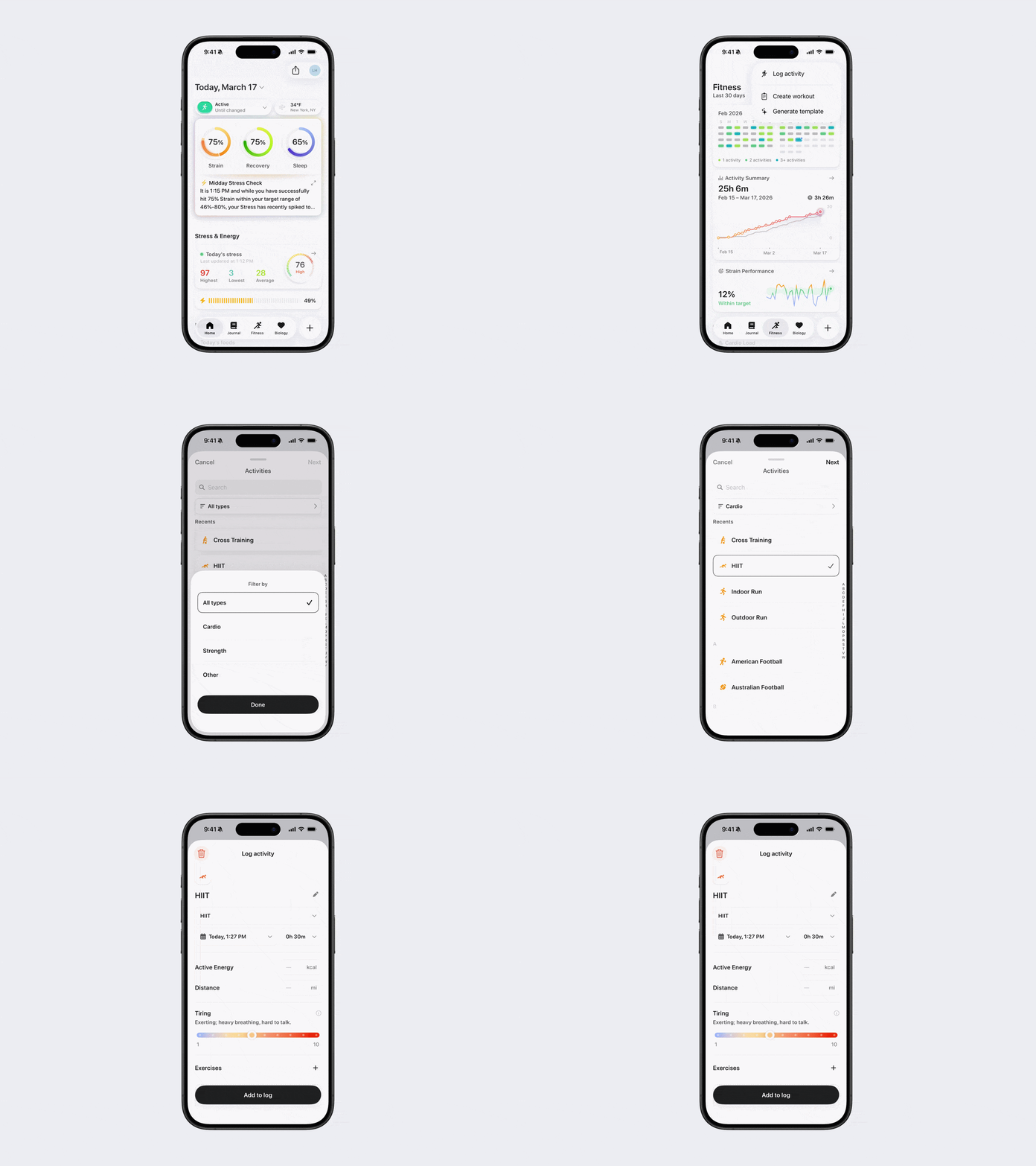
How to Log an Activity
Option 1:
Open Bevel.
Go to the Fitness tab.
Tap the + button in the top-right corner.
Tap Log Activity.
(Optional) Filter activities by tapping the bar at the top and selecting All Types, Cardio, Strength, or Other, then tap Done.
Select your activity.
Tap Next.
Enter the requested details.
Tap Add to Log.
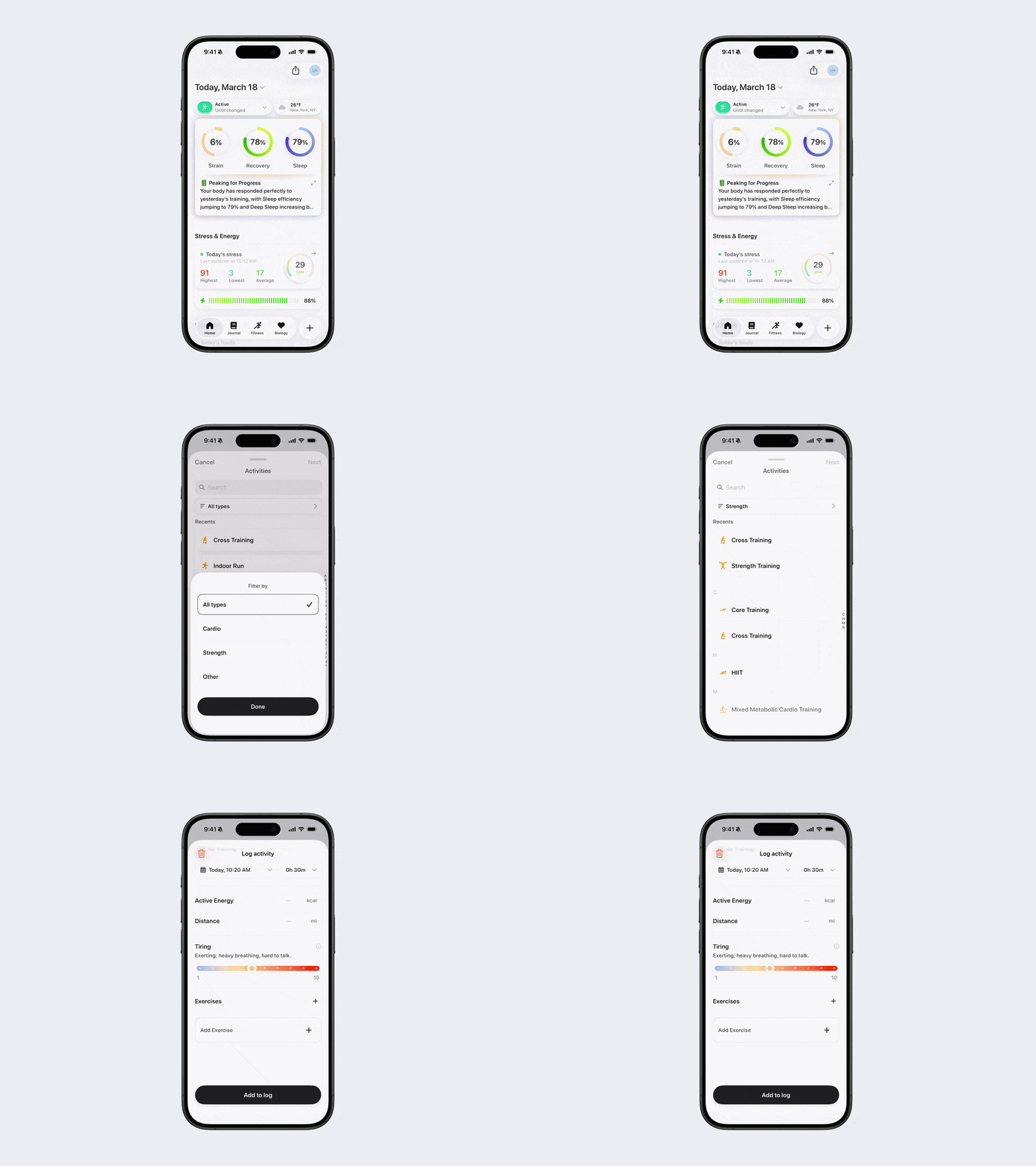
Option 2:
Open Bevel.
Tap the + button in the bottom-right corner.
Tap Log Activity.
(Optional) Filter activities by tapping the bar at the top and selecting All Types, Cardio, Strength, or Other, then tap Done.
Select your activity.
Tap Next.
Enter the requested details.
Tap Add to Log.
Note: Don’t see this option? You can edit your action button to add it. See the Edit Action Button article for steps.
Tip: If you complete an outdoor workout, such as a run or bike ride, open the workout in your timeline and tap the map. From there, you can switch views to see where your heart rate, pace, elevation, power, and other metrics changed throughout your route.
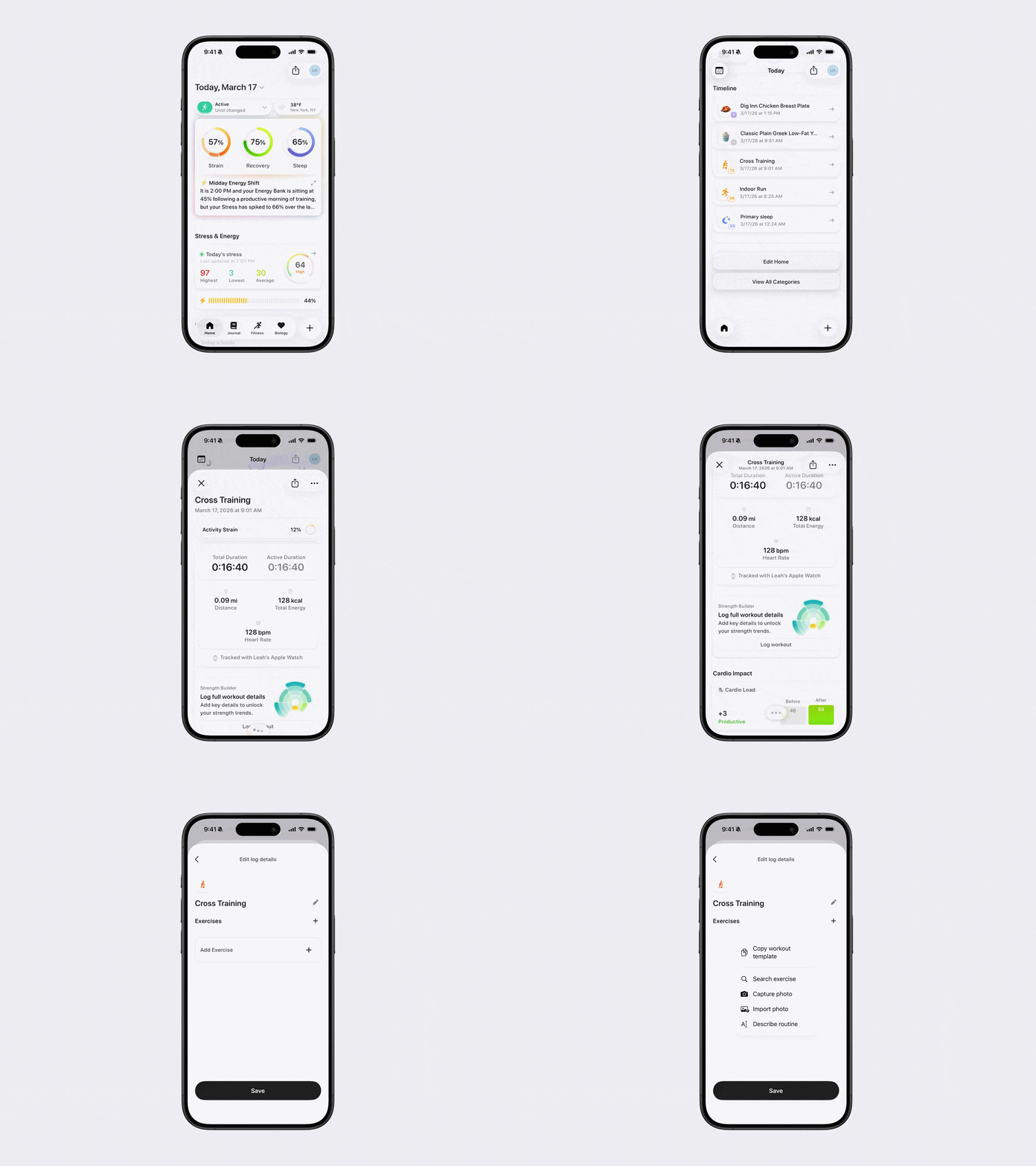
Add Strength Details to Existing Workout
You can enhance your existing workouts, especially those recorded as third-party workouts (not via Strength Builder), by adding strength-specific details:
Scroll down to Timeline.
Open the logged workout.
Tap Log Workout.
Choose how to add details:
Copy Workout Template: reuse a previous Template for faster logging.
Search Exercise: find and add exercises from the database.
Capture Photo: take a photo of your workout to document it.
Import Photo: add a photo from your camera roll.
Describe Routine: type a description of what you did or copy and paste a summary.
Click Save to log the details and update your workout.
This allows Bevel to track your strength progress more accurately and ensures your Nutrition and Recovery insights reflect your actual training.
Note: Heart rate data is still required to generate a strain score, even for manually logged workouts.