
How to Use the Strength Section
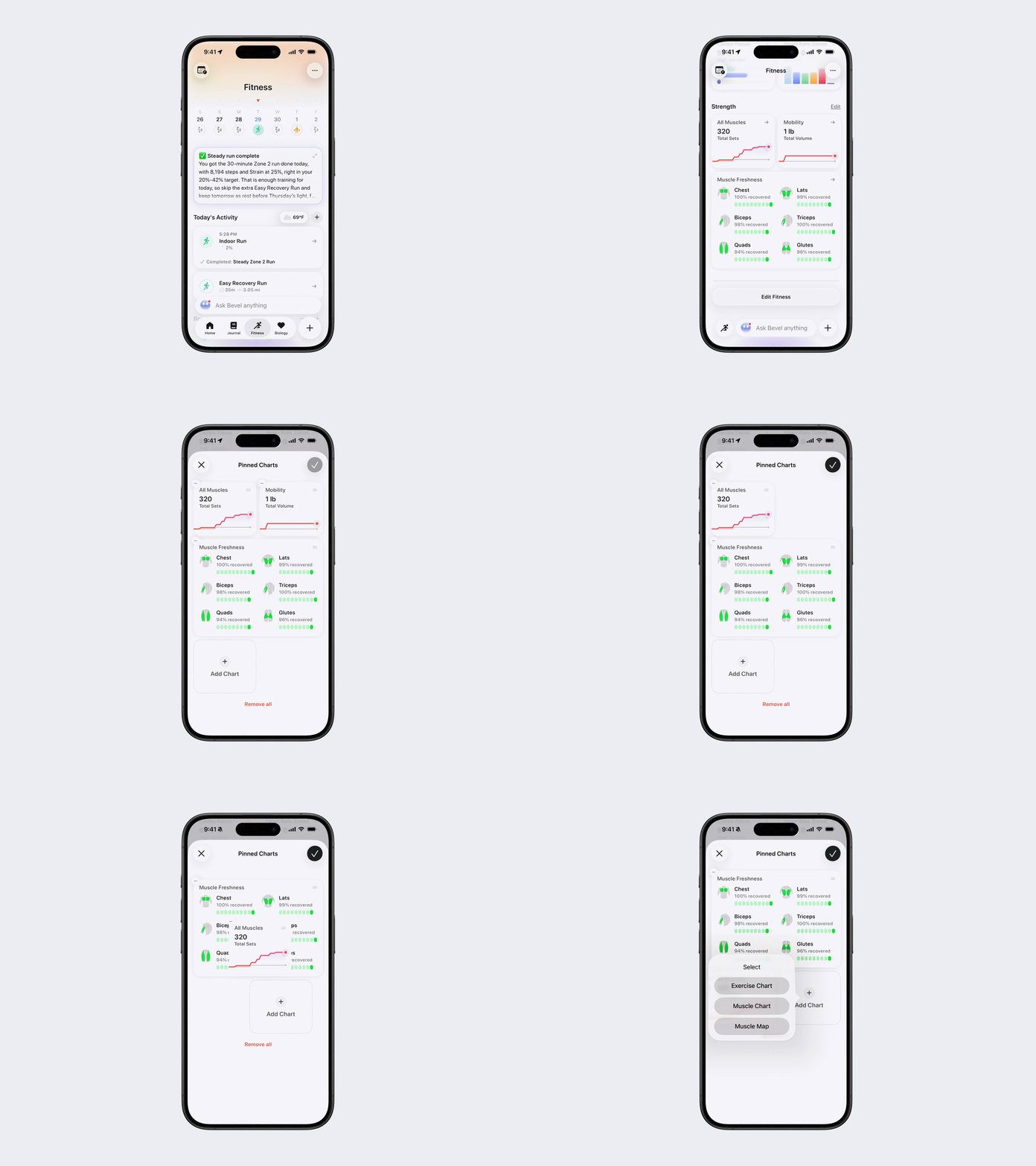
The Strength section lets you customize the Exercise Charts, Muscle Charts, and Muscle Maps displayed on your Fitness Tab.
Customize the Strength Section
To add or remove charts:
Open Bevel.
Go to the Fitness Tab.
Scroll down to Strength.
Tap Edit next to the Strength heading.
Make your desired changes:
Remove a chart: Tap the minus (–) button in the top-left corner of the chart.
Add a chart: Tap Add Chart below your pinned charts, then select Exercise Chart, Muscle Chart, or Muscle Map and customize it.
Change Chart Layout: Drag and drop to choose the chart layout you want.
Tap the checkmark in the top-right corner to save your changes.
Customize or Pin a Strength Chart
After opening a Strength Chart, you can customize the following:
Exercise or Muscle: Tap the current exercise or muscle name, then select a different one.
Metric: Select a different metric on the chart page.
Aggregation: Select Daily or Weekly, when available.
Chart Type: Tap the bar chart or line graph icon in the top-right corner.
Weight Units: Bevel uses the unit from your most recent exercise. If there’s no previous exercise to reference, it uses your default unit. To change, tap the three dots (...) in the top-right corner, then select Pounds (lbs) or Kilograms (kg)
For additional chart settings:
Tap the chart icon at the bottom of the chart.
Adjust any of the following:
Selected Date: Choose the date you want to view.
Lookback: Change how far back the chart displays data.
Display By: Display the data by Day, Week, or Month.
Preferences: Choose whether to display your Activity Status.
To save the chart to your Fitness Tab:
Tap the three dots (…) in the top-right corner.
Tap Pin Chart.
The corresponding workout history appears underneath the chart.
Exercise Charts
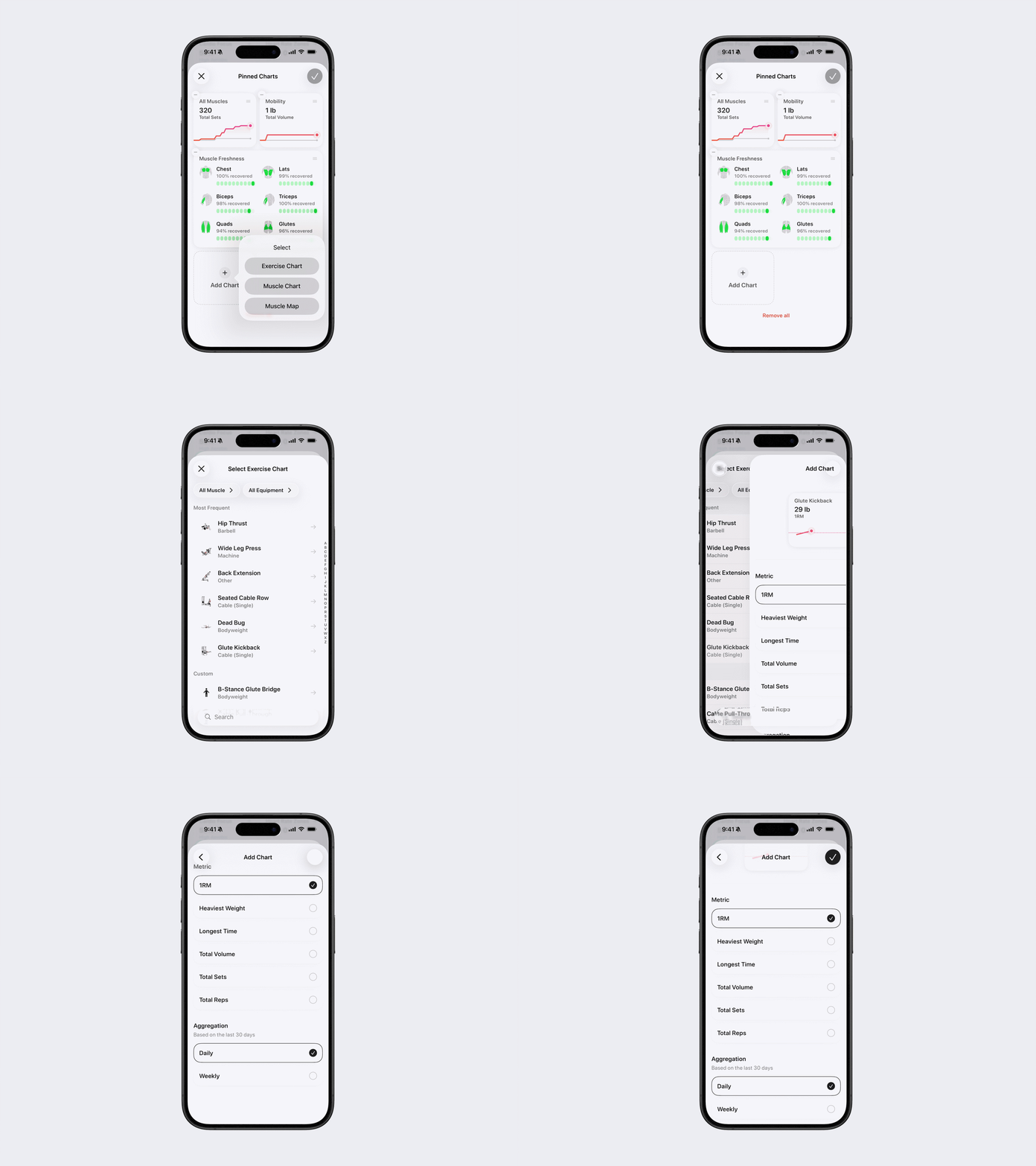
Exercise Charts let you track your progress for an individual exercise.
When creating an Exercise Chart:
Use the filters at the top to filter exercises by muscle or equipment.
Select an exercise.
Select the metric you want to display:
1 Rep Max
Heaviest Weight
Longest Time
Total Volume
Total Sets
Total Reps
If available, select a chart type:
Segmented: Displays the data as a bar chart.
Cumulative: Displays the data as a cumulative line chart.
Select a Daily or Weekly aggregation for the last 30 days.
Tap the checkmark in the top-right corner to save your selections.
Exercise Personal Records
When you open an Exercise Chart from the Fitness Tab, your Personal Records appear underneath the chart when available.
Strength Personal Records include:
1 Rep Max
Heaviest Weight
Session Volume
Set Volume
Longest Time
1 Rep Max
Your estimated 1 Rep Max reflects the maximum weight you may be able to lift for one repetition of an exercise.
It is calculated using the weight, repetitions, and effort—or RPE—you log. Bevel uses the Epley formula for lighter or higher-repetition sets and an RPE-adjusted estimate for harder sets. Your highest estimate across all sets is displayed.
For assisted or bodyweight exercises, Bevel uses the effective load lifted. For example, an assisted exercise may use your body weight minus the assistance.
Heaviest Weight
Your Heaviest Weight record is the largest external load you have moved for an exercise. It reflects your peak loading capacity.
Session Volume
Your best Session Volume is the greatest amount of work completed for an exercise during one workout.
Bevel adds the weight multiplied by the repetitions across all sets:
Session Volume = Sum of Weight × Repetitions across all sets
Set Volume
Your best Set Volume is the greatest amount of work completed in a single set:
Set Volume = Weight × Repetitions
This measurement accounts for both the weight lifted and the number of repetitions completed.
Longest Time
Your Longest Time record is the longest duration you have held or performed an exercise during a single set.
View Personal Record History
Tap a Personal Record to view its complete history.
Swipe left or right to view other Personal Records for the exercise.
Tap an individual result to open the workout from that day.
Muscle Charts
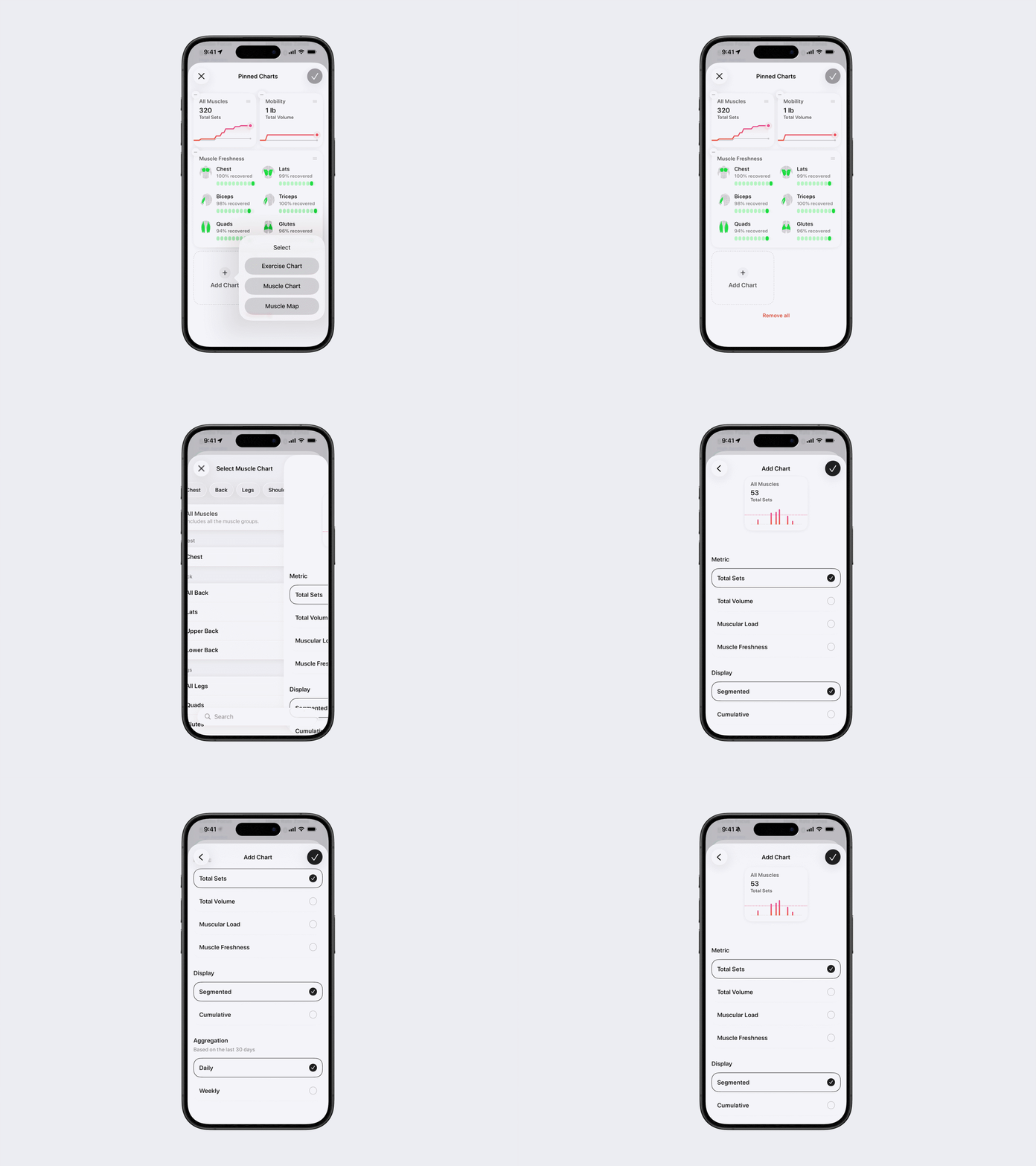
Muscle Charts let you track training metrics for a selected muscle group.
To create a Muscle Chart:
Select Muscle Chart.
Use the muscle filters at the top of the page.
Select the muscle you want to track.
Select a metric:
Total Sets
Total Volume
Muscular Load
Muscle Freshness
If available, select a chart type:
Segmented
Cumulative
Avg Chart
Select a Daily or Weekly aggregation for the last 30 days.
Tap the checkmark in the top-right corner to save your selections.
Muscle Map
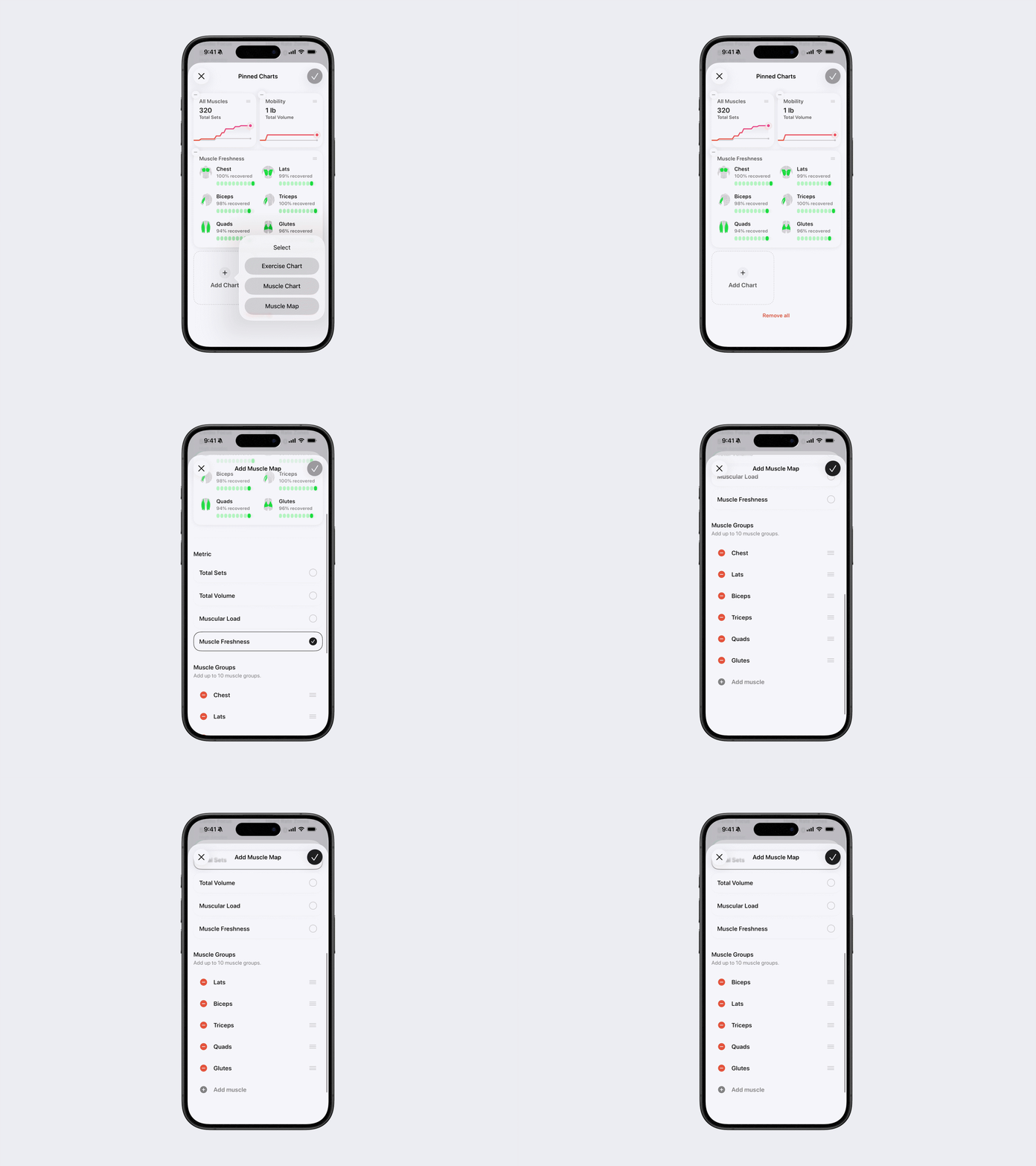
Muscle Map provides a visual overview of your training across selected muscle groups.
When creating a Muscle Map:
Select a metric:
Total Sets
Total Volume
Muscular Load
Tap Add Muscle and select up to 10 muscle groups.
To remove a muscle group, tap the minus (–) button next to it.
Tap the checkmark in the top-right corner to save your selections.
Filter and Sort the Muscle Map
After opening a Muscle Map from the Fitness Tab, you can select Total Sets, Total Volume, Muscular Load, or Muscle Freshness.
To filter by muscle group:
Tap the muscle name, or All Muscles, underneath the map.
Select one of the following:
Legs
Shoulders
Core
Arms
Chest
Back
The available sorting options depend on the selected metric:
Total Sets: Most Sets, Least Sets, or A–Z
Total Volume: Highest Volume, Lowest Volume, or A–Z
Muscular Load: Highest Load, Lowest Load, or A–Z
Muscle Freshness: Most Recovered, Least Recovered, or A–Z
Understanding Muscle Map Metrics
Total Sets
Total Sets shows the number of completed sets associated with each muscle group during the selected period.
The map uses a scale from Less to More:
Less: Fewer completed sets
More: More completed sets
The muscle group with the most sets fills its bar completely. Other bars fill proportionally: if your biceps have half as many sets as your quads, the biceps bar fills halfway. This is a visual comparison of training volume within the selected period, not a recommended number of sets.
Total Volume
Total Volume represents the amount of weight lifted for each muscle group. It is calculated using weight multiplied by repetitions across your completed sets.
The map displays increasing volume as:
Low
Medium
High
The muscle group with the highest volume fills its bar completely. Other bars fill proportionally. These labels show relative training volume for the selected period. They are not universal training targets.
Muscular Load
Muscular Load represents the workload placed on your muscles. It uses available workout information such as exercises, sets, repetitions, weight, volume, and perceived effort.
Muscular Load has seven possible statuses:
Calibrating: Bevel is building your muscular training profile. Calibration needs at least 10 days of muscle-loading activity within six weeks, including recent workouts, to establish your training baseline.
Detraining: Your recent muscular load is below your usual range, which may lead to detraining over time.
Maintaining: Your muscular load is supporting your current level of conditioning.
Productive: Your muscular load is driving adaptation while allowing for recovery.
Peaking: Your muscles are well recovered and prepared to perform at their best.
Overtraining: Your muscular load is significantly exceeding your muscles’ ability to recover, increasing your risk of injury.
Muscle Freshness
Muscle Freshness estimates how ready each muscle group is to train based on its recent workload and recovery.
Muscle Freshness has four possible statuses:
Calibrating: Bevel is building a baseline from your recent workout history. Each muscle calibrates after being worked on three separate days and returns to calibrating if it hasn’t been worked for over six weeks.
Recovered: The muscle group has recovered from its recent training load.
Fatigued: The muscle group is still recovering from recent training.
Depleted: The muscle group has accumulated a high training load and may need additional recovery.