How to Use the Cardio Section
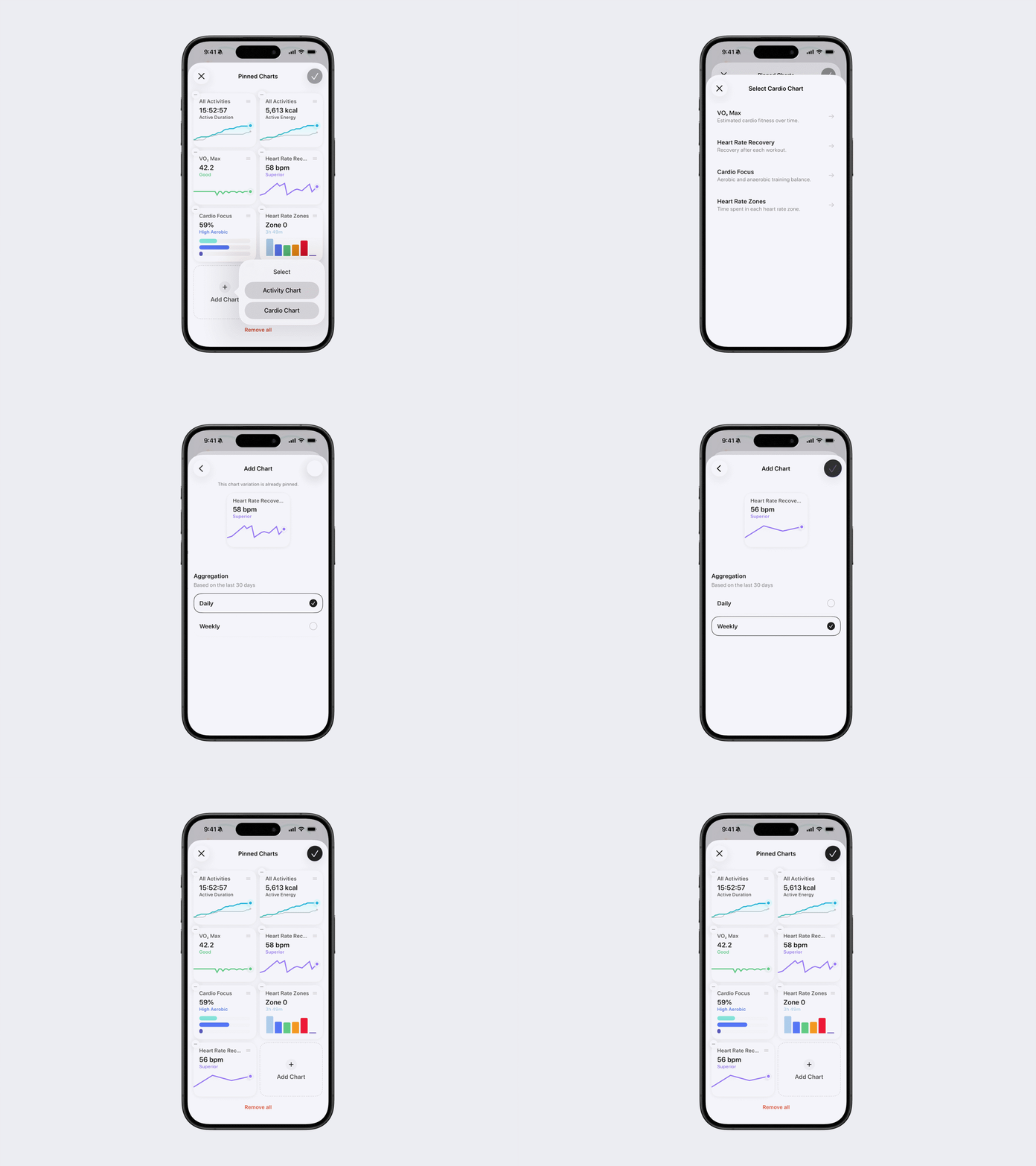
The Cardio section lets you customize which Activity and Cardio charts appear on your Fitness Tab. You can select the activities, metrics, chart types, and time periods that are most meaningful to you.
Customize the Cardio Section
To add or remove charts:
Open Bevel.
Go to the Fitness Tab.
Scroll down to Cardio.
Tap Edit next to the Cardio heading.
Make your desired changes:
Remove a chart: Tap the minus (–) button in the top-left corner of the chart.
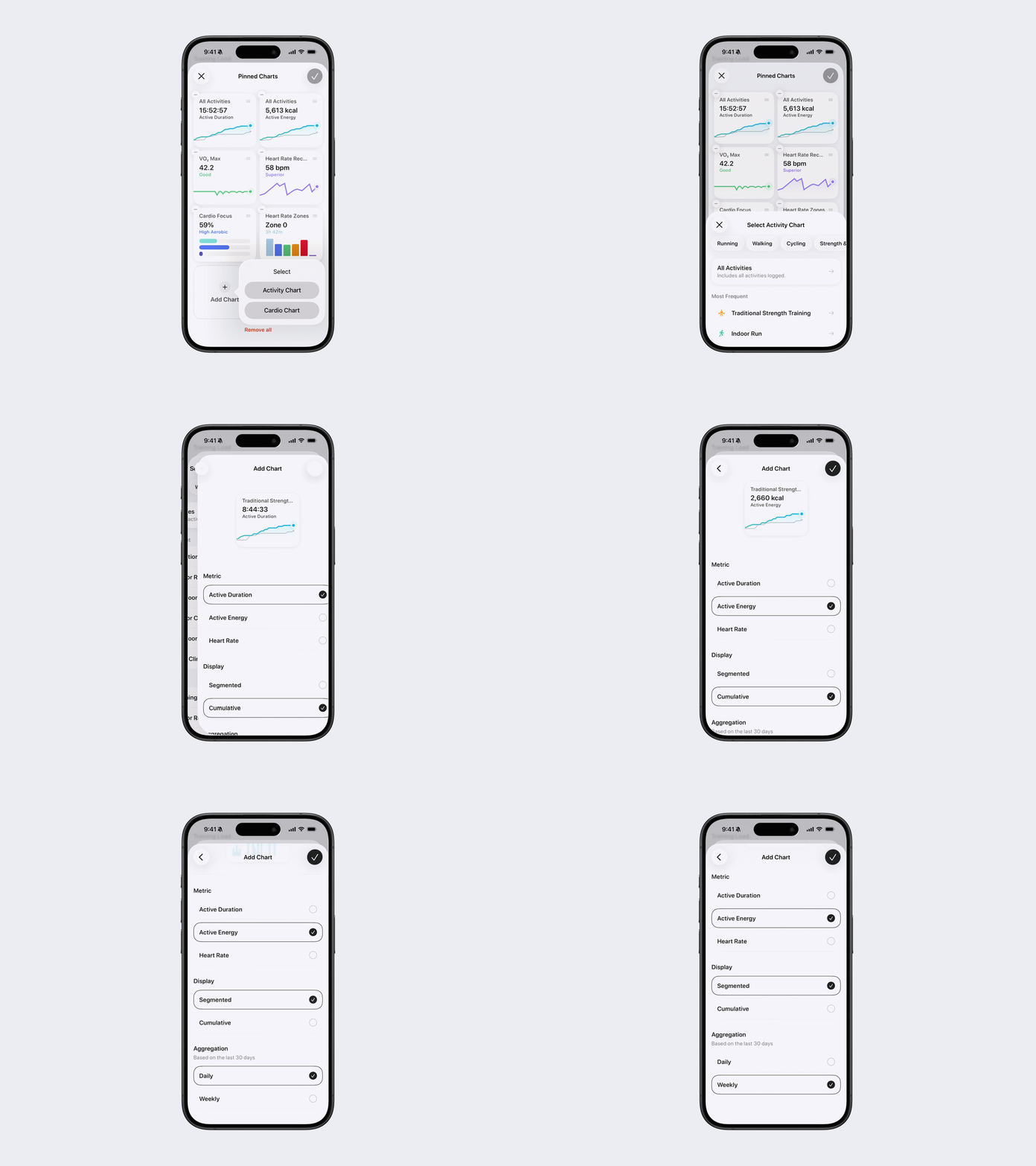
Add a chart: Tap Add Chart below your pinned charts, then select Activity Chart or Cardio Chart and customize it.
Change Chart Layout: Drag and drop to choose the chart layout you want.
Tap the checkmark in the top-right corner to save your changes.
Activity Charts
Activity Charts let you track selected metrics for a specific activity.
When creating an Activity Chart:
Select the activity you want to track.
Select an available metric, such as:
Active Duration
Distance
Elevation Gain
Active Energy
Pace
Heart Rate
If available, select how you want the chart displayed:
Segmented: Displays the data as a bar chart.
Cumulative: Displays the data as a cumulative line chart.
Select a Daily or Weekly aggregation for the last 30 days.
Tap the checkmark in the top-right corner to save your selections.
Customize or Pin an Activity Chart
After opening an Activity Chart, you can customize the following:
Activity: Tap the current activity, then select a different activity.
Metric: Select a different metric on the chart page.
Reorder Metrics: Tap the three dots (…) in the top-right corner, then select Edit Metric Order. Drag and drop metrics to change their order. Your preferred order is saved across all Activity Charts.
Aggregation: Select Daily or Weekly, when available.
Chart Type: Tap the bar chart or line graph icon in the top-right corner.
For additional chart settings:
Tap the chart icon at the bottom of the chart.
Adjust any of the following:
Selected Date: Choose the date you want to view.
Lookback: Change how far back the chart displays data.
Display By: Display the data by Day, Week, or Month.
Preferences: Choose whether to display your Activity Status.
To save the chart to your Fitness Tab:
Tap the three dots (…) in the top-right corner.
Tap Pin Chart.
Your corresponding activity history appears underneath the chart.
Available Activity Metrics
The available metrics depend on the selected activity:
Activity | Available metrics |
Running | Active Duration, Distance, Elevation Gain, Active Energy, Avg Pace, Avg HR, Avg Power, Avg Cadence |
Cycling | Active Duration, Distance, Elevation Gain, Active Energy, Avg Speed, Avg HR, Avg Power, Avg Cadence |
Swimming | Active Duration, Distance, Active Energy, Avg Pace, Avg HR, Avg Cadence |
Rowing | Active Duration, Distance, Active Energy, Avg Speed, Avg HR, Avg Cadence |
Other Activity | Varies based on the data recorded. |
Personal Records
When you open an Activity Chart from the Fitness Tab, your Personal Records appear underneath the chart when available.
Running Personal Records
Longest Run
Fastest Time:
1K
1 mile
5K
5 miles
10K
10 miles
Half Marathon
Marathon
50K
Cycling Personal Records
Longest Ride
Most Elevation Gain
Fastest Time:
10K
10 mi
20K
40K
50 mi
90K
100K
100 mi
180K
Most Power:
5 sec
1 min
5 min
20 min
Pool Swimming Personal Records
Longest Swim
Fastest Time:
100 m
100 yd
400 m
500 yd
1,500 m
1,650 yd
Open-Water Swimming Personal Records
Longest Swim
Fastest Time:
750 m
1.5K
1 mi
1.9K
3.8K
5K
10K
View Personal Record History
Tap a Personal Record to view its complete history.
Swipe left or right to view other Personal Records for the activity.
Tap an individual result to open the workout from that day.
Cardio Charts
Cardio Charts let you track the following cardiovascular metrics:
VO₂ Max: Your estimated cardio fitness over time.
Heart Rate Recovery: How your heart rate recovers after each qualifying workout.
Cardio Focus: The balance of your aerobic and anaerobic training.
Heart Rate Zones: The time spent in each heart rate zone during recorded activities.
For supported charts, select a Daily or Weekly aggregation based on the last 30 days.
After opening a Cardio Chart from the Fitness Tab, use the activity filters at the top to select which activities are included.
Note: Heart Rate Zones only include data from recorded activities. Passive heart rate data is not included.