
How to Create and Manage Planned Activities
Planned Activities let you create workouts in advance and schedule them for a future date and time.
Create a Planned Activity
Start by asking Bevel Intelligence to plan a workout:
Open Bevel Intelligence.
Ask Bevel Intelligence to plan a workout.
Schedule a Routine
Use this option to schedule a routine you have already created.
Open Bevel.
Go to the Fitness Tab.
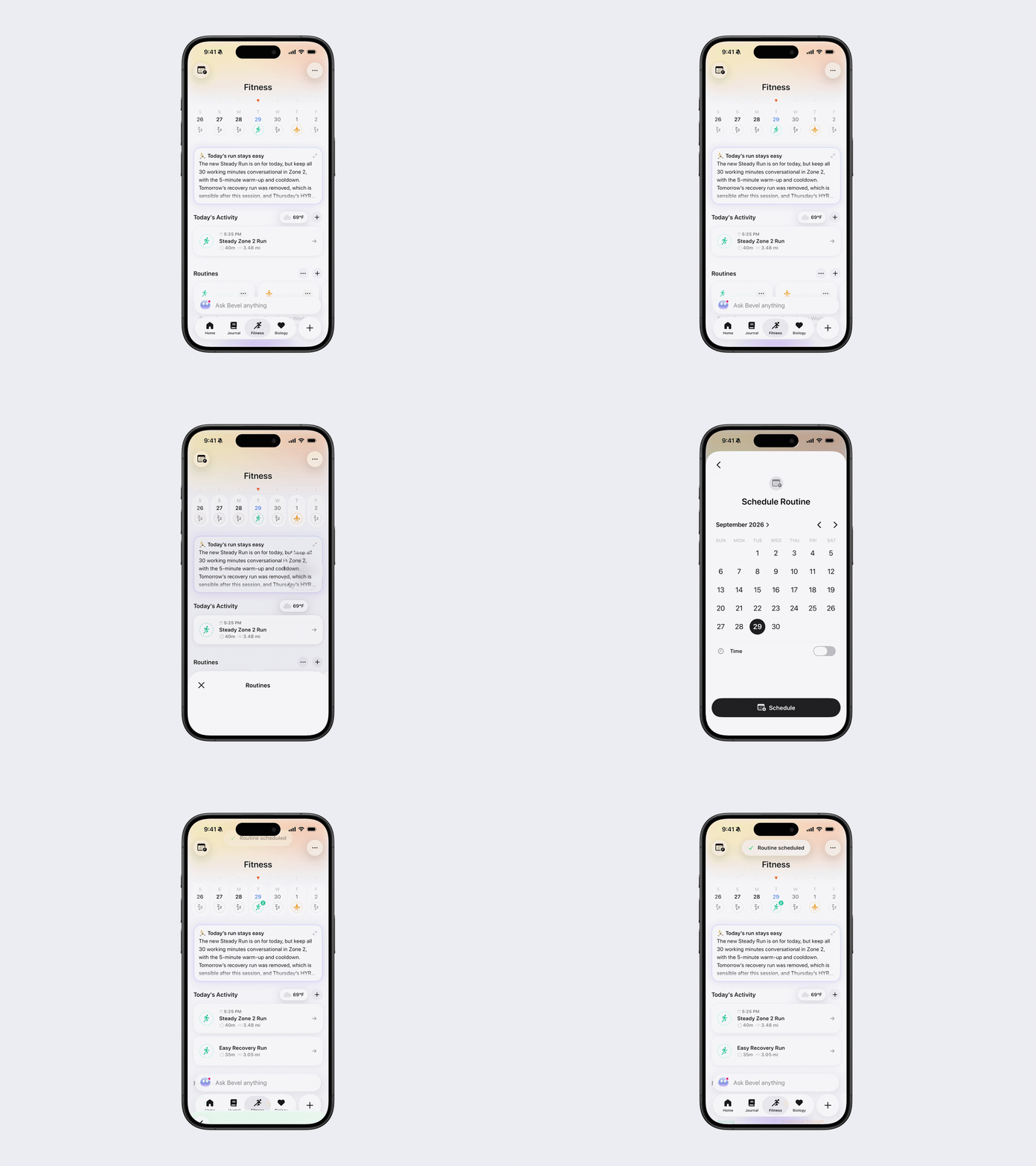
Tap the + button next to the Today’s Activity heading.
Tap Schedule Routine.
Generate a Routine
Use this option to create a new routine with Bevel Intelligence.
Open Bevel.
Go to the Fitness Tab.
Tap the + button next to the Today’s Activity heading.
Under Create Routine, select Strength Routine → Create with Bevel Intelligence, or select Cardio Routine.
Schedule a Workout
After tapping Save as Routine:
Tap Schedule.
Select the date and, optionally, a time.
Tap Schedule to confirm.
The planned workout will appear under Today’s Activity on its scheduled date.
Note: A scheduled routine will only appear on your Apple Watch within seven days of the workout.
Add or Change a Scheduled Time
If you did not originally select a time, or you want to change it:
Open the planned activity under Today’s Activity.
Tap the displayed date or time.
Select a new date or time.
Tap Schedule to save your changes.
Reschedule a Workout
Open the planned activity.
Tap its date or time.
Select a new date or time.
Tap Schedule.
The activity will move to the newly selected date and time.
Generate a Routine
If a planned activity does not have a complete routine:
Open the planned activity.
Tap Generate Routine.
Bevel Intelligence will create a routine based on the planned workout.
After the routine is generated, you can save it as a Routine or start the workout.
Manage a Planned Activity
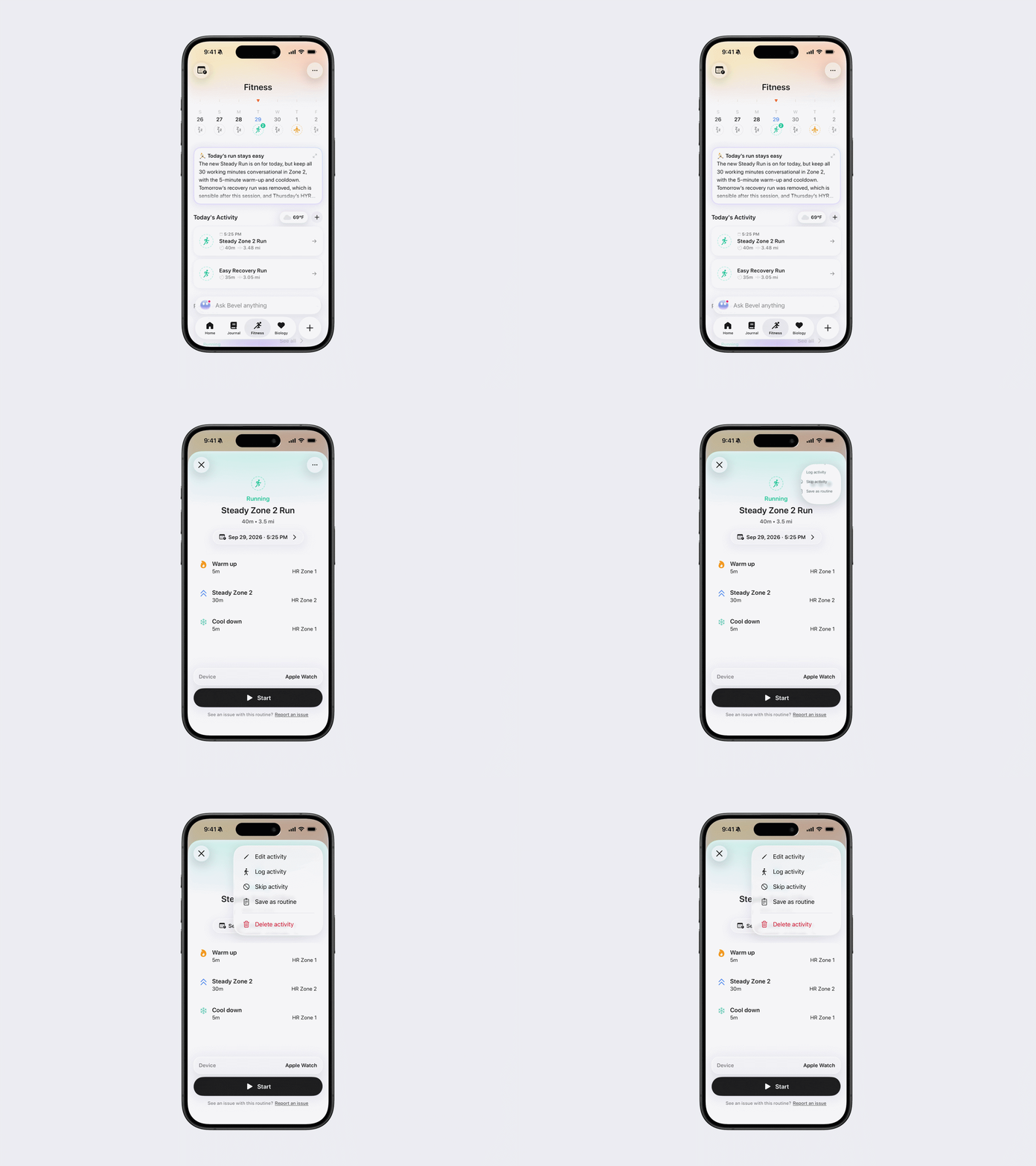
Open the planned activity and tap the three dots (...) in the top-right corner.
Depending on the activity, you can:
Edit Activity
Log Activity
Skip Activity
Save as Routine
Delete Activity
You can also link an Activity. See the linking instructions below.
Edit a Planned Strength Activity
Open the planned strength activity.
Tap the three dots (...) in the top-right corner.
Tap Edit Activity.
Make your desired changes.
Tap Save Workout.
You’ll be asked whether you want to:
Apply the changes to this planned activity only.
Update the Routine and all activities associated with it.
Select the option that matches how broadly you want the changes applied.
Edit a Planned Cardio Activity
Open the planned cardio activity.
Tap the three dots (...) in the top-right corner.
Tap Edit Activity.
You’ll be taken to Bevel Intelligence to edit the cardio workout. After making your changes, you can save the workout as a Routine or start it.
Link a Completed Workout
Bevel automatically links a completed workout to a planned activity when you start the workout from that planned activity or when the completed workout’s activity type matches.
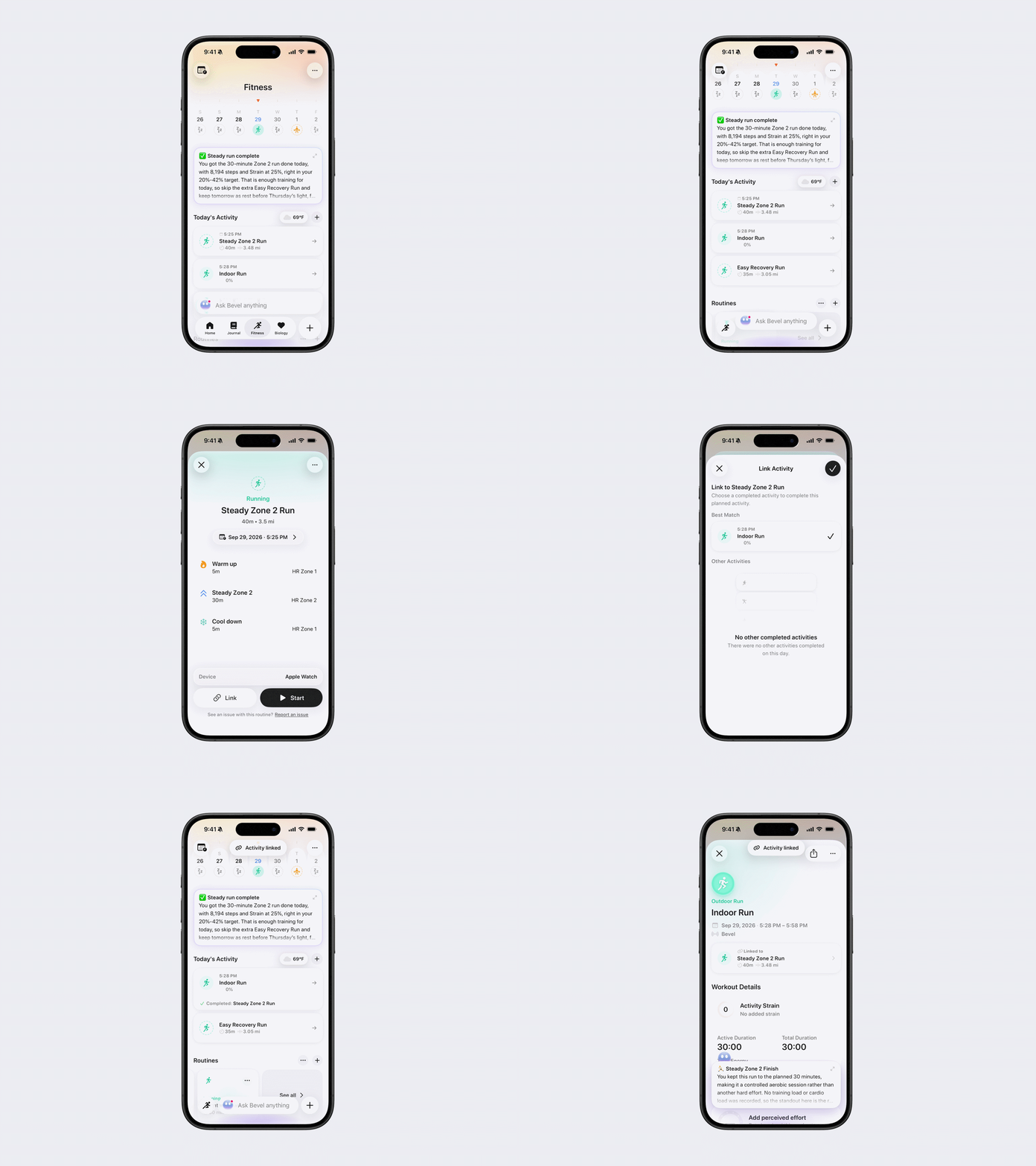
If a completed workout from the same day hasn’t been linked, you can link it manually:
Open the planned activity.
Tap Link.
Select the corresponding completed activity.
Tap the checkmark in the top-right corner to save.
Unlinking a Workout
If you want to unlink a workout:
Open the completed activity.
Tap the three dots (...) in the top-right corner.
Tap Unlink activity. l
Skip a Planned Activity
To manually skip a workout:
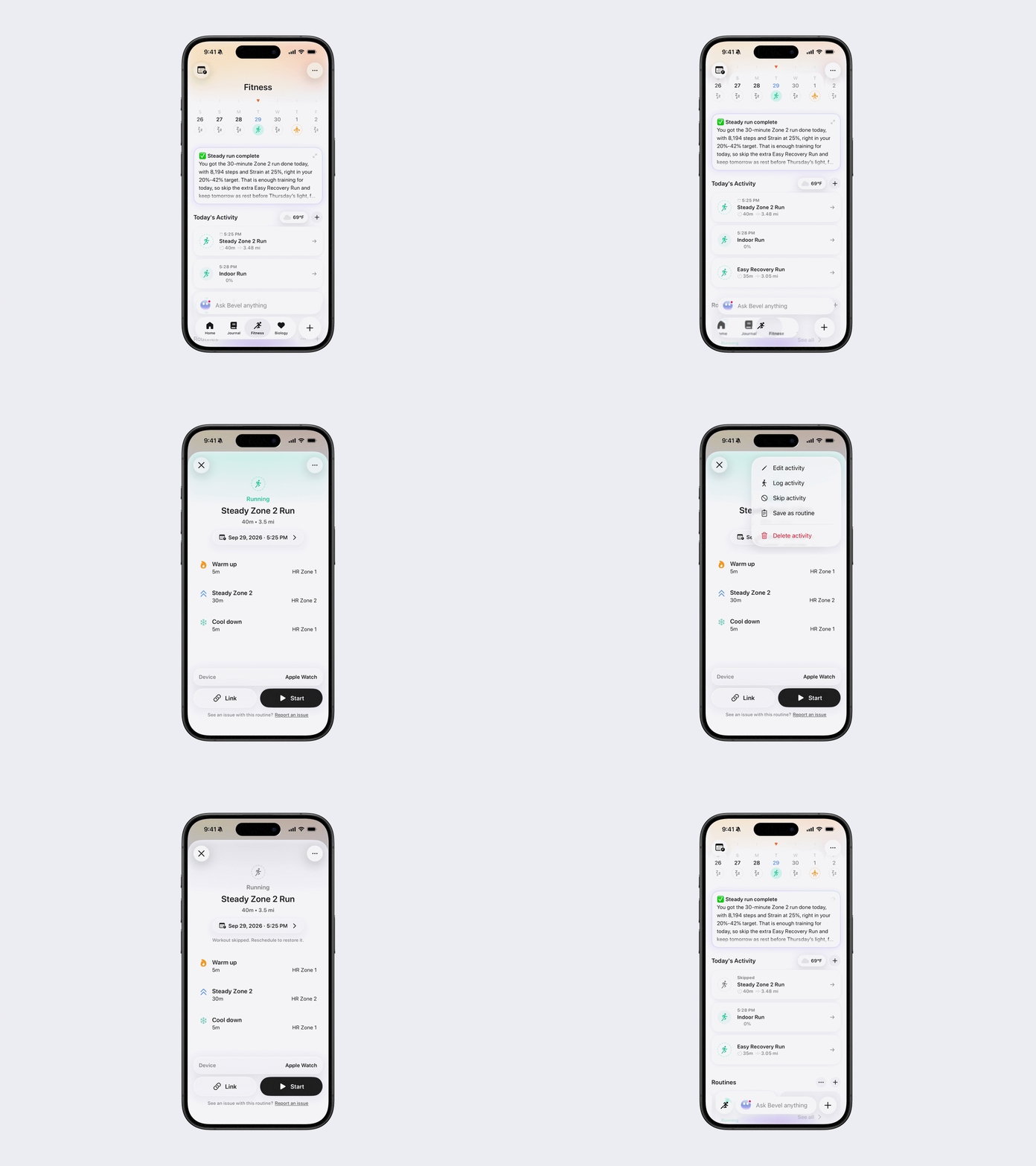
Open the planned activity.
Tap the three dots (...) in the top-right corner.
Tap Skip Activity.
You can reopen a skipped activity later and choose to link a completed workout or start the planned workout.
If a planned activity remains incomplete after its scheduled day has passed, Bevel will automatically treat it as skipped. To restore a skipped activity, reschedule it or ask Bevel Intelligence to reschedule it for you. You can also reopen it to link a completed workout or start the planned workout.
Sync Planned Workouts to Apple Fitness
Bevel will ask for permission before syncing planned workouts to Apple Fitness. Once you grant permission, scheduled workouts sync automatically and appear in the Workout app on your Apple Watch on the day they’re scheduled.
Apple Fitness limits the number of workouts that can be stored at one time. If you receive an alert that you’ve reached the limit:
Delete an existing workout from Apple Fitness.
Return to Bevel.
Open Fitness Settings.
Tap Sync to Apple Fitness.
Delete a Linked Completed Activity
If you delete a completed activity that was linked to a planned activity, the original planned activity will be restored to its scheduled state.