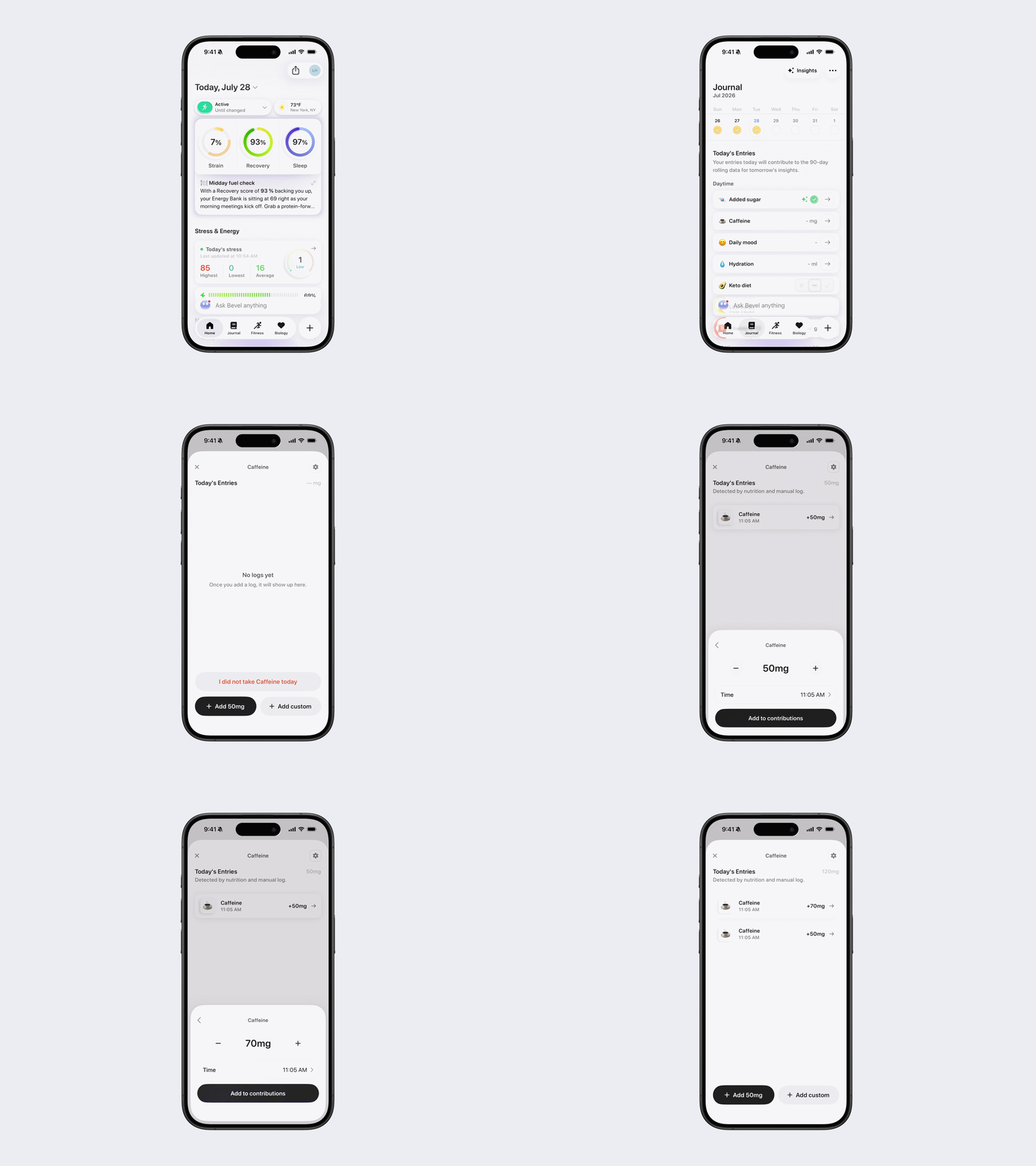
How to Log Caffeine
This article explains how to log and manage caffeine in Journal.
Automatic logging
Caffeine is automatically logged from your Nutrition entries when caffeine is detected in the foods or drinks you log.
If you log a food that should contain caffeine but it does not trigger your Journal entry, the food in our database may not have caffeine associated with it.
Please report the food and include a brief explanation of the issue. A member of our team will review it and update the database if needed.
How to manually log caffeine in Journal
Open Bevel.
Tap the Journal tab.
Tap Caffeine.
Choose one of the following:
Tap + Add 50 mg (bottom-left) to quickly log caffeine. This default amount can be customized by following the Change the Quick Add Amount instructions below.
Tap Add Custom to customize the amount.
Use the + or − buttons to adjust the mg of caffeine.
Adjust the time if needed.
Tap Add to Contributions.
If you did not have caffeine today, tap I did not take Caffeine today. To track a day without caffeine, you need to log 0 mg of caffeine.
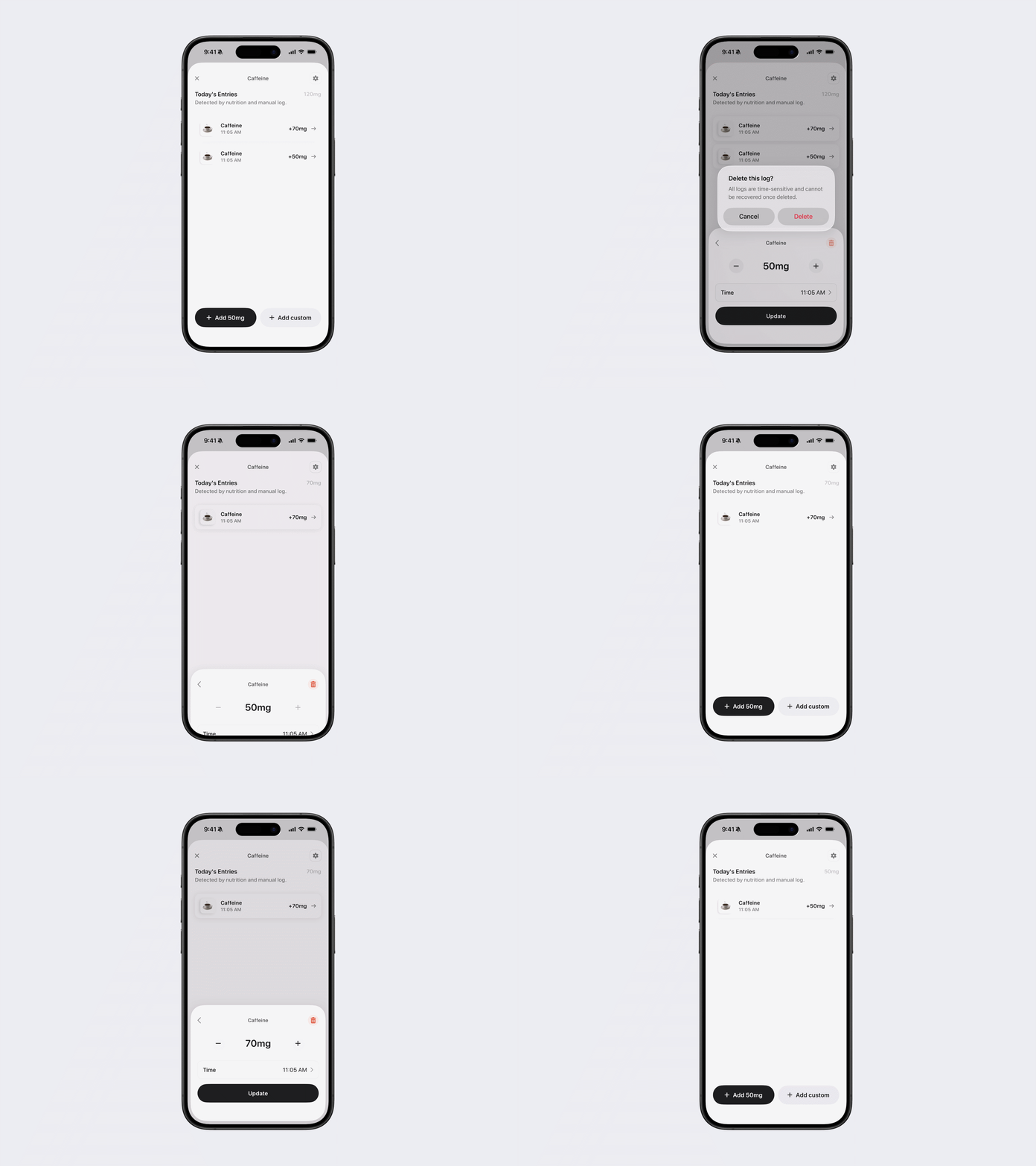
How to edit or delete a caffeine entry
Manually logged entries
Open Journal → Caffeine
Tap the entry you want to edit.
You can:
Tap the + or − buttons to change the caffeine amount in milligrams (mg).
Tap the time to change when the drink was consumed.
Tap Update to save your changes.
Tap the red trash icon to delete the entry.
Entries logged through Nutrition
If the caffeine entry came from a Nutrition log, tapping it will open the associated Nutrition entry.
To delete it:
Tap the three dots in the top-right corner.
Tap Delete.
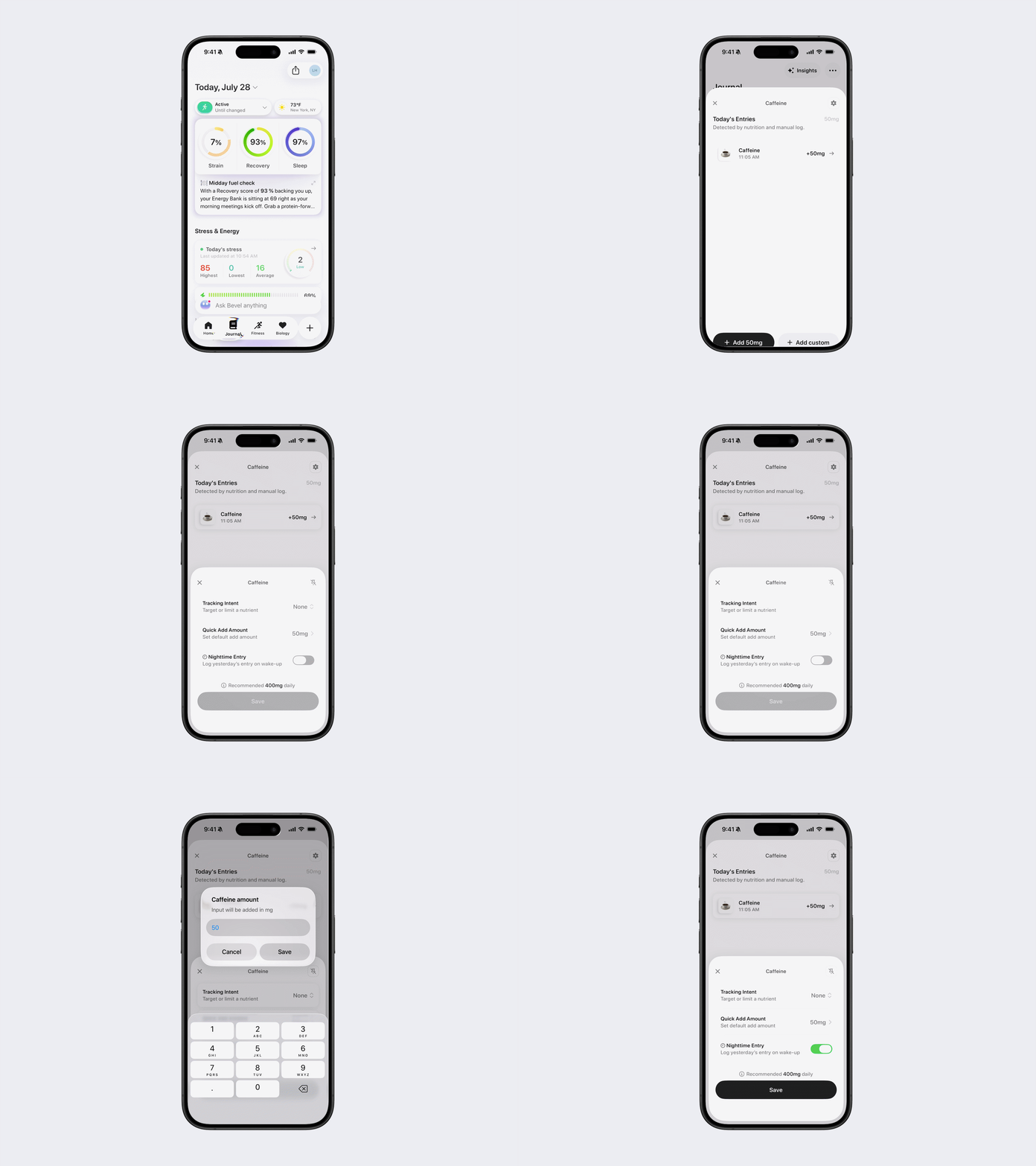
Caffeine settings
Open Journal → Caffeine, then tap the Settings icon in the top-right corner.
From here you can:
Pin Caffeine
Tap the Pin icon to pin Caffeine to the top of your Journal.
Set a tracking intent
Tap Tracking Intent, choose whether Caffeine should be tracked as a:
Target
Limit
None
Change the Quick Add amount
Open Settings.
Tap Quick Add Amount.
Choose the default number of mg added when you tap + Add 50mg
Tap Save.
Enable Nighttime Entry
Turn on Nighttime Entry (Log yesterday's entry on wake up) if you prefer to log caffeine the following morning instead of the night before.
Tap Save to apply your changes.