Understanding Health Records vs. Files
Bevel uses two types of data to power your insights: Health Records and Files. Understanding the difference helps you know how your data contributes to features like Biological Age and Confidence.
What are Health Records?
Health Records are data that you upload or connect from external sources. These typically include:
Blood test results
Lab reports
Medical documents
Other personal health data
These records are user-provided and play a critical role in improving the accuracy of your health insights.
Why Health Records Matter:
Help Bevel better understand your physiology
Improve the Confidence of your Biological Age estimate
Enable more personalized recommendations
For example, uploading blood tests allows Bevel to analyze biomarkers that directly impact your Biological Age.
What are Files?
Files are data generated and processed by Bevel. Unlike Health Records, these are not uploaded by you—they are created automatically as part of your experience in the app.
Files capture the outputs of your activity, preferences, and interactions with Bevel.
What Files include
Files can include:
Memories: Information Bevel learns about your habits, goals, and preferences
Training Plans: Personalized plans based on your goals and progress
Personal Preferences: Settings and inputs that shape your experience
You can also ask Bevel Intelligence to create specific files by simply telling it what you want.
Examples of Files
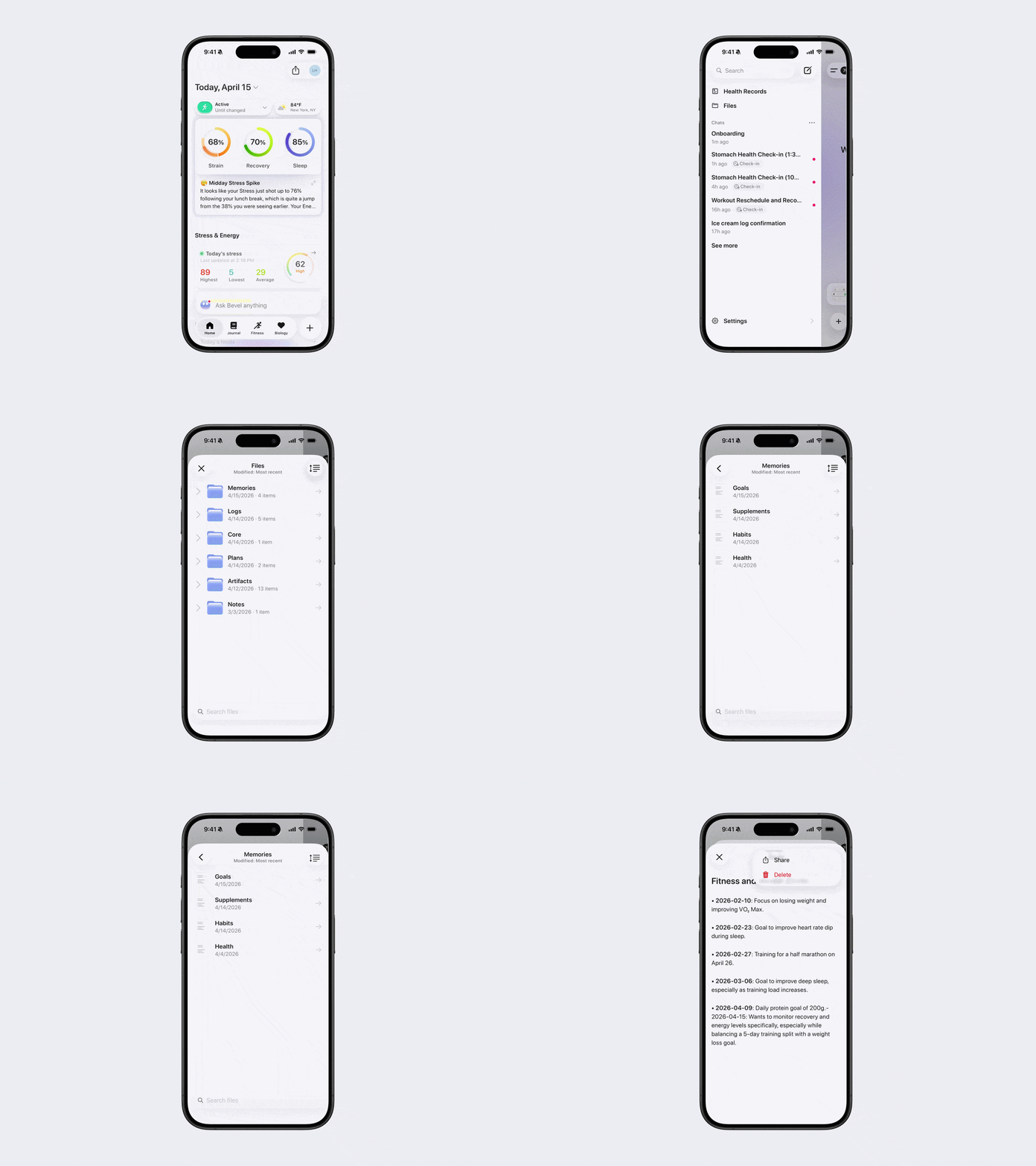
Plans: Marathon plans, nutrition plans, strength plans
Artifacts: Charts, graphs, and other visualizations Bevel creates
Memories: Preferences, habits, routines, important events
Notes: Check-in summaries and other saved notes
Logs: Single events, daily entries, or other logs you tell Bevel Intelligence to track
Core: User profile and personality settings
Managing your Files
You can organize and view your Files directly in the app.
Open Files in Bevel Intelligence.
Tap the filter icon (arrows and lines in the top right).
Choose how you want to sort or filter your Files.
Deleting your Files
If you want to delete a File or remove a memory Bevel Intelligence has about you, you have two options:
Ask Bevel Intelligence directly to delete it.
Or open the File, tap the three dots (…) in the top-right corner, and select Delete.
Deleting All Chats or Files
If you’d like to remove all Chats or Files from Bevel Intelligence, you have two options:
Option 1: Via Bevel Intelligence
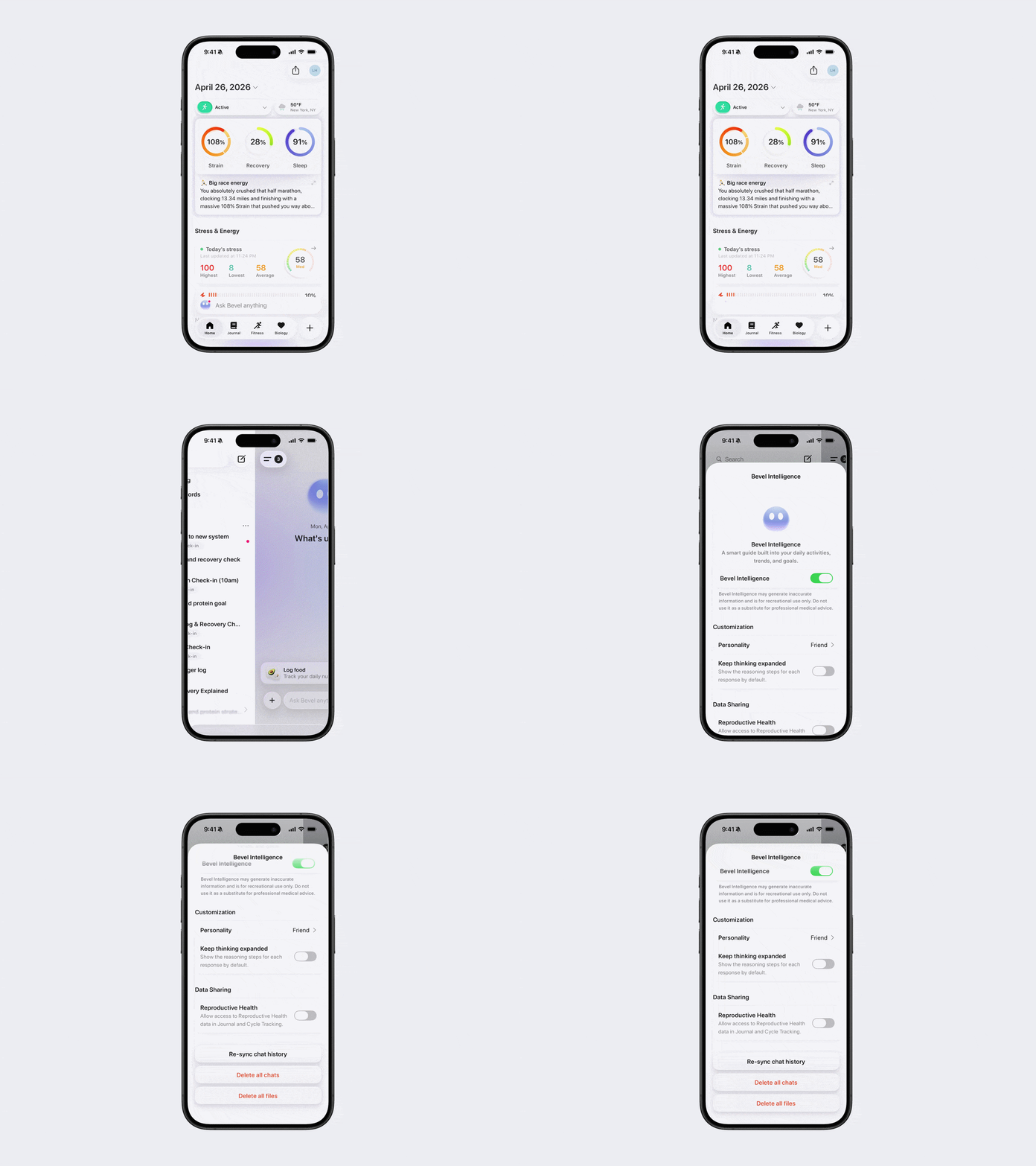
Open Bevel Intelligence.
Tap the menu icon in the top left corner.
Tap Settings in the bottom right corner.
Tap Delete all Chats or Delete all Files.
Option 2: Via Profile Settings
Open Bevel.
Tap your initials or profile picture in the top-right corner.
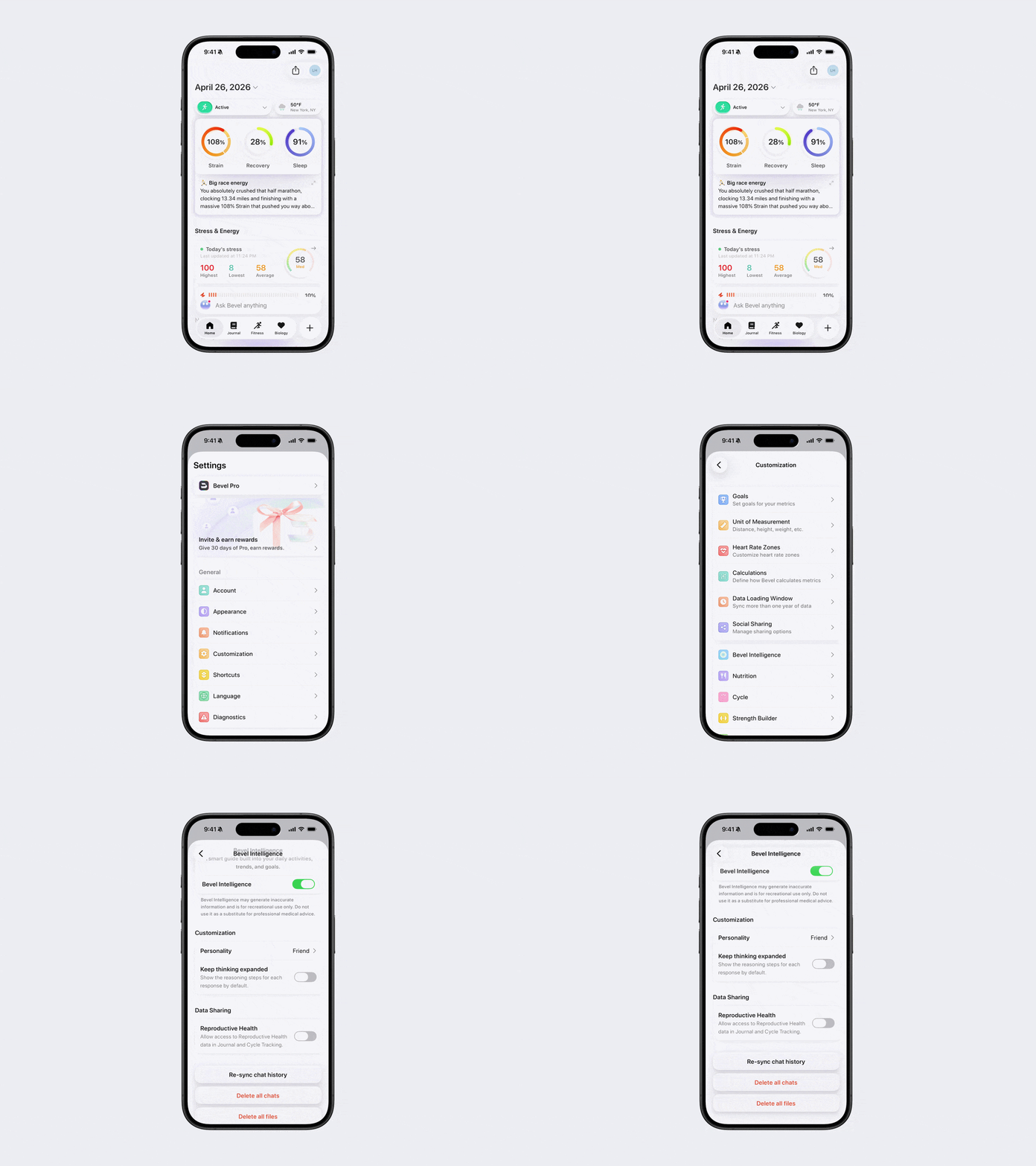
Tap Customization.
Tap Bevel Intelligence.
Tap Delete all Chats or Delete all Files.