How to Upload Health Records
There are multiple ways you can add Health Records to Bevel, making it easy to upload files from your device whenever you receive new information.
Upload Health Records
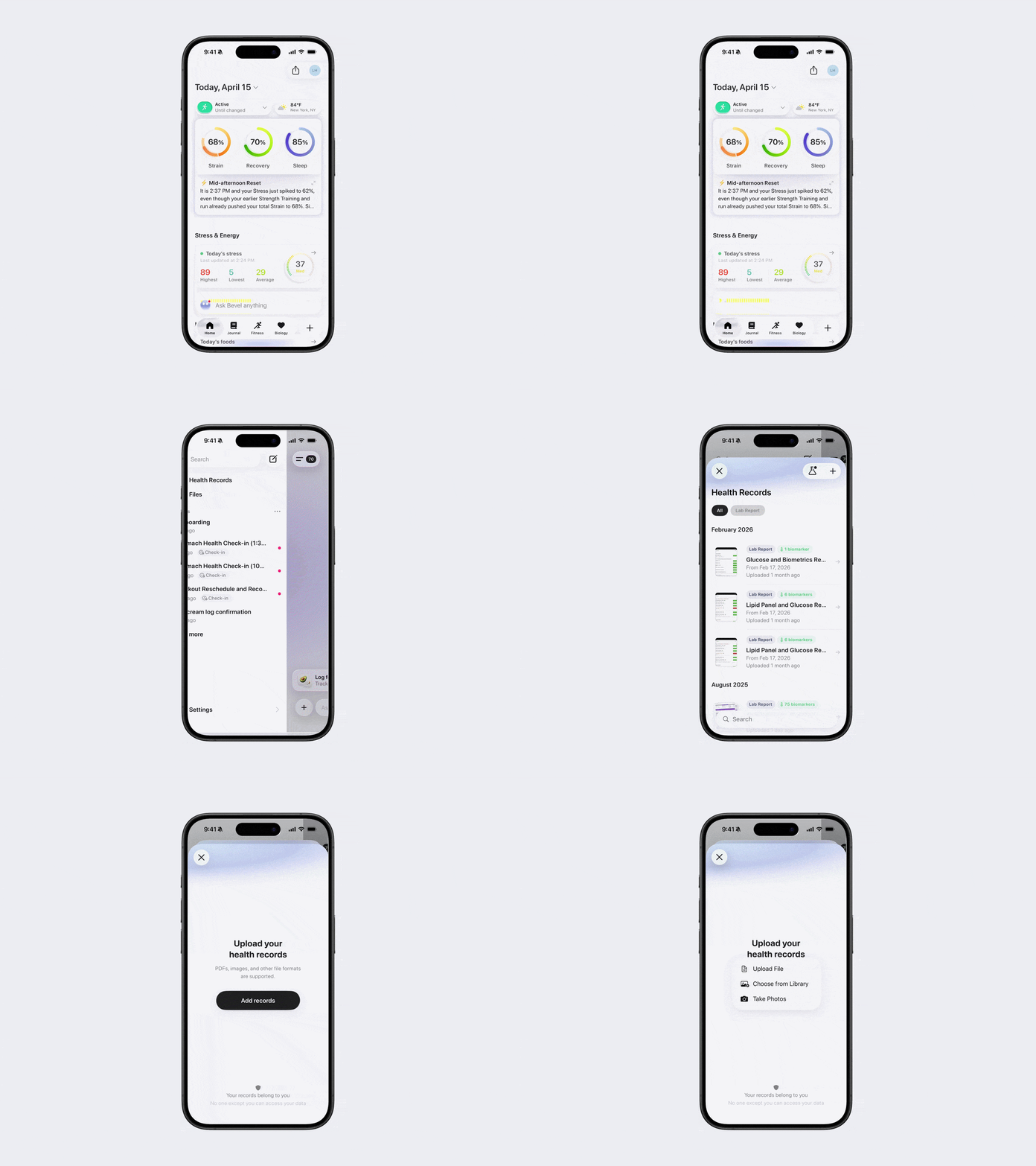
Option 1: Via Bevel Intelligence Sidebar
Open Bevel Intelligence.
Tap the menu icon in the top-left corner.
Tap Health Records.
Tap the + button.
Tap Add Records.
Choose your upload type (Photo, Library, or File) and follow the on-screen instructions.
Option 2: Via Bevel Intelligence Chat
Open Bevel Intelligence.
Attach your test results and ask Bevel Intelligence to add it to your Health Records.
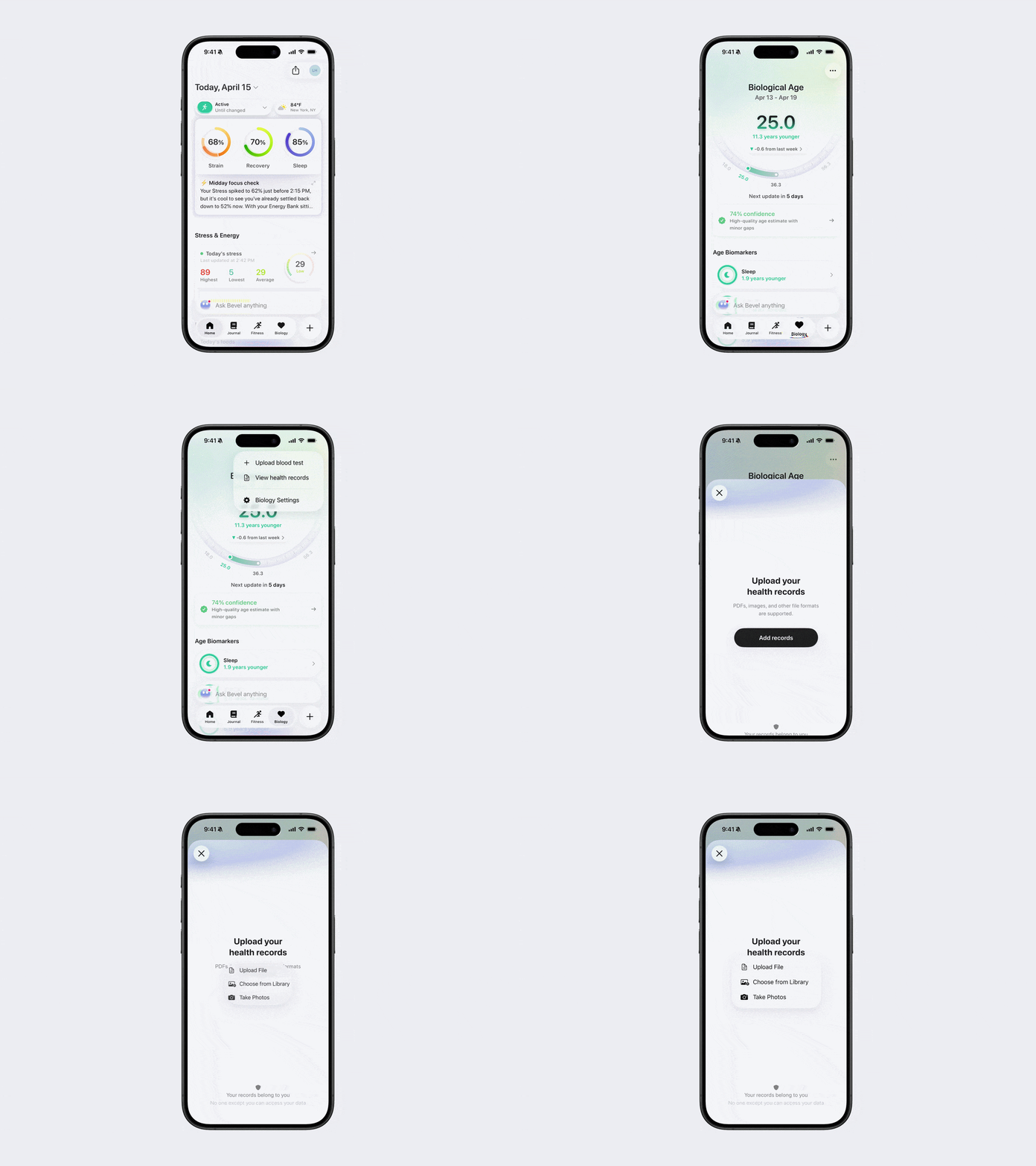
Option 3: Via Biology Upload Blood Tests
Open Bevel.
Tap the Biology tab.
Tap the three dots (…) in the top-right corner.
Tap Upload Blood Tests.
Follow steps below to Upload from Phone or Desktop.
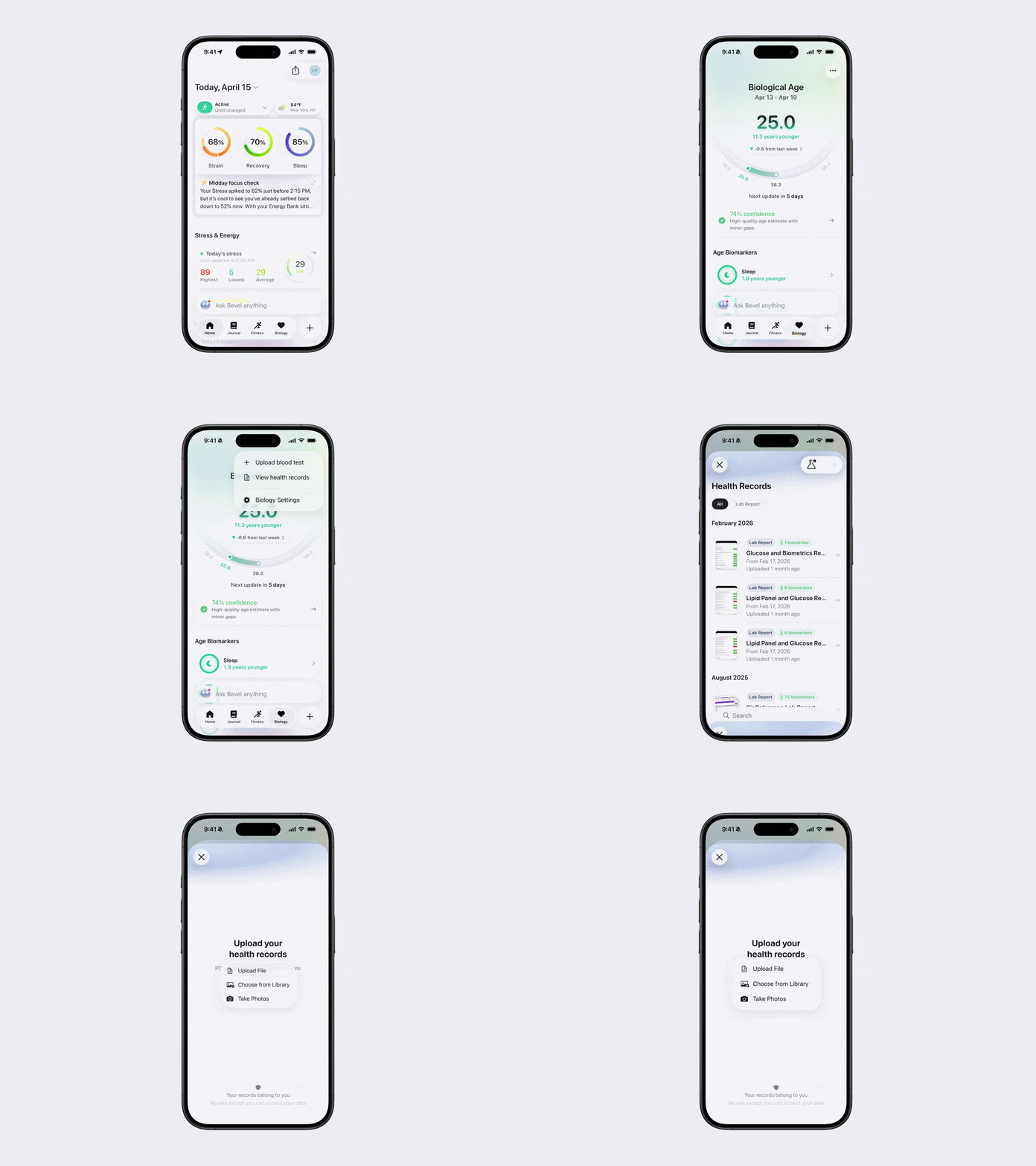
Option 4: Via Biology View Documents
Open Bevel.
Tap the Biology tab.
Tap the three dots (…) in the top-right corner.
Tap View Health Records.
Tap the + button.
Tap Add Records.
Choose your upload type (Photo, Library, or File) and follow the on-screen instructions.
Option 5: Via Biology, no Biological Age
Open Bevel.
Tap the Biology tab.
Tap Add Blood Tests.
Follow steps below to Upload from Phone or Desktop.
Option 6: Via Individual Blood Biomarkers
Open Bevel.
Tap the Biology tab.
Tap a Blood Test (such as Albumin).
Tap the refresh icon in the top-right corner.
Tap the + button in the top-right corner.
Follow steps below to Upload from Phone or Desktop.
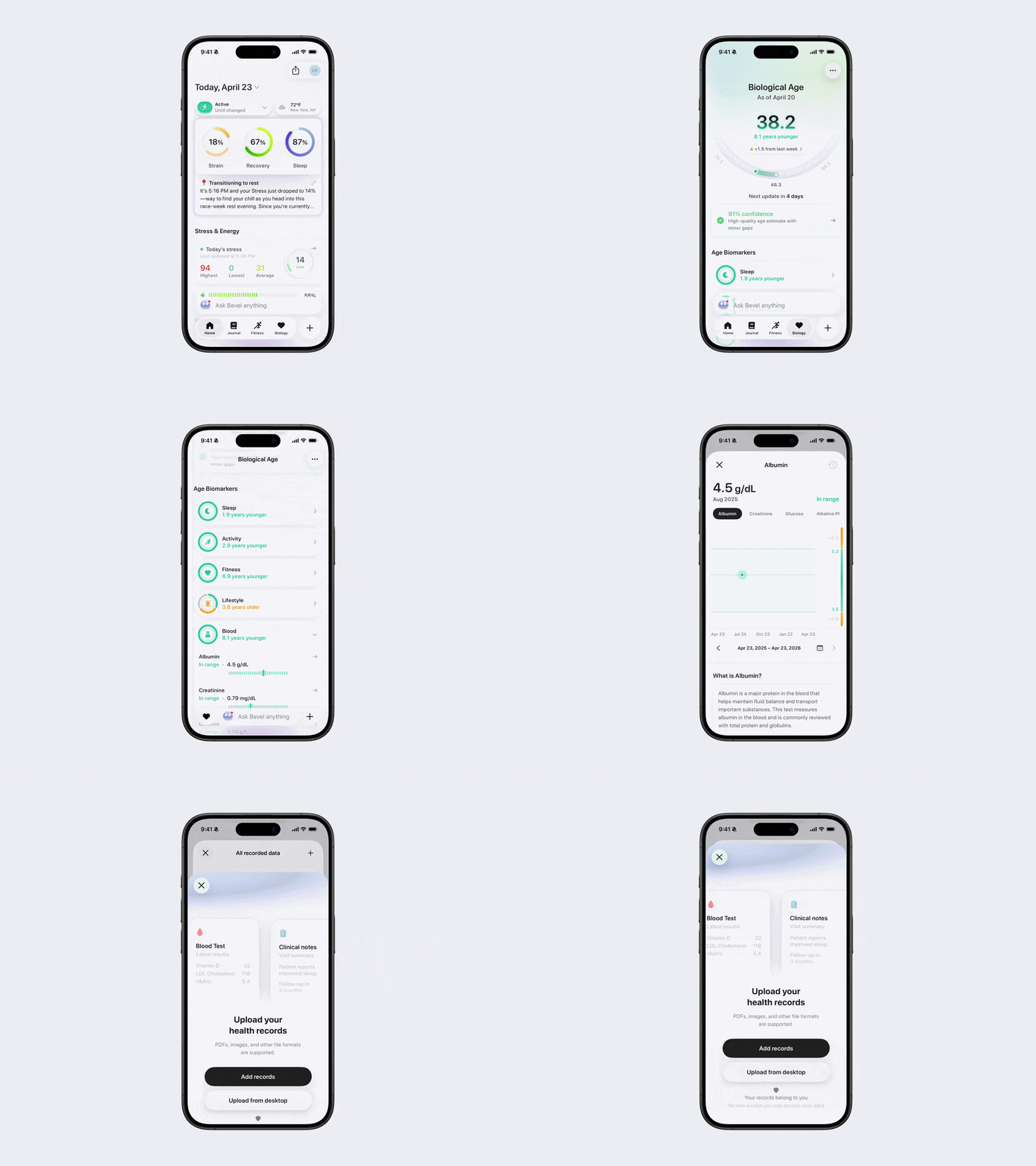
Option 7: Via Blood Biomarkers
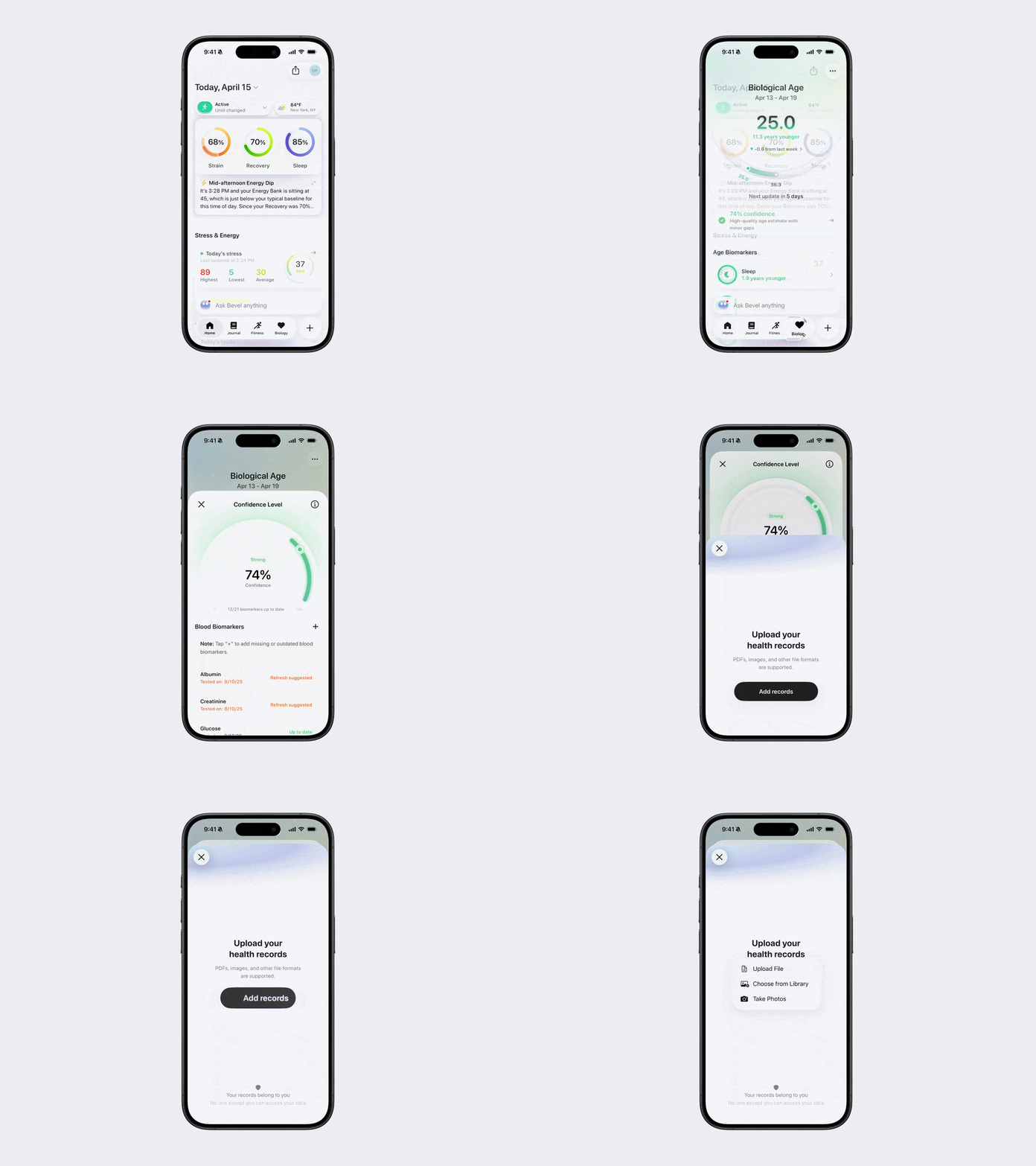
Open Bevel.
Tap the Biology tab.
Tap Confidence beneath your Biological Age.
Tap + next to Blood Biomarkers.
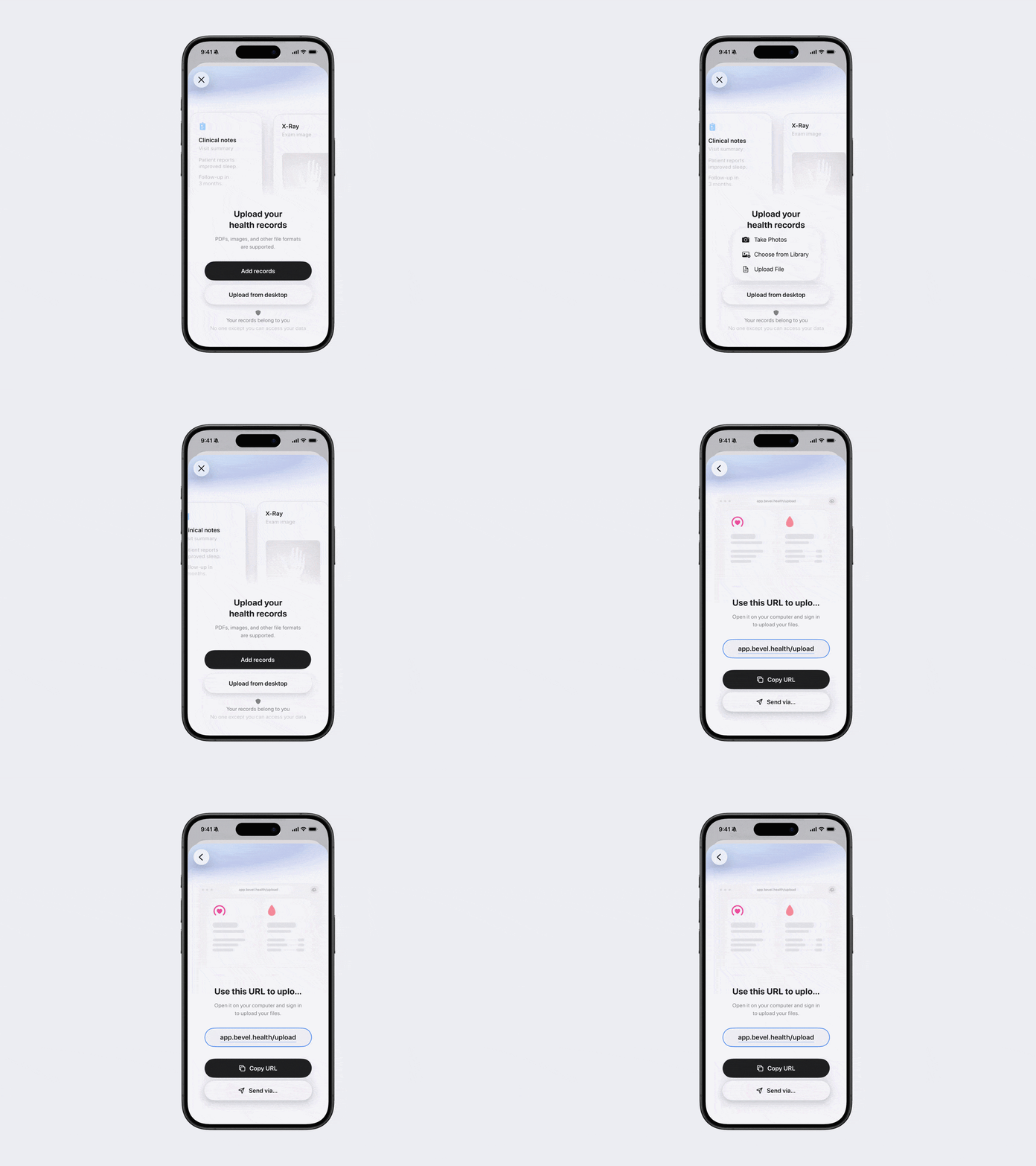
Upload Documents from Desktop
You can upload tests directly from a desktop computer.
Tap Upload from Desktop.
Tap Copy URL or Send Via…
Open URL on your Desktop.
Sign In with Email or Apple ID
Tap Select Files or + Add Files.
Choose the files you want to add.
Tap Upload Files.