
How to Edit the Fitness Tab
Bevel allows you to customize what appears on your Fitness Tab by adjusting the visibility and order of individual sections. This makes it easy to tailor the strength and fitness experience to what matters most to you.
This article explains how to edit, hide, show, reorder, and reset Fitness Tab sections.
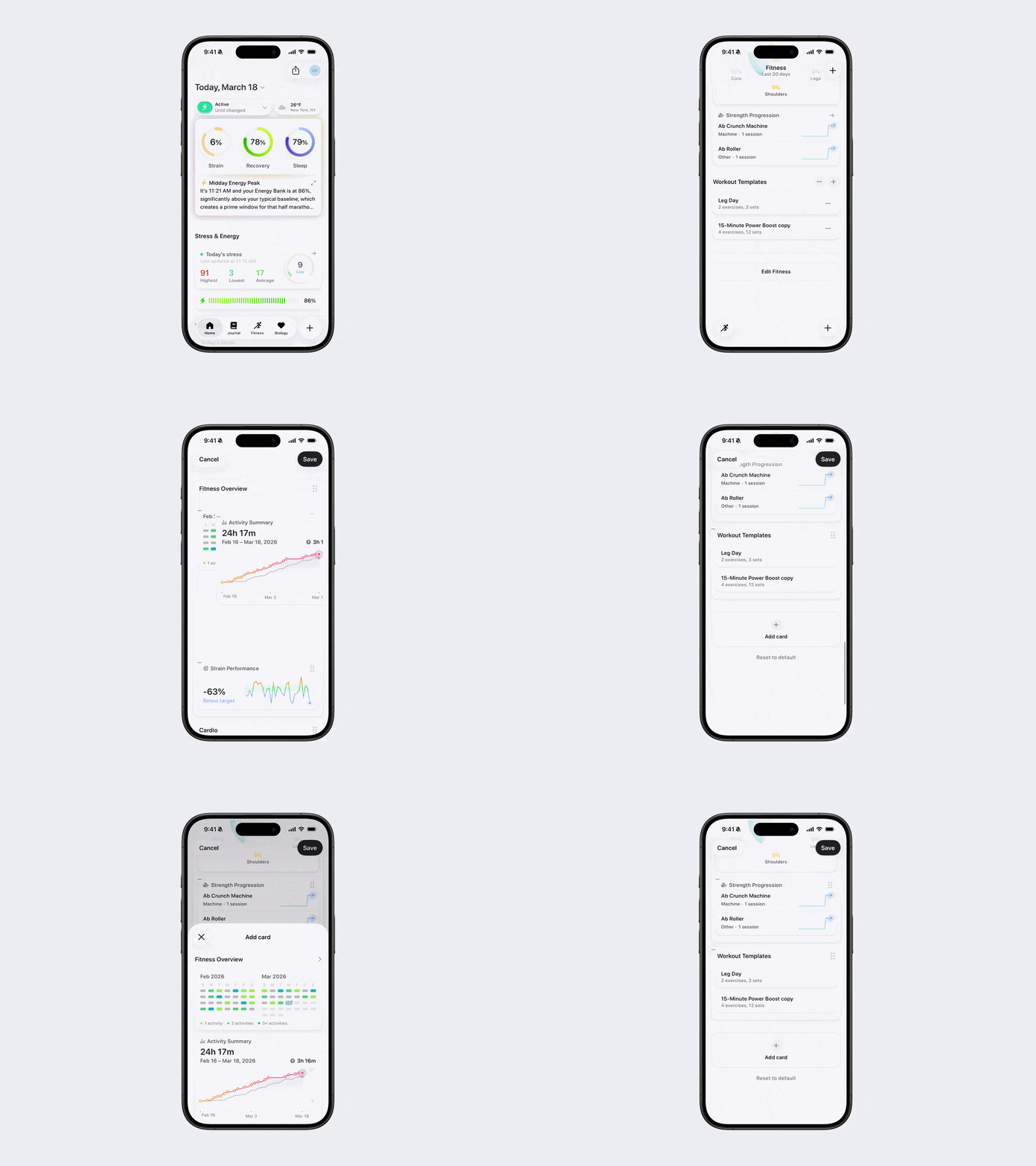
Edit Fitness Tab
To access Fitness Tab editing:
Open Bevel.
Navigate to the Fitness Tab.
Scroll to the bottom.
Tap Edit Fitness.
You’ll now see a list representing your current Fitness Tab layout.
Hiding Sections
To hide a section from the Fitness Tab:
From Edit Fitness, locate the section you want to hide.
Tap the negative (–) button in the top-left corner of the section.
Tap Save.
The section will no longer appear on your Fitness Tab.
Showing Sections
To add a section back to the Fitness Tab:
From Edit Fitness, scroll down to Add card.
Tap Add card.
Select the section you want to add.
Tap Add to Fitness.
Tap Save.
The section will now be visible on your Fitness Tab.
Reordering Fitness Tab Sections
You can change the order in which sections appear on your Fitness Tab.
To reorder sections:
From Edit Fitness, press and hold the section you want to move.
Drag it to your desired position.
Release to place it.
Tap Save.
Your Fitness Tab will update to reflect the new order.
Restoring Default Visibility
If you want to return to Bevel’s default Fitness Tab layout:
From Edit Fitness, scroll down to Reset to default.
Tap Reset to default.
Tap Save.
This will restore the original Fitness Tab sections and order.
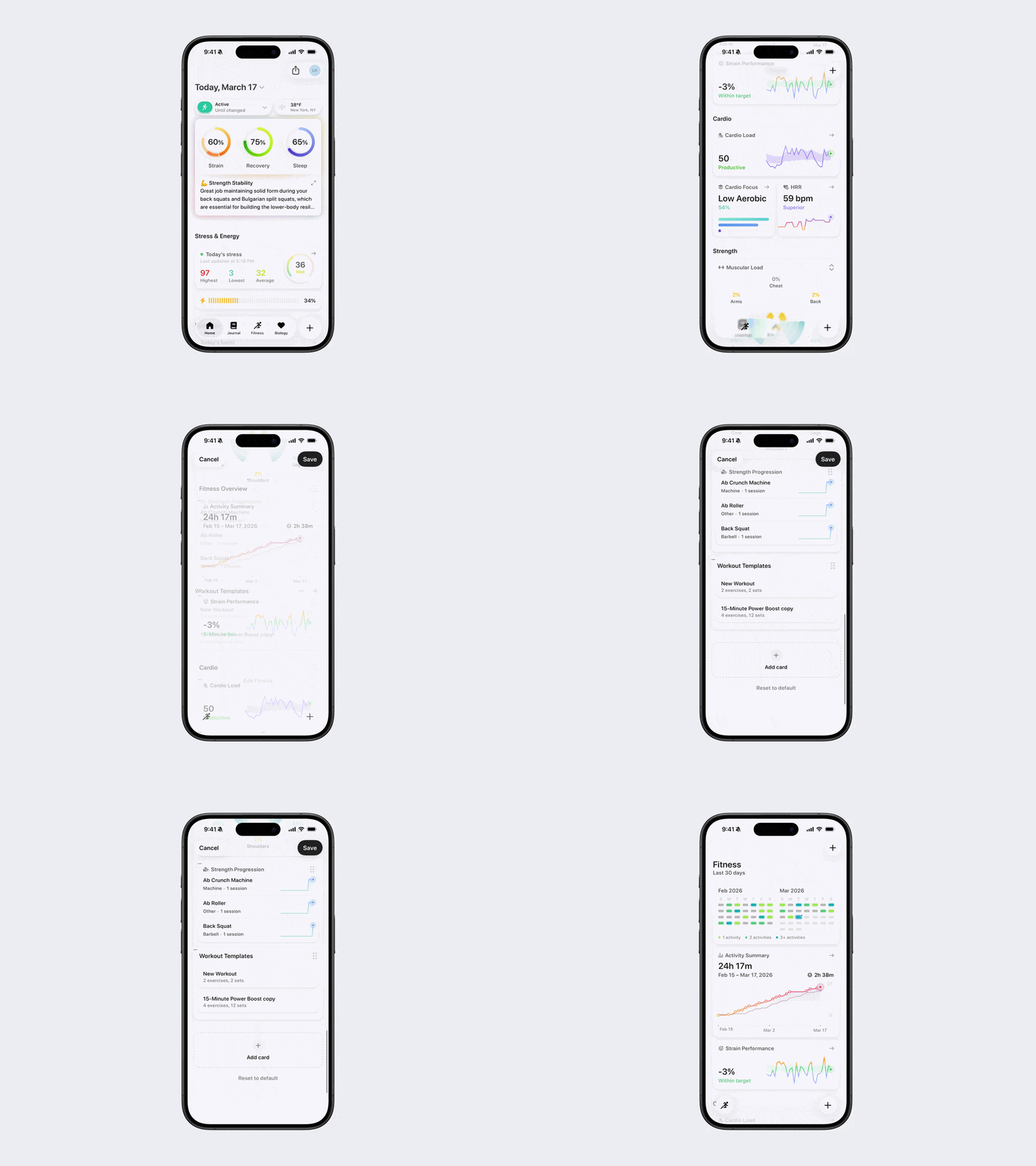
Customize Bevel to fit your workflow and make the Fitness Tab work the way you do.