How to Edit a Template Before a Workout
If a workout Template isn’t quite right or you’re not planning to do it as-is, you can edit it before starting.
Steps to Edit a Template
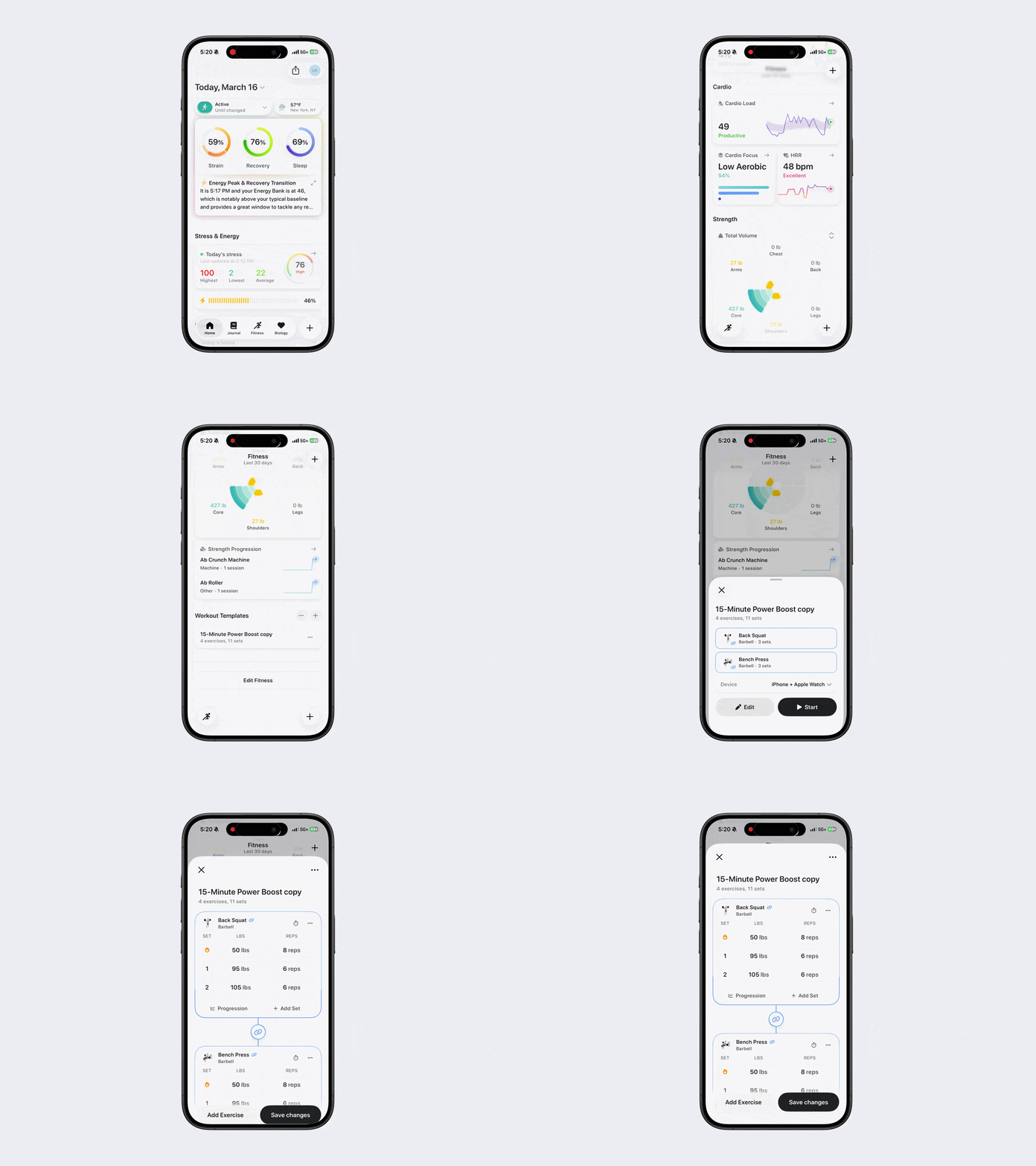
Option 1:
Open Bevel.
Go to the Fitness tab.
Scroll down to Workout Templates.
Tap the Template you want to edit.
Tap Edit
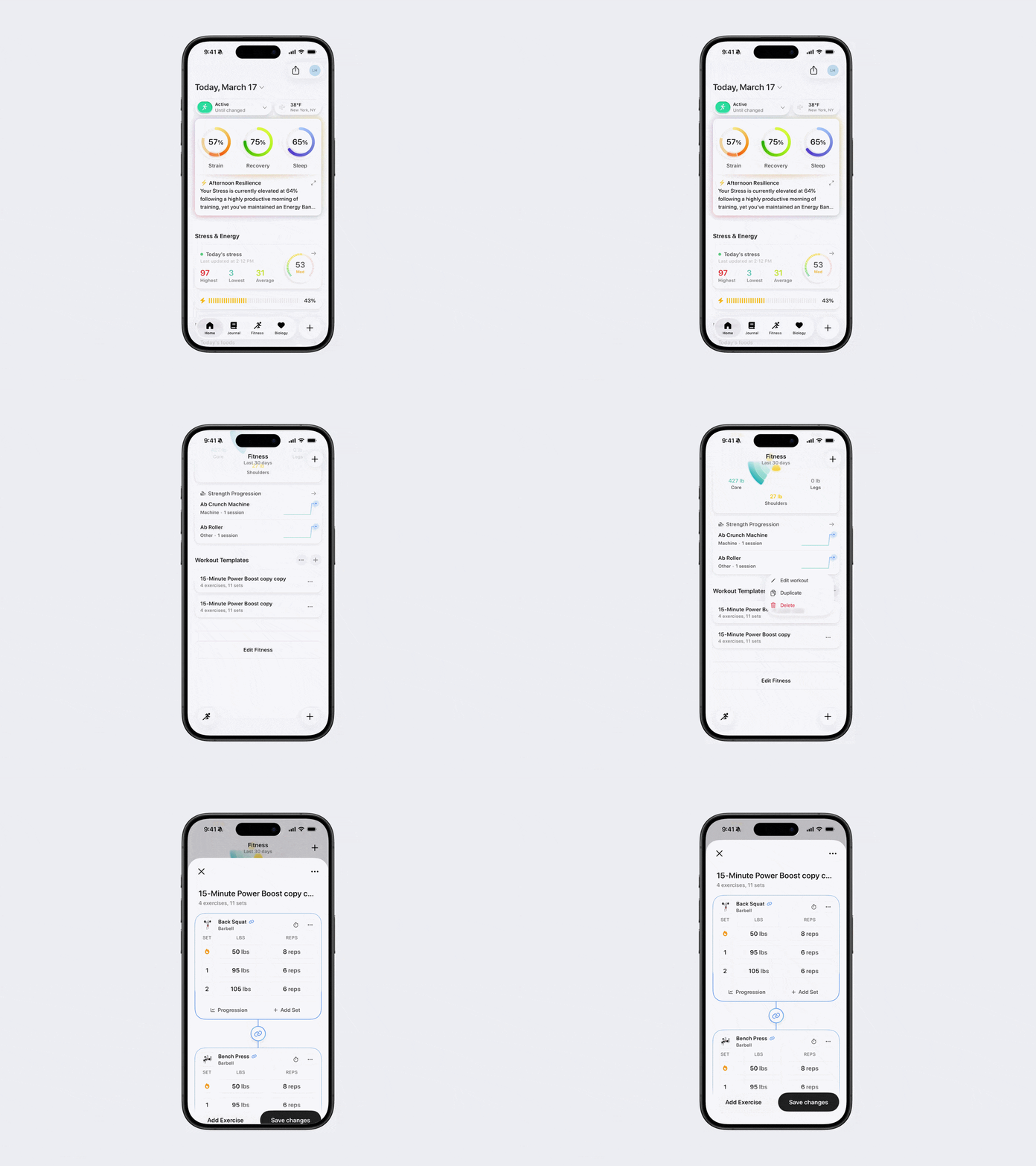
Option 2:
Open Bevel.
Go to the Fitness tab.
Scroll down to Workout Templates.
Tap the three dots (...) next to the Template you want to edit.
Select Edit Workout.
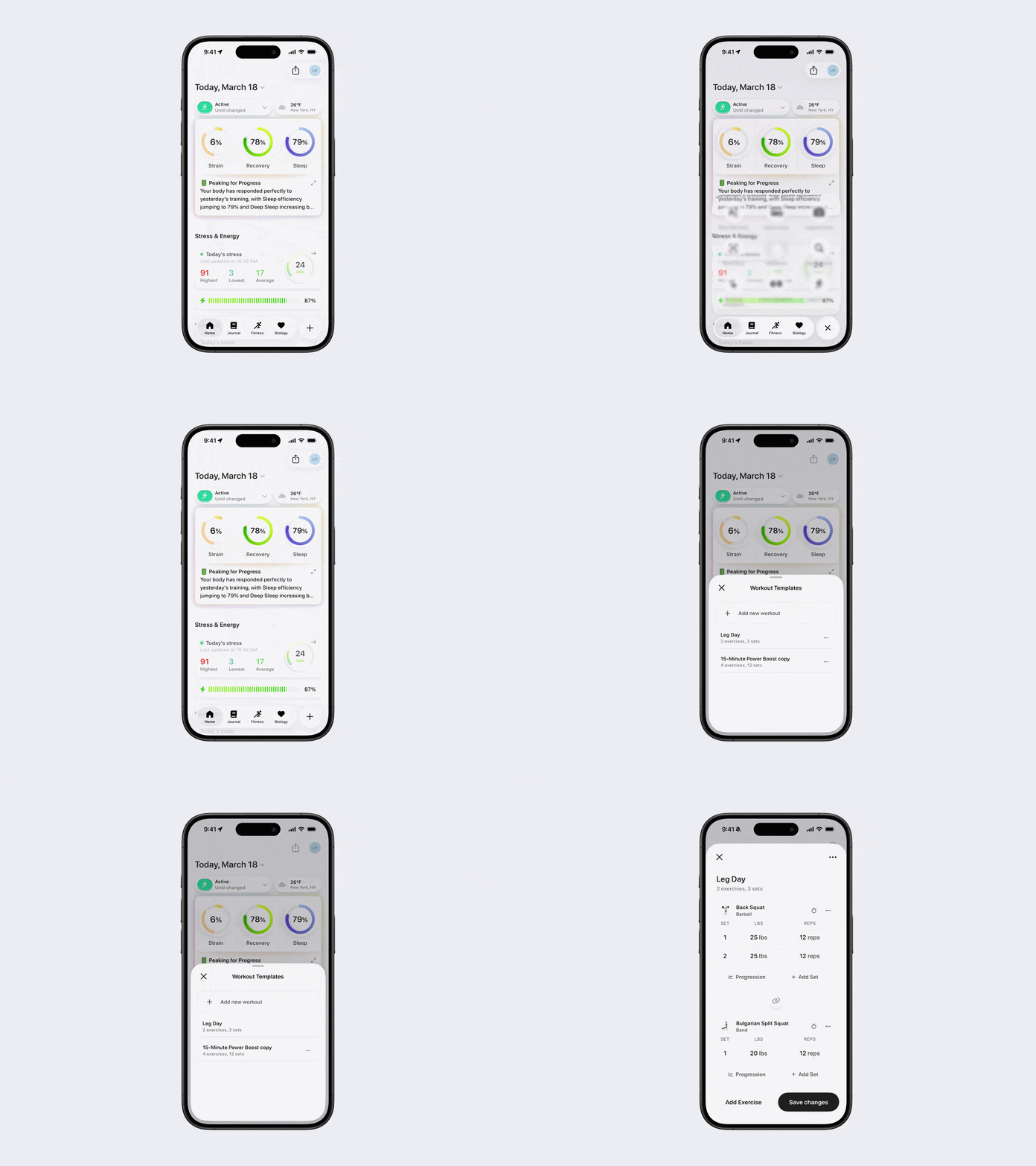
Option 3:
Open Bevel.
Tap the + button in the bottom-right corner.
Tap View Templates
Tap the three dots (...) next to the Template you want to edit.
Select Edit Workout.
Note: Don’t see this option? You can edit your action button to add it. See the Edit Action Button article for steps.
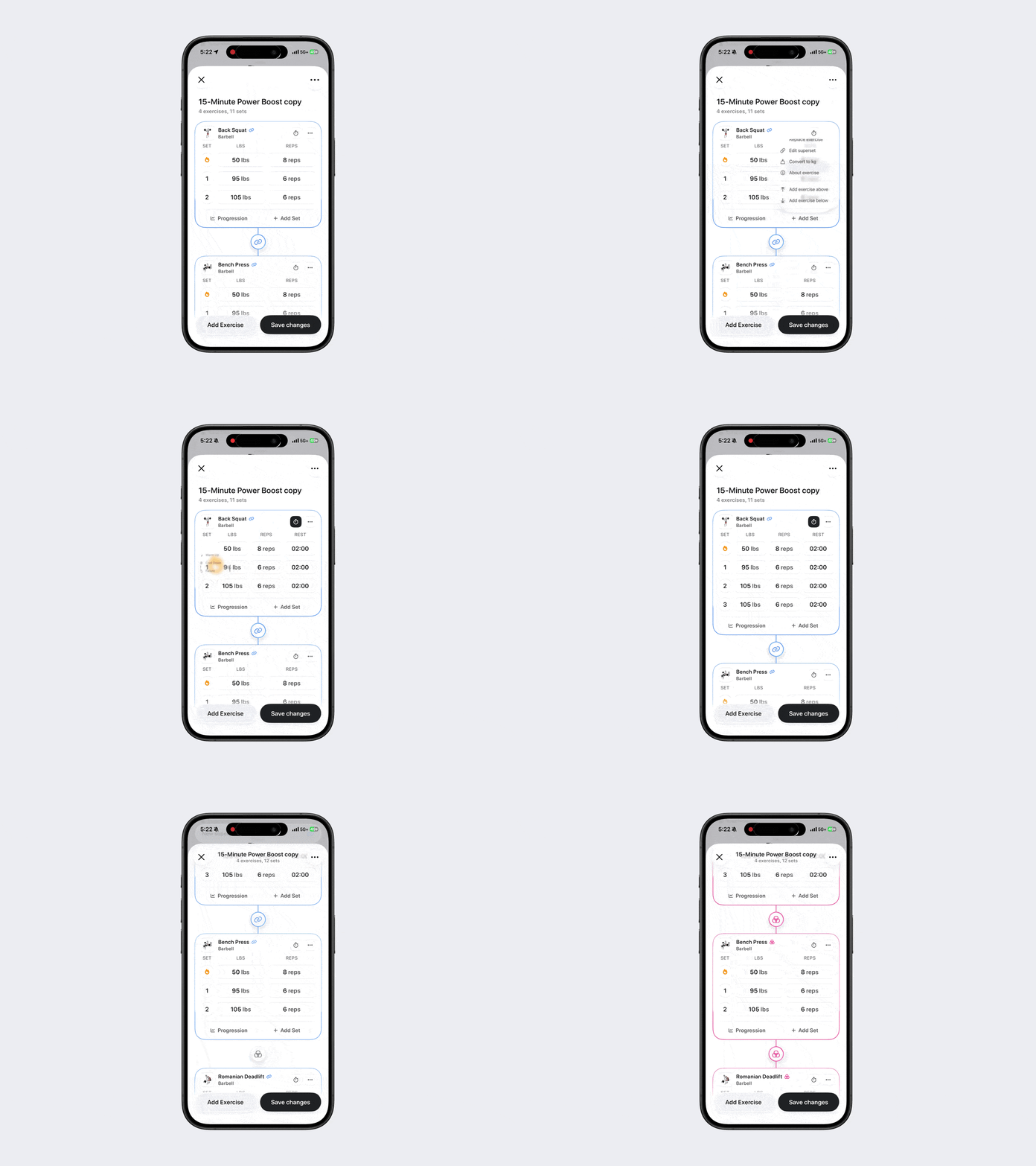
From here, you can:
Add exercises: Tap Add Exercise at the bottom-left.
Remove exercises: Tap the three dots (...) next to an exercise and select Remove.
Reorder exercises: Tap the three dots (...) in the top-right and select Reorder.
Adjust sets, reps, or weight: Tap the numbers in the respective columns.
Add Sets: Tap Add Set beneath the exercise
Add timers: Tap the clock icon next to the exercise name.
Create supersets or circuits: Tap the three dots (...) next to an exercise and select Create Superset/Circuit, or tap the link or circuit icon between exercises.
Edit supersets or circuits: Tap the three dots (...) next to an exercise and select Edit Superset/Circuit, or tap the link or circuit icon between exercises.
Rename the Template: Tap the Template name to change its name.
Progression: Tap Progression below the exercise name to see sets and reps from your most recent workout.
Reps/Duration: Tap the reps or duration value for an exercise, then tap the toggle above the keyboard to switch between reps and duration
Tip: Don’t forget to tap Save Changes to update the Template. You can now start the workout with your edits applied