
How to Start a Workout
On Your Phone
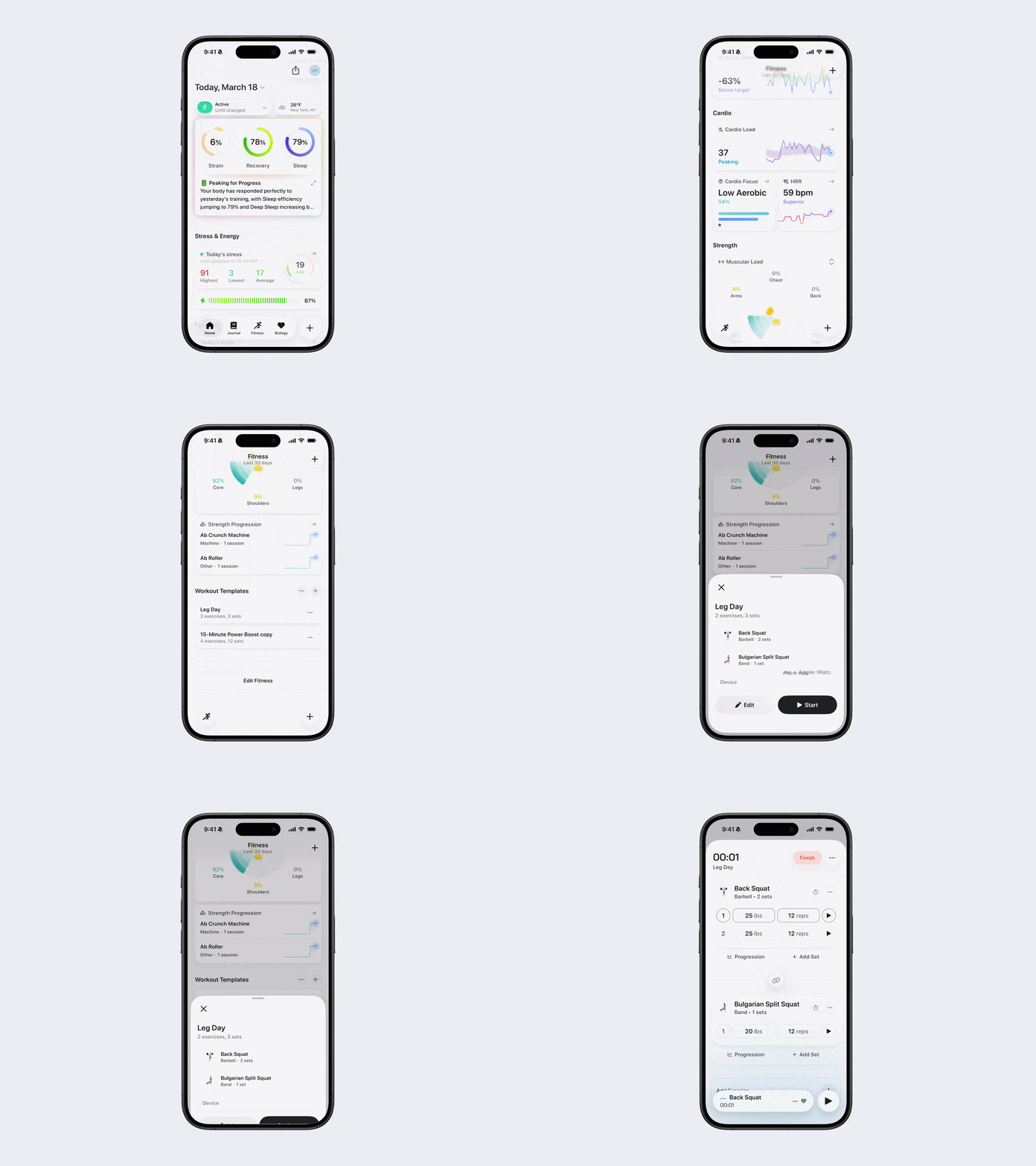
Option 1:
Open Bevel.
Go to the Fitness tab.
Scroll down to Workout Templates.
Select the Template you want to do.
Select your Device:
iPhone: The workout will play and be tracked on your iPhone only. If you select iPhone, a Live Data Source section will appear where you can choose the device that provides your live workout data. Under Available Sensors, tap the sensor you want to use. A checkmark will appear next to the selected sensor to confirm it is connected.
iPhone + Apple Watch: The workout will run on both your phone and Apple Watch, allowing you to view and track it from either device.
Tap Start.
Follow the on-screen prompts to track your exercises, sets, reps, and timers.
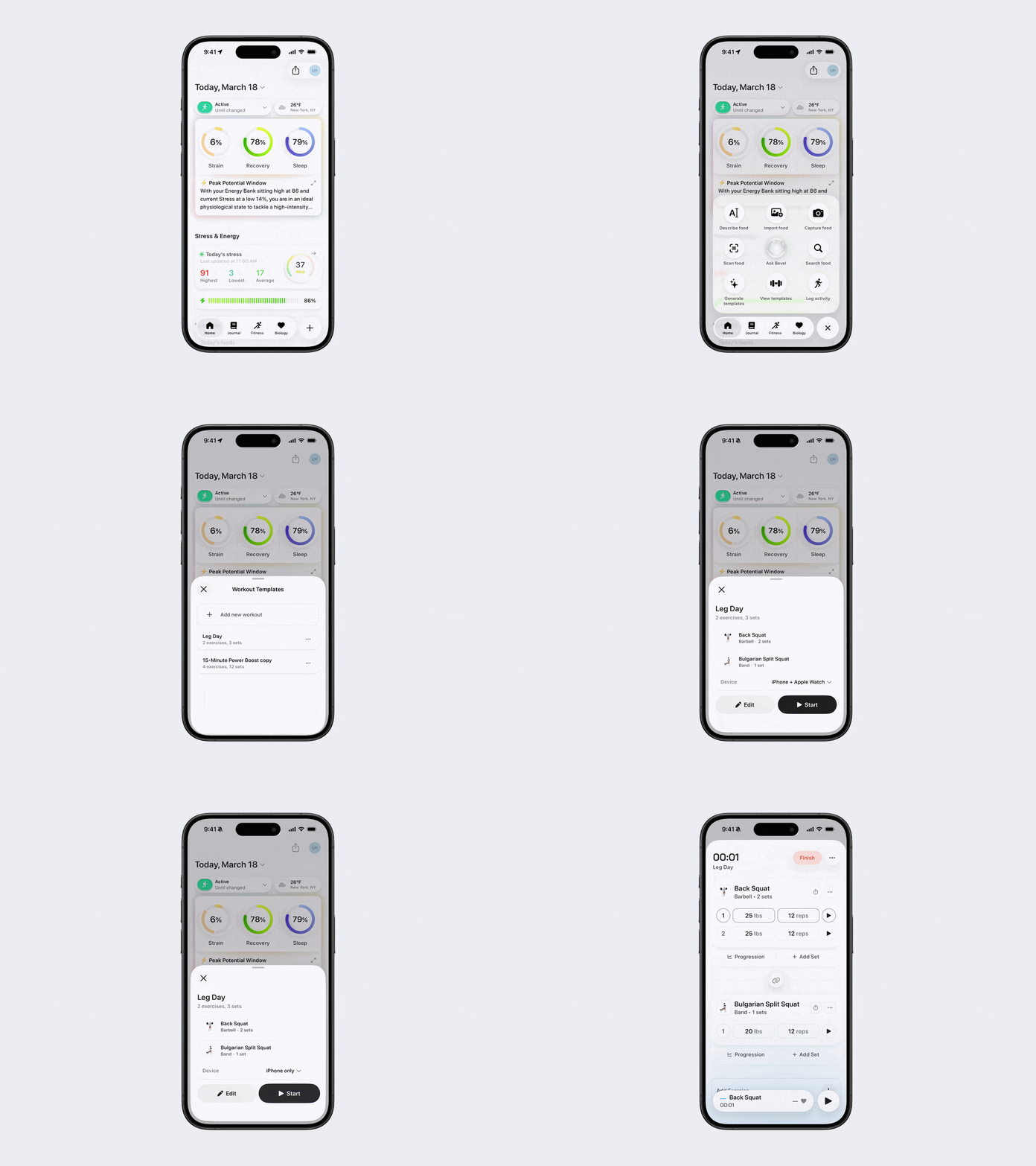
Option 2:
Open Bevel.
Tap the + button in the bottom-right corner.
Tap View Templates.
Click the Template you want to do.
Tap Start.
Note: Don’t see this option? You can edit your action button to add it. See the Edit Action Button article for steps.
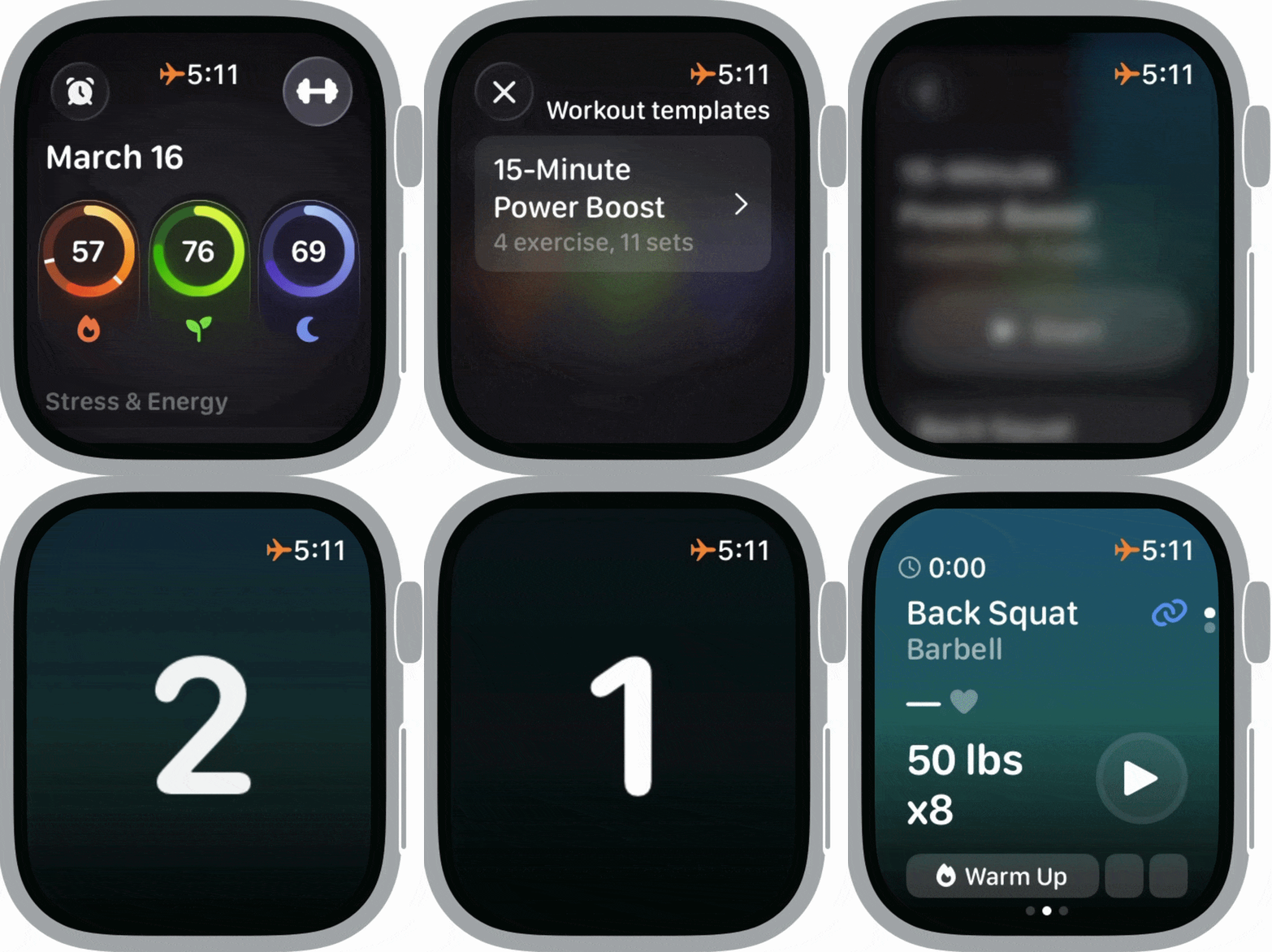
On Your Apple Watch
Open the Bevel app on your watch.
Tap the dumbbell icon in the top-right corner.
Select the Template you want to do.
Tap Start.
Follow the on-screen prompts to track your exercises, sets, reps, and timers.
Tip: You can pause or end your workout at any time on either device. Data will sync automatically between your watch and phone.
How do I skip an exercise?
On the main exercise screen (paused - blue background), simply scroll or swipe up, and tap on the next exercise in your queue. This will allow you to skip the current exercise or workout.
To save changes from this workout session, once you are on the Summary Screen after ending the workout, just scroll down and tap "Update Template".
If you do not want to save changes, tap Done on your phone or the X in the top-left corner on your Apple Watch.