
How to Create a Strength Workout
Bevel allows you to create strength Templates to streamline your workouts. Templates save your favorite exercises, sets, reps, and intervals so you can quickly start a workout without rebuilding it each time.
Build Your Workout Your Way
Search exercises: Browse a library of exercises and add the ones you want to your Template.
Capture a photo: Take a picture of a workout plan or exercise and use it as a reference.
Import a photo: Upload an image from your device to create a Template from an existing routine.
Describe a routine: Write out your workout steps, and let Bevel help organize them into a Template.
Ask Bevel Intelligence: Describe the workout you want, and Bevel Intelligence will create a template for you.
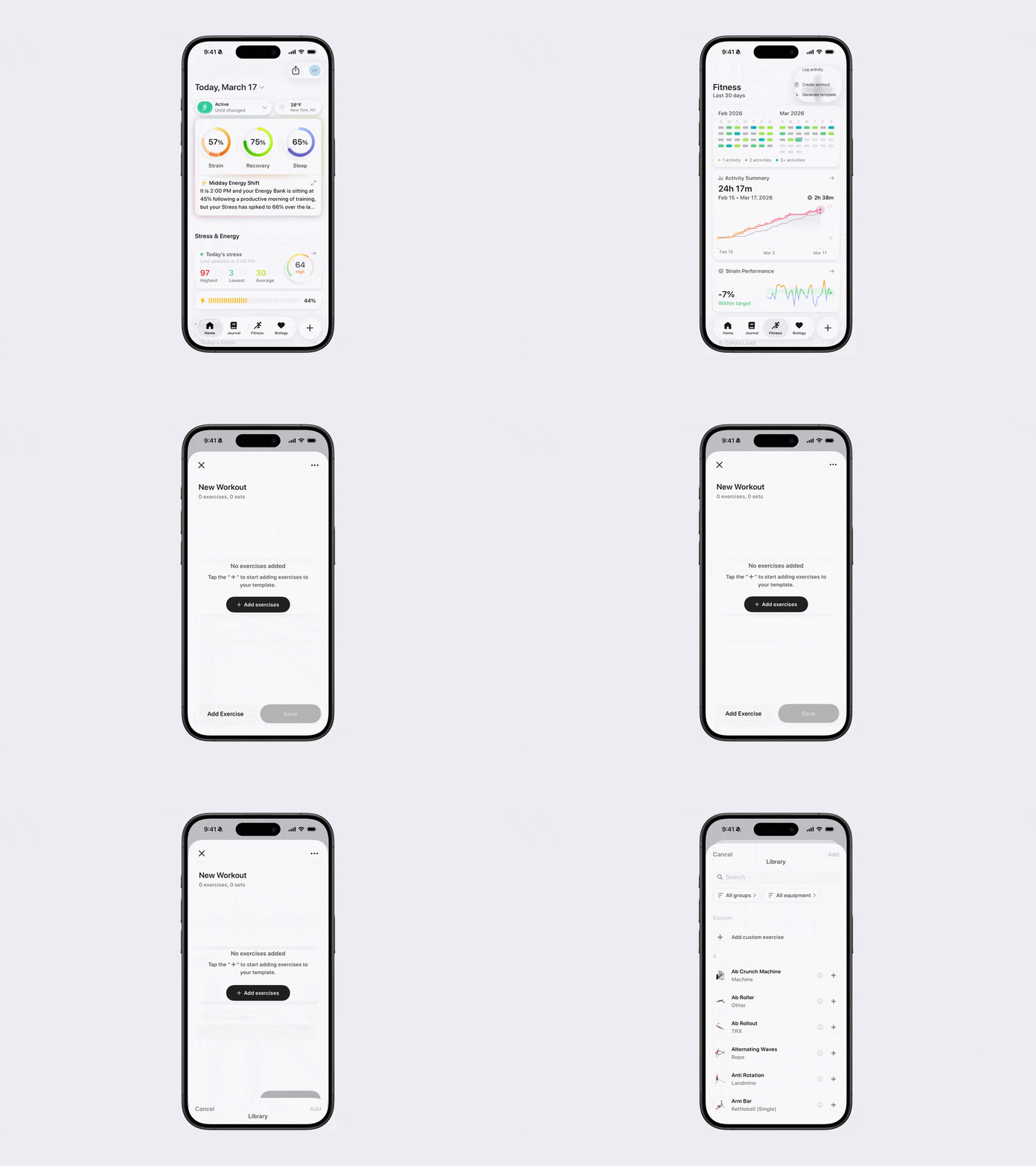
Option 1:
Open Bevel.
Go to the Fitness tab.
Tap the + button in the top-right corner.
Tap Create Workout.
From here, you can add exercises by:
Tapping the + in the middle of the screen
Search exercises
Capture a photo
Import a photo
Describe a routine
Tapping the three dots (...) in the top-right corner
Capture a photo
Import a photo
Describe a routine
Rename the workout
Tapping Add Exercise in the bottom-left corner
Option 2:
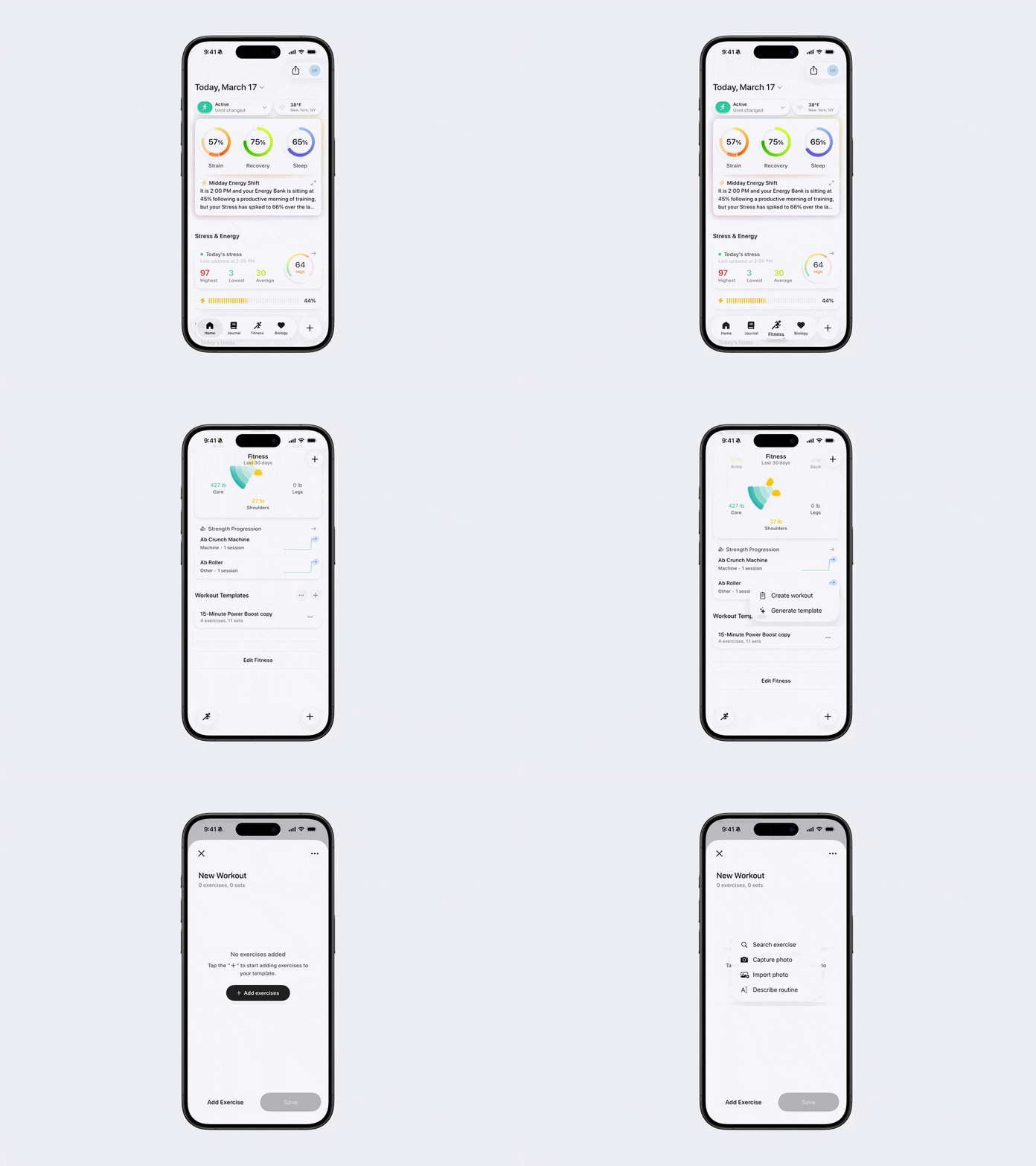
Open Bevel.
Go to the Fitness tab.
Scroll down to Workout Templates.
Tap Add Workout Template, or if a Template already exists, tap the + on the right and then tap Create Workout.
From here, you can add exercises by:
Tapping the + in the middle of the screen
Search exercises
Capture a photo
Import a photo
Describe a routine
Tapping the three dots (...) in the top-right corner
Capture a photo
Import a photo
Describe a routine
Rename the workout
Tapping Add Exercise in the bottom-left corner
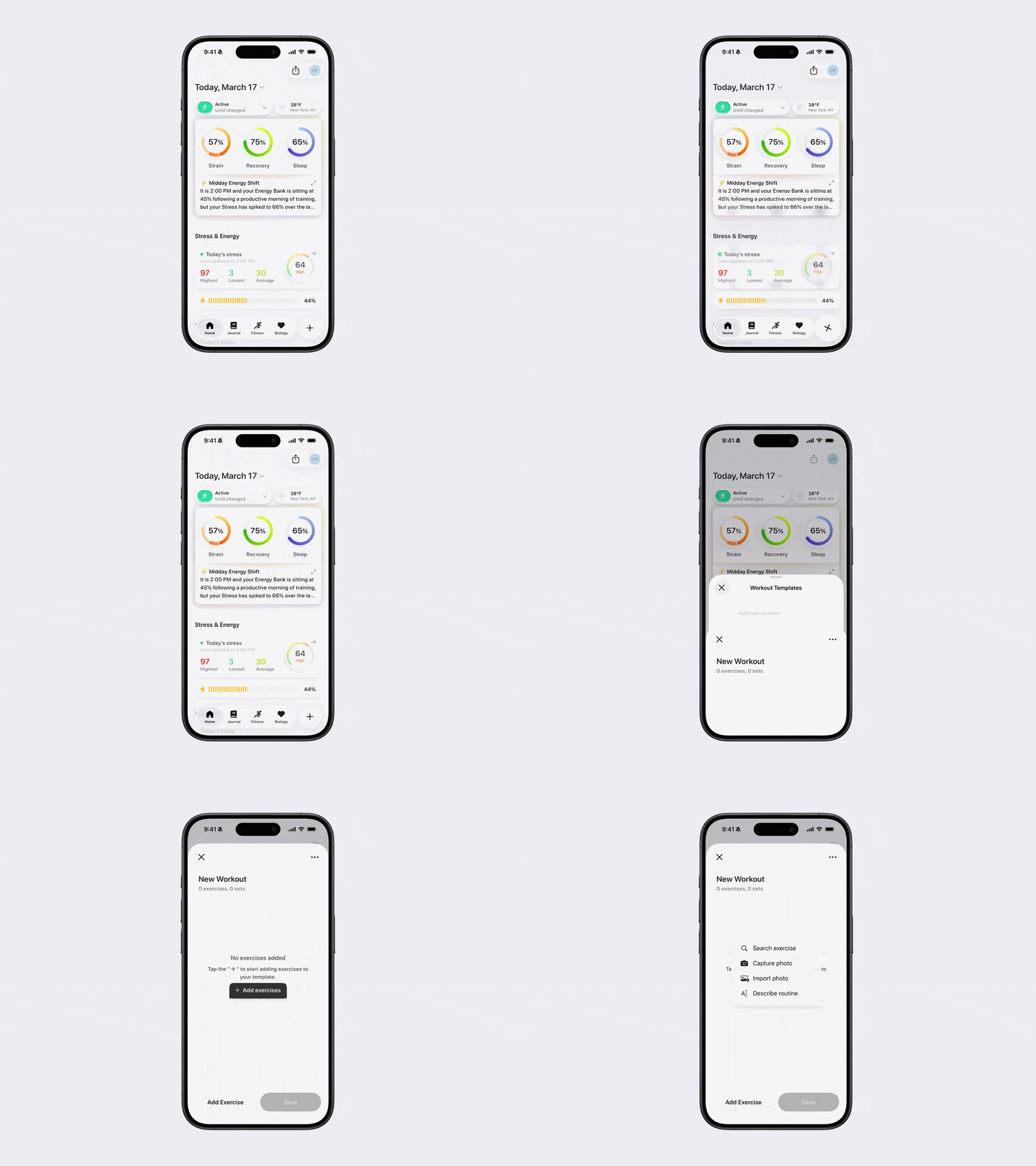
Option 3
Open Bevel.
Tap the + button in the bottom-right corner.
Tap View Templates.
Select an existing Template or tap the + to create a new workout.
Note: Don’t see this option? You can edit your Action Button to add it. See the Edit Action Button article for steps.
Personalize Your Created Workout
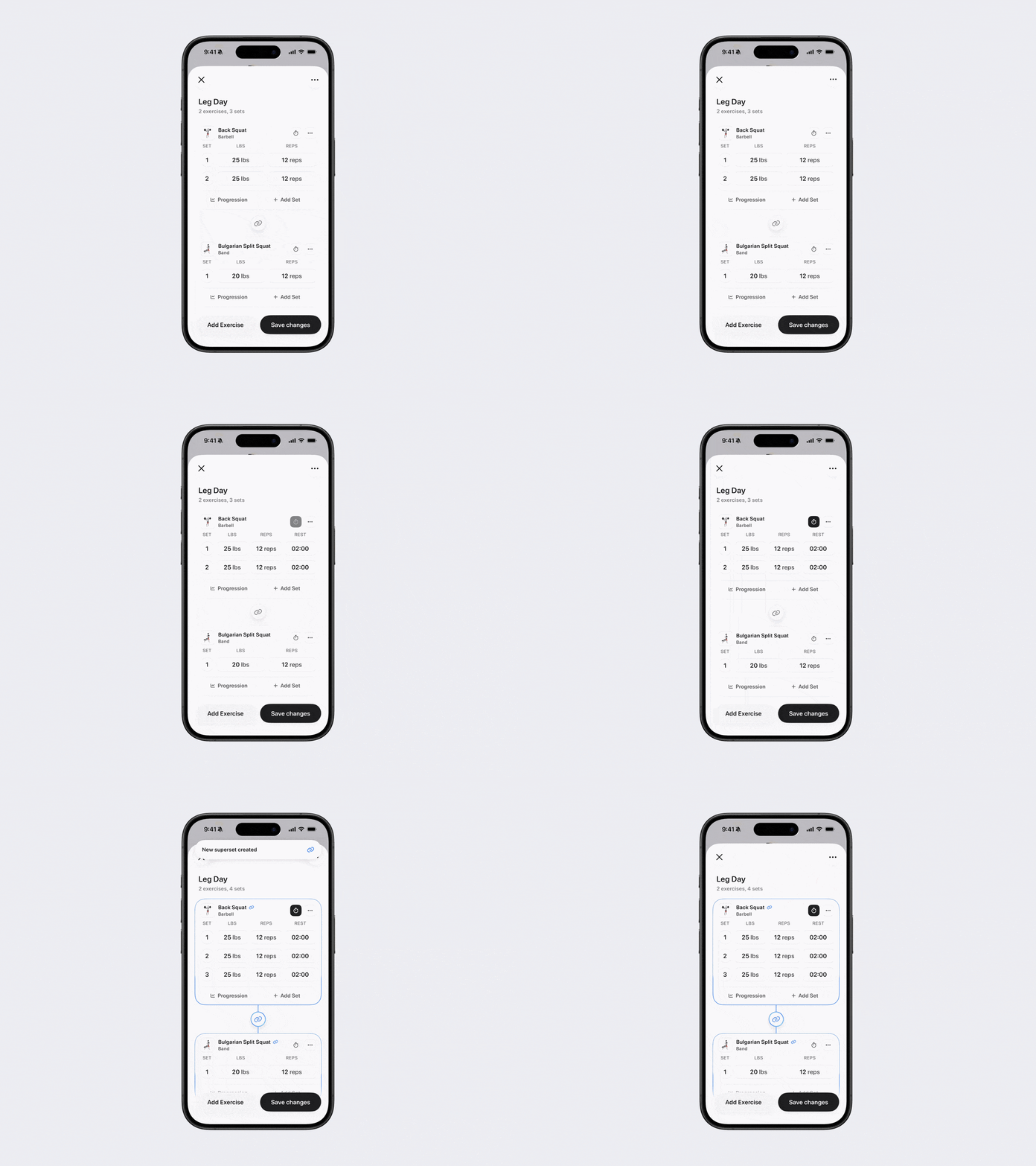
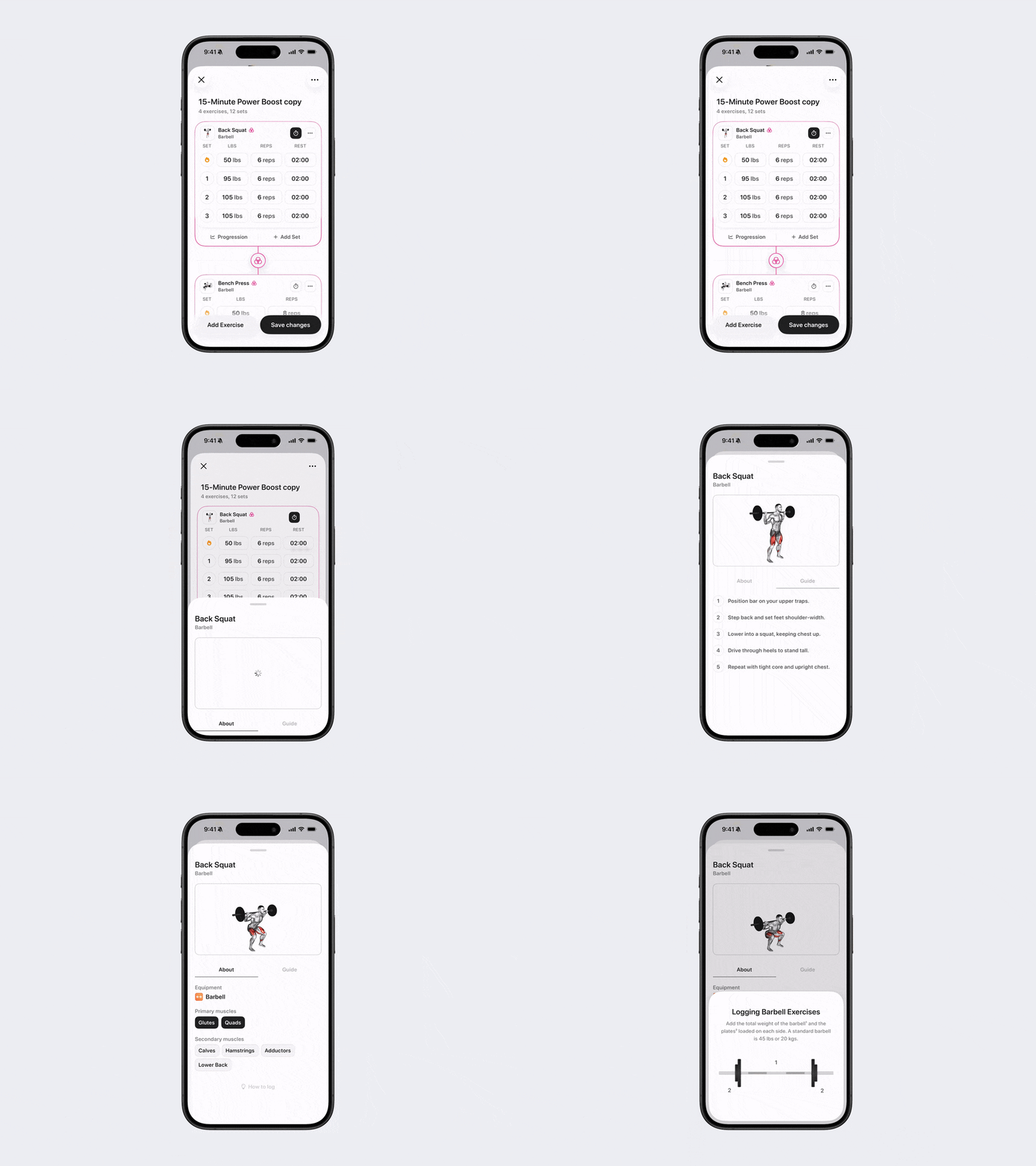
Once you’re in Create Workout or editing a workout Template from the Fitness screen, you can customize your workout in several ways:
Add exercises: Tap Add Exercise at the bottom-left.
Remove exercises: Tap the three dots (...) next to an exercise and select Remove.
Reorder exercises: Tap the three dots (...) in the top-right and select Reorder.
Adjust sets, reps, or weight: Tap the numbers in the respective columns.
Add Sets: Tap Add Set beneath the exercise
Add timers: Tap the clock icon next to the exercise name.
Create supersets or circuits: Tap the three dots (...) next to an exercise and select Create Superset/Circuit, or tap the link or circuit icon between exercises.
Edit supersets or circuits: Tap the three dots (...) next to an exercise and select Edit Superset/Circuit, or tap the link or circuit icon between exercises.
Rename the Template: Tap the Template name to change its name.
Progression: Tap Progression below the exercise name to see sets and reps from your most recent workout.
Note: Be sure to tap Save Changes after making edits.
About Exercise
For any exercise, you can tap the three dots (...) and select About Exercise to:
See which muscles the exercise targets
Learn how to properly perform the exercise with a guided video and steps
Single vs. Double Weights
Exercises will either show "single" or "double" weights to help you do less math and focus on your workout. Here are some examples:
For "One Arm Tricep Extension," if you click the "i" you will see Weights = Single. This means that you enter the weight for one arm. You can choose whether you want to split up Left and Right as sets. For example, you could do 20 lbs x 12 reps (representing one arm), or 20 lbs x 24 reps (representing both).
For "Lunge" with "Dumbell", if you click the "i" you will see Weights = Double. This means that you enter the weight in one hand, and Bevel will automatically double this in the calculation. For reps, again, you can decide whether you want to keep them within one set or split them up, depending on how you do your exercise.
Bodyweight Exercises
If you’re performing a bodyweight exercise, leave the weight field empty unless you’re adding extra weight.