
How to Set Alarms and Alarm Types
Bevel helps you manage your day by setting Alarms that suit your schedule. These features ensure you wake up on time without disrupting your routine.
With an Apple Watch, this is required to display your estimated Time to Fall Asleep directly on your watch.
Alarm Types
Bevel offers multiple Alarm types to suit your needs:
No Alarm: Track your Time to Fall Asleep without any Alarm.
Smart Alarm: Wake up during the lightest part of your Sleep in a specified timeframe.
Regular Alarm: Wake up at a specified time.
Sleep Needed: Wake up after you’ve met your Sleep Needed.
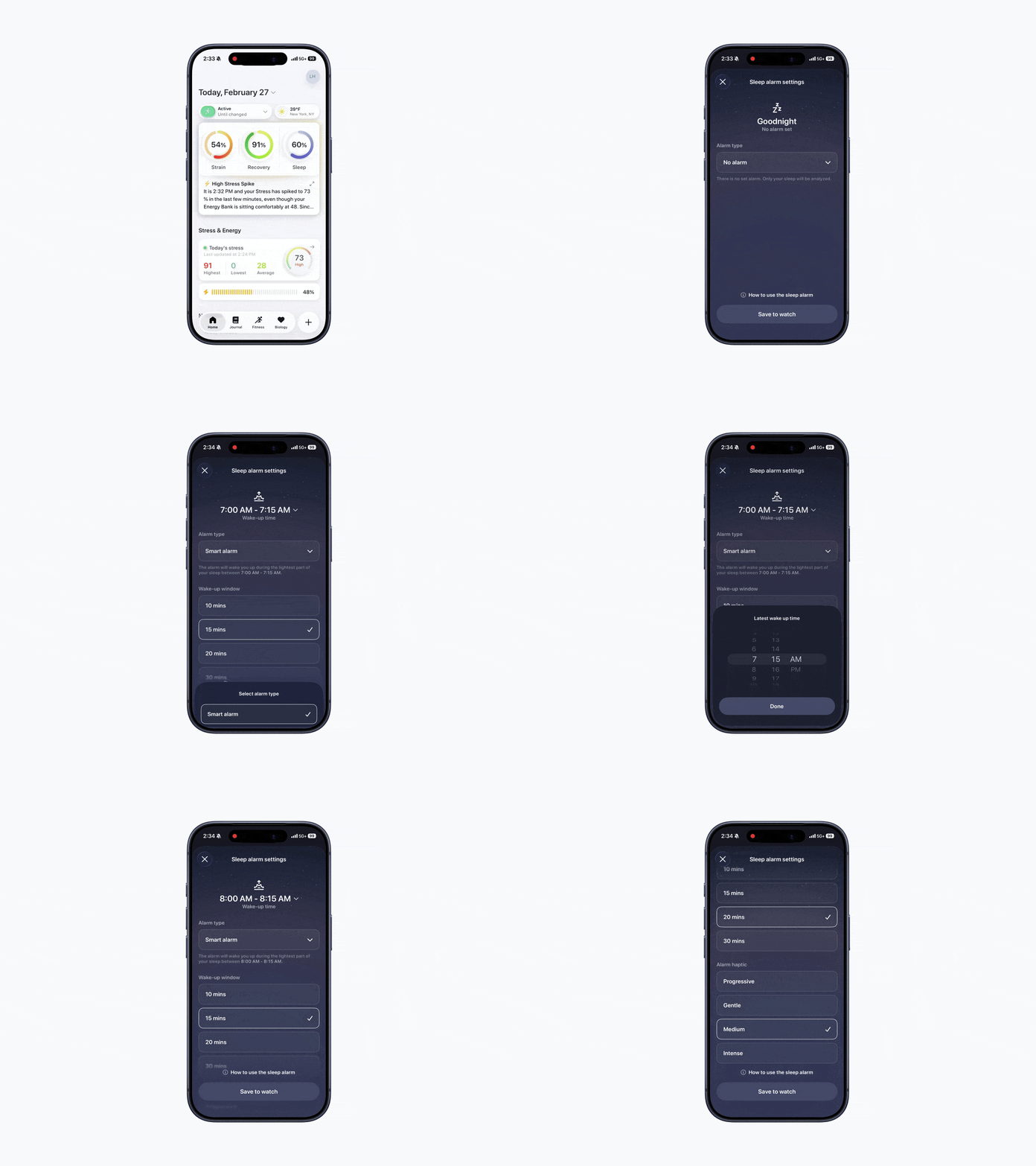
How to Set an Alarm on Phone
Open Bevel.
Tap the Sleep Score Ring.
In the top-right, tap the Alarm clock icon.
Select the drop-down menu to choose the Alarm type you want.
Tap Done once chosen.
Answer the questions below the Alarm type (e.g., Wake-up window, Alarm haptic).
Click Save to Watch.
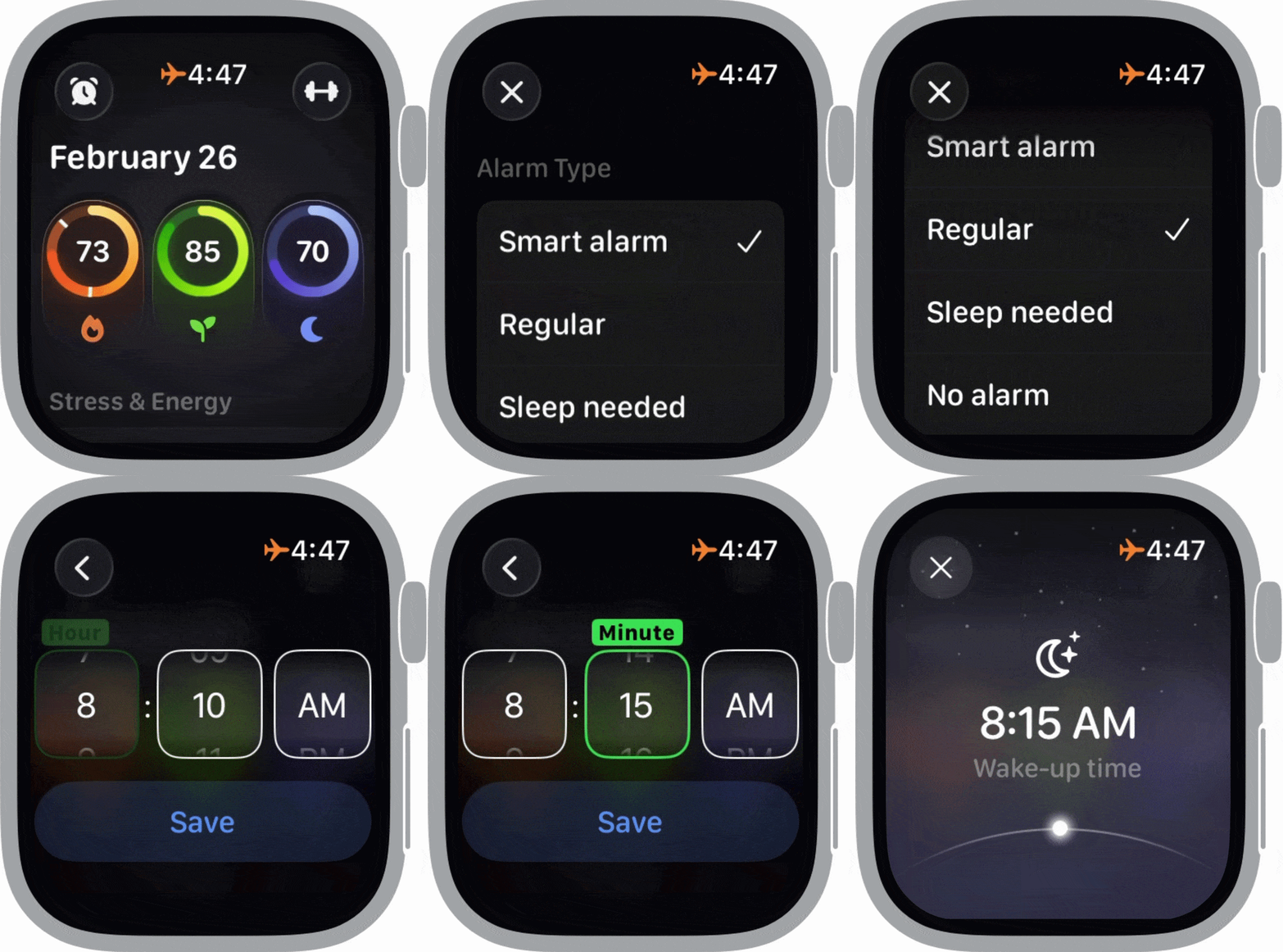
How to Set an Alarm on Watch
Open Bevel on your Watch.
On the top-left, tap the Alarm clock icon.
Tap the three dots (…) in the top-right.
Select your Alarm type.
Scroll down and follow the prompts.
Note: To change the alarm time, scroll on the screen to adjust it.
To Start Any Alarm Without the Sleep Shortcut
If you do not have the Sleep Shortcut turned on, make sure to press Start before heading to bed. Even with No Alarm, you need to press Start to track your Time to Fall Asleep.
Steps:
Open Bevel.
Tap the Alarm clock in the top-left.
Click Start.