How to Manage Bevel Watch Complications
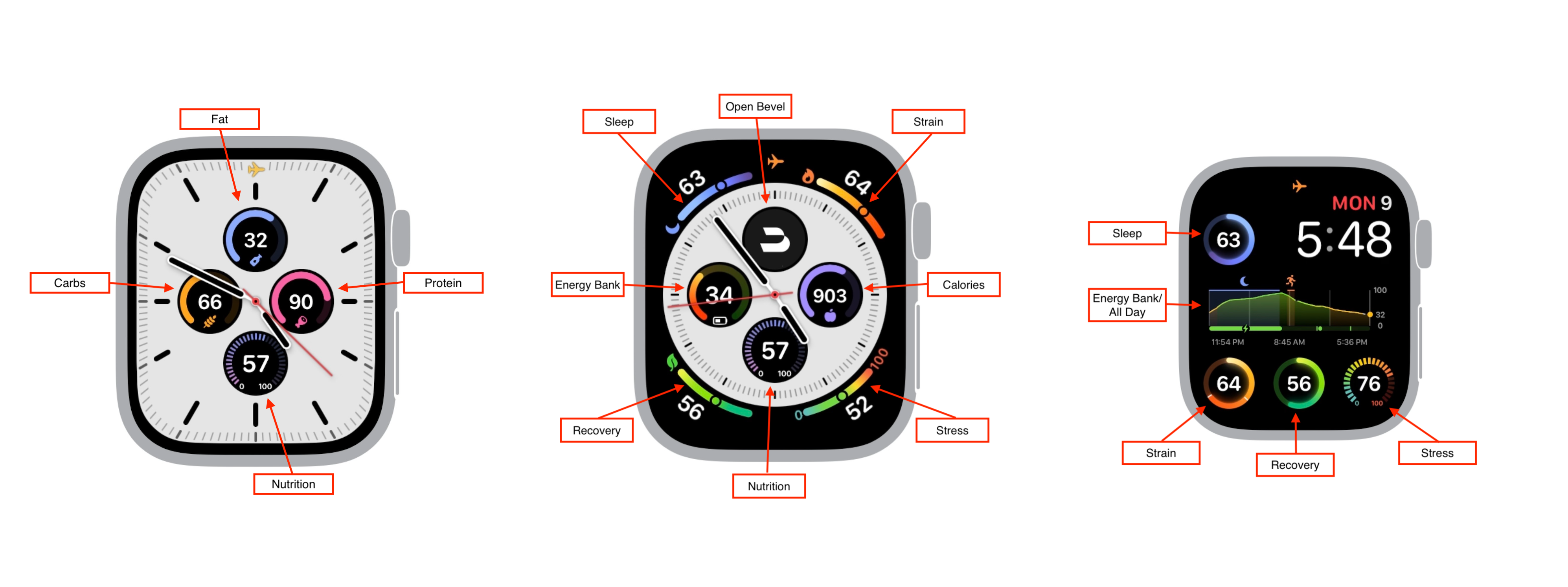
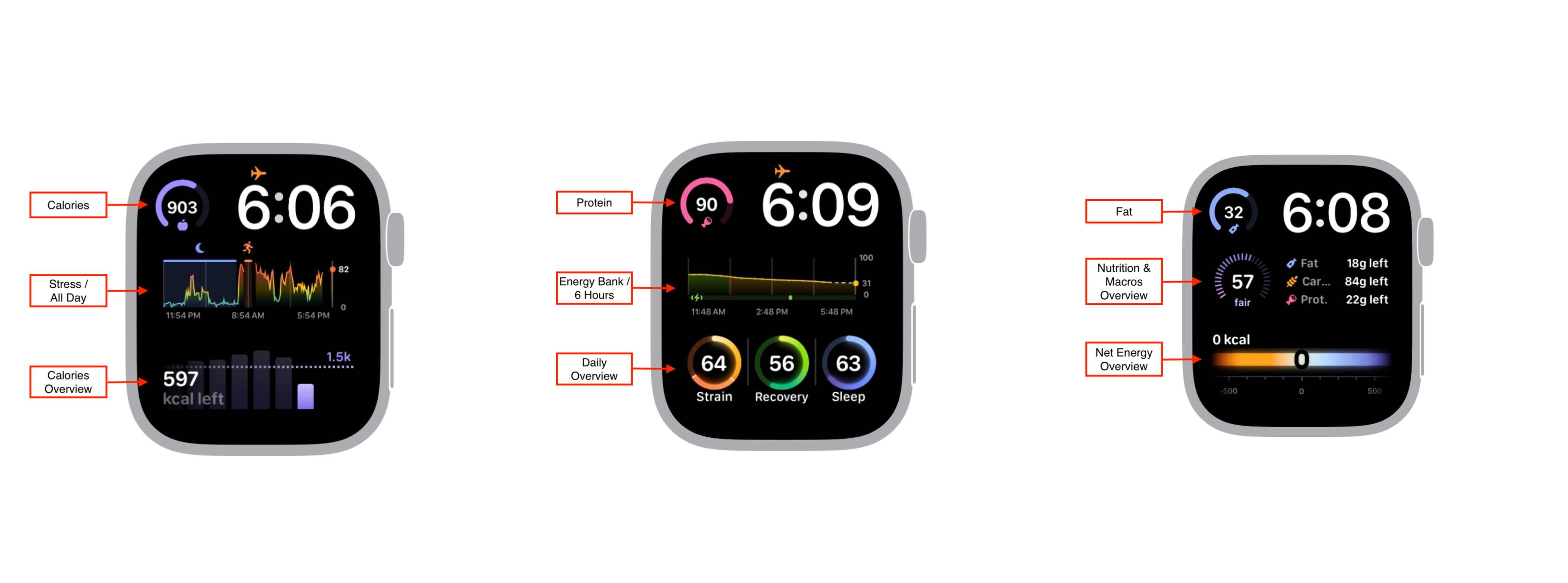
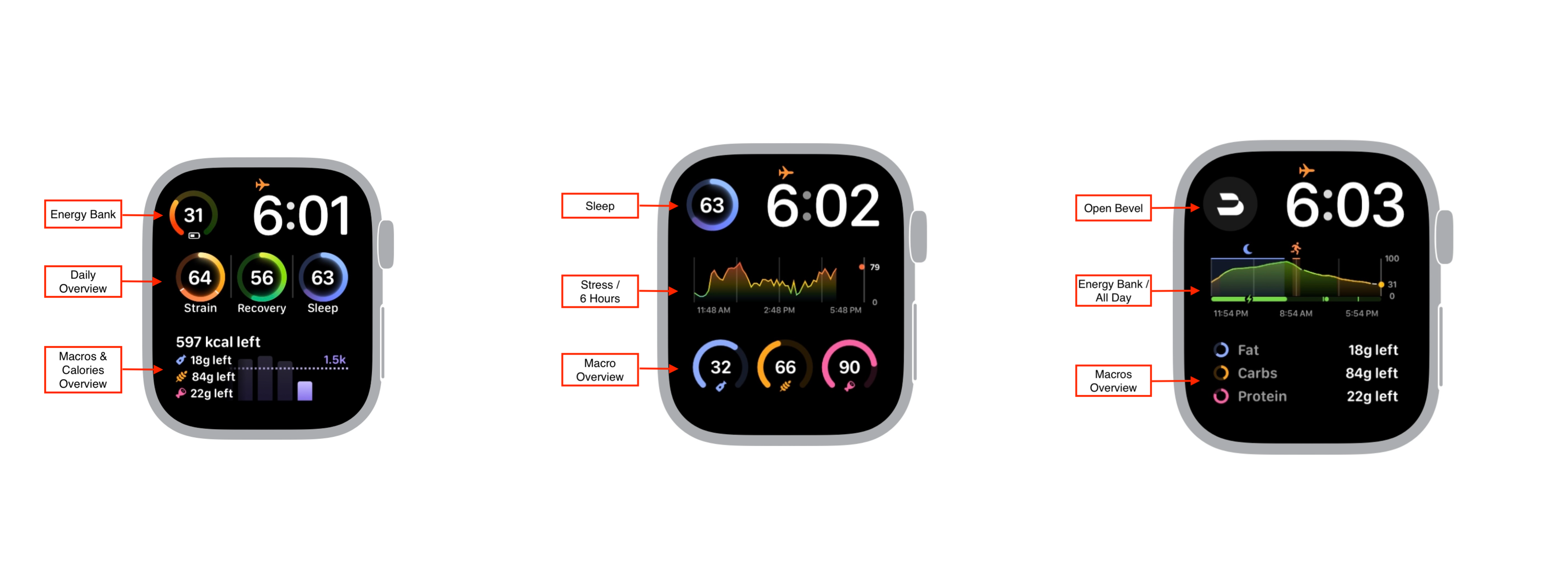
Bevel Watch complications let you quickly view key metrics and Insights, such as Strain, Recovery, Sleep, and Activity, directly on your Apple Watch face. Complications provide at-a-glance access to your data without opening the app.
This article explains how to add and manage Bevel complications on Apple Watch.
Adding a Bevel Watch Complication From Watch
Press the Digital Crown to go to your watch face.
Firmly press the watch face
Tap Edit.
Swipe to the Complications section.
Scroll through the list and find Bevel.
Choose the Bevel complication you want to display.
Press the Digital Crown to save your watch face.
For step-by-step instructions on adding complications directly from your Apple Watch, refer to Apple’s official guide.
Create a Custom Watch Face on Apple Watch
Press the Digital Crown to go to the watch face.
Touch and hold the watch face until Edit mode appears.
Swipe all the way to the right and tap + New.
Choose a watch face style, then tap Add.
Tap Edit to customize the face.
Swipe left until you reach the Complications section.
Tap a complication slot.
Scroll through the list and find Bevel.
Choose the Bevel complication you want to display.
Press the Digital Crown to save and set your new watch face.
Adding a Bevel Watch Complication From iPhone
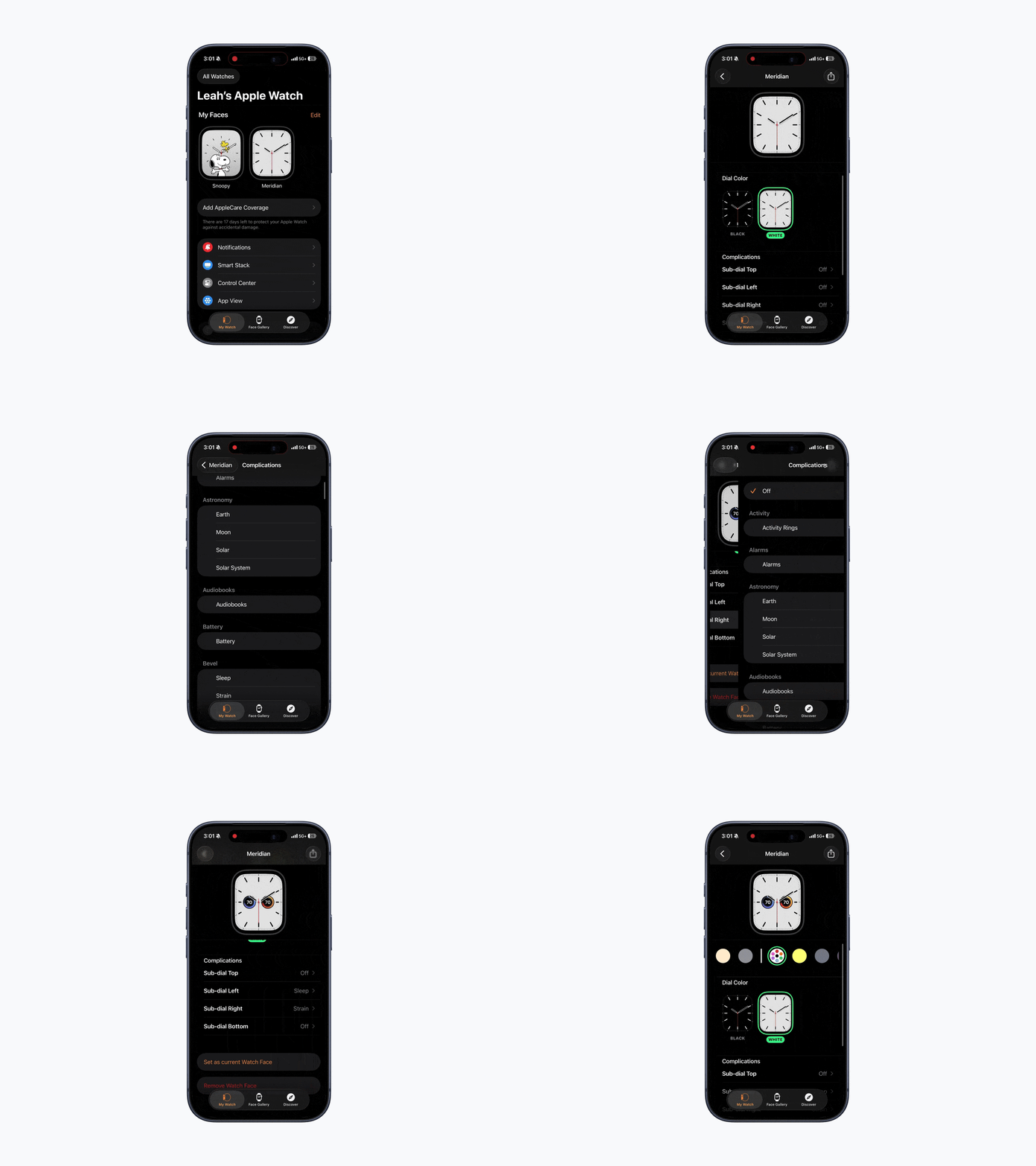
Open the Watch app on your iPhone.
Select your watch face under My Faces.
Scroll down to Complications.
Tap the complication slot you want to customize.
Scroll through the list and find Bevel.
Choose the Bevel complication you want to display.
Your watch face will automatically update with the selected complication.
To add complications using your iPhone, follow Apple’s official Watch app instructions.
Create a Custom Watch Face on iPhone
Open the Watch app on your iPhone.
Tap Face Gallery.
Select a watch face you like.
Customize the style, colors, and layout.
Scroll to Complications.
Tap a complication slot.
Select complications under the Bevel list.
Tap Add to sync it to your Apple Watch.
If you’re experiencing issues with complications, please refer to this article.
Complication Options