How to Use Timeline
Timeline provides a chronological view of your day. It currently includes:
Sleep
Completed and planned workouts
Nutrition
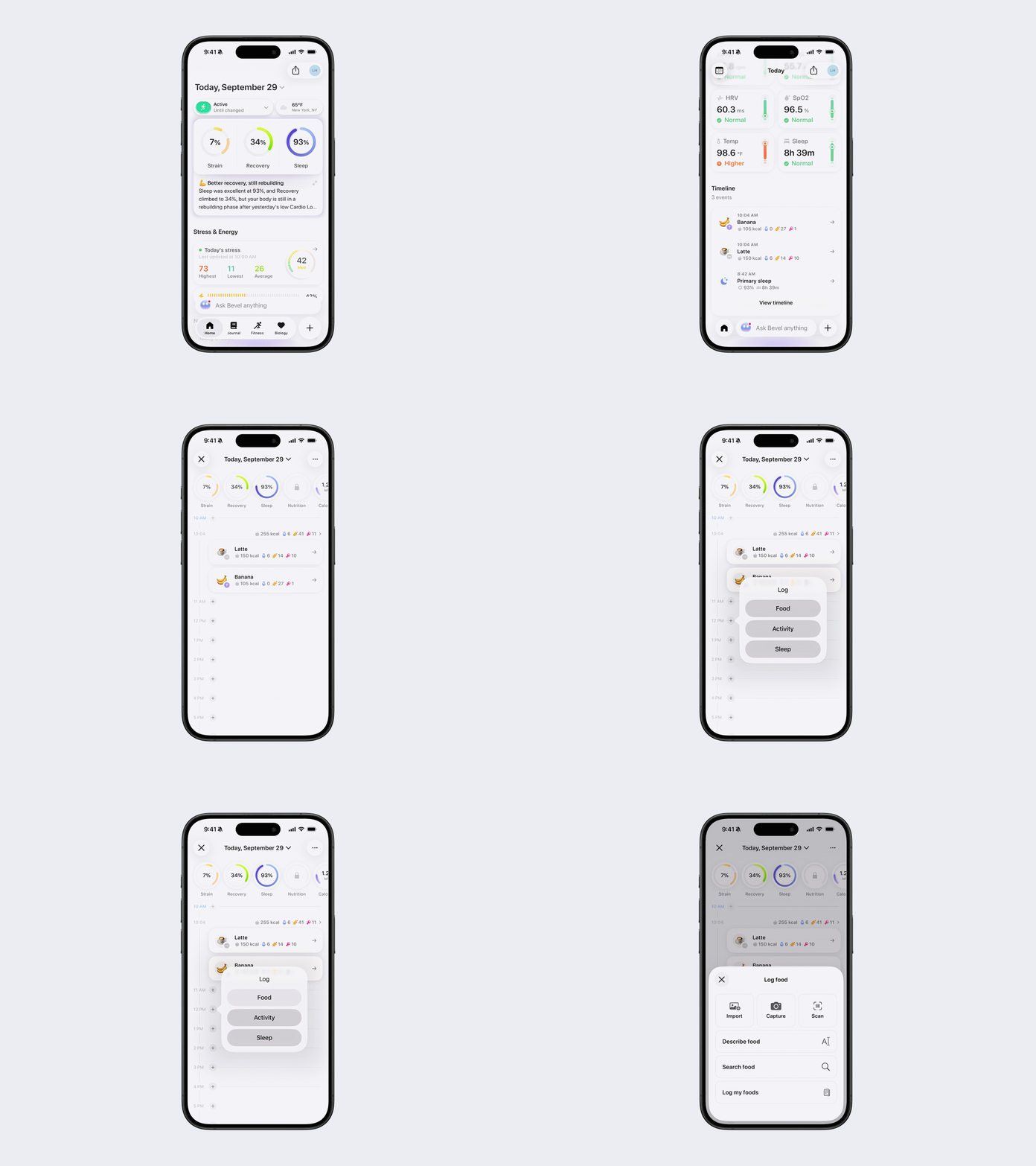
Your Home page shows your two most recent Timeline events and your next scheduled event.
How to view your full Timeline
Open Bevel.
Scroll down to Timeline.
Tap View Timeline.
Note: If you don’t see the Timeline, edit your Home tab and make sure the Timeline section is set to visible.
How to log an event from Timeline
Tap the + button next to the time you want to log the event.
Select Food, Activity, or Sleep.
Enter the event details and save.
Navigate between days
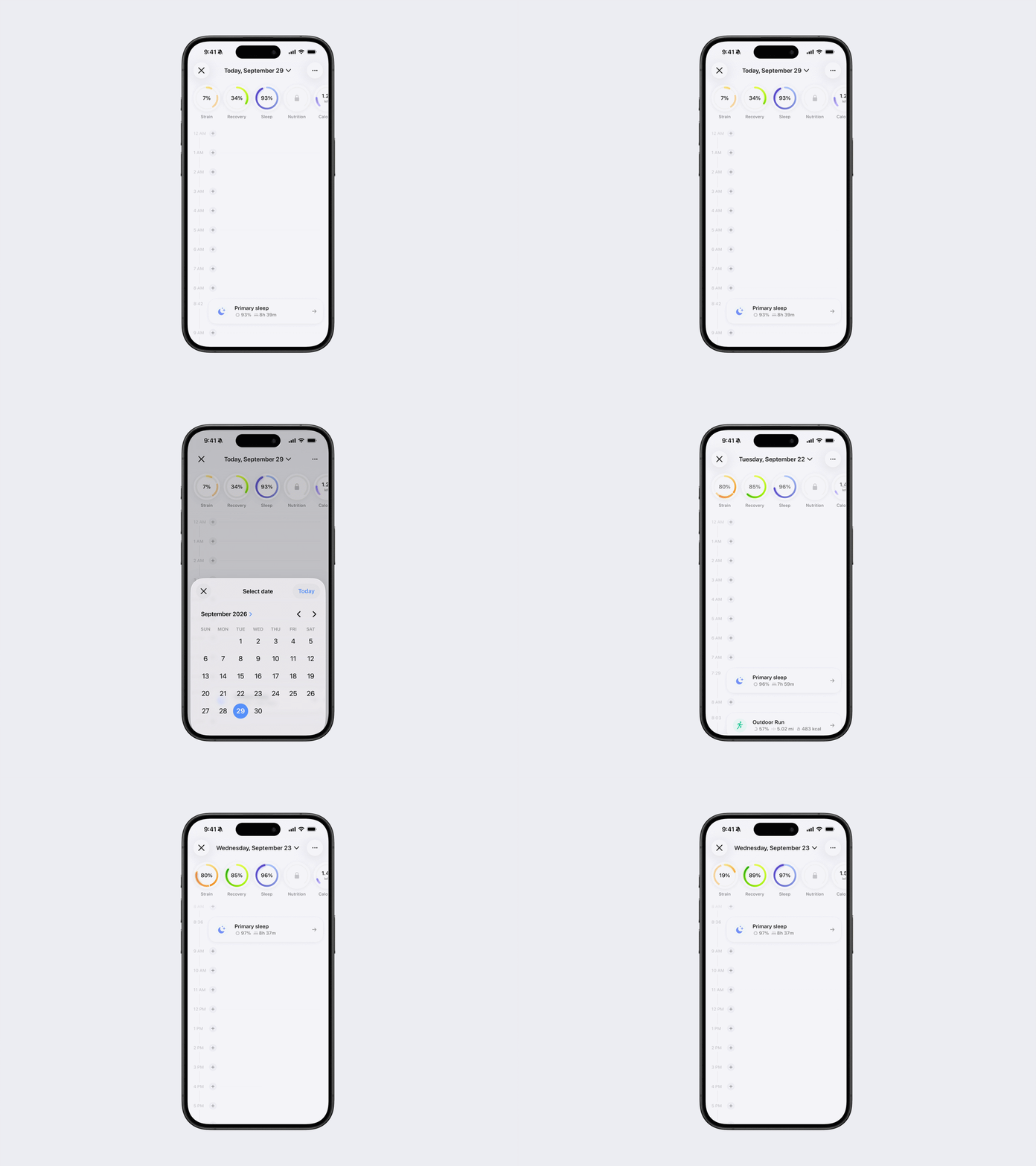
Once you’re in Timeline, tap the date at the top of the screen. Select a date using the calendar picker, or tap Today to quickly return to the current day.
You can also swipe left or right to move between days.
View more information
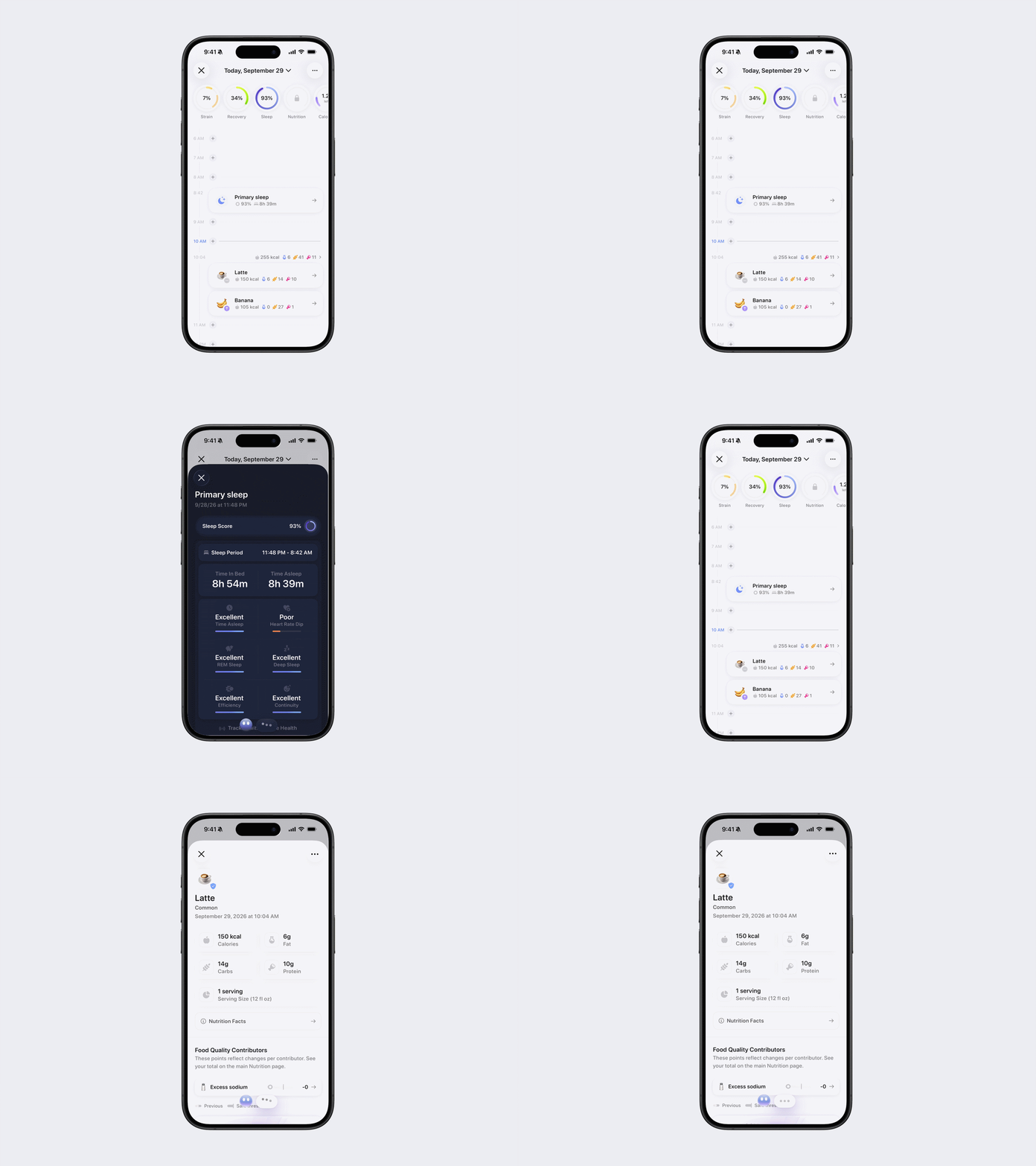
Tap any Timeline item to expand it and view more information. This will open the corresponding detail sheet for that item.
Manage Timeline items
The available actions depend on the type of Timeline item. Press and hold an item to see its available actions.
Sleep
Sleep entries cannot be deleted or moved to a different date or time from the Timeline.
Activities
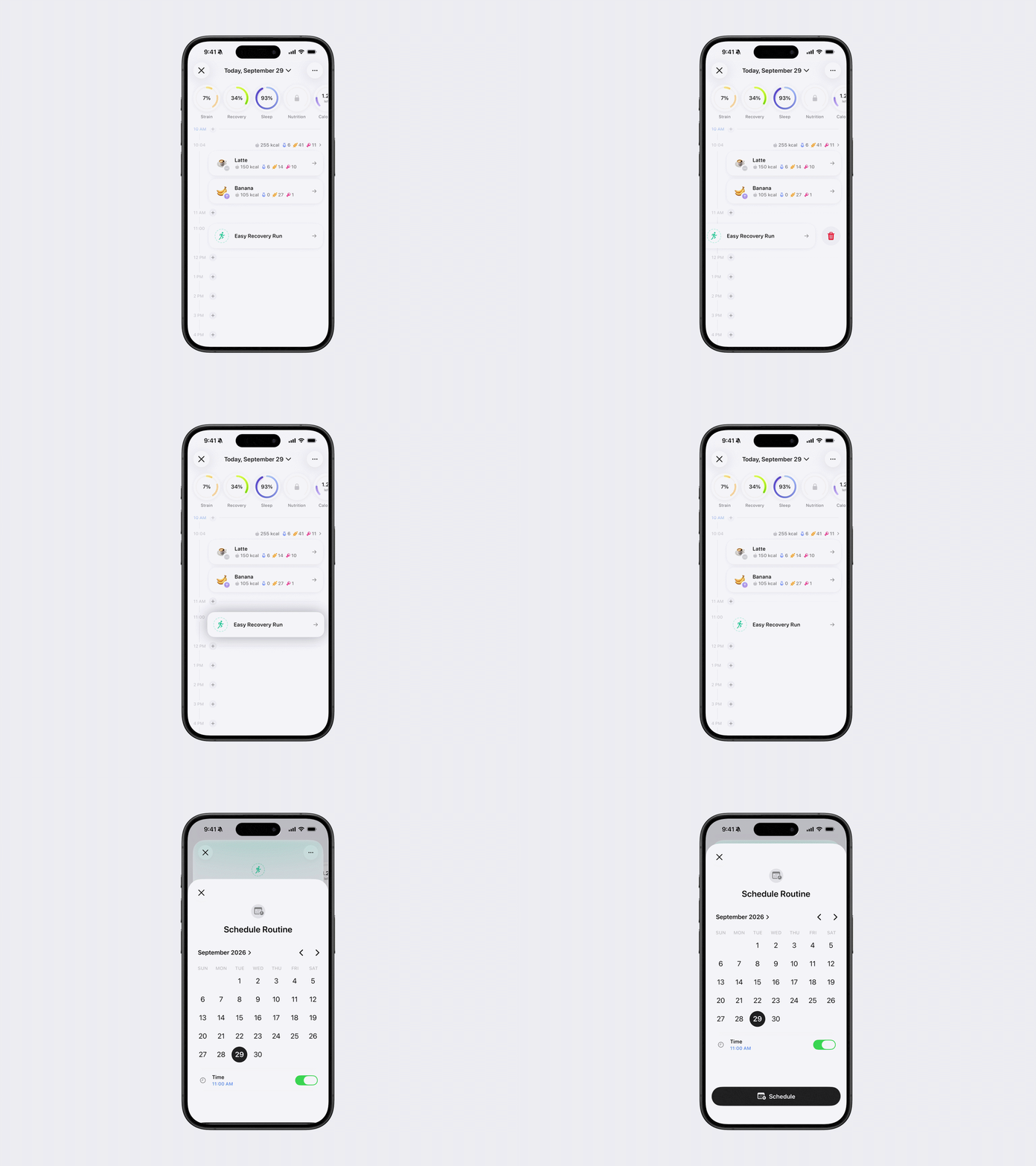
You can delete activities from the Timeline. You can change the date and time of planned activities and completed activities logged in Bevel. The date and time of completed activities logged outside Bevel cannot be changed.
Delete an activity
Use either of these options:
Press and hold the activity, then tap Delete.
Swipe right on the activity, then tap the trash icon.
Change the date or time of a planned activity
Open the planned activity.
Tap its current date and time.
Use the calendar and time picker to make your changes.
Tap Schedule to save.
Change the date or time of an activity logged in Bevel
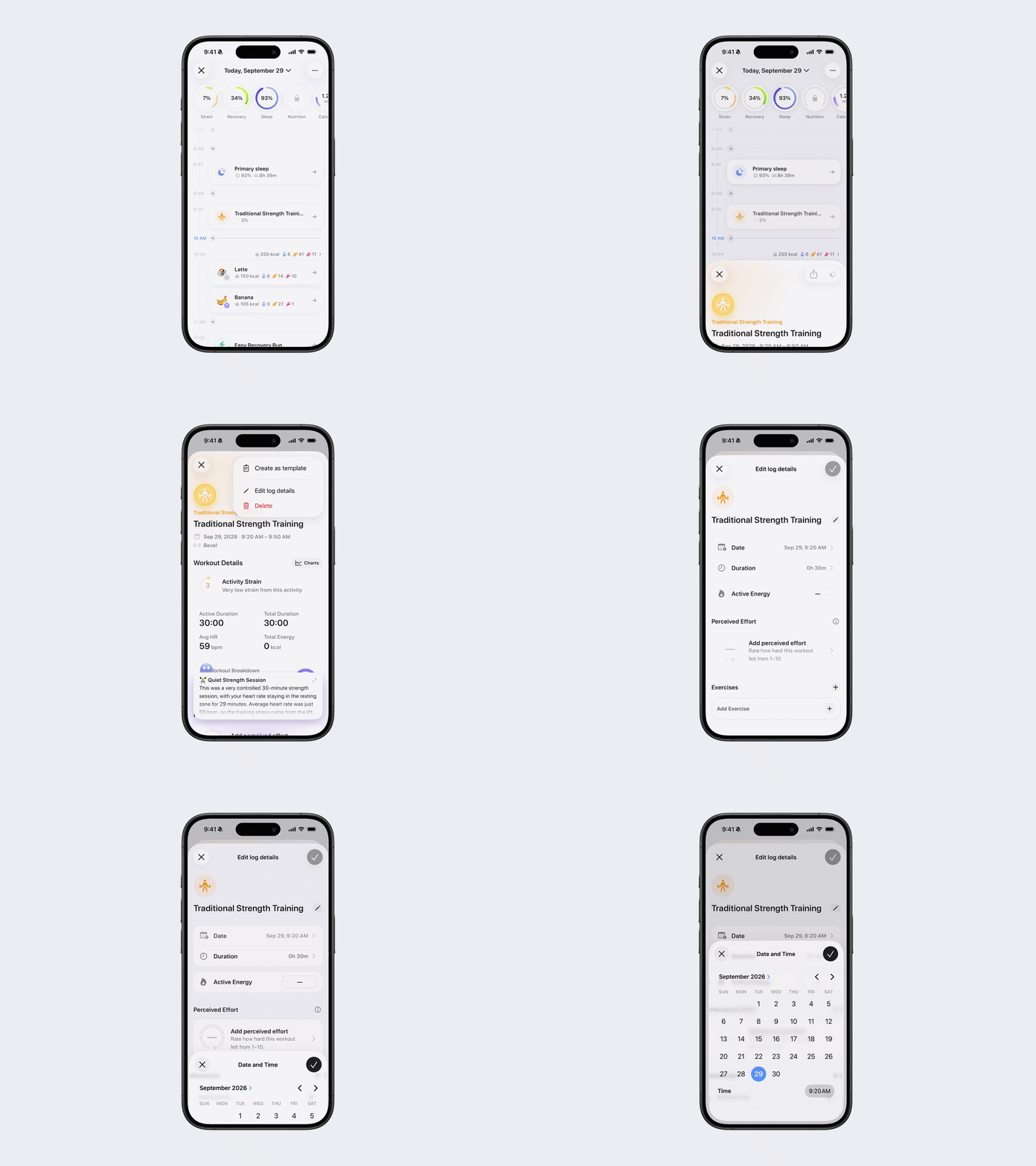
Open the activity.
Tap the three dots (…) in the top-right corner.
Tap Edit Log Details.
Select Date.
Change the date and time.
Nutrition
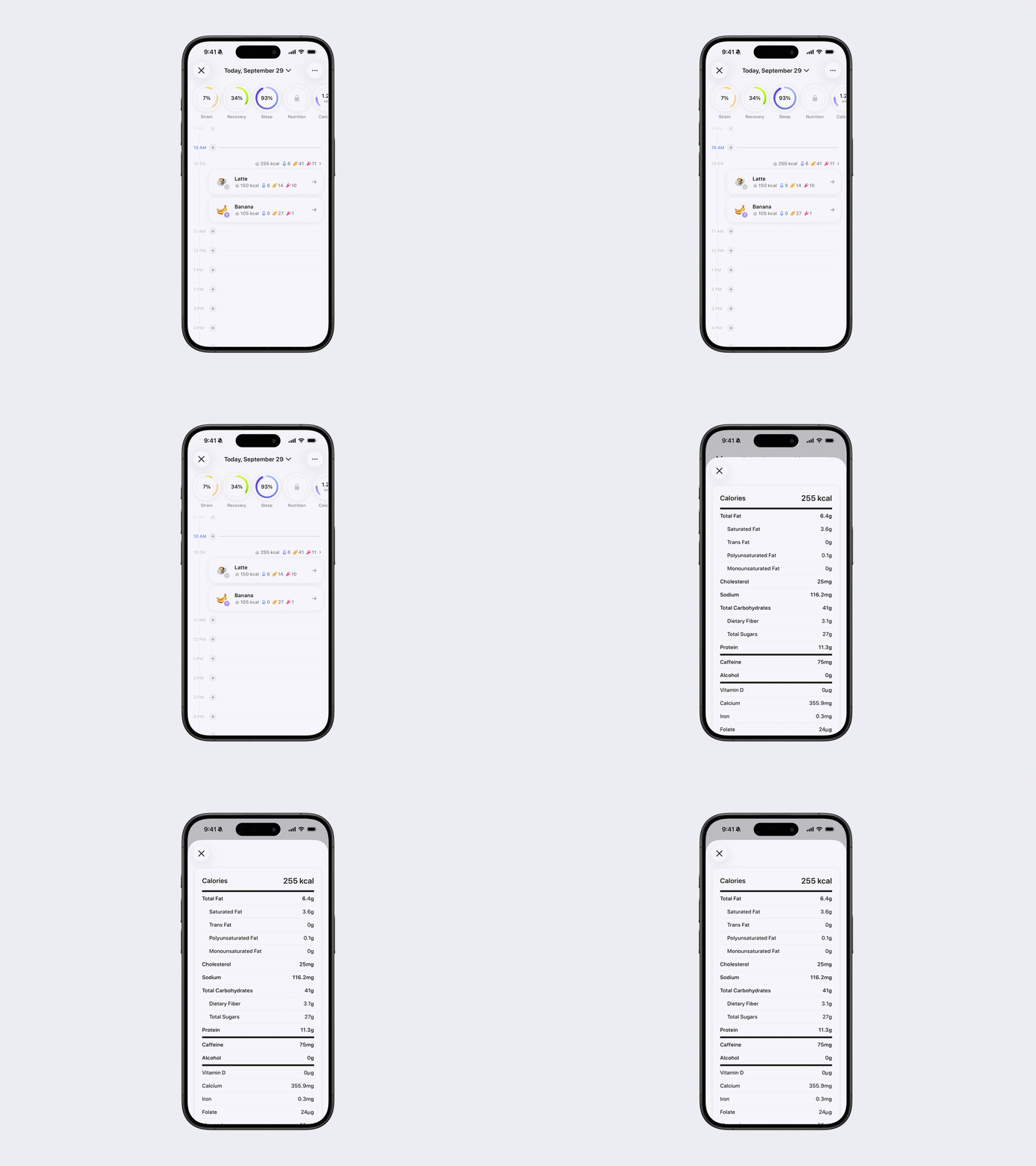
View grouped food items
Food items logged within the same hour, with no other activities between them, appear as a group.
The group’s total calories and macros appear above the items. Tap the totals to view the Nutrition label for the entire meal.
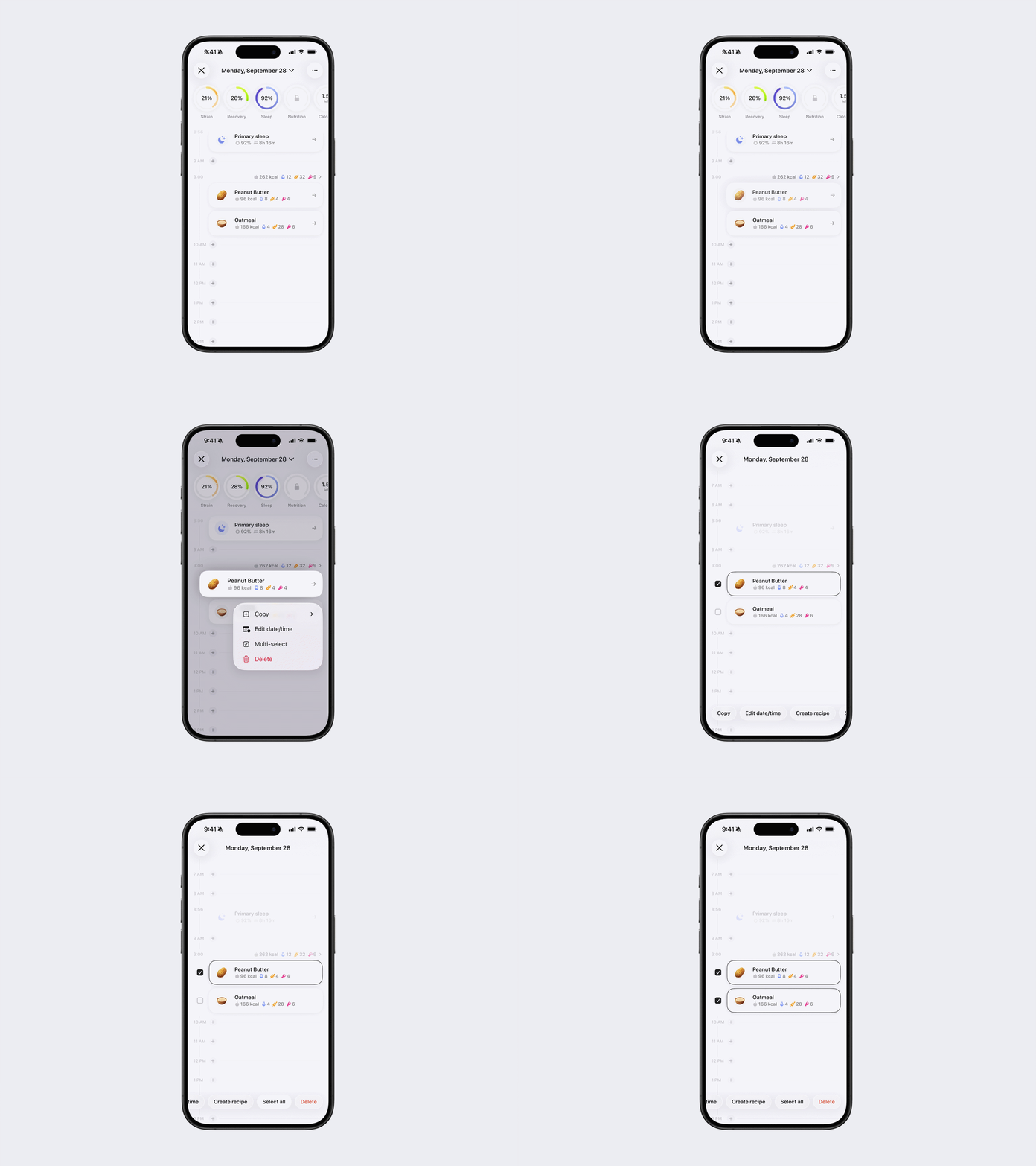
Select multiple food items
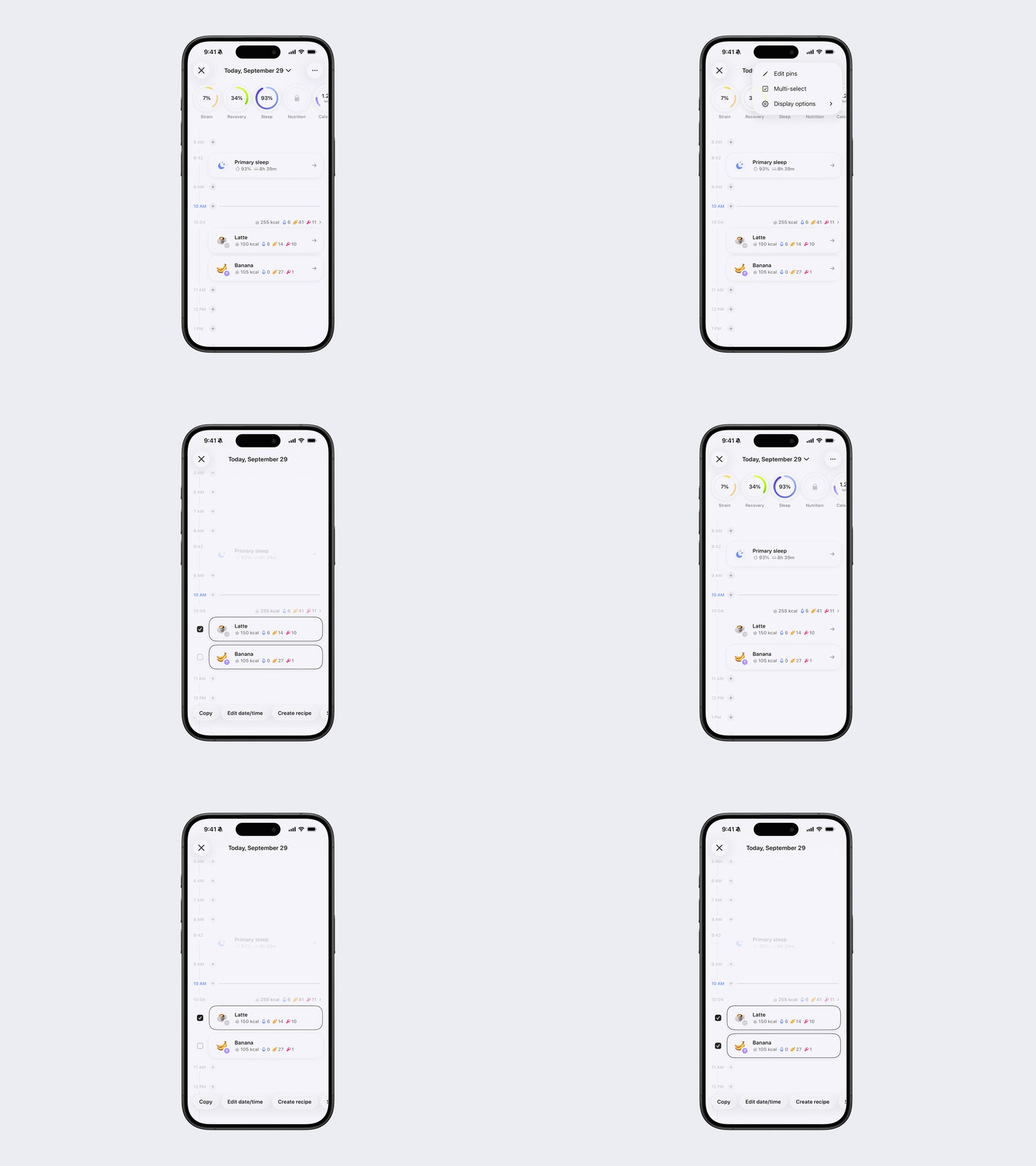
You can enter Multi-Select mode in two ways:
Option 1: Via menu
Open Timeline.
Tap the three dots (…) in the top-right corner.
Tap Multi-Select.
Option 2: Via a food item
Press and hold a food item.
Tap Multi-Select.
Then select the food items you want to manage.
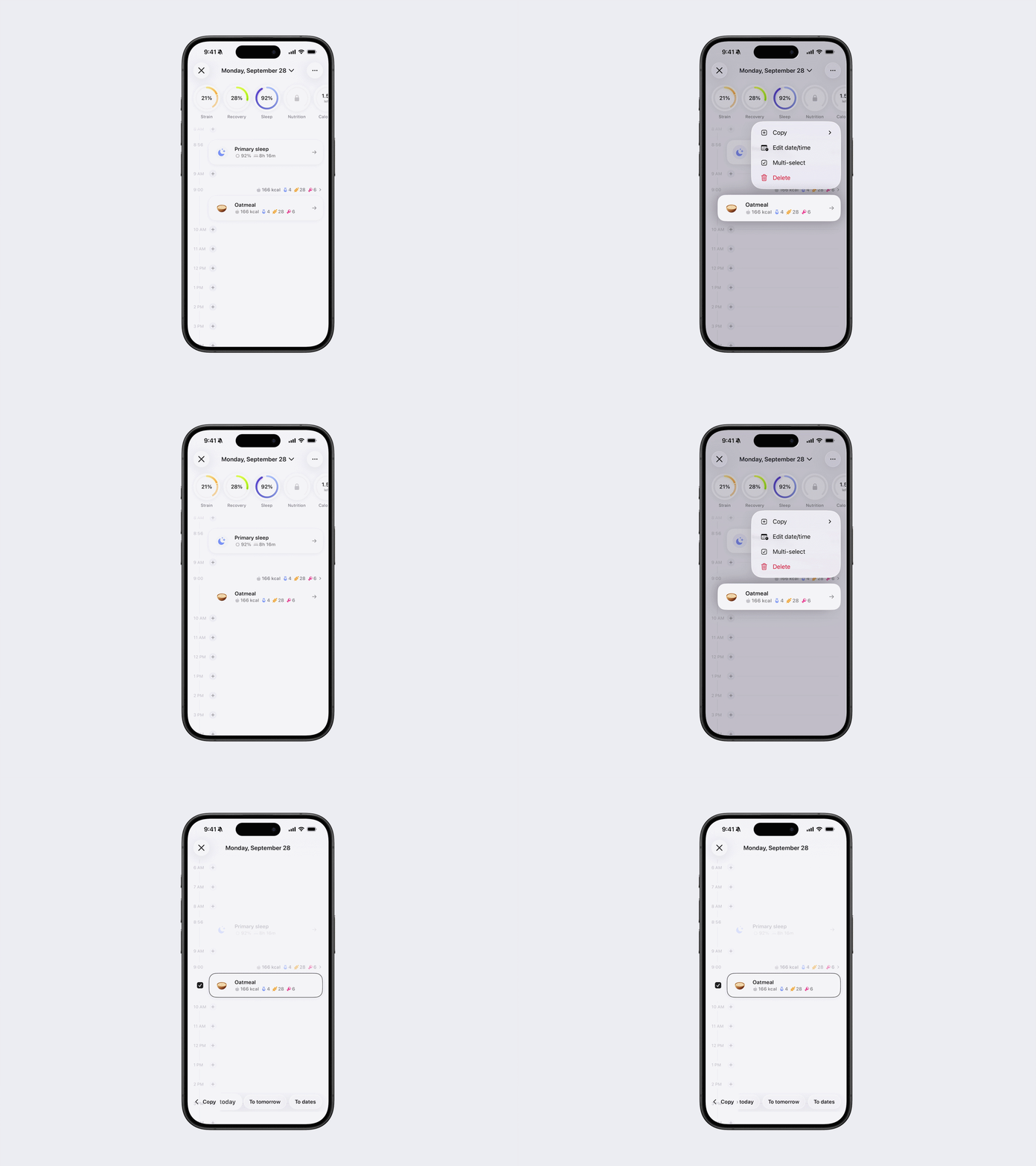
Copy food items
To copy one item, press and hold it, then tap Copy. To copy multiple items, select them in Multi-Select mode, then tap Copy. Choose where to copy them:
To Now: The current date and time.
To Today: Today at the time the item was originally logged. Available for items logged before today.
To Tomorrow: Tomorrow at the time the item was originally logged.
To Dates: One or more selected dates at your chosen time.
Change the date or time
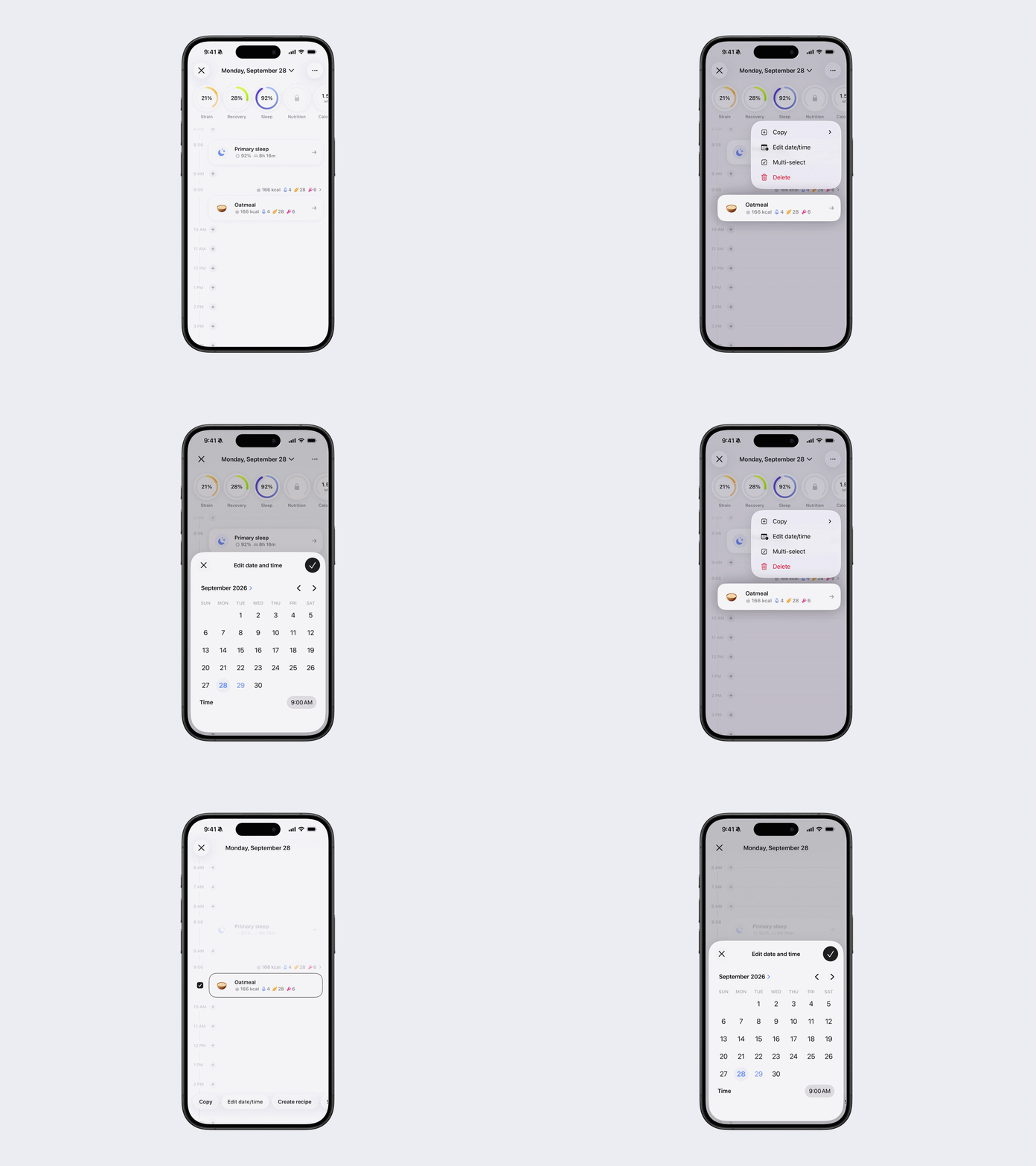
Press and hold a food item, or select multiple items in Multi-Select mode.
Tap Edit Date/Time.
Select a new date or time.
Tap the checkmark to save your changes.
Delete food items
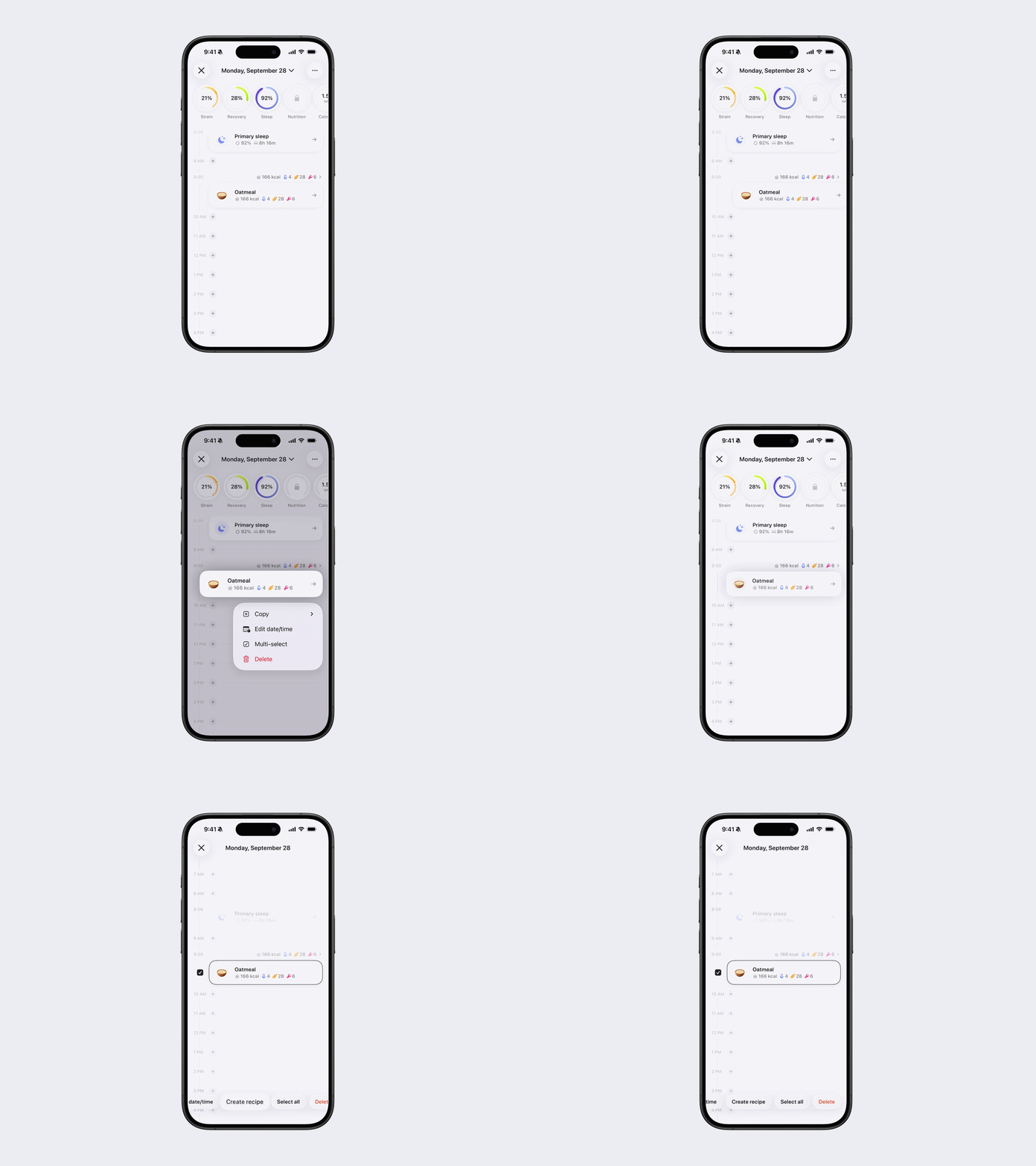
To delete one item, press and hold it and tap Delete, or swipe right on it and tap the trash icon.
To delete multiple items, select them in Multi-Select mode, then tap Delete.
Create a Recipe
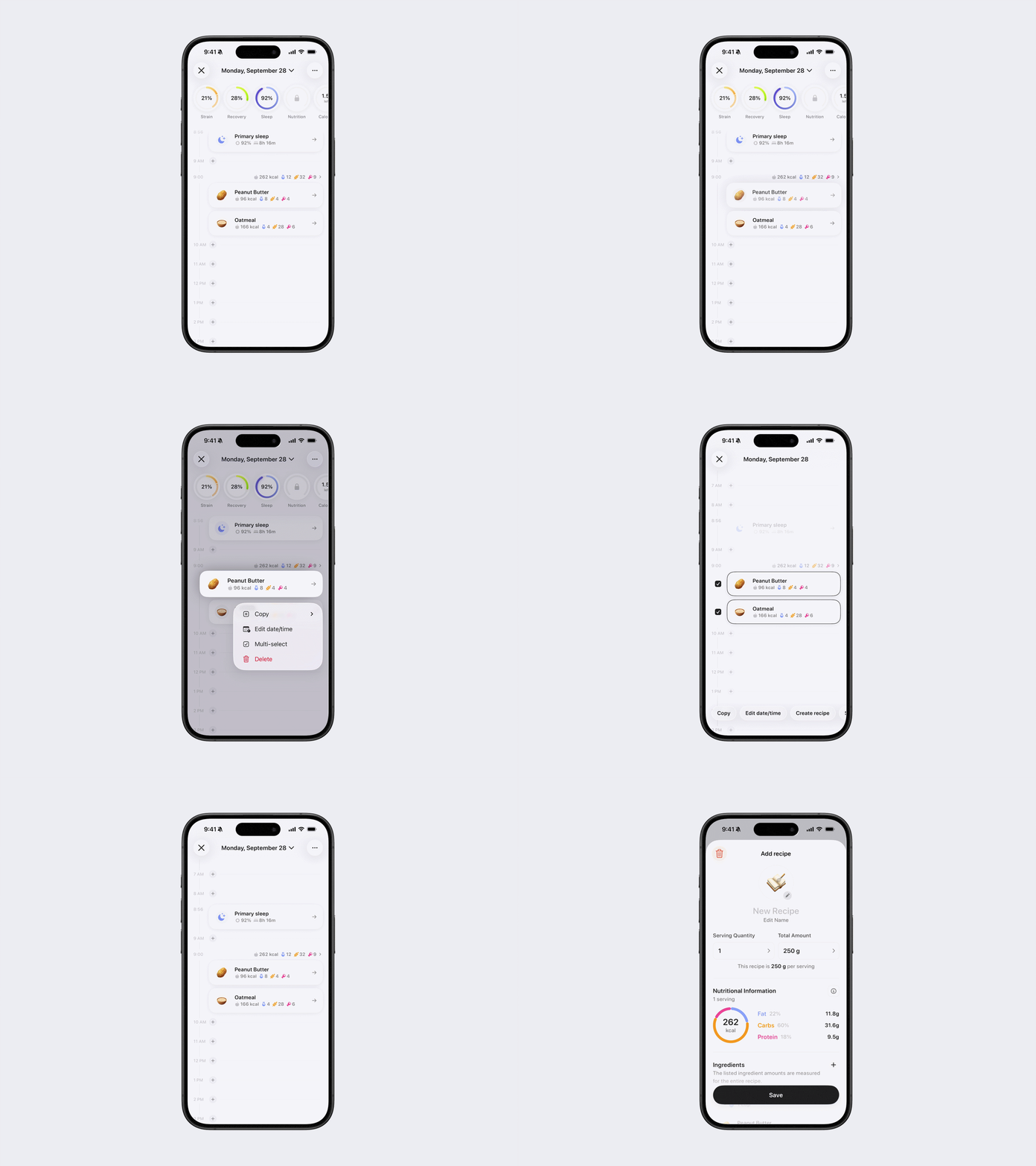
In Multi-Select mode, tap Create Recipe to make a recipe from the selected food items.
Select All
In Multi-Select, tap Select All to select all food items.