
How to Set Up and Use Calendar Integrations
Connect your Google Calendar or iCloud Calendar to Bevel Intelligence so it can read your events and better understand your schedule. You can also enable calendar syncing to add your planned and completed Bevel activities to Google Calendar. iCloud Calendar connections remain read-only.
Connect a Calendar
Open Bevel.
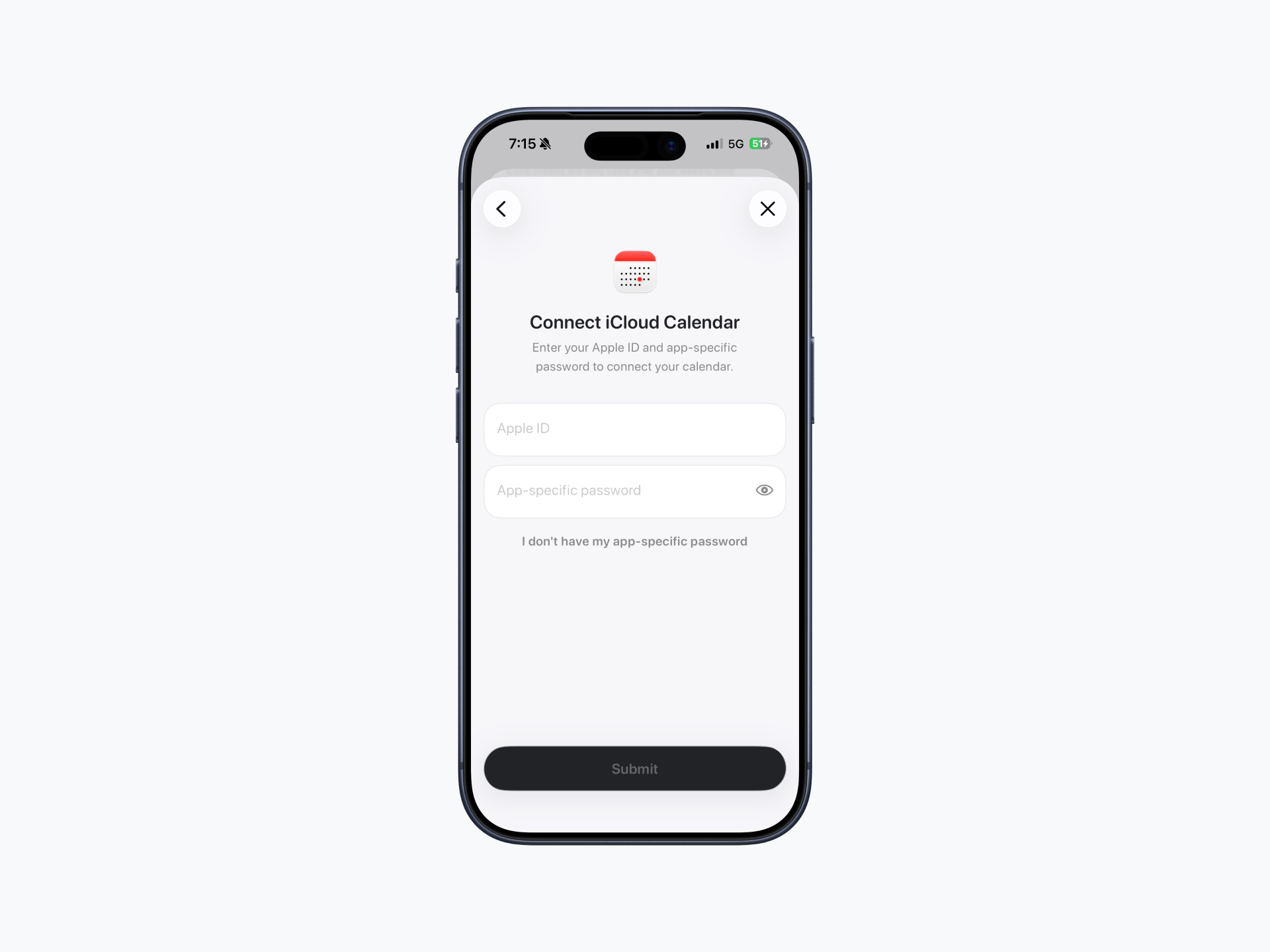
Tap your initials or profile picture in the top-right corner.
Tap Customization.
Tap Bevel Intelligence.
Tap Connect Google Calendar or Connect iCloud Calendar.
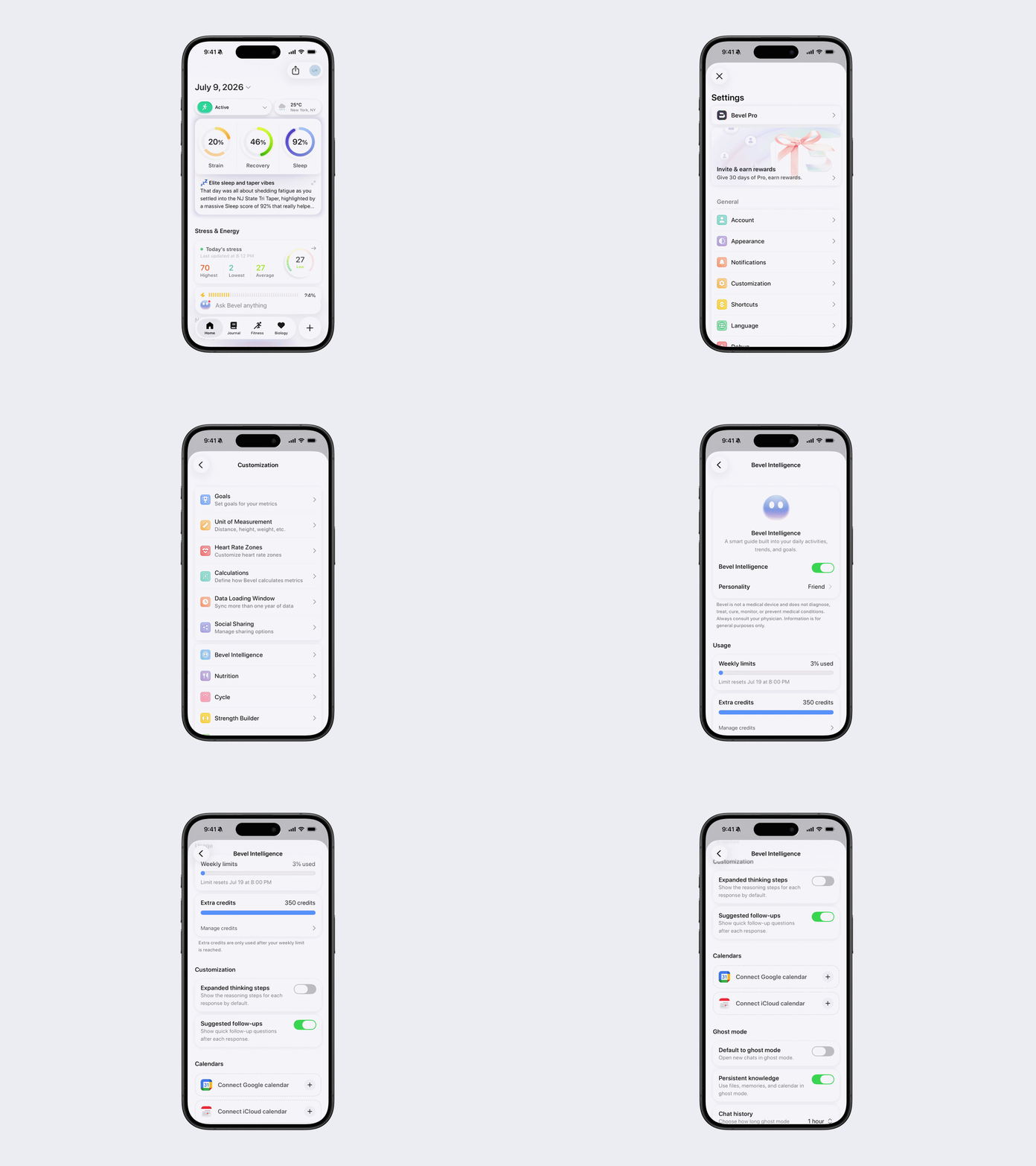
Connect iCloud Calendar
Bevel requires an app-specific password to connect to your iCloud Calendar.
Sign in to your Apple Account.
Go to App-Specific Passwords.
Generate a new app-specific password for Bevel.
Copy the generated password.
Return to Bevel and enter your Apple ID and the app-specific password to connect your calendar.
Connect Google Calendar
Sign in to your Google account.
Review the requested permissions and, if you agree, allow Bevel to access your calendar.
Manage Connected Calendars
You can choose which calendars Bevel Intelligence can view, including calendars you've subscribed to.
Open Customization → Bevel Intelligence.
Under Accounts, tap the username of your connected email account.
Under Connected Calendars, toggle individual calendars on or off to control which calendars Bevel Intelligence can access.
How to Enable Calendar Syncing
Calendar syncing allows you to automatically add planned activities and linked completed workouts from your Bevel Training Calendar to Google Calendar or iCloud Calendar.
To enable calendar syncing:
Open Bevel and tap your profile picture or initials in the top-right corner.
Go to Customization → Bevel Intelligence.
Scroll down to Calendars.
Connect your Google Calendar or iCloud Calendar if you haven't already.
Under Accounts, select the connected calendar account you want to sync with.
Under Preferences, turn on Calendar Syncing. If you see Enable Calendar Syncing for Google Calendar, tap it and grant the additional permissions requested.
Tap the checkmark in the top-right corner to save your changes.
Once enabled, Bevel will sync your planned and linked completed activities to a dedicated Bevel Health calendar in your connected calendar account.
You can disable calendar syncing at any time by returning to your connected calendar account, turning off Calendar Syncing, and saving your changes.
Important Limitations
Google Calendar: You can enable calendar syncing for only one Google Calendar account at a time. Bevel creates and manages its own dedicated calendar without modifying your existing Google calendars.
iCloud Calendar: Multiple iCloud accounts can have calendar syncing enabled. However, changes made directly in Apple Calendar do not sync back to Bevel.
Supported activities: Calendar syncing includes planned activities and linked completed activities from your Bevel Training Calendar. Other Bevel data is not automatically added.
Permissions: Google Calendar may require additional permissions before syncing can be enabled. Connecting a calendar for Bevel Intelligence to read your events does not necessarily enable calendar syncing.
What Syncs?
From Bevel to Your Calendar
The following activities from your Bevel Training Calendar can sync to Google Calendar or iCloud Calendar:
Planned activities
Completed activities linked to your Training Calendar
From Google Calendar to Bevel
The following changes made to Bevel-synced events in Google Calendar will sync back to Bevel:
Changing an event's date or time
Deleting an event
The following changes do not sync back to Bevel:
Creating a new event directly in Google Calendar
Renaming an existing event
Turning a single event into a recurring event
From iCloud Calendar to Bevel
iCloud Calendar is read-only for changes made in Apple Calendar. While your planned and linked completed Bevel activities can appear in iCloud Calendar, changes made to those events in Apple Calendar will not sync back to Bevel.
Disconnect a Calendar
Open Customization → Bevel Intelligence.
Under Accounts, tap the username of your connected email account.
Scroll to the bottom of the page.
Tap Disconnect to remove the calendar integration.
Is my calendar data secure?
Yes. Your calendar data is protected using industry-standard security practices. Data is encrypted both in transit and at rest, and strict access controls are in place to limit who can access it. Before any calendar data is sent to our large language model (LLM) providers, it is anonymized to remove identifying information. Other Bevel users cannot see your calendar, and access to your data is restricted to authorized systems and personnel only when necessary to operate the service.