
How to Use Ghost Mode
Ghost Mode lets you start a temporary Bevel Intelligence chat for questions or food logging without adding the conversation to your permanent chat history.
You can customize how Ghost Mode works, including how long Ghost chats remain available, whether they use your existing context, and whether new chats start in Ghost Mode by default.
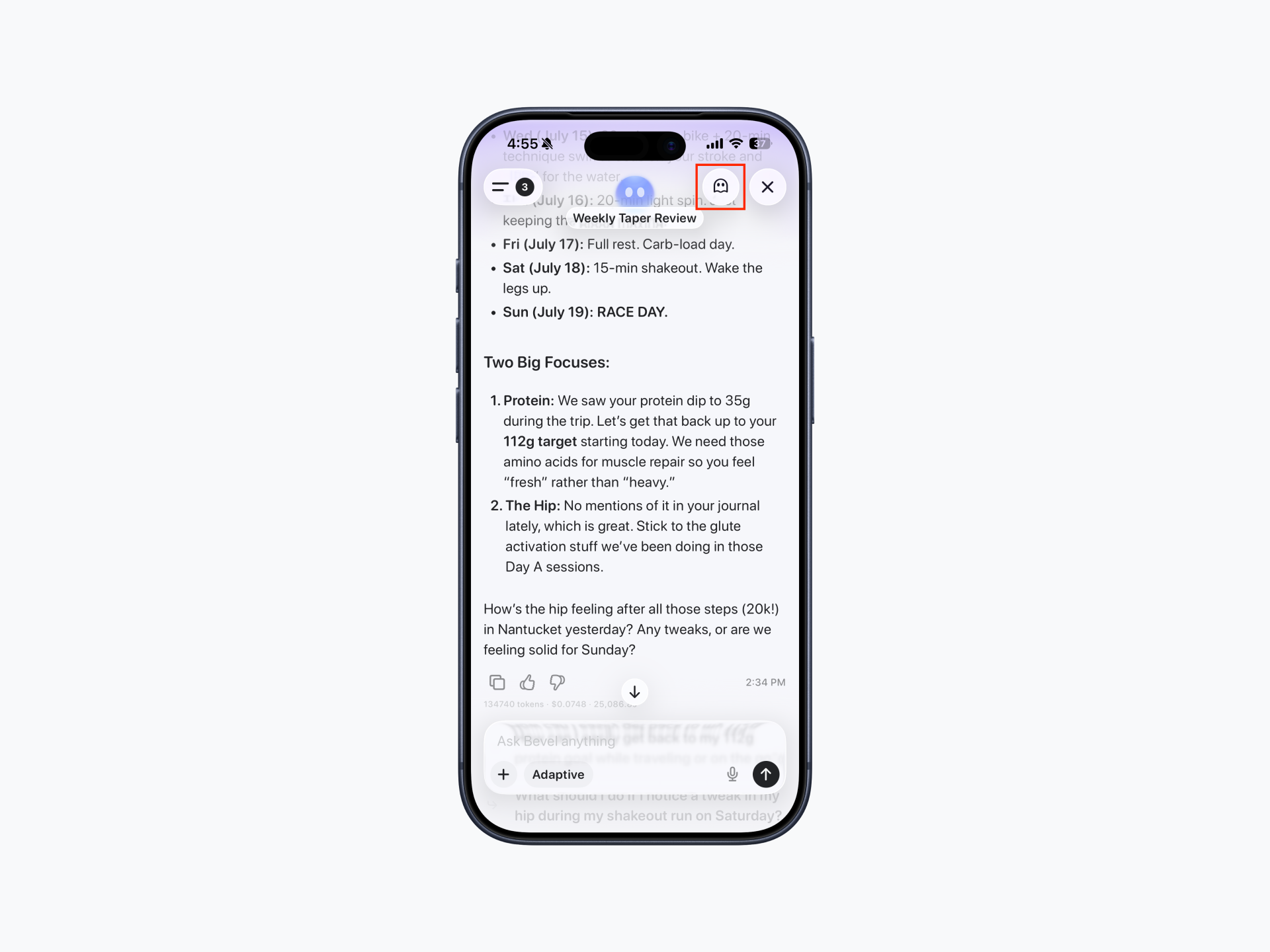
Start a Ghost Chat
Open Bevel Intelligence.
Tap the Ghost icon in the top-right corner.
Ask questions, log food, or chat as you normally would.
Return to a Regular Chat
While in Ghost Mode, tap the Messages icon in the top-right corner to return to a regular Bevel Intelligence chat.
Customize Ghost Mode
Open Bevel.
Tap your initials or profile picture in the top-right corner.
Tap Customization.
Tap Bevel Intelligence.
Under Ghost Mode, configure the following settings:
Persistent Knowledge
When enabled, Ghost Mode can use your existing files, memories, and folders to provide more personalized responses. When disabled, Ghost Mode won't use this saved context.
Chat History
Choose how long Ghost Mode chats remain accessible before they are automatically removed. Available options are:
30 minutes
1 hour
6 hours
24 hours
Default to Ghost Mode
When enabled, all new Bevel Intelligence chats will start in Ghost Mode by default.
Note: If you manually start a Ghost Mode chat while Default to Ghost Mode is turned off, Bevel will continue reopening that Ghost Mode chat for approximately 30 minutes after your last session. After it expires, new chats will follow your Default setting.