
How to Understand Biology Trend Charts
Trend charts in Bevel help you track your progress over time, giving you a visual view of your habits, metrics, and goals. They make it easier to identify patterns, stay on track, and make adjustments based on your data.
You can view Biology Trend Charts by simply clicking on the Biomarker you want to see.
Reading Age Biomarkers Trend Charts
Age biomarkers include:
Sleep: Time Asleep and Sleep Consistency
Activity: Daily steps, time in Heart Rate Zones 2–3 (aerobic base), Zones 4–5 (high intensity), and Strength Training
Fitness: VO₂ Max, Resting Heart Rate, and Lean Body Mass
Lifestyle: Nutrition Score, Alcohol intake, and Smoking Impact (tracked via in-app surveys on frequency, duration, and strength)
Each data point on the 3M chart represents a daily or weekly average using the past 28 days of data. Everything is daily except for time in heart rate Zones 2–3 (aerobic base), Zones 4–5 (high intensity), strength training, smoking impact, and alcohol intake which are weekly.
Reading Blood Biomarkers Charts
Blood biomarkers show the raw data plus the range, extracted directly from your lab report
Green means in range, orange means out of range
If something looks off, you can edit a blood biomarker sample directly. Tap the refresh icon in the top-right corner > select the test result you want to update > open the Blood Report > tap Edit.
Reading Other Biomarkers Trend Charts
Each chart may display slightly different information, but most follow similar visual patterns:
HRV Baselines
60-day rolling average
In the 30D view, each data point represents a rolling 60-day average
In the 3M, 6M, 1Y views, we bucket the datapoints into 3-day, 6-day, 1-month.
The chart is grey but you will see visual indicators for increasing (blue) or decreasing (orange)
RHR Baselines
60-day rolling average
In the 30D view, each data point represents a rolling 60-day average
Color represents where you fall in your age/sex category
VO2 Max
In the 30D view, each data point represents the raw data
3M, 6M, 1Y are bucketed the same as regular trends charts
Weight, Lean Body Mass, Body Fat Percentage
In the 30D view, each data point represents the raw data
Trendline shows a rolling 7-day average since these factors can be variable
Only Body Fat shows where you are relative to age/sex
Weight & Lean Body Mass show increasing/decreasing trends in grey (this is because we don’t want to apply positive/negative connotation to weight loss/gain)
Blood Pressure
In the 7D and 30D view, each data point represents the raw data
6M and 1Y are bucketed the same as regular trend charts
Systolic numbers are shown in grey, while Diastolic numbers are shown in pink
Blood Pressure show increasing/decreasing trends in grey
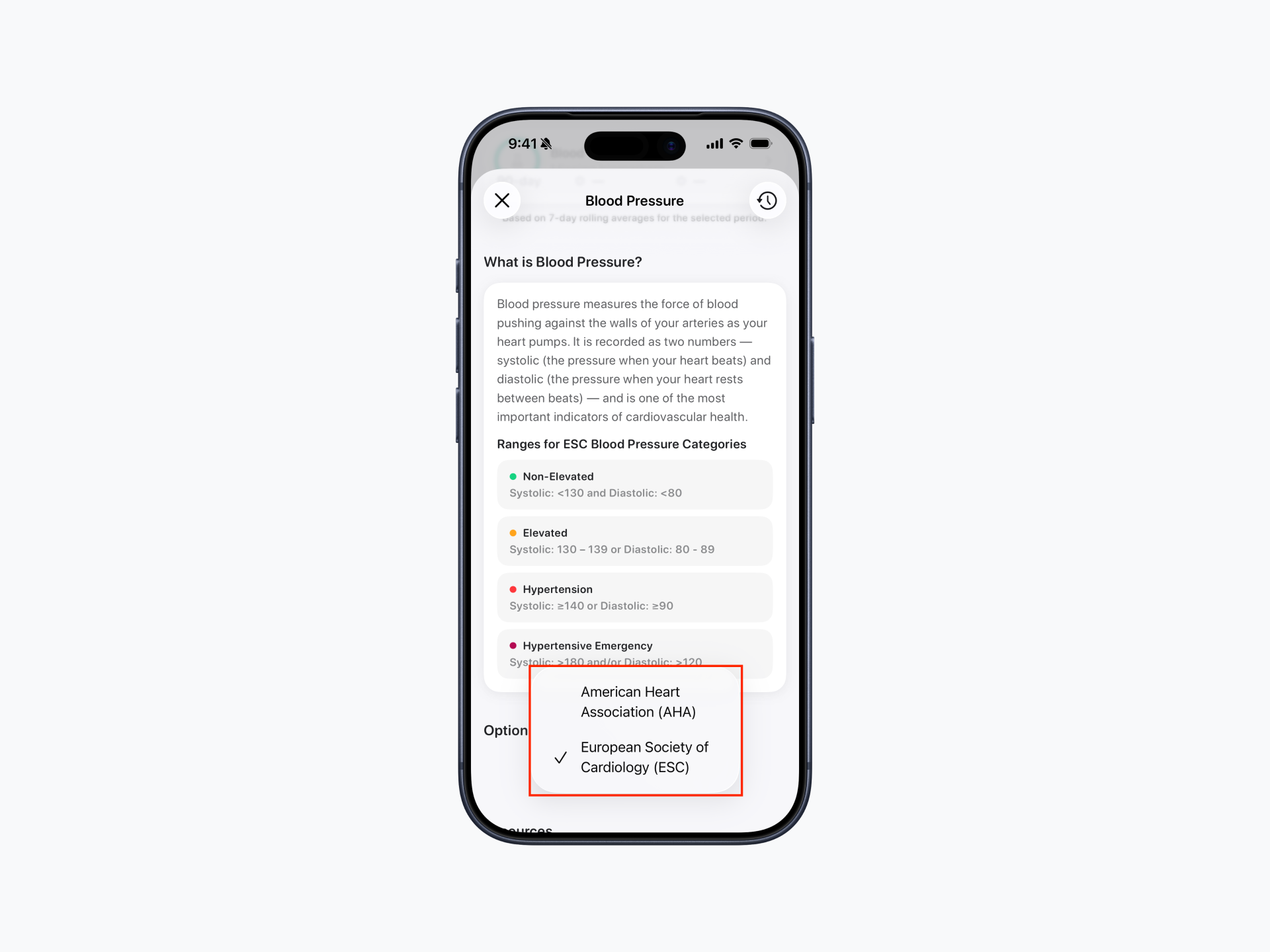
You can choose whether your blood pressure readings are classified using the American Heart Association (AHA) or European Society of Cardiology (ESC) guidelines. To change this, open Blood Pressure in the Biology tab, scroll down to Options, then select your preferred Classification Guidelines (AHA or ESC).
Reading Trend Charts
You can adjust the chart view:
Select a timeframe: 1M, 3M, 6M, or 1Y.
Note: Each data point represents a different time range depending on the view. In the 1M view, each point represents 1 day of data; in the 3M view, each point represents 3 days; in the 6M view, each point represents 6 days; and in the 1Y view, each point represents 1 month.
Note: HRV and RHR baselines are calculated using a rolling 60-day window rather than a single point in time.
Use the calendar button to view previous months or custom periods.
Trends Ranges
Trend ranges can be found beneath the chart. They are only available for specific data points, such as RHR baselines and VO₂ max.
Trends Analysis
Trends Analysis can be found at the bottom of each chart (below Trends Ranges if applicable). Most charts show 3-day to 90-day changes and Trends based on a 7-day rolling average. Trends are indicated by arrows: an upward arrow shows an increase, a downward arrow shows a decrease, and a right-pointing arrow indicates no change or only a slight change.
Using Trend charts regularly helps you understand your progress and make more informed decisions to reach your goals.
Why are my Trends grey?
Grey trends indicate the change is not statistically significant over the selected time period.