How to View and Edit Health Records
You can easily view and update any documents or health records you’ve uploaded to Bevel. This helps you keep your information accurate and up to date.
View Health Records:
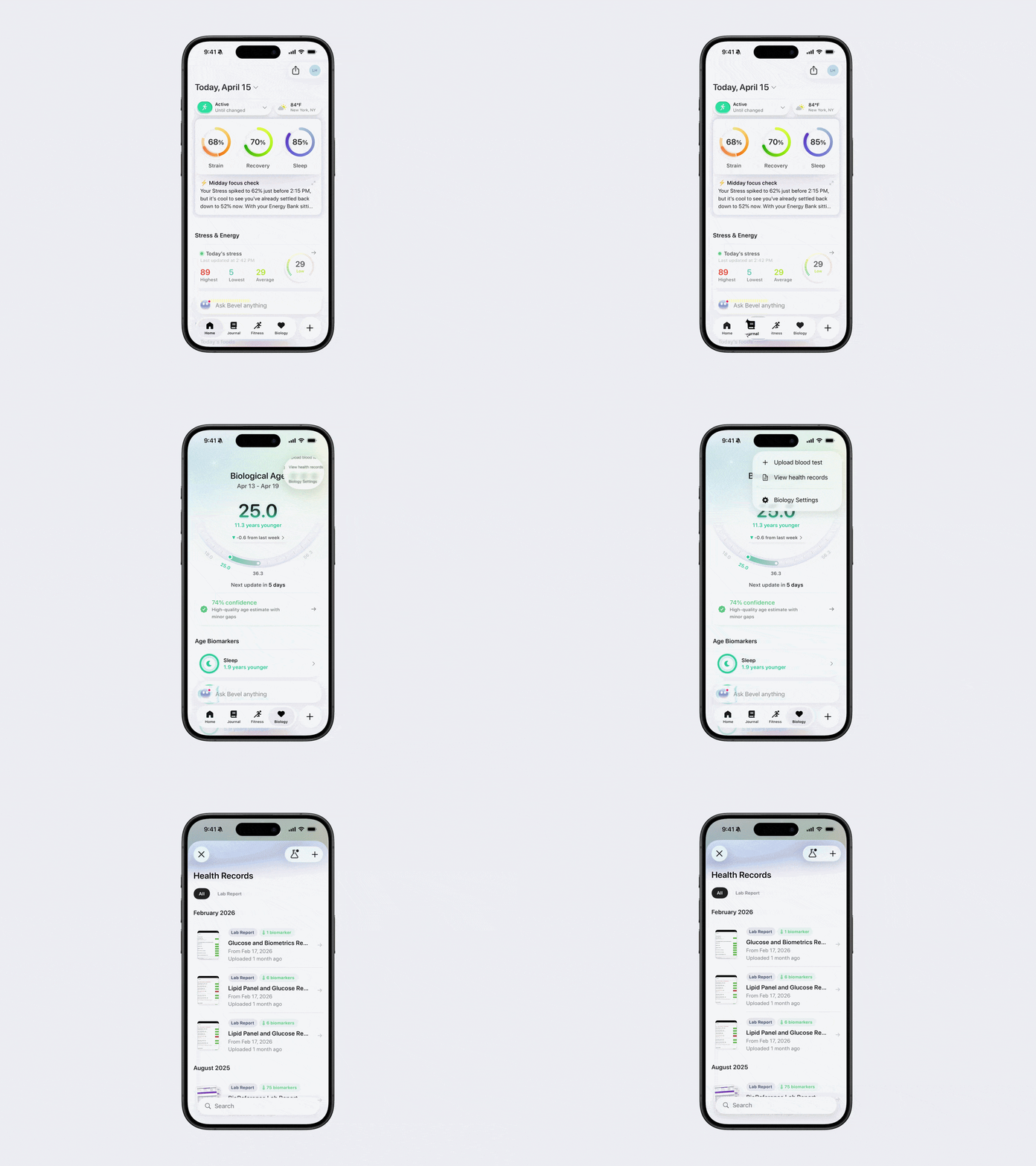
Option 1: Via Biology View Documents
Open Bevel.
Tap the Biology tab.
Tap the three dots (…) in the top-right corner.
Tap View Health Records.
Tap into a document.
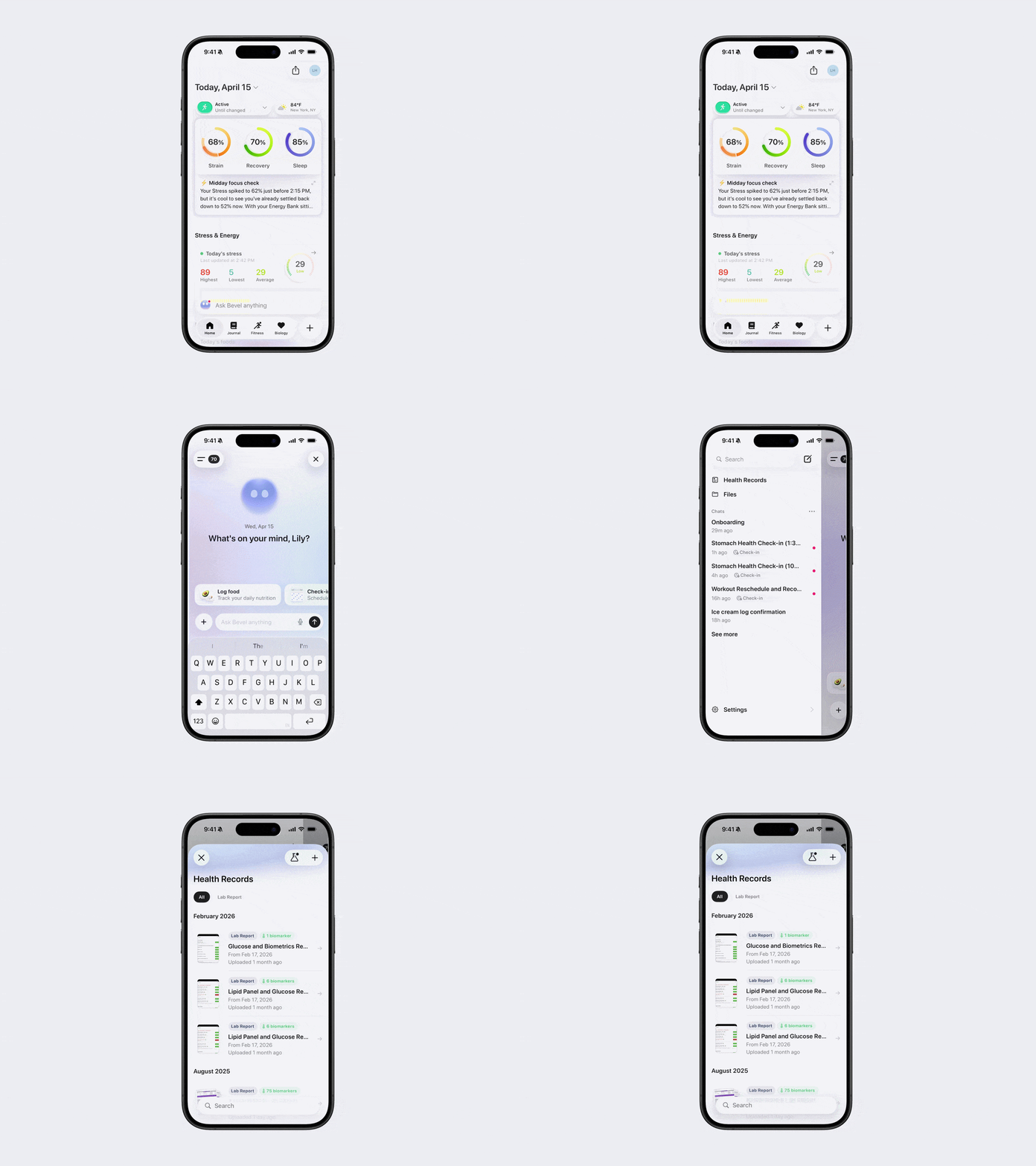
Option 2: Via Bevel Intelligence Sidebar
Open Bevel Intelligence.
Tap the menu icon in the top-left corner.
Tap Health Records.
Tap into a document.
Edit or Delete Health Records
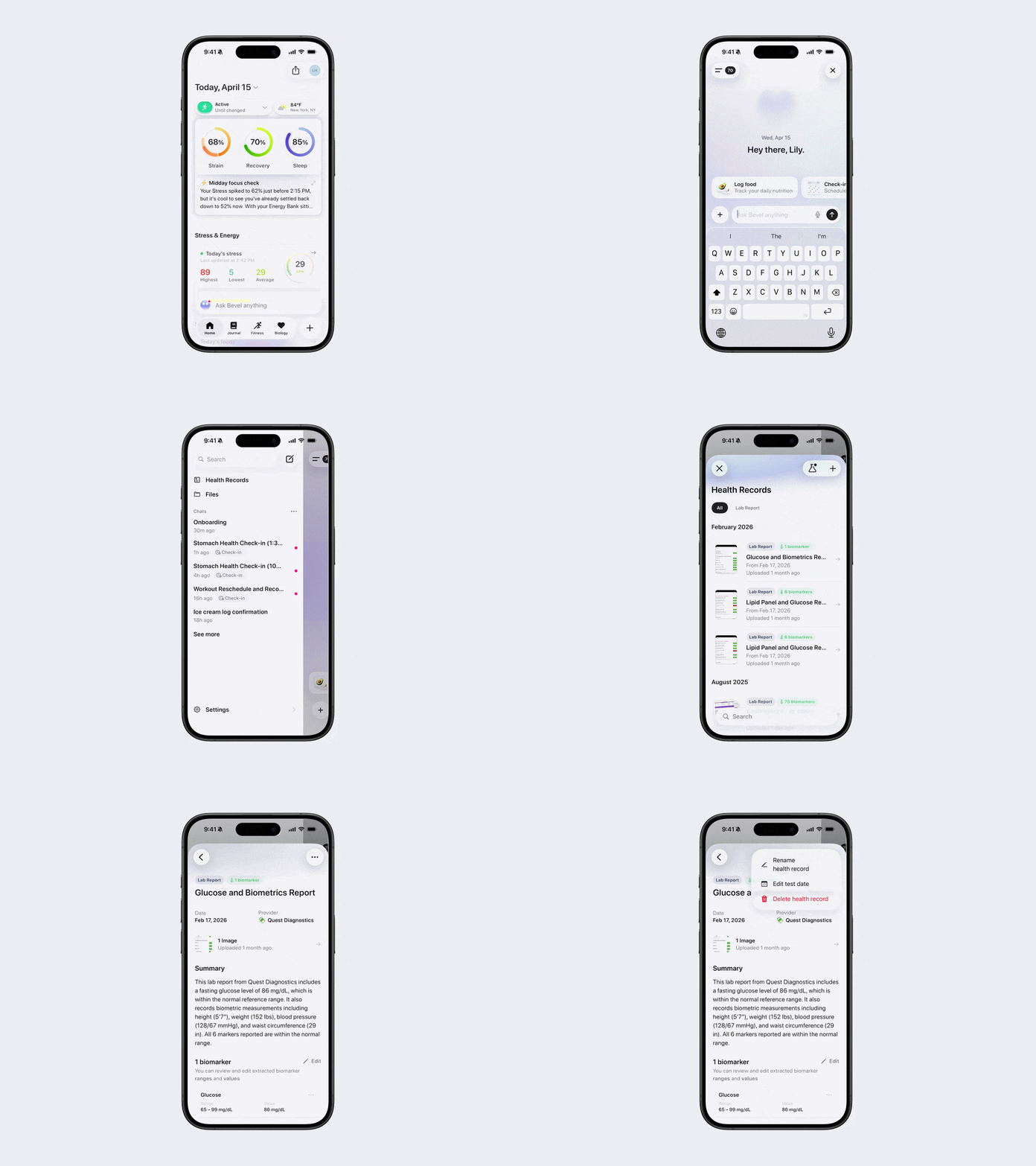
Once you open a document, Bevel lets you edit details so you can quickly update and fine-tune your content for accuracy and clarity.
To rename a health record, edit a test date, or delete a health record:
Once inside a document, tap the three dots (…) in the top-right corner.
Select the action you would like to take and follow the steps.
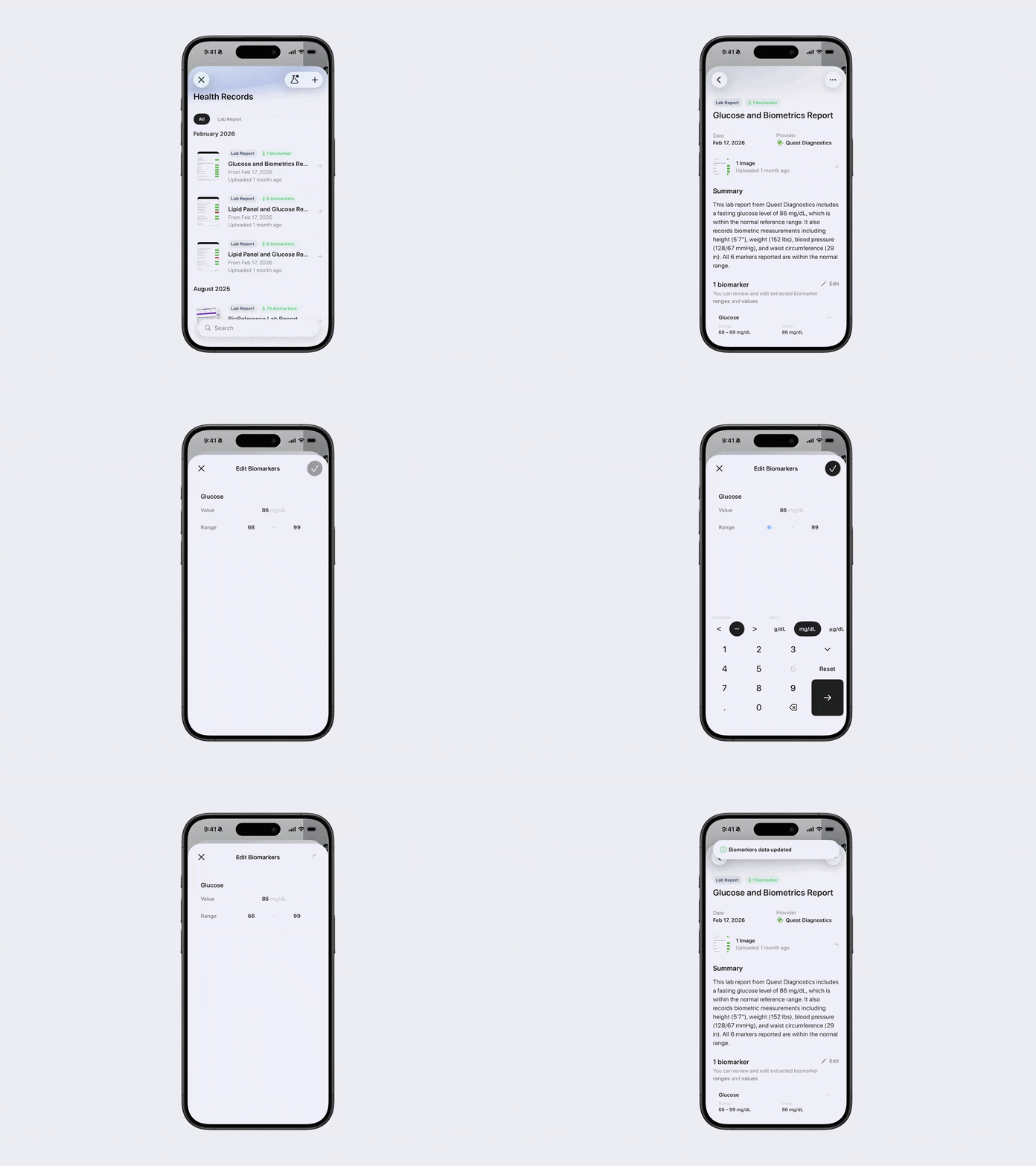
Edit Biomarkers
Once inside a document, tap the Edit button next to Biomarkers.
Change the respective value or range.
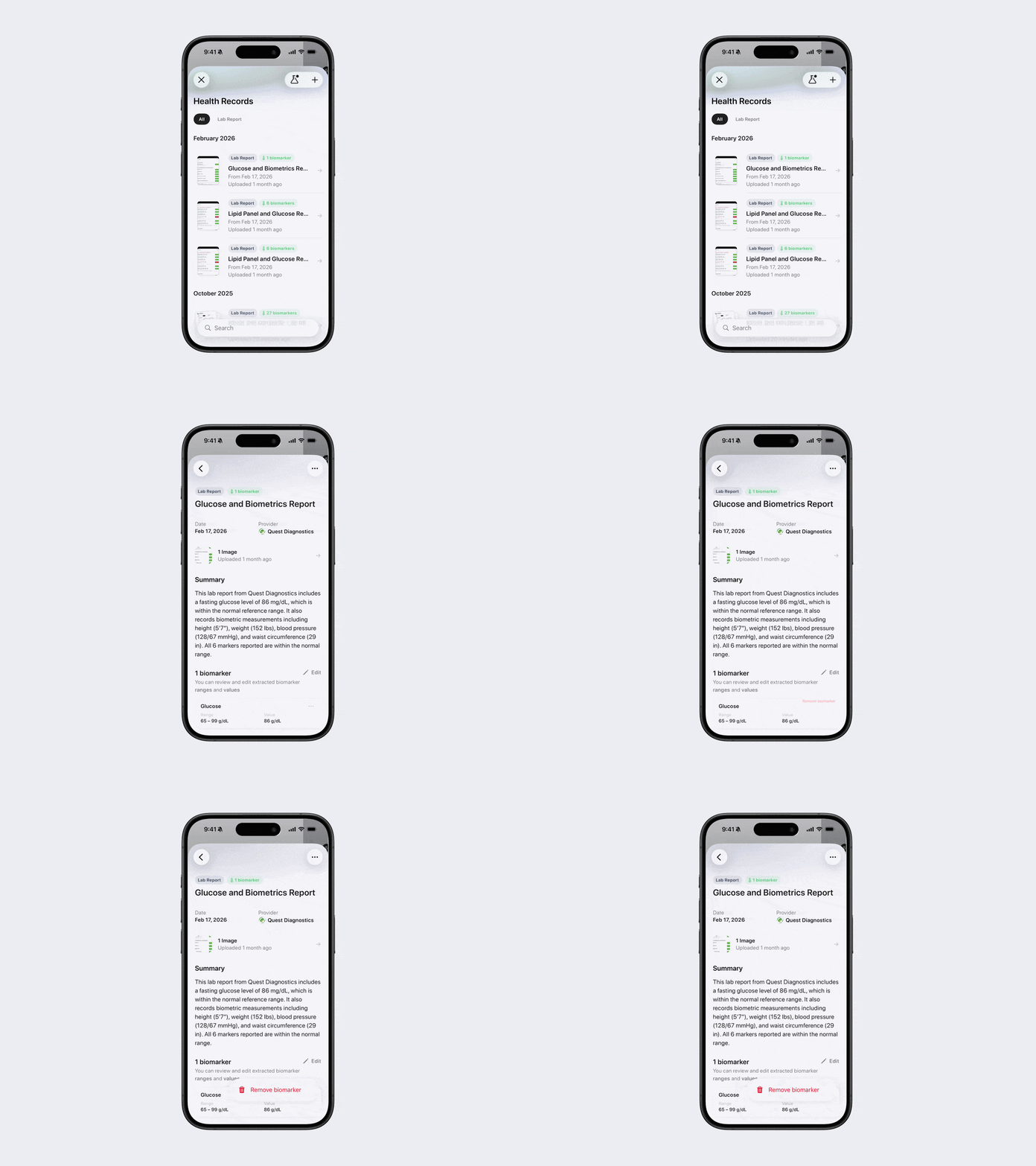
Remove Biomarker
Once inside a document, tap the three dots (…) next to the biomarker you want to delete.
Tap Remove Biomarker.
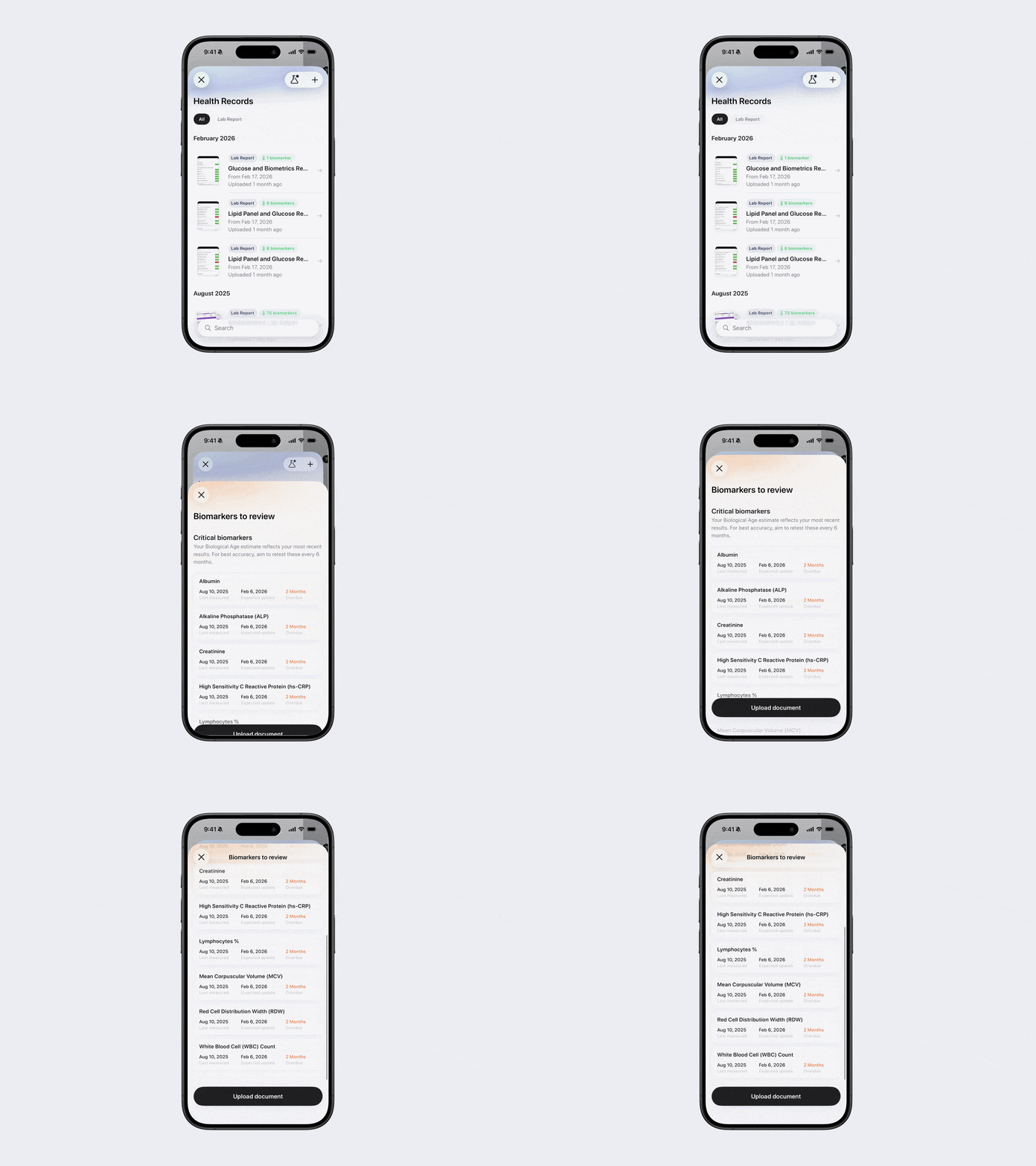
View Biomarkers to Review
Your Biological Age is based on your most recent results, so for best accuracy, try to keep these values up to date.
Bevel keeps a running list of biomarkers that need updating. Retesting is recommended every 6 months. To view this list, go to Health Records and tap the flask icon. You’ll see which biomarkers are over 6 months old.