How to View Biomarkers
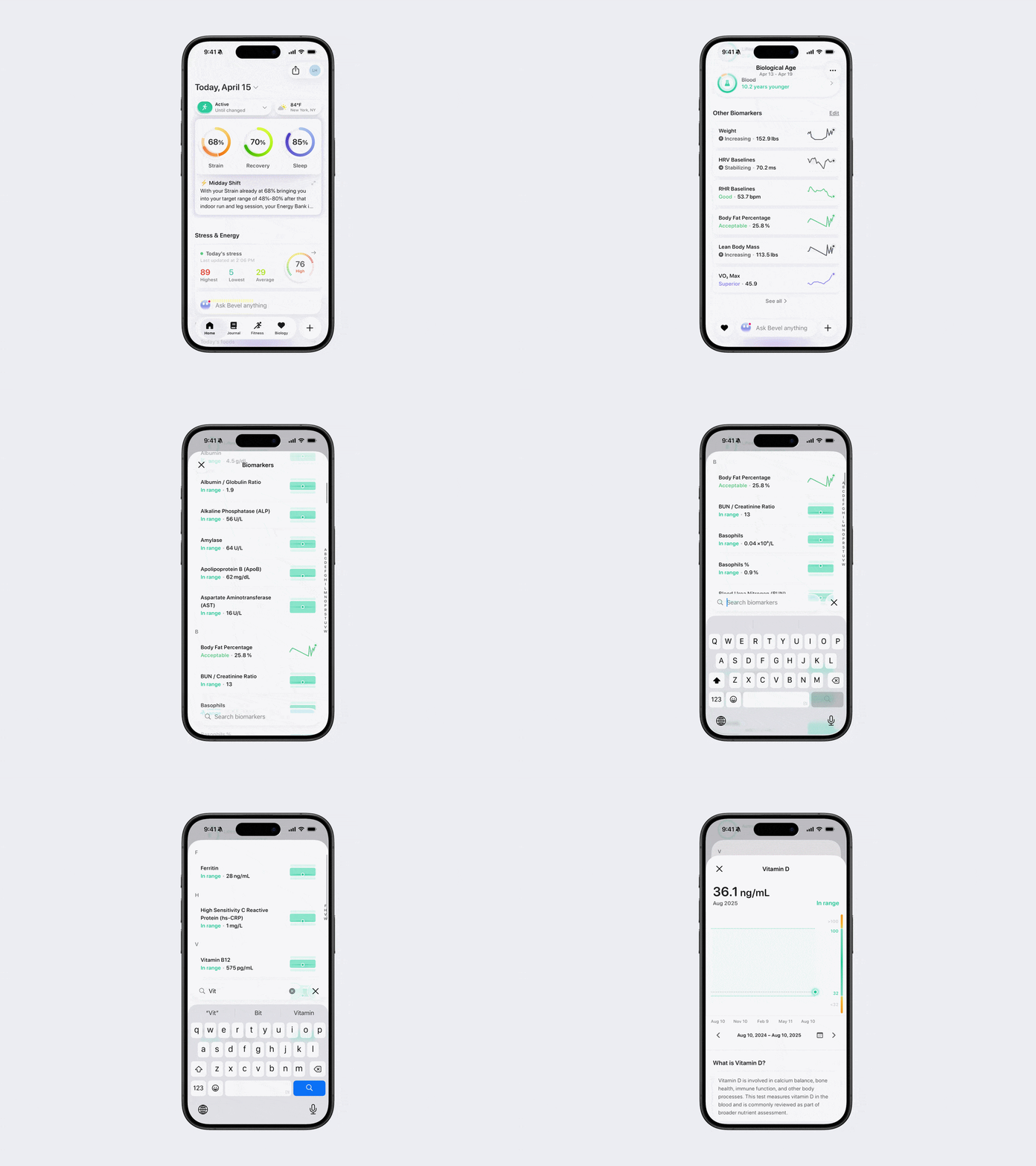
While Bevel does not display every biomarker directly on the Biology page, you can view and search the full list at any time. This includes both physiological metrics and blood biomarkers available in the app, as well as previously tracked markers such as Weight, Heart Rate Variability, Resting Heart Rate, Lean Body Mass, and Body Fat Percentage.
View All Biomarkers
Open Bevel.
Tap the Biology tab.
Scroll to the bottom of the page.
Tap See All.
You can now view all available biomarkers. To find a specific one, use the search bar at the bottom of the screen.
Tap on individual biomarkers to view their specific data points.
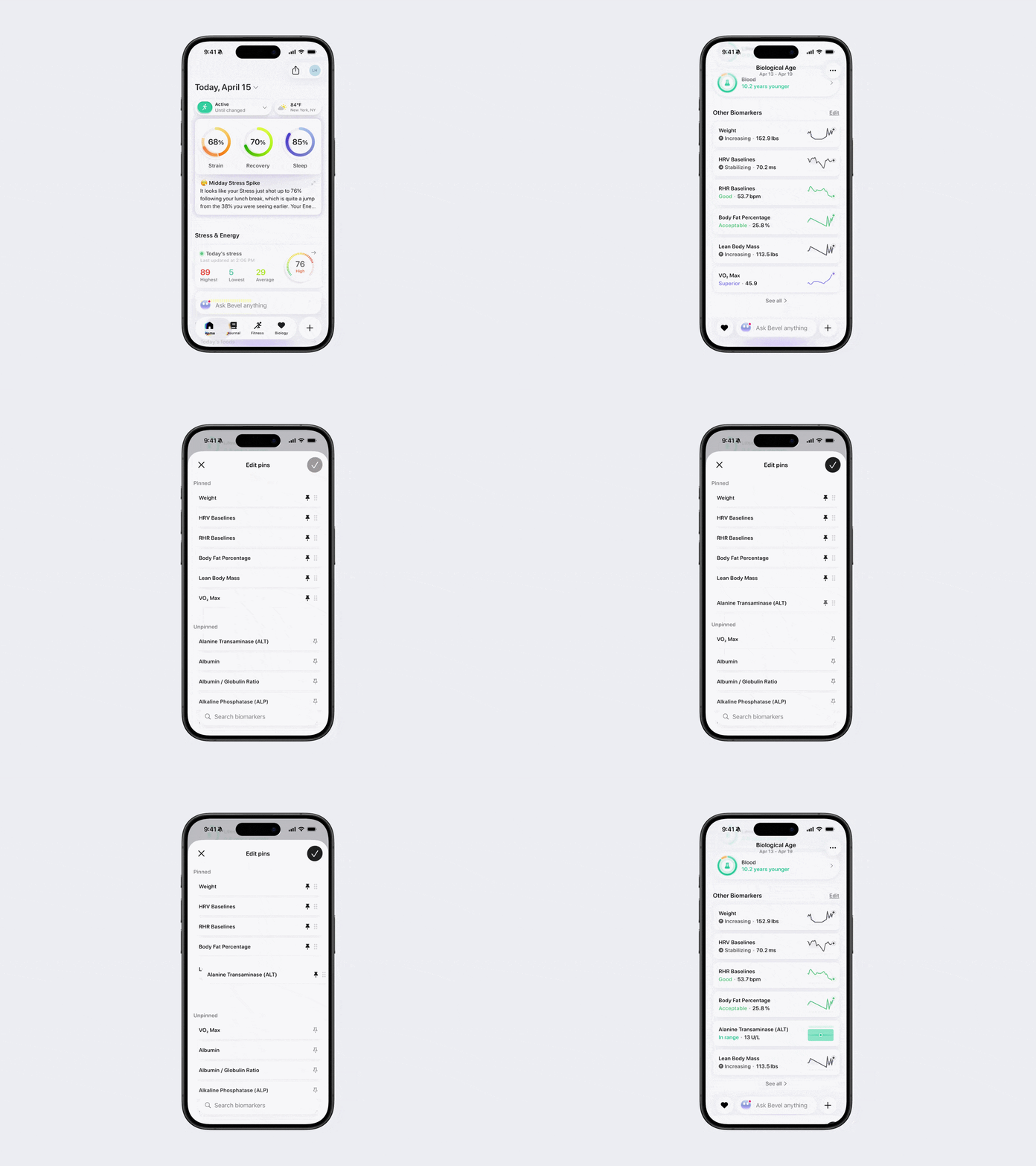
How to Pin Favorite Biomarkers
While Bevel does not display all biomarkers on the Biology tab, you can pin your favorite biomarkers so they appear there for quick access.
Pin Favorite Biomarkers
Open Bevel.
Tap the Biology tab.
Scroll down to the Other Biomarkers section.
Tap Edit to the right of Other Biomarkers.
Use the search bar or scroll to find the biomarker you want to pin.
Tap the pin icon on the right to pin the biomarker (it will change from light to dark).
Reorder or Unpin Biomarkers
To change the order, tap and hold a biomarker, then drag it to your preferred position.
To unpin a biomarker, tap the pin icon again (it will change from dark to light).