
How to Track Nutrition Goals in Bevel
You can track your Nutrition Goals in Bevel by setting calorie, macronutrient, and specific nutrient targets. This helps you monitor your intake and stay on track with your health and performance goals.
All Nutrition Goals (via Nutrition Section)
Open Bevel.
Scroll down to the Nutrition section and tap to open it.
Tap Goals.
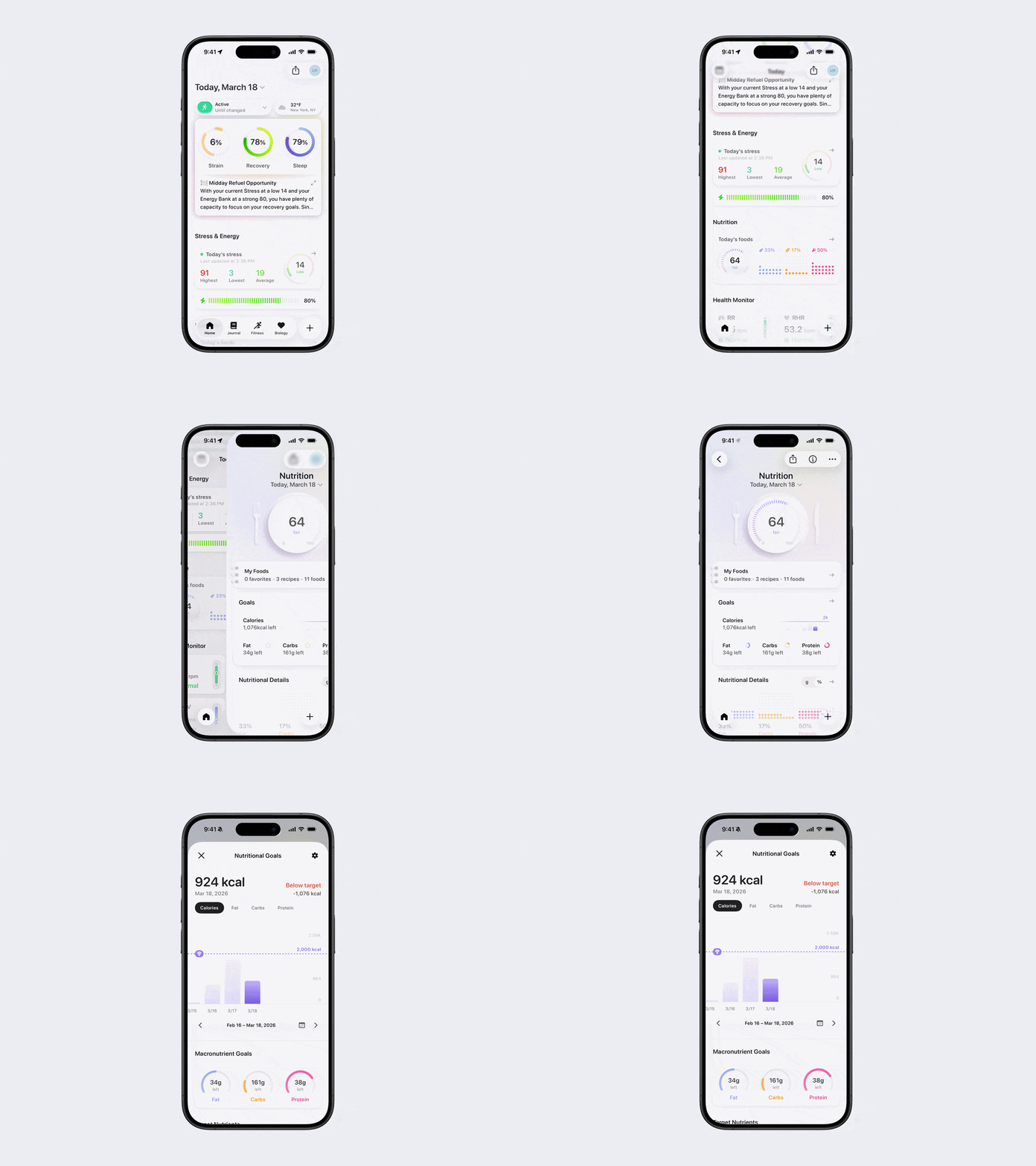
Creating or Editing Calorie & Macronutrient Goals (via Nutrition Section)
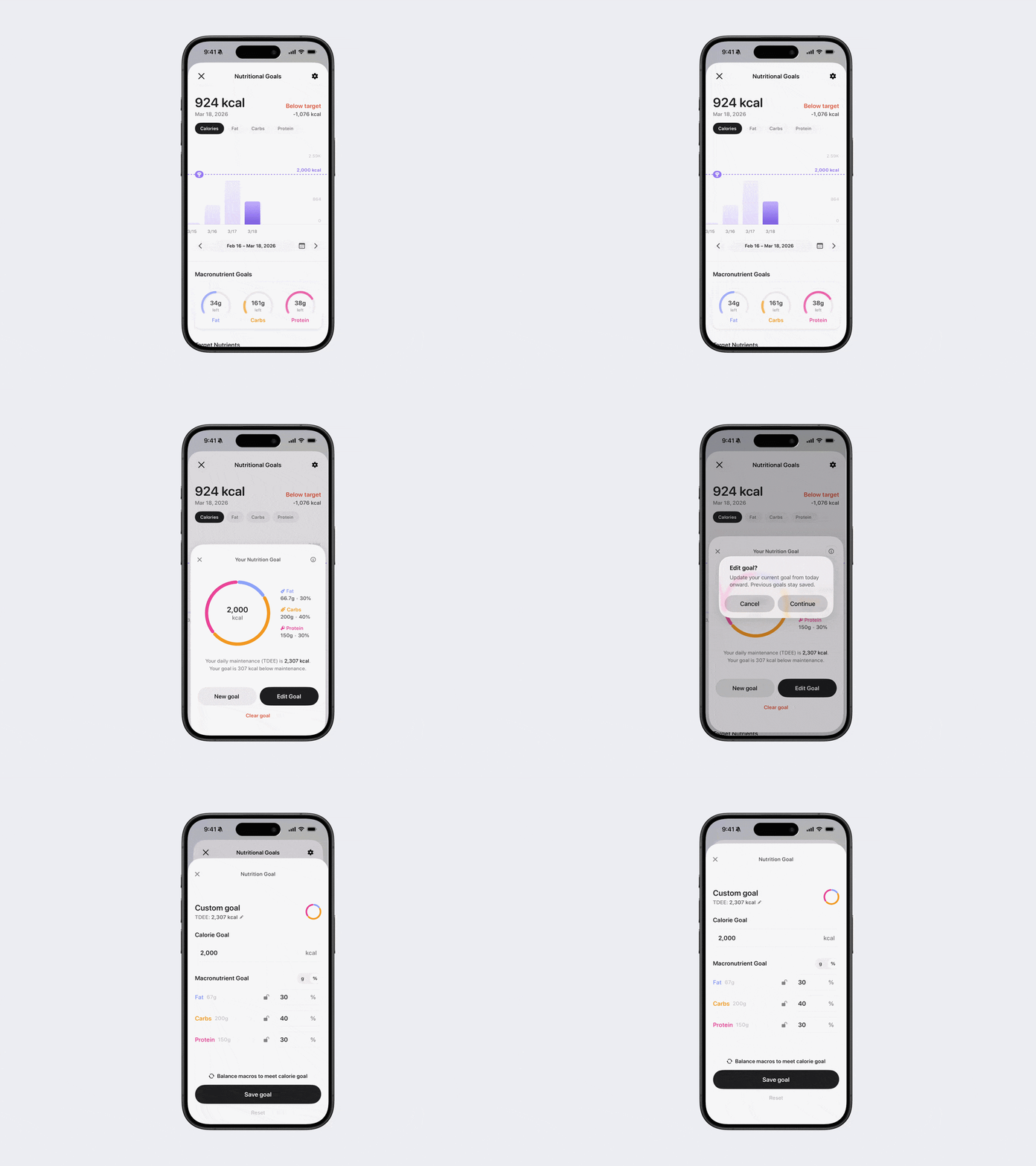
Once you are in Nutrition Goals (following the directions above), you can create or edit your calorie and macronutrient goals:
Tap the Settings (gear) icon in the top-right corner.
Tap New Goal or Edit Goal.
Follow the instructions to enter the requested information.
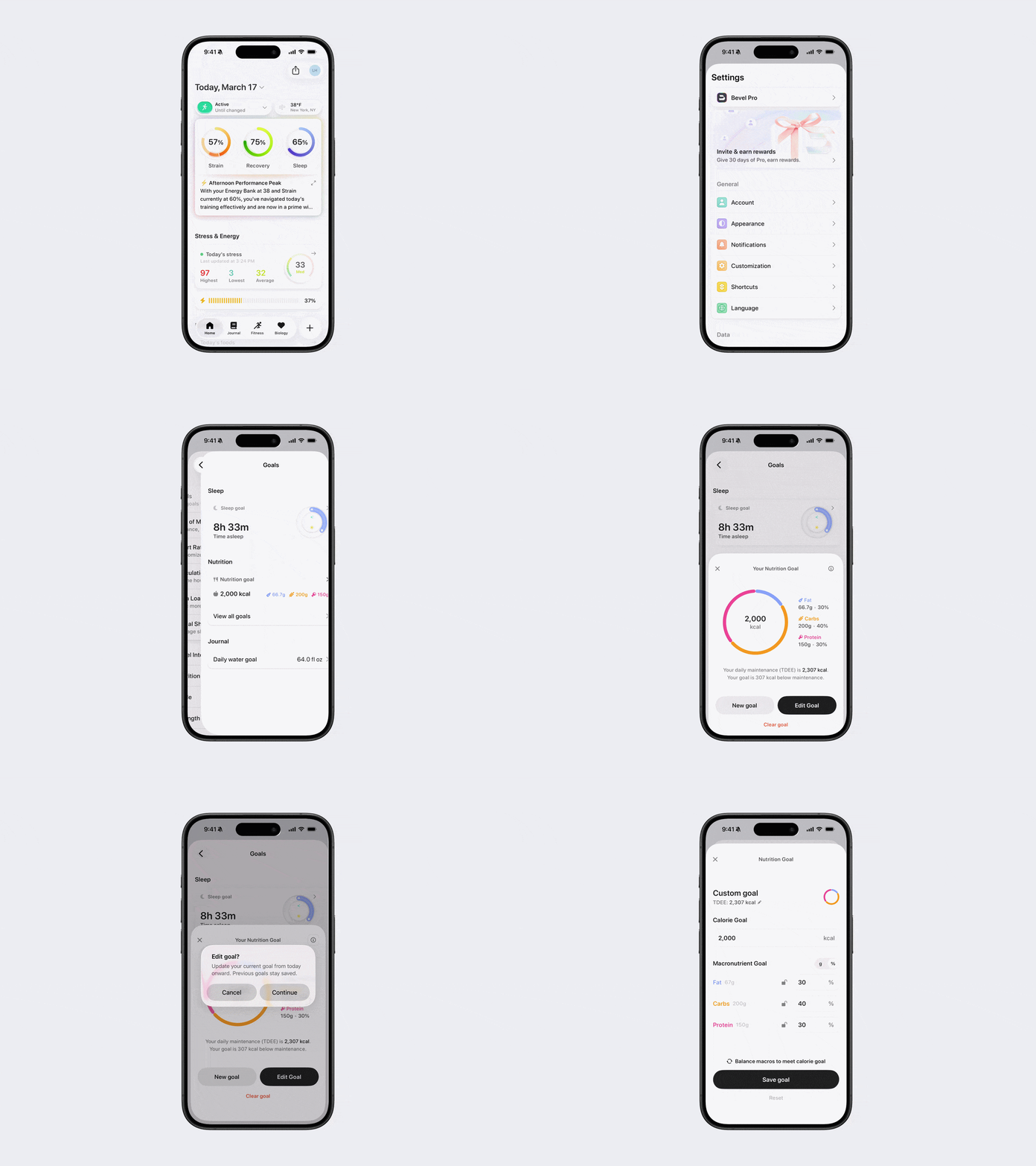
Calorie and Macronutrient Goals (via Profile)
Adjust calorie or macronutrient goals using grams or percentages. You can:
Edit an existing goal: affects both past and future dates.
Create a new goal: applies only to future dates.
To view and manage your goals:
Open Bevel.
Tap your initials or profile picture in the top-right corner.
Tap Customization.
Tap Goals.
Tap Nutrition Goal.
Tap New Goal or Edit Goal.
Follow the instructions to enter the requested information.
Click Save Goal.
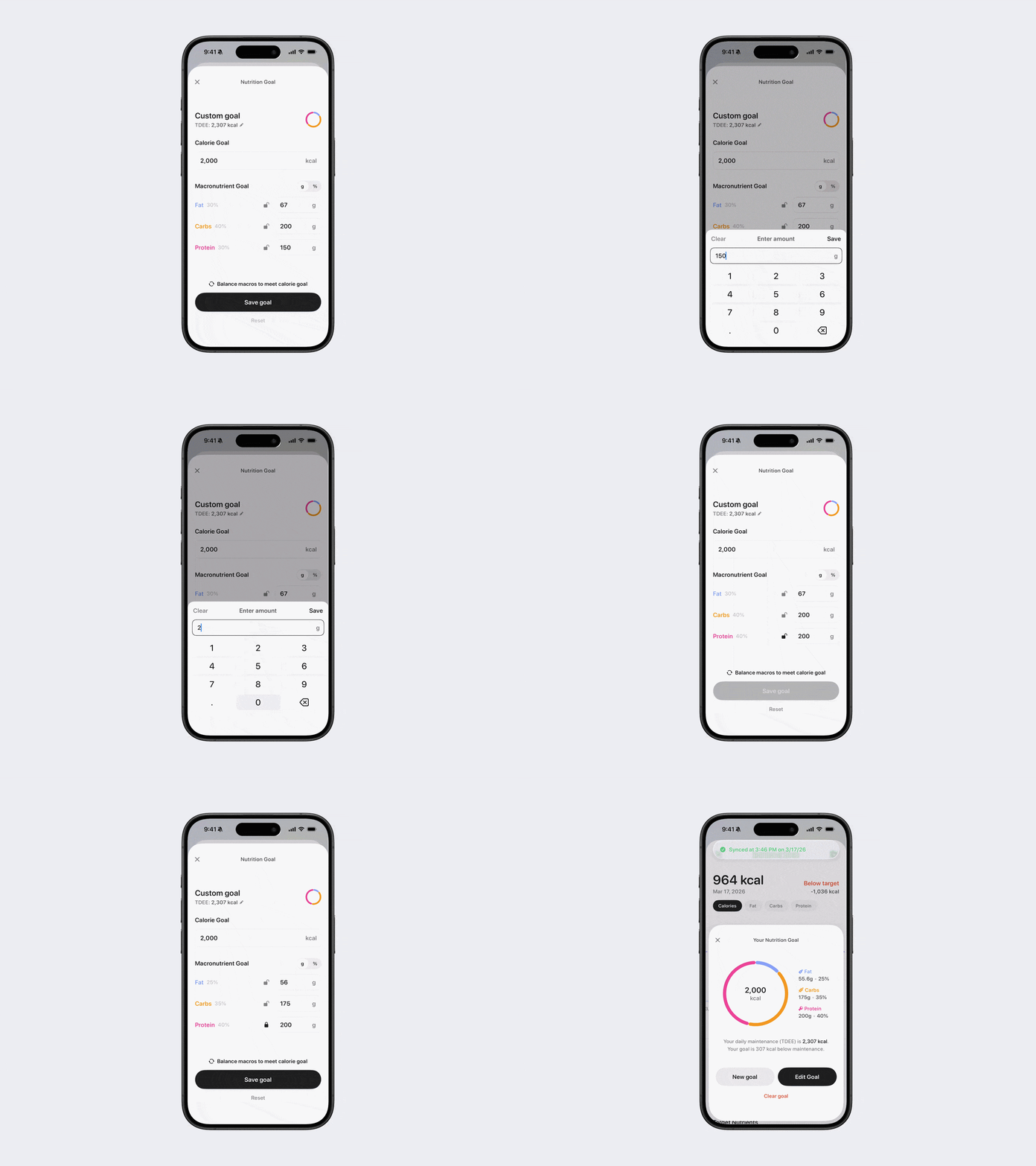
Lock Feature
Whether you set a new goal or edit an existing one, you can easily adjust your metrics. Click the lock icon next to a macronutrient goal to lock that value (either in grams or as a percentage).
To meet the remainder of your calorie target, tap Balance macros to meet calorie goal. The other macronutrients will automatically adjust to align with your calorie goal.
Adding Target Nutrients
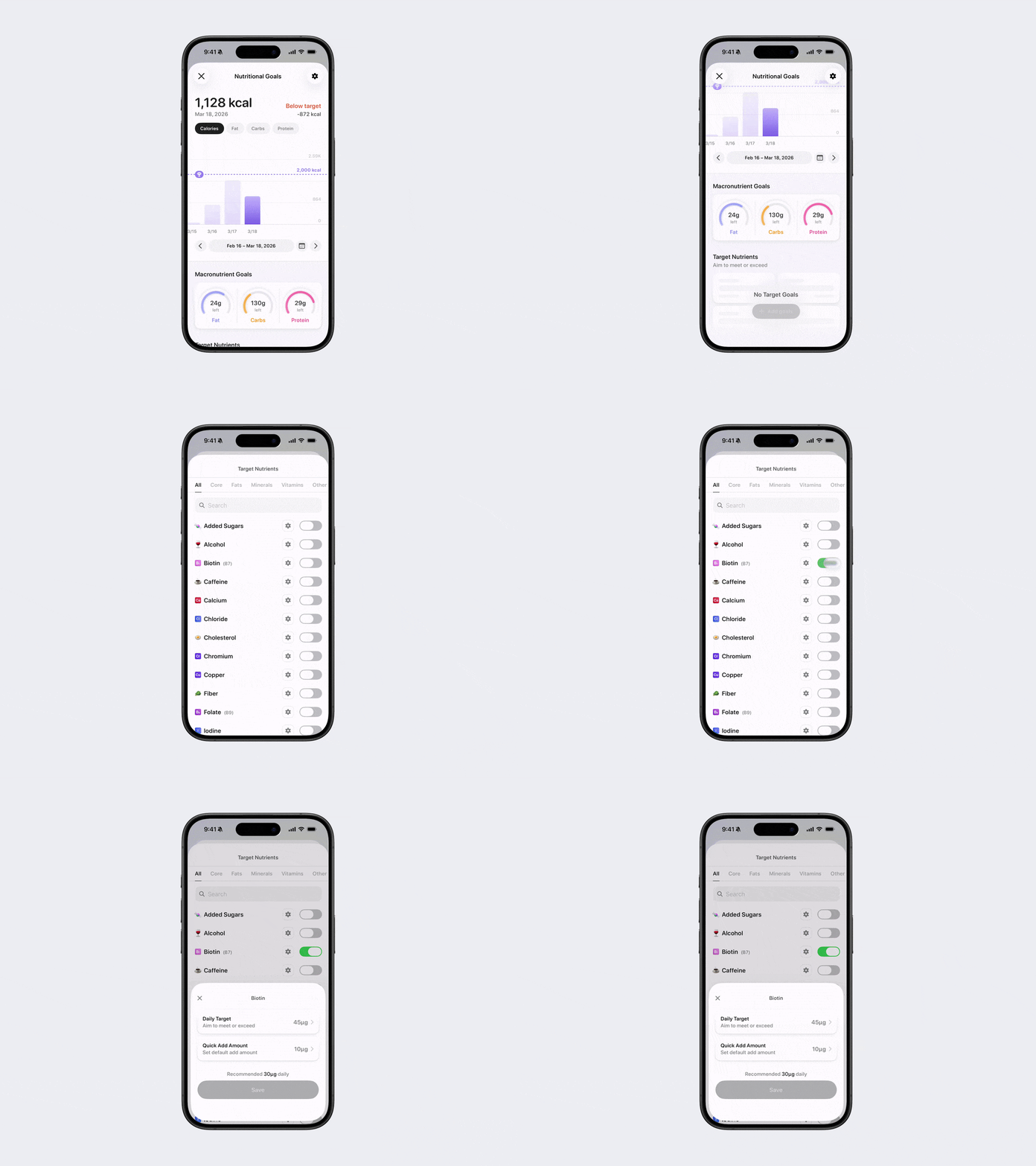
Target Nutrients allow you to set daily intake targets for specific nutrients you want to consume enough of so you can stay on track with your health or performance goals.
Open Bevel.
Scroll down to the Nutrition section and tap to open it.
Tap Goals.
Under the Target Nutrient section, tap Add Goals.
Find the nutrient you want to create a target goal for.
Toggle that nutrient on.
Tap the gear icon next to the toggle to:
Change the daily target.
Quickly add an amount daily.
Log a nighttime entry on wake-up.
Tap Save.
Adding Limit Nutrients
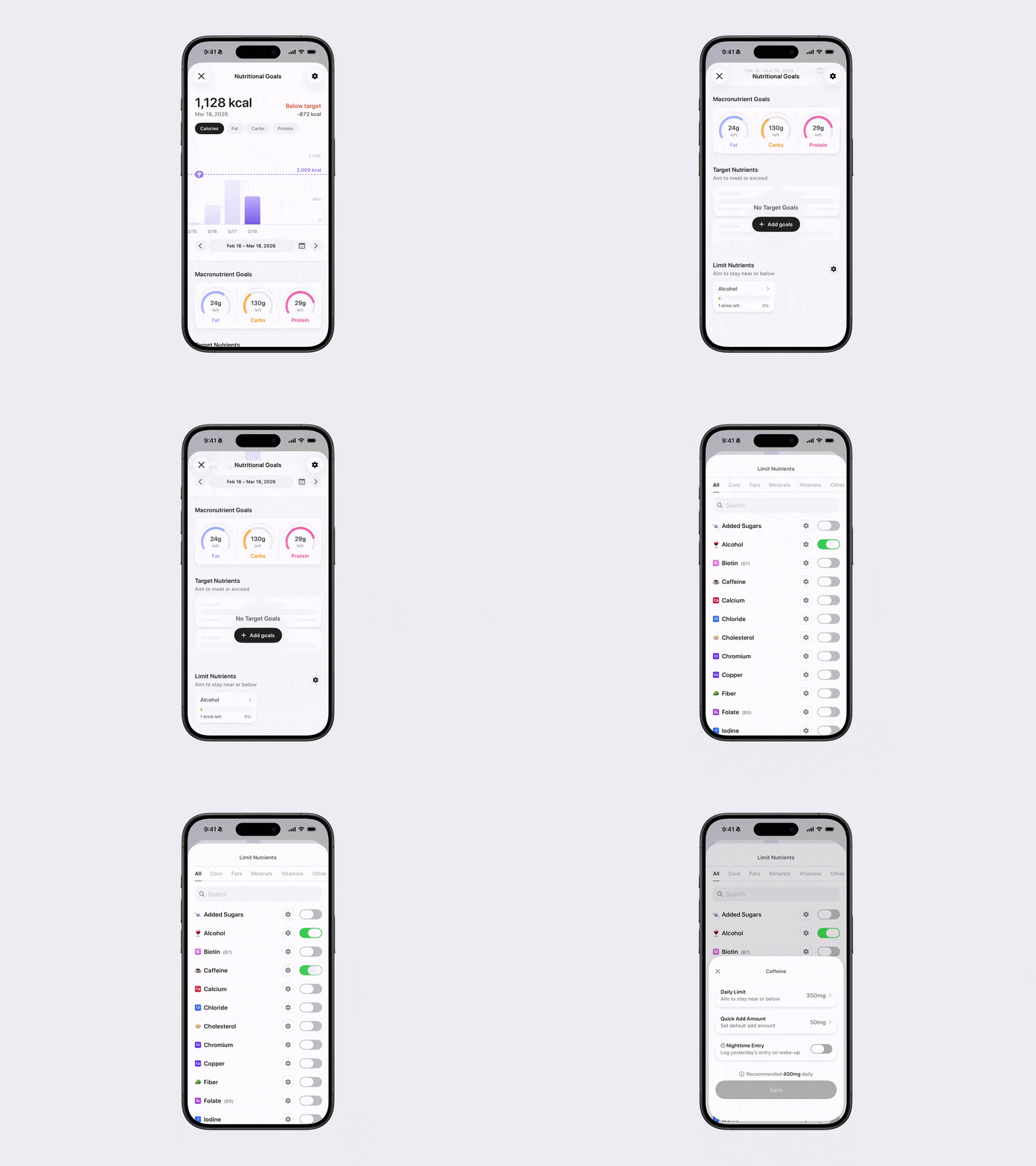
Limit Nutrients let you set daily maximums for nutrients you want to restrict to help you stay within healthy limits.
Open Bevel.
Scroll down to the Nutrition section and tap to open it.
Tap Goals.
Under the Limit Nutrient section, tap the gear icon to the right of Limit Nutrients.
Find the nutrient you want to limit.
Toggle that nutrient on.
Tap the gear icon next to the toggle to:
Change the daily target.
Quickly add an amount daily.
Log a nighttime entry on wake-up.
Tap Save.
Note: You can manually add to a Target Nutrient or Limit Nutrient goal by tapping the nutrient, then selecting Add Custom in the bottom-right. Alternatively, you can add the recommendation from the bottom left.