How to Change Activity Status
Bevel lets you set your Activity Status to reflect your current condition, whether you are active, sick, injured, or on a break.
With Bevel Pro, Bevel Intelligence also uses your activity status when providing Insights throughout the day or when your status changes. This allows Bevel to deliver more personalized guidance and highlight Trends that matter most for your health, Recovery, and performance.
This article explains how to change your activity status, what each status means, and how the Sickness Detector works.
Accessing Activity Status
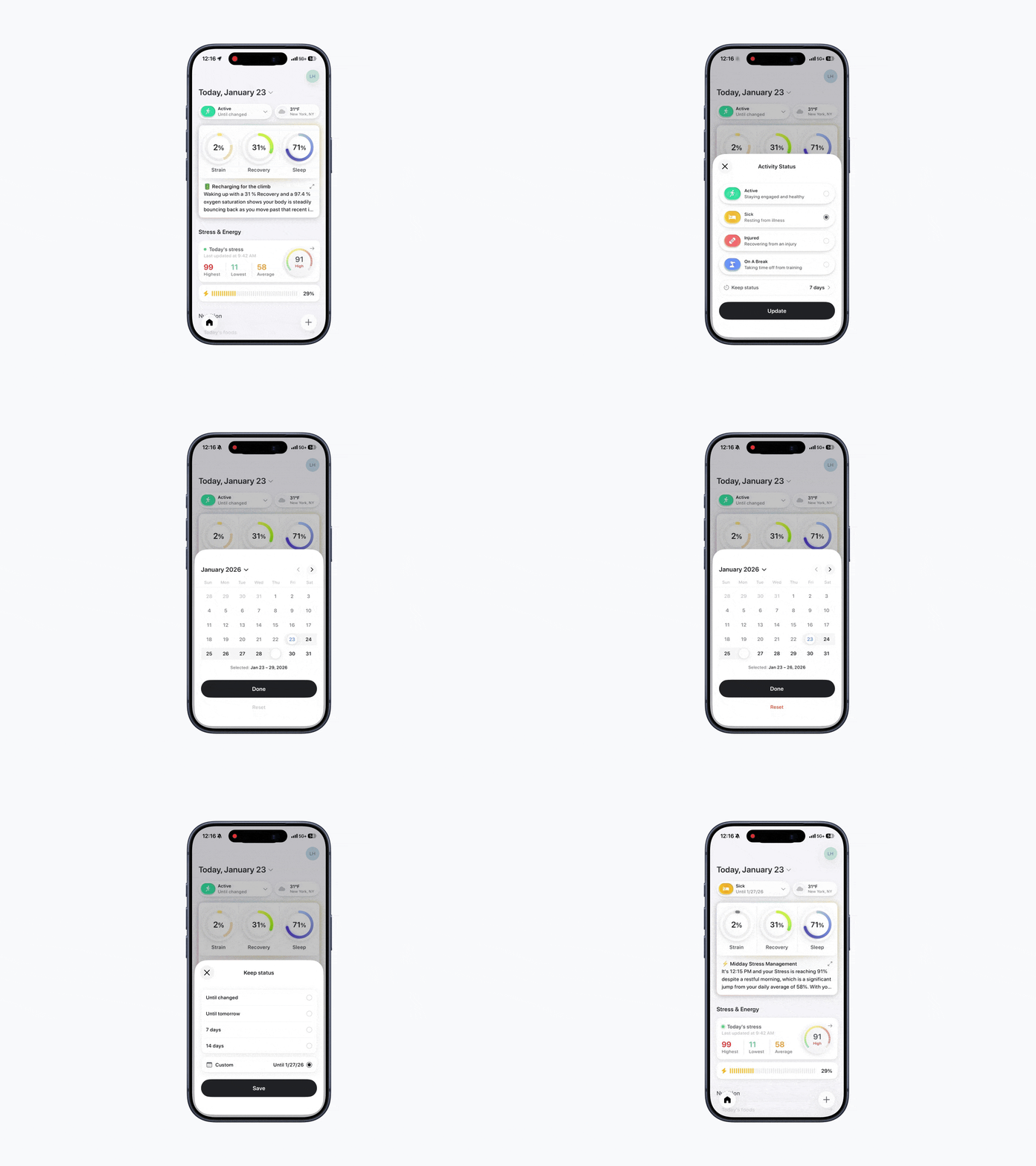
Open Bevel.
In the top left, tap your current status (Active, Sick, Injured, or On a Break).
From here, you can view and update your current activity state.
Changing Your Activity Status
Select your new status: Active, Sick, Injured, or On a Break.
Choose the length of time to keep this status using the Keep Status options:
Until changed
Until tomorrow
7 days
14 days
Custom amount of time
Tap Save.
Tap Update.
Bevel will immediately adjust Strain, Recovery, and Insight calculations based on your selected status.
Activity Status Options
Active: You are training normally. Bevel calculates Strain, Recovery, and performance metrics as usual.
Sick: You are feeling unwell. Bevel reduces activity-related Strain calculations and adjusts recommendations to support Recovery.
Injured: You are physically unable to train. Bevel limits Strain calculations and modifies Recovery guidance accordingly.
On a Break: You are taking planned time off from training. Bevel adjusts metrics to account for reduced activity.
Trends Chart and Activity Status
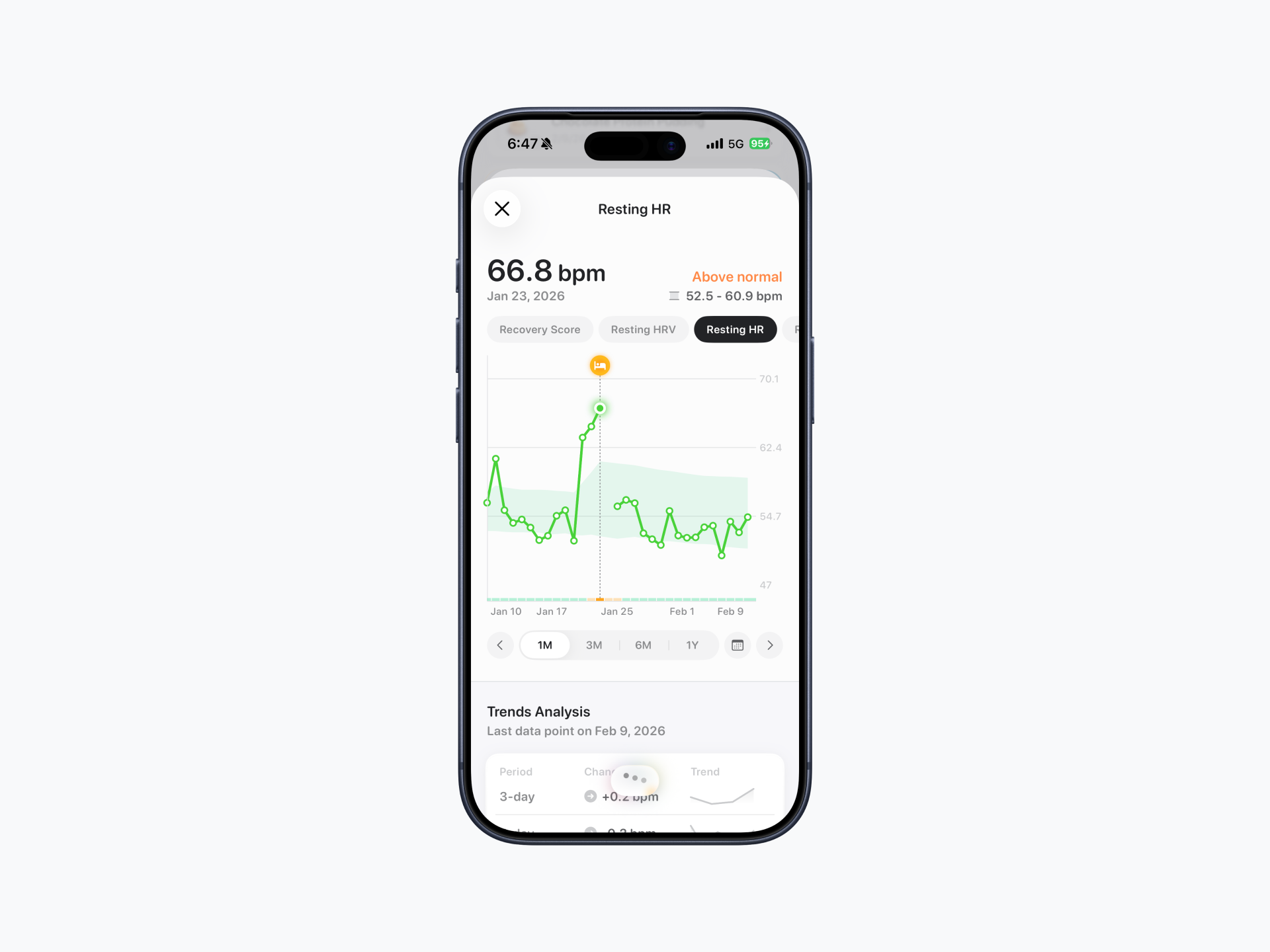
On any Trend chart, the activity status is displayed along the x-axis.
Using the Sickness Detector
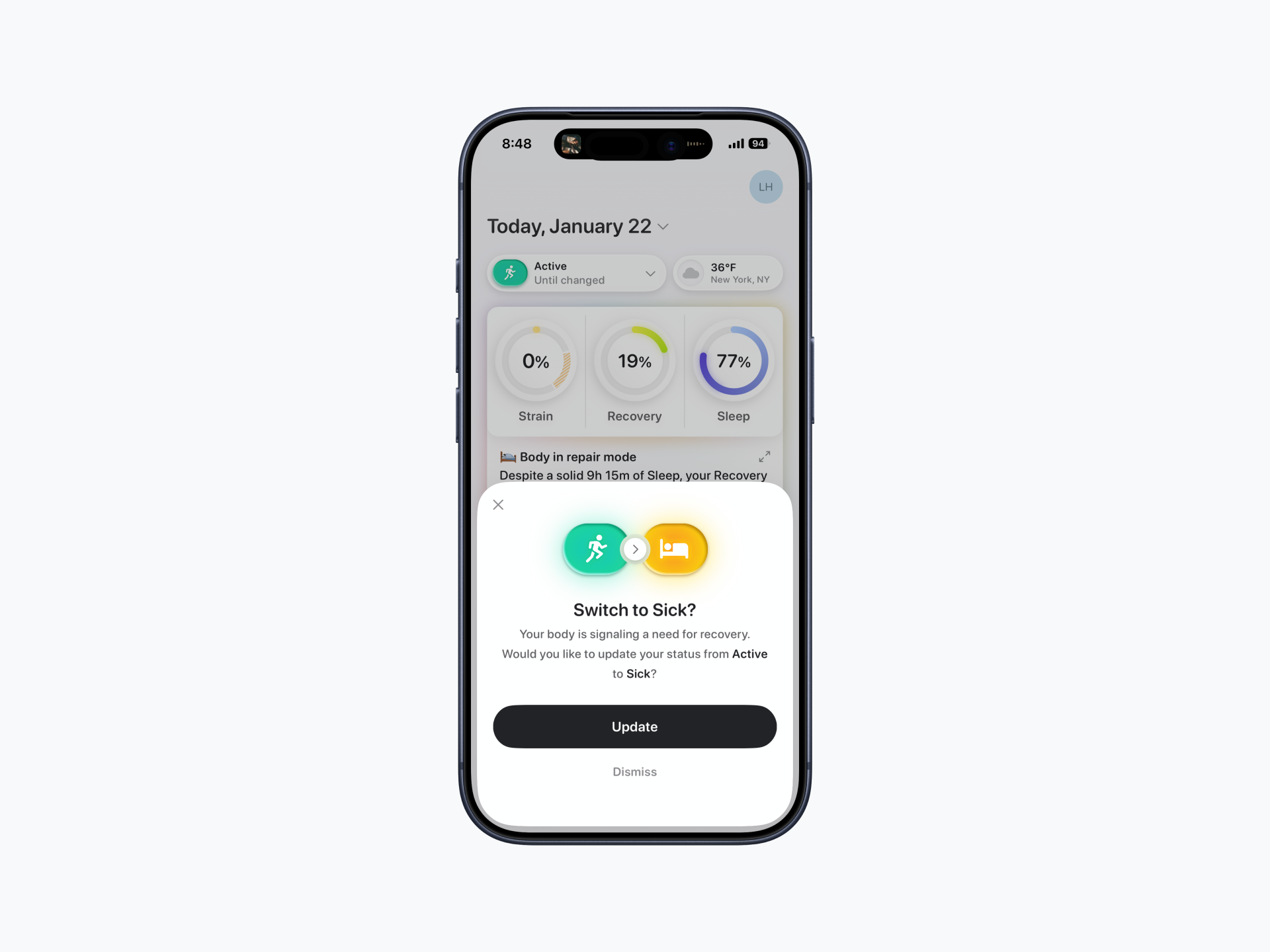
Bevel includes a Sickness Detector that can prompt you to update your status if your tracked metrics fall outside normal ranges.
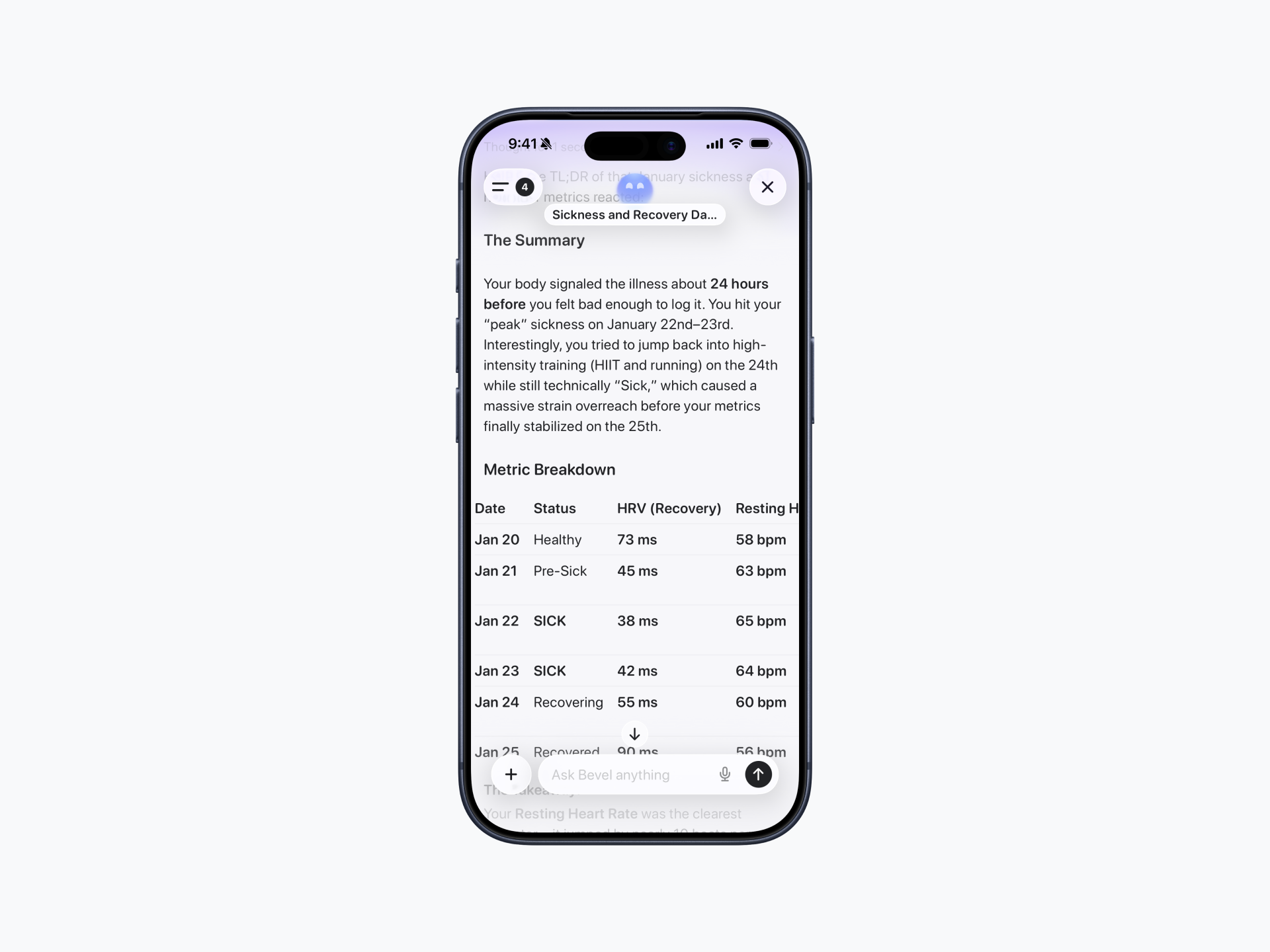
If Bevel detects unusual patterns, such as elevated heart rate, reduced HRV, or abnormal Sleep, it may suggest turning on Sickness Mode.
To enable it, follow the in-app prompt and switch your status to Sick.
This ensures Insights and Recovery recommendations are accurate while you’re unwell.