
How to Change Calculations
Bevel lets you customize certain calculations, such as Heart Rate Variability (HRV) and Resting Heart Rate (RHR), so your data better reflects your personal goals and physiology. Adjusting calculations ensures that Insights, Trends, and recommendations are tailored to you.
This article explains how to view and update calculation methods in Bevel.
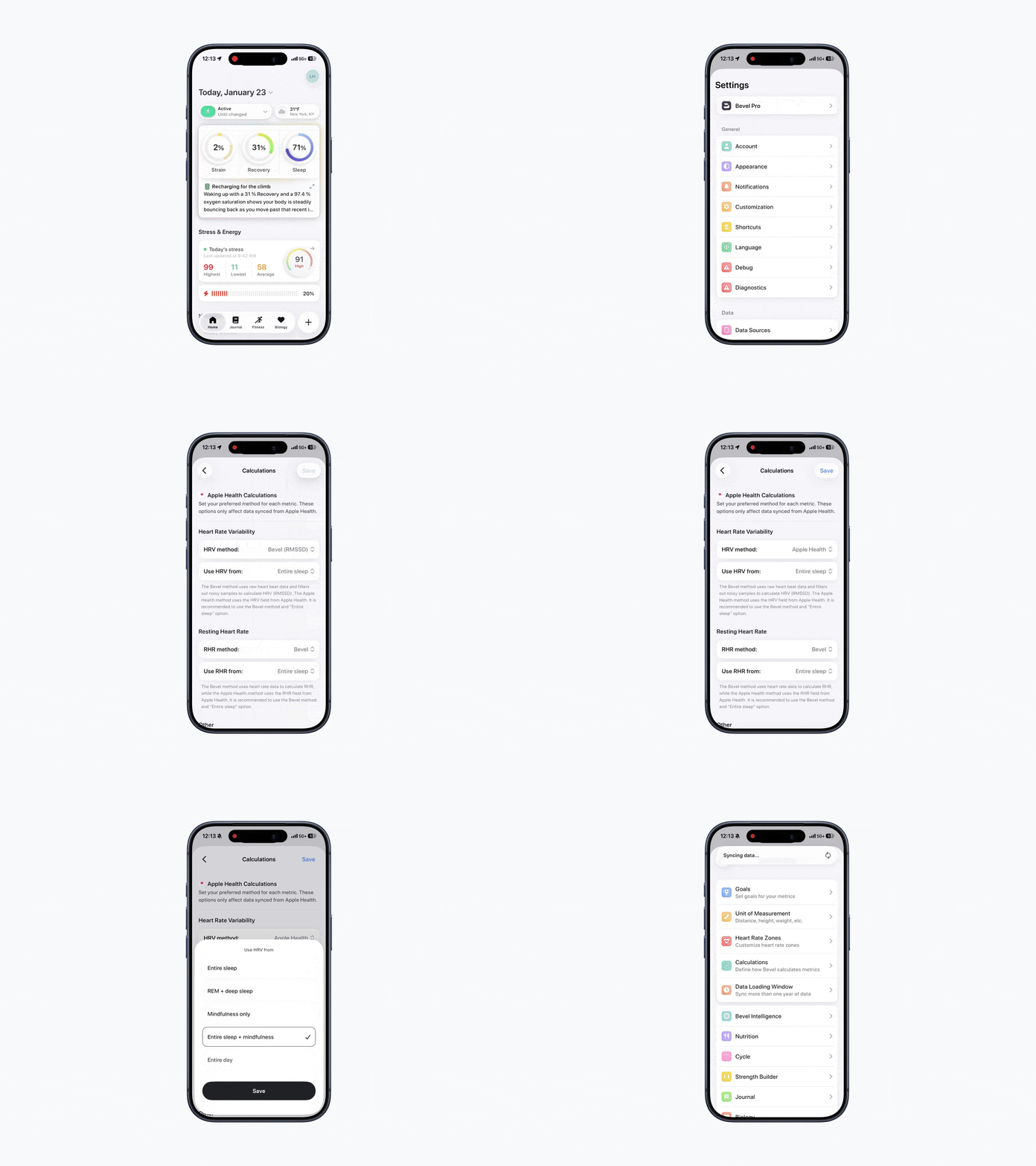
Accessing Calculation Settings
To update your calculation methods:
Open Bevel.
Tap your initials or profile picture in the top-right corner.
Tap Customization.
Tap Calculations.
From here, you can see the current method used for each calculation.
Changing Calculations
You can adjust calculations by:
Selecting a Different Method
Tap Method for the calculation you want to change.
Choose a new method from the available options.
Adjust where Bevel pulls the data from.
HRV Method
Apple Health
Uses HRV values already calculated and stored in Apple Health
Apple Health uses the SDNN method to calculate HRV, but other devices may write to Apple Health using SDNN or RMSSD methods
Best if you want Bevel to mirror Apple Health exactly
Bevel (RMSSD)
Bevel calculates HRV using RMSSD (Root Mean Square of Successive Differences) based on beat-to-beat samples from your Apple Watch
Provides a consistent and standardized HRV calculation that captures short-term differences
Only applies for users with an Apple Watch where beat-to-beat samples are available
SDNN vs. RMSSD - what is the difference and why does Bevel use RMSSD?
RMSSD reflects short-term HRV and parasympathetic (rest/recovery) activity, making it ideal for daily recovery tracking.
SDNN captures overall HRV but is more influenced by long-term trends and less stable for day-to-day insights.
By default, your Apple Watch measures HRV using the SDNN method. Bevel uses RMSSD because it’s more reliable for assessing sleep and recovery in real time.
Use HRV From
Entire Sleep (Recommended)
Uses HRV data collected during your full Sleep window
Produces the most stable and consistent Recovery Scores
Best for day-to-day Recovery tracking
REM + Deep Sleep
Uses HRV data only from REM and Deep Sleep Stages
Can reduce noise but may result in less data on some nights
Useful if you want HRV focused on deeper Sleep phases
Mindfulness Only
Uses HRV recorded during mindfulness or breathing sessions
Best if you consistently perform guided breathing or meditation
Not recommended if mindfulness sessions are irregular
Entire Sleep + Mindfulness
Combines Sleep HRV with mindfulness sessions
Can provide more data points if mindfulness is done regularly
Entire Day
Uses HRV data collected throughout the entire day
Recovery Score may change as new data is recorded
Note: For the most consistent Recovery tracking, we recommend Bevel (RMSSD) + Entire Sleep for Apple Watch users, as it only uses data from your Sleep window and keeps your Recovery Score stable throughout the day.
RHR Method
Apple Health
Uses resting heart rate values calculated by Apple Health
Best if you want Bevel to match Apple Health exactly
Bevel
Bevel calculates resting heart rate based on the average of heart rate samples in your selected data window
Provides more control over how RHR is determined
Use RHR From
Entire Sleep (Recommended)
Uses RHR data collected during your full Sleep window
Produces the most stable and consistent baseline
Best for long-term Trend tracking
REM + Deep Sleep
Uses RHR data only from REM and Deep Sleep stages
Can reduce noise but may result in fewer data points on some nights
Useful if you want RHR focused on deeper Sleep phases
Mindfulness Only
Uses RHR recorded during mindfulness or breathing sessions
Best if you consistently perform guided breathing or meditation
Not recommended if mindfulness sessions are irregular
Entire Sleep + Mindfulness
Combines Sleep RHR with mindfulness sessions
Can provide more data points if mindfulness is done regularly
Entire Day
Uses RHR data collected throughout the entire day
May reflect overall daily Recovery and fatigue, but can be more variable
Note: RHR is also used in Cardio Load calculations. Changing your RHR setup may cause noticeable changes in Cardio Load metrics.
Temperature Method
Uses wrist-based temperature measurements
Most commonly available
Body
Uses core/body temperature estimates when available
May be more stable for some users
Recommended if you use a wearable that is not on the wrist, such as a ring or chest strap
Choose the method that best matches the data your device reliably provides.
Use SpO₂ From
Entire Sleep
Uses nighttime SpO₂ data only
Best for consistent Trend tracking
Entire Day
Uses all available SpO₂ readings
May fluctuate more throughout the day
Use RR From
Entire Sleep
Focuses on breathing patterns during Sleep
Recommended for baseline tracking
Entire Day
Includes daytime readings
Useful if you want a broader view of respiratory changes
Cardio Display
Includes resting and active calories in Strain Trends
Best for understanding overall energy expenditure
Active Calories
Includes only calories burned from activity in Strain Trends
Useful if you focus on workouts and movement
This is shown within Strain. Active Calories displays calories from recorded activities only, while Total Calories includes both Active Calories and Resting Energy.
Note: Calories in Nutrition and Net Energy will always show Total Calories vs. Calories Consumed.
Merge Manual Sleep
Yes
Manual Sleep entries are combined with tracked Sleep
Useful if you occasionally forget to wear your device
No
Manual Sleep entries remain separate
Recommended if you want only device-recorded Sleep included
Saving Changes
Once you’ve made your adjustments:
Tap Save in the top-right corner.
Your updated calculation settings will now be applied throughout Bevel.