
How to Change the Data Loading Window
Bevel lets you control how much historical data is synced to your account. By default, Bevel loads one year of past data, but you can extend this window to gain insights from a longer training history.
Adjusting your data loading window can help Bevel better understand long-term trends, patterns, and performance changes over time.
This article explains how to view, update, and save your Data Loading Window in Bevel.
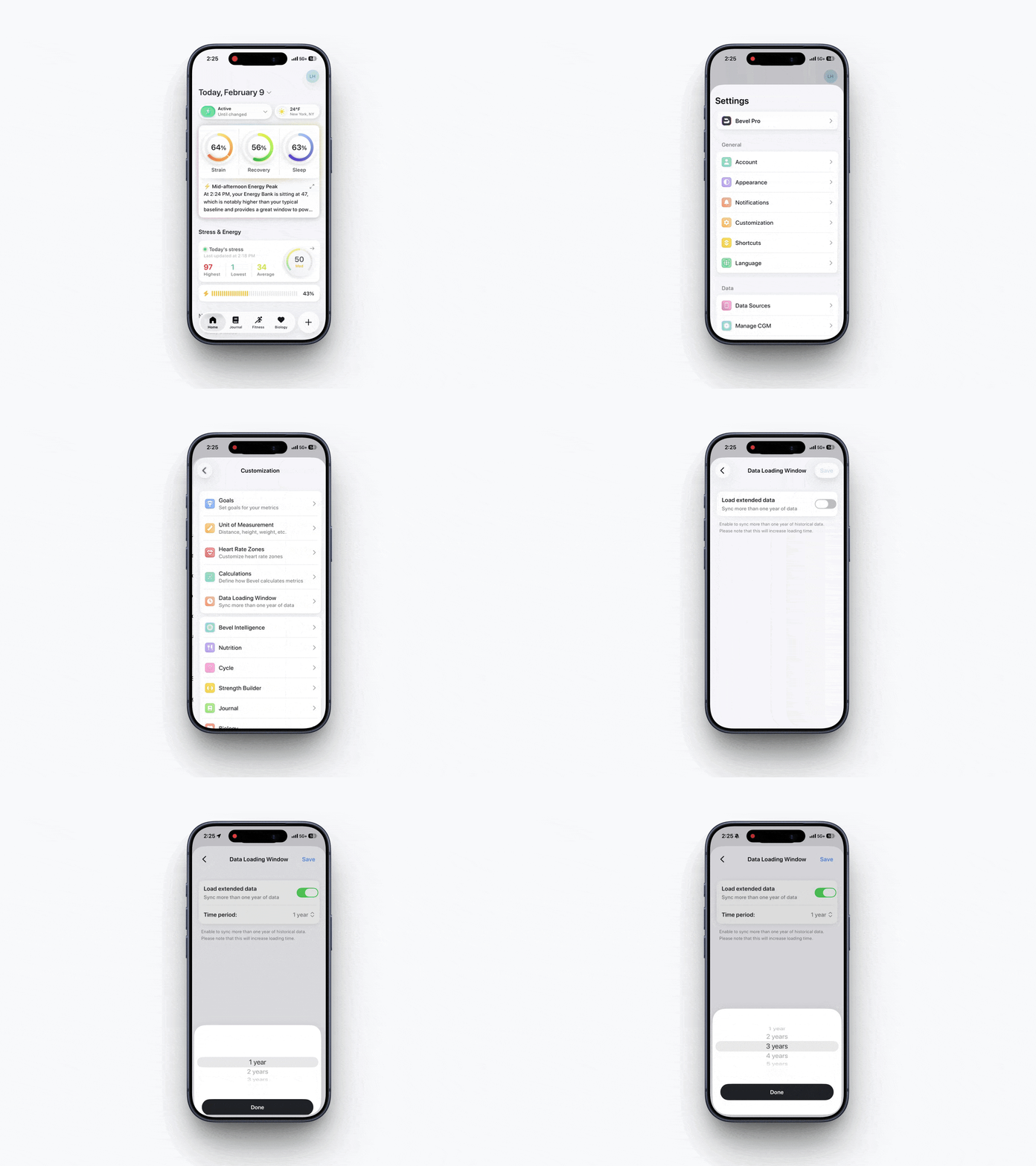
Changing Data Loading Window
To update your data loading window:
Open Bevel.
Tap your initials or profile picture in the top-right corner.
Tap Customization.
Tap Data Loading Window.
If you want to extend for more than a year, toggle the switch next to Load extended data.
Click the drop down next to Time period and scroll to how many years you want to sync. The max is 5 years.
Click Save.
Once saved, Bevel will sync the amount of time specified. Please note that adding more than 1 year of data may significantly increase loading times.
If you no longer need extended history, you can return to this screen at any time and reduce your data loading window. Your selected Data Loading Window will now be used across Bevel for trend analysis, insights, and historical metrics.