
How to Change Heart Rate Zones
Bevel lets you customize your heart rate zones to better match your fitness level and goals. Adjusting these zones ensures your Strain, Recovery, and workout metrics are more accurate and meaningful.
This article explains how to view, edit, and save your heart rate zones in Bevel.
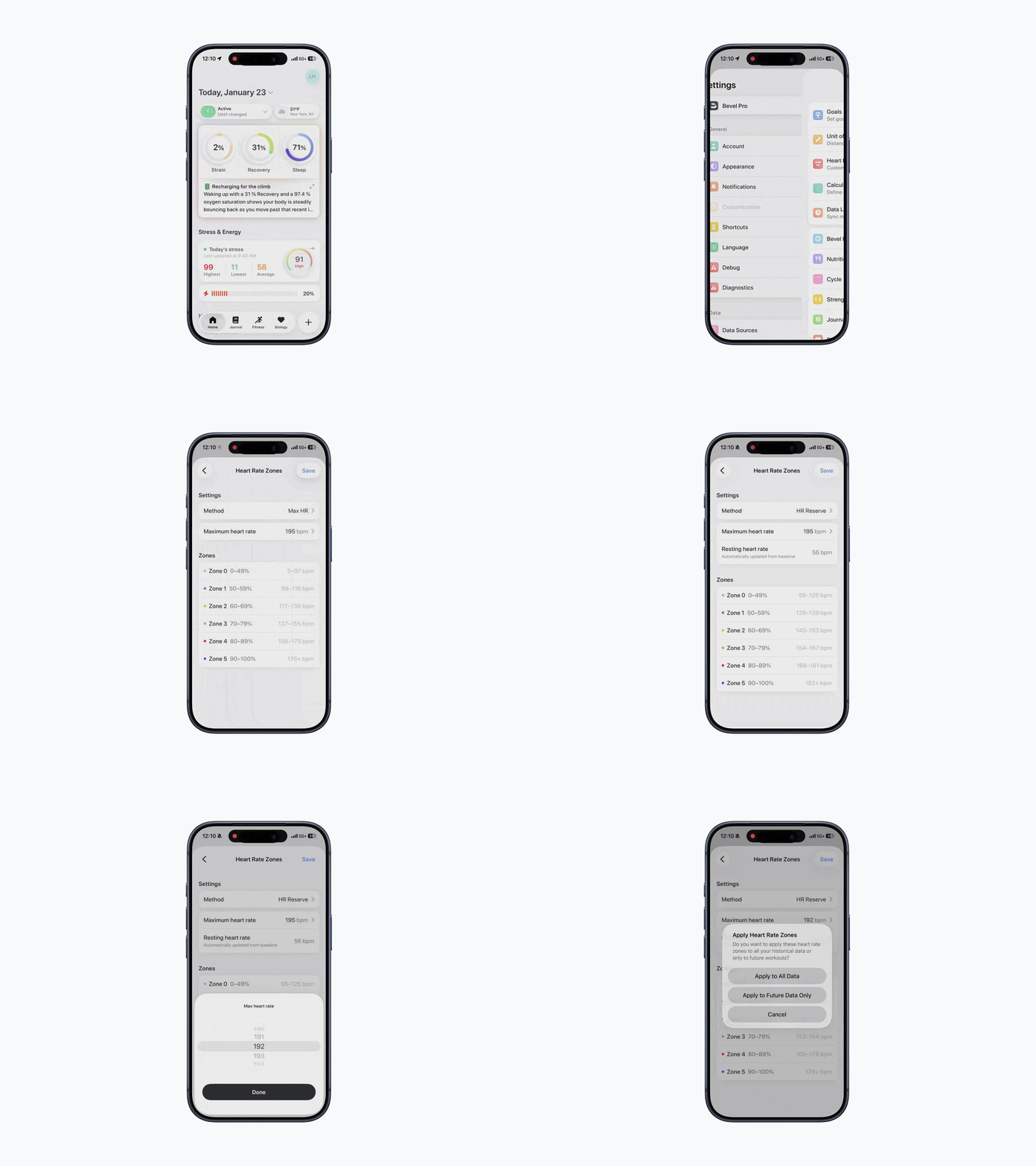
Accessing Heart Rate Zones
To update your heart rate zones:
Open Bevel.
Tap your initials or profile picture in the top-right corner.
Tap Customization.
Tap Heart Rate Zones.
From here, you’ll see your current zones and the method used to determine each level.
Updating Heart Rate Zones
You can update zones in two ways:
Change the Method
Tap Method.
Select a different method to calculate your zones (e.g., standard formulas, custom inputs).
Adjust Inputs
Edit the inputs for the selected method, such as your Maximum Heart Rate or other required metrics.
Each zone will automatically update based on your new inputs.
Heart Rate Zone Calculation Methods
Bevel supports multiple methods for calculating heart rate zones. Each method is suited to different training styles and data availability.
Max Heart Rate
Zones are calculated as percentages of your maximum heart rate.
Common and widely used method
Best if you know your true max HR (from testing or hard efforts)
Simple and effective for general training
Heart Rate Reserve (HRR)
Zones are calculated using your heart rate reserve (Max HR − Resting HR).
Incorporates your daily resting heart rate baselines
Produces more personalized zones than Max HR alone
Useful if your resting heart rate is reliably tracked
Lactate Threshold
Zones are calculated based on your lactate threshold heart rate (LTHR).
Ideal for endurance athletes (running, cycling, triathlon)
Best used if you have tested or accurately estimated your LTHR
Aligns closely with performance-based training zones
Manual
Zones are fully customized and set manually.
Ideal if you work with a coach or follow a specific training plan
Useful when you already know your preferred zone ranges
No automatic adjustments are applied
Saving Changes
Once you’ve made your adjustments:
Tap Save in the top-right corner.
Choose whether to apply Heart Rate Zones to:
All Data
Future Data Only
Choosing “All Data” vs “Future Data Only”
When saving heart rate zone changes, Bevel gives you control over how those changes affect your data.
Apply to All Data
Your new heart rate zones will be applied to your entire history.
Bevel will recalculate past Strain, Cardio Load, and workout metrics
Historical values may change significantly
When to choose this
Your previous zones were clearly incorrect
You just learned your true Max HR or LTHR
You want historical data to be consistent with your current training model
Apply to Future Data Only
Your new heart rate zones will only affect new workouts and metrics going forward.
Past Strain and Cardio Load values remain unchanged
Historical Trends stay intact
When to choose this
You are fine with your historical data as-is
You’re making a small adjustment
You want a clean breakpoint between old and new training approaches
Your new heart rate zones will now be used for Strain, Cardio Load, and workout calculations throughout Bevel.