
How to Set Goals
Bevel allows you to set goals that help guide your progress and keep your data focused on what matters most to you. Goals enable Bevel to personalize Insights, recommendations, and your overall experience.
This article explains how to view, create, and update goals in Bevel.
Accessing Goals
To view your goals:
Open Bevel.
Tap your initials or profile picture in the top-right corner.
Tap Customization.
Tap Goals.
From here, you can review and manage all of your goals.
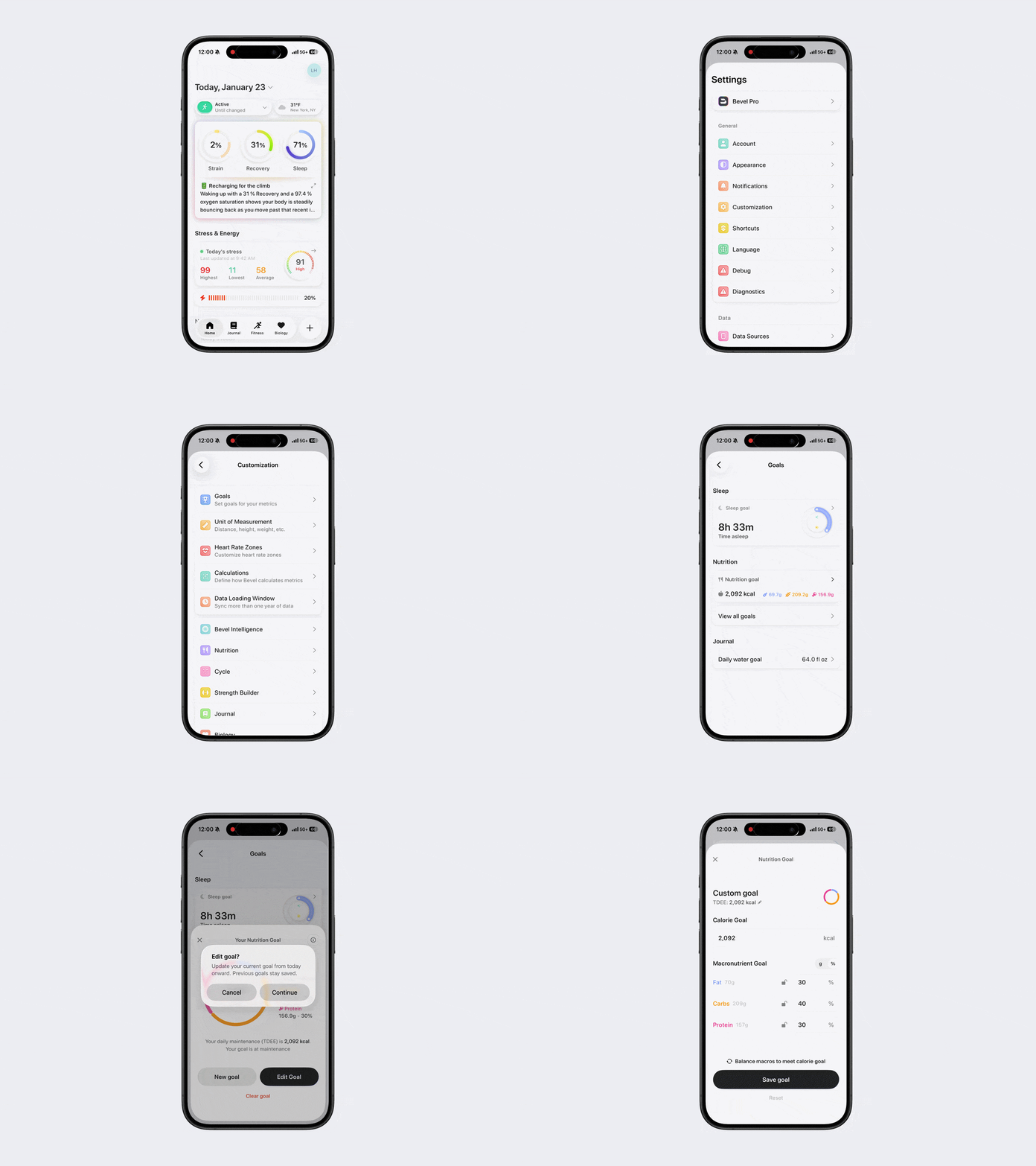
Customizing Goal Details
You can set goals for Sleep, Nutrition, and Water.
After selecting a goal, you may be prompted to customize the details, or Bevel may automatically determine goal values for you.
To customize a goal:
Tap the goal you want to change.
Adjust the available options.
Your changes will be applied immediately.
Sleep Goal
You can set your Sleep Goal manually, or
Allow Bevel to automatically calculate your Sleep Goal based on your past 90 days. This is the recommended option, and we suggest updating it from time to time to keep it accurate.
Note: This feature does not update automatically on a daily basis.
Your Sleep Goal contributes to your Sleep Score, so ensure it is achievable.
Nutrition Goal
Adjust calorie or macronutrient goals using grams or percentages.
You can:
Edit an existing goal, which affects both past and future dates, or
Create a new goal, which applies only to future dates.
Water Goal
Set your daily target for how much water you want to drink throughout the day.
Changing Goals Within the App
You can also update goals directly from specific areas of the app.
Nutrition Goal
Option 1: Edit or Create a Goal
Tap Nutrition on the Home Tab.
Tap Goals.
Tap the gear icon in the top-right corner.
Select New Goal to create a new goal or Edit Goal to update an existing one.
You can also set goals for Target Nutrients or Limit Nutrients directly from the Goals screen by tapping Add Goals or the gear icon next to the section you want to adjust.
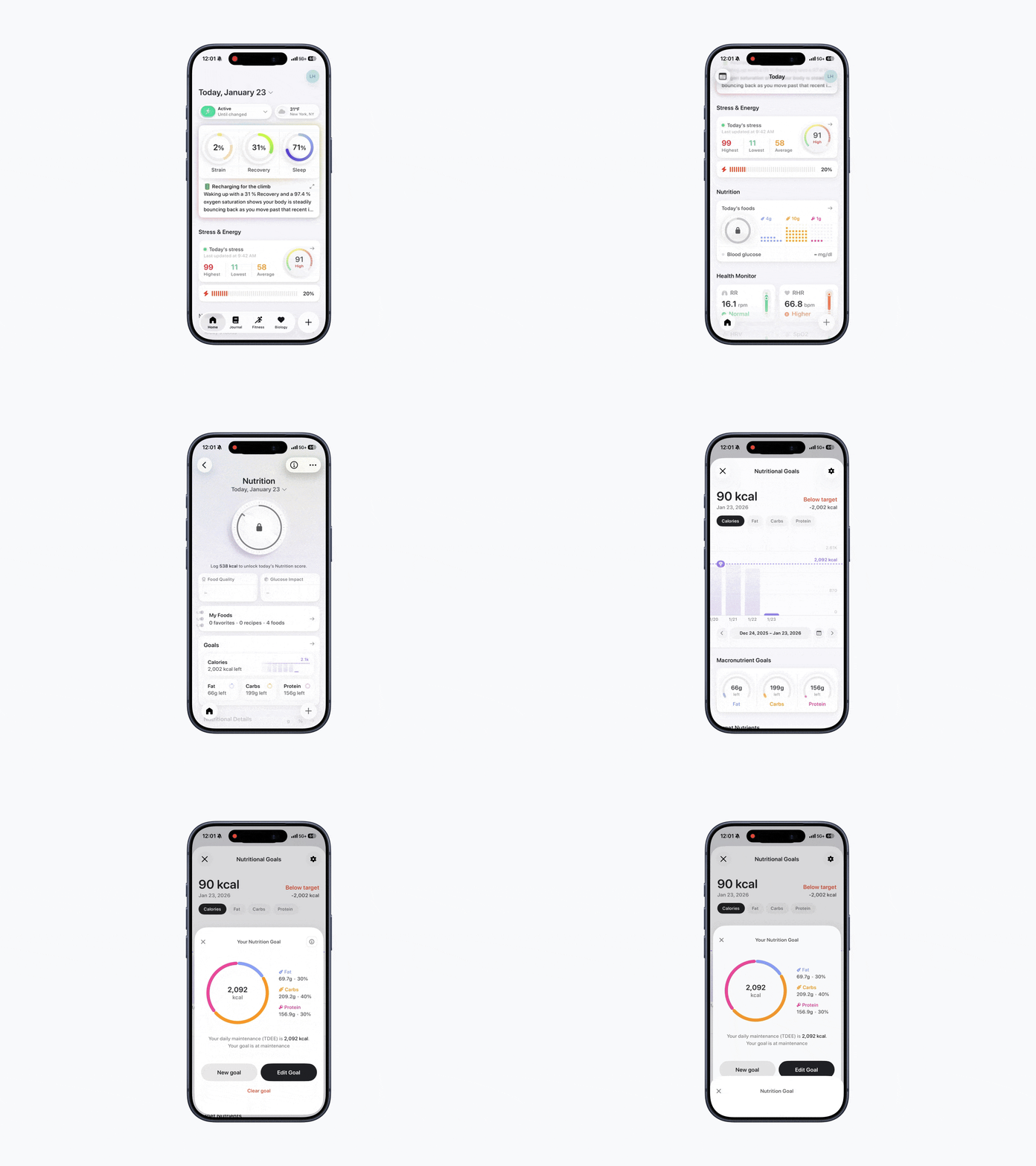
Option 2: Enable or Disable Goal Tracking
Tap the three dots (…) in the top-right corner of the Nutrition screen.
Tap Nutrition Settings.
Toggle Track Goals on or off. (Note: You cannot edit goals from this screen.)
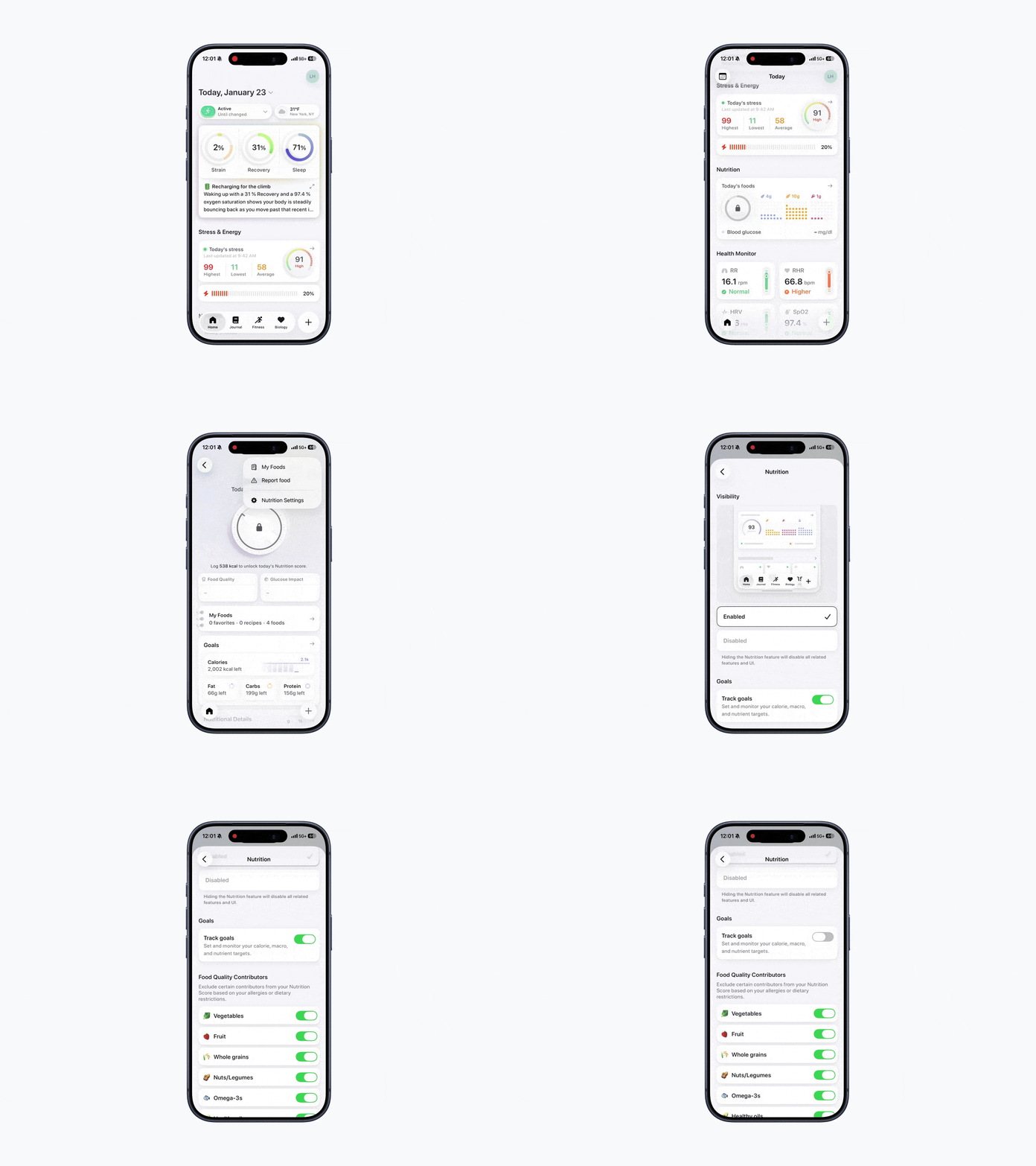
Water Goal
To update your water goal:
Tap Journal.
Tap Hydration.
Tap the gear icon in the top-right corner.
Tap Daily Target.
Adjust your target and tap Done to save.
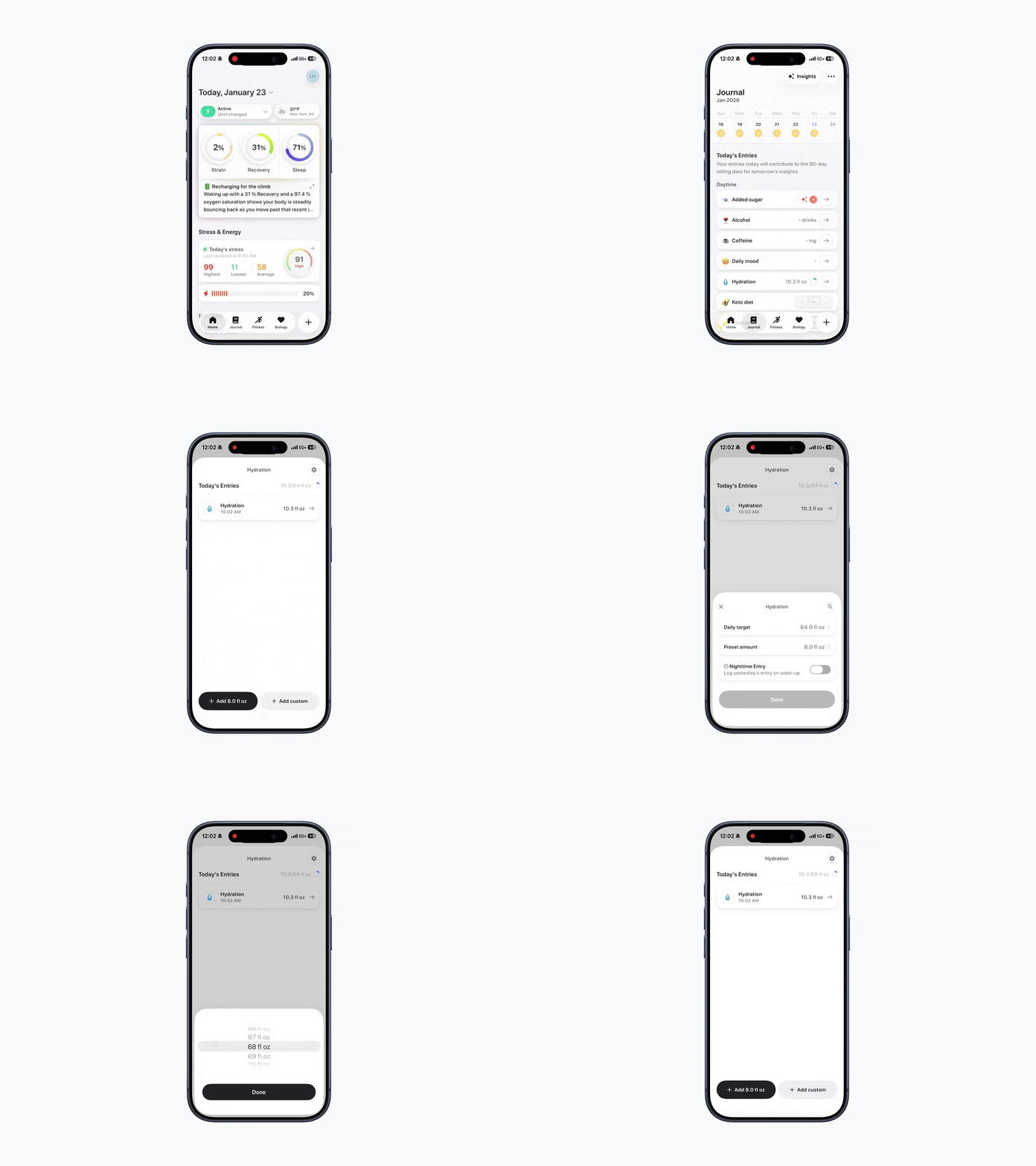
Set goals that reflect what you’re working toward, and let Bevel adapt to support you along the way.