How to Manage Data Sources
Bevel lets you connect multiple devices and apps as Data Sources. You can hide sources to control how your data is displayed, and in certain sections, you can also reorder them to adjust priority.
For the best experience, we recommend choosing one primary source, especially for Sleep and Workouts. Mixing data from multiple sources can lead to duplicates or inconsistencies, while hiding unused sources helps keep your Insights accurate and easy to understand.
Reorder Data Sources for Sleep
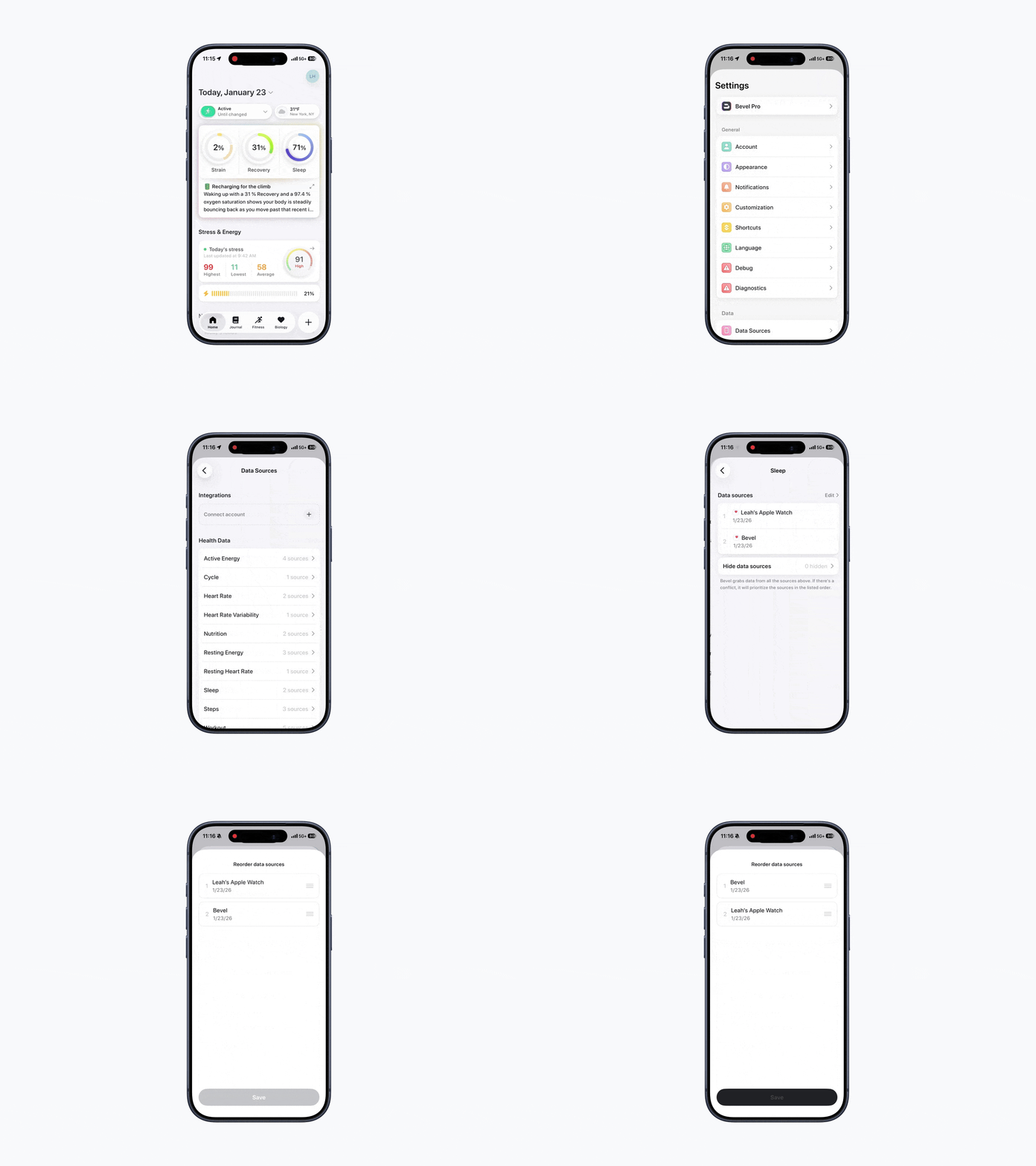
You can change the order in which Bevel prioritizes or displays data from multiple sources for Sleep.
Open Bevel.
Tap your initials or profile picture in the top-right corner.
Tap Data Sources.
Select Sleep.
Tap Edit in the top-right corner.
Press and drag a data source to the desired position.
Release to place it.
Tap Save to confirm the new order.
Hide a Data Source
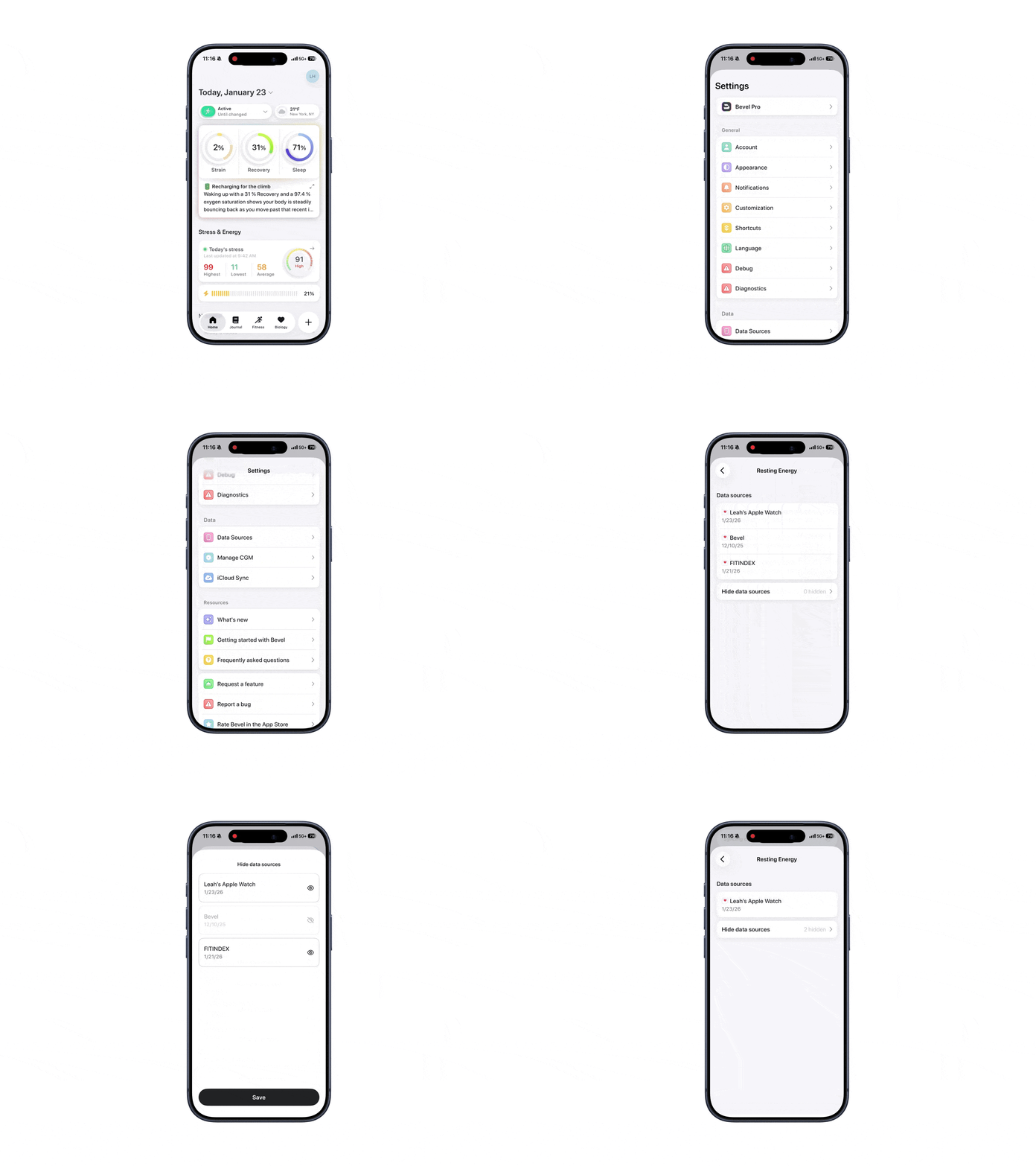
If you want Bevel to ignore data from a particular source, you can hide individual Data Sources. This is especially recommended for Workouts and Sleep. Using a single source helps avoid duplicate entries and mixed statistics, resulting in more accurate and consistent data.
Open Bevel.
Tap your initials or profile picture in the top-right corner.
Tap Data Sources.
Select the health category you want to manage.
Tap Hide Data Sources.
Select the sources you want to hide.
Tap Save.